How to outline text in PowerPoint


Discover how to make text stand out with outlined text in PowerPoint for captivating presentations
Adding an outline to text in PowerPoint can make it stand out and enhance its visibility, especially when placed on busy backgrounds or images. Whether you're creating a presentation, designing graphics, or crafting visual content, knowing how to outline text in PowerPoint can add a professional touch to your slides. In this guide, we'll walk through the step-by-step process of outlining text in PowerPoint, allowing you to create eye-catching and impactful presentations effortlessly.
How to outline text in PowerPoint
Insert Text Box:
Begin by launching PowerPoint and opening your presentation or creating a new slide where you want to add text.
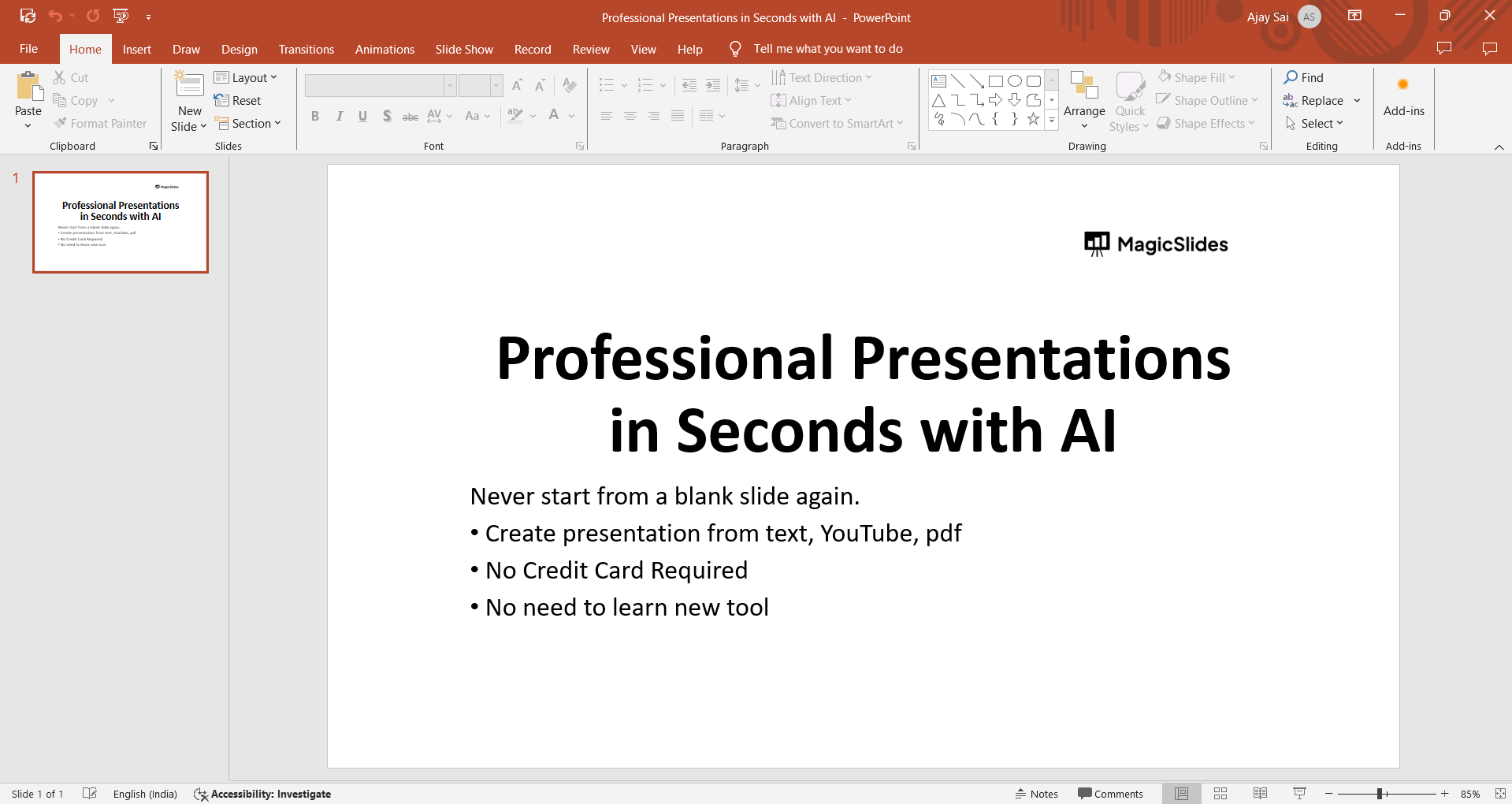
Click on the "Insert" tab in the top menu and select "Text Box" to insert a new text box onto the slide.
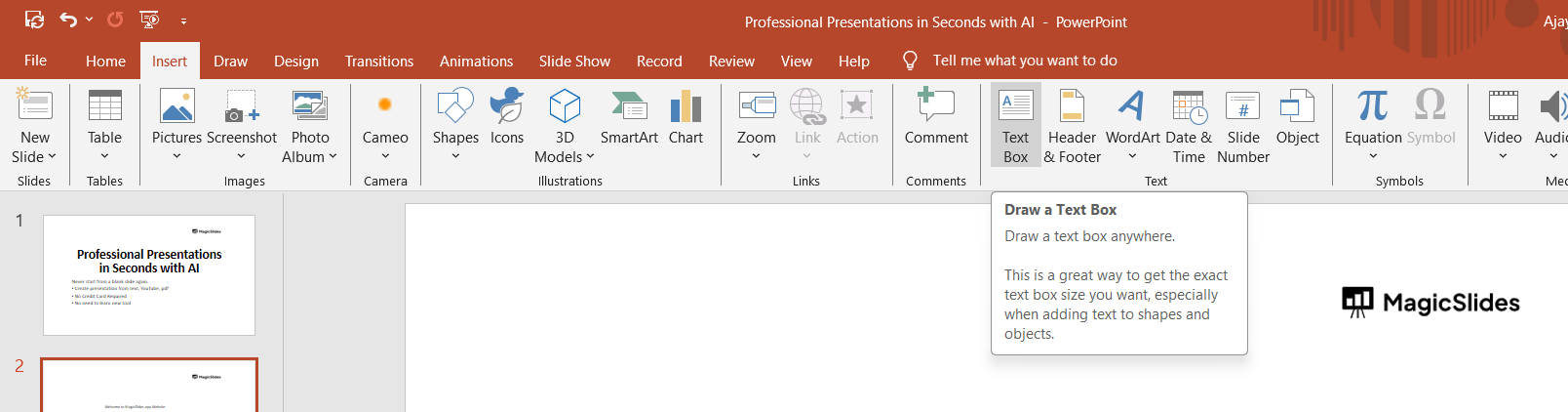
Enter Text:
Click inside the text box and type the desired text. You can adjust the font, size, and alignment using the formatting options in the top menu or the formatting toolbar that appears when the text box is selected.
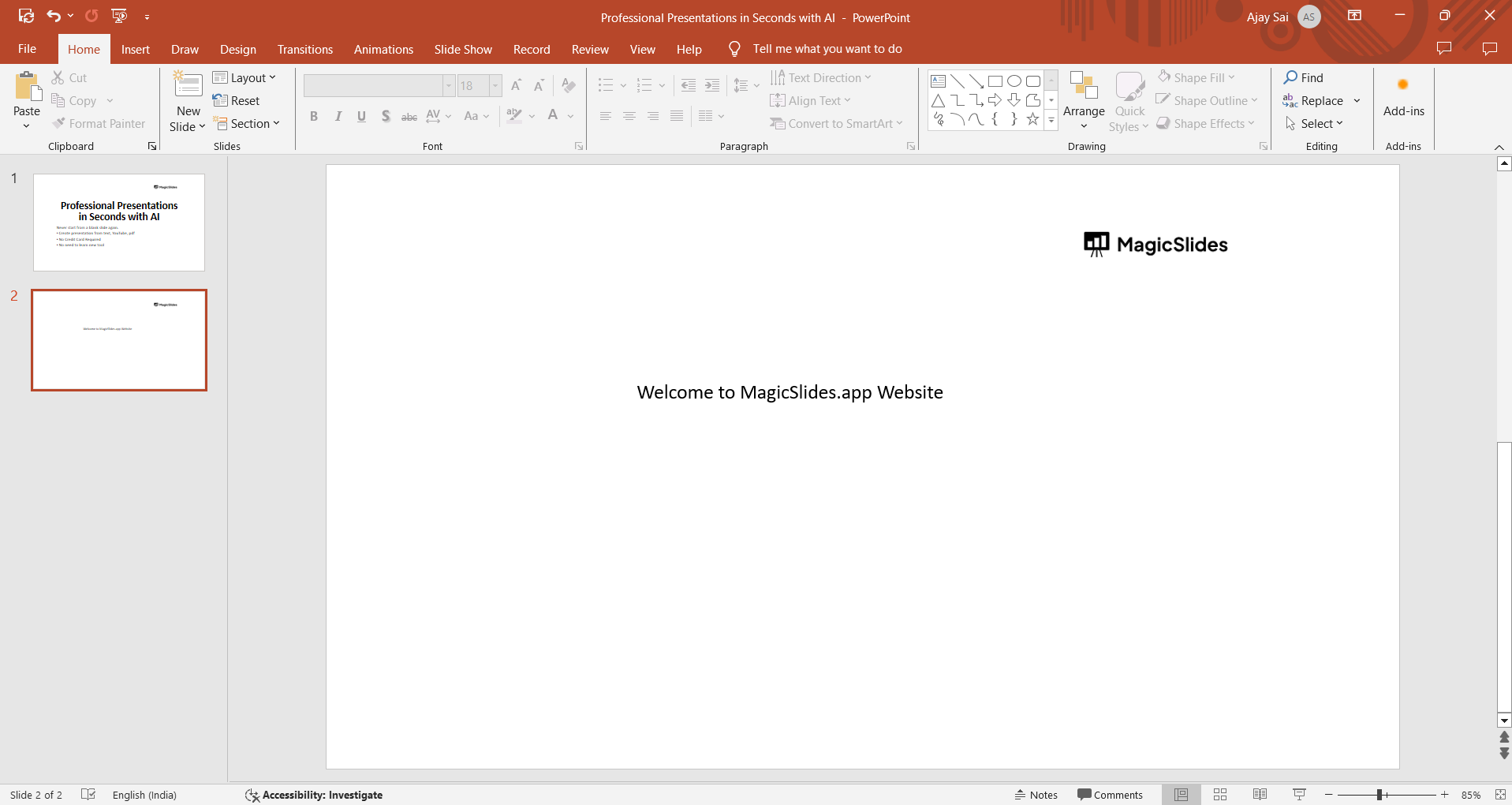
Select the Text:
Once you've entered your text, click and drag to select it. You'll know it's selected when you see a bounding box around the text with small white squares or circles on its corners and sides.
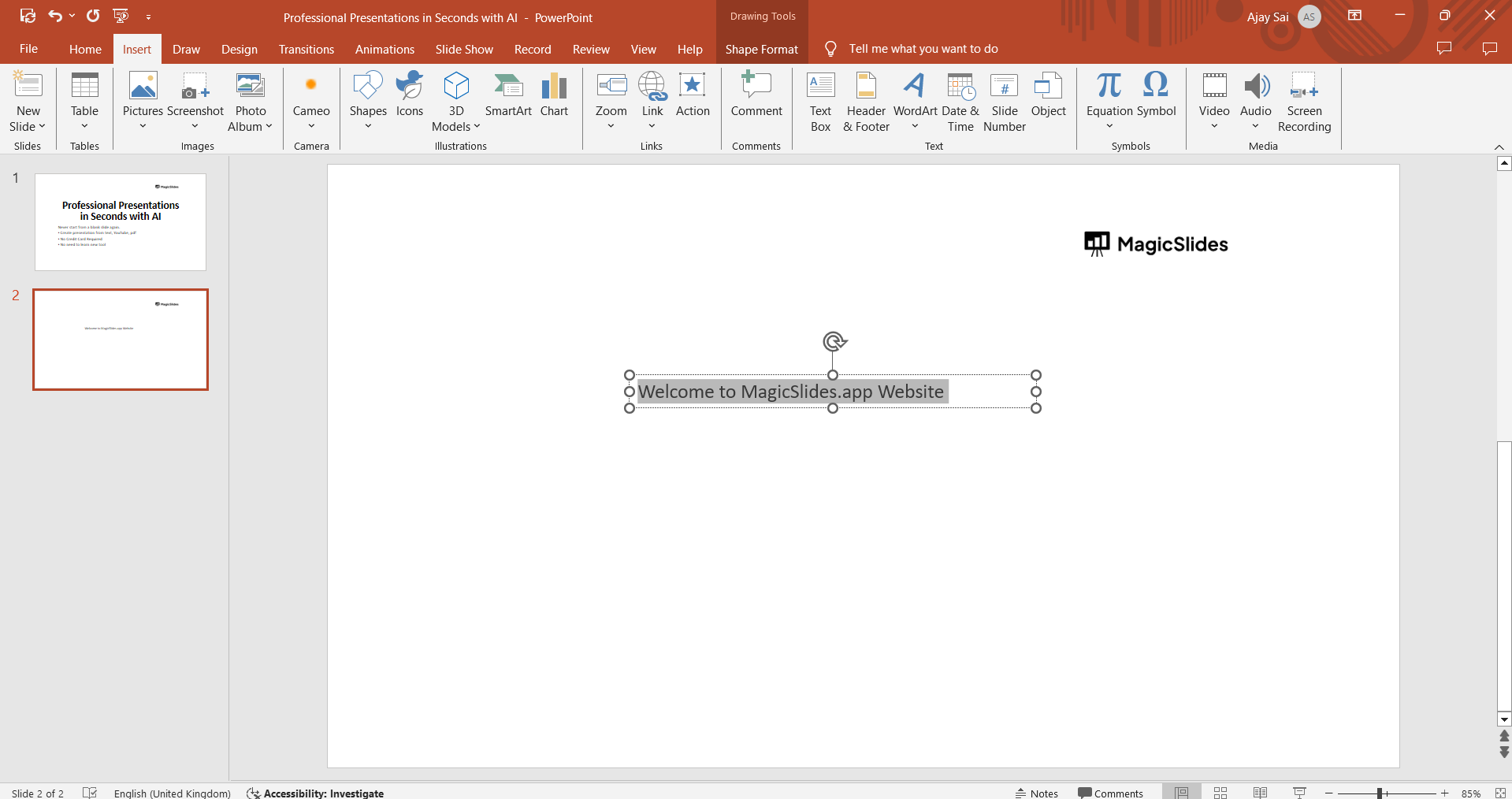
Access Text Outline Options:
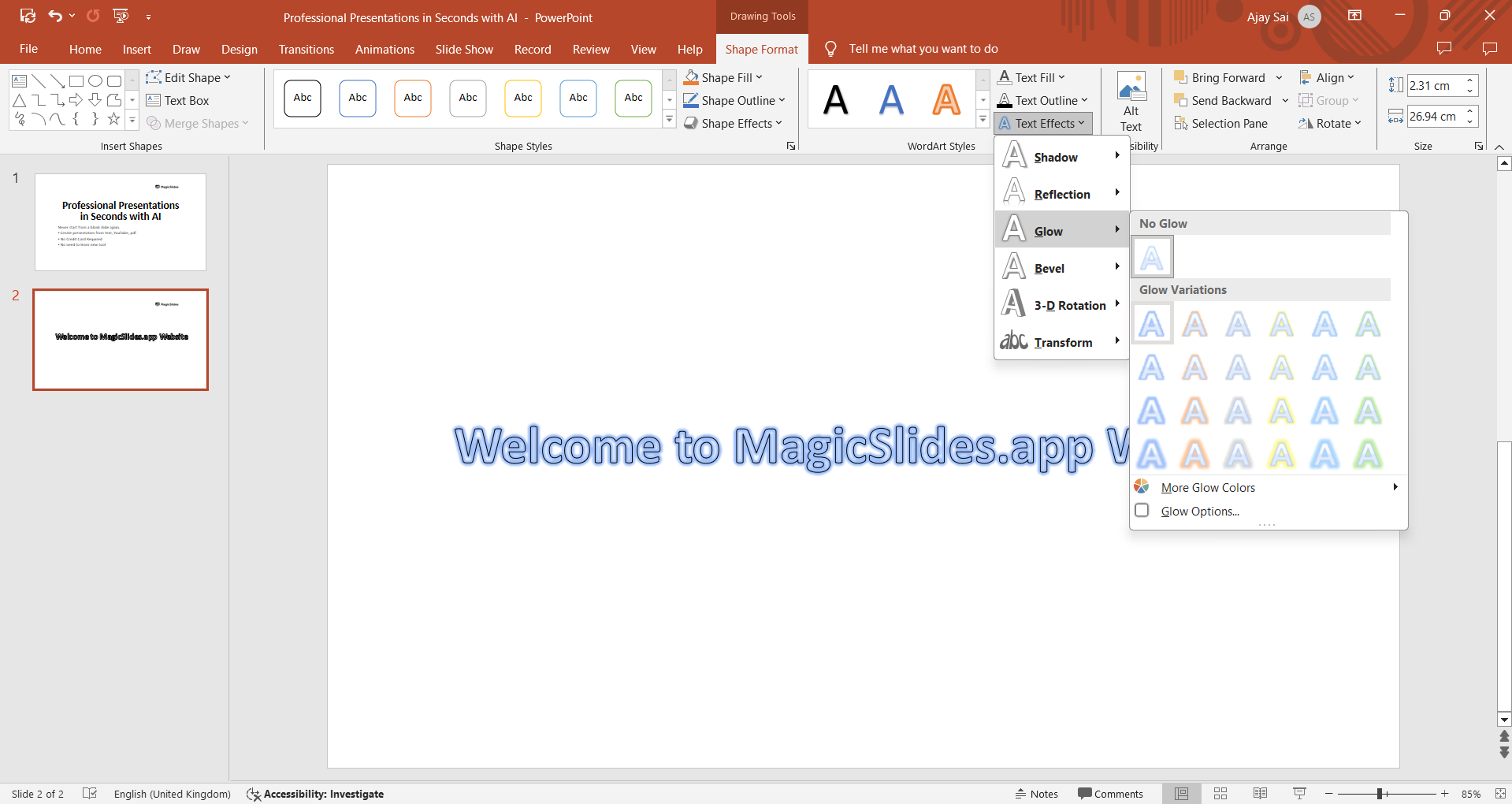
With the text selected, navigate to the "Home" tab in the top menu. Here, you'll find various options for formatting text. Click on the "Text Outline" button, usually represented by a letter "A" with a colored outline around it.
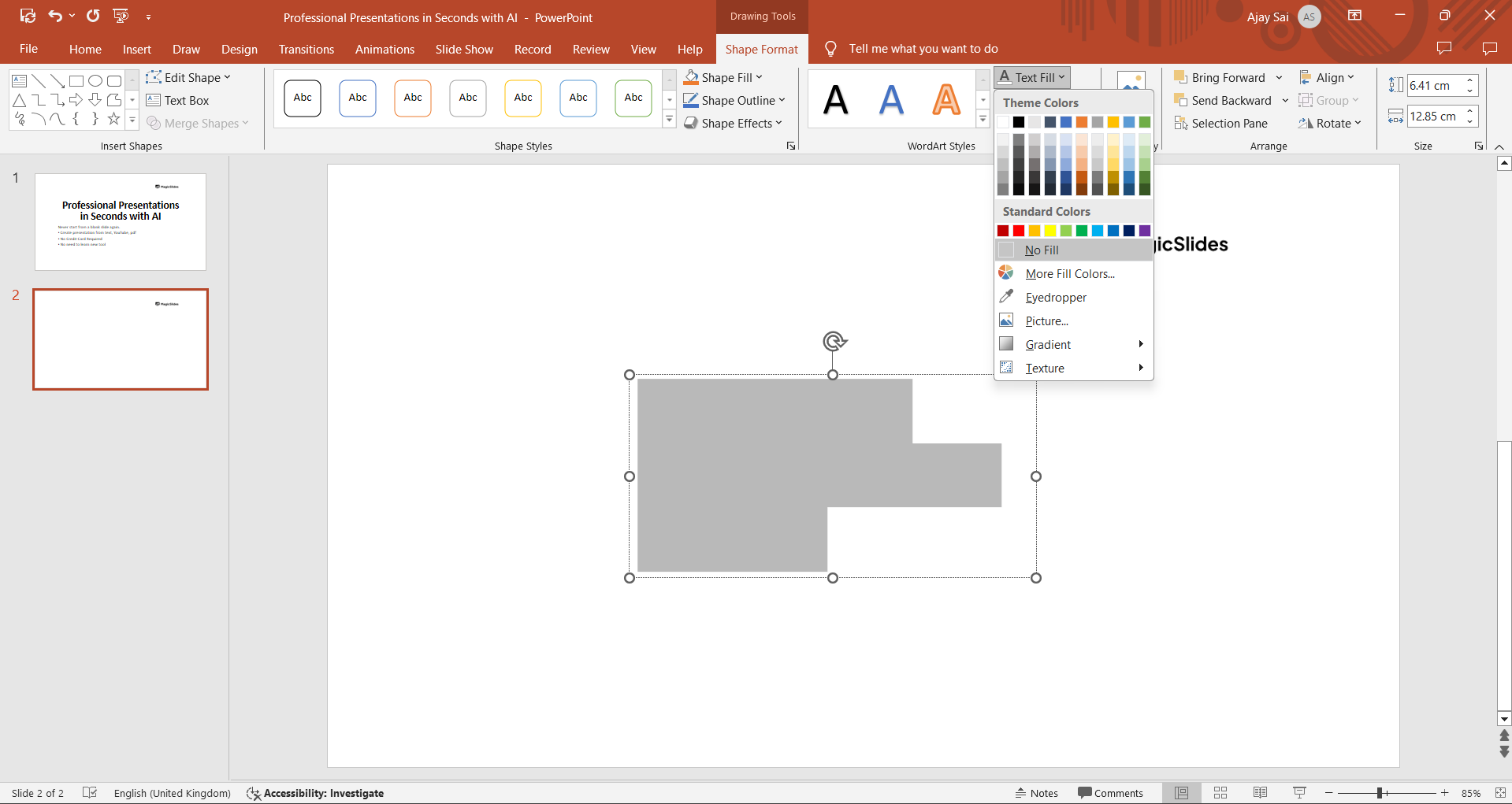
Choose Outline Color:
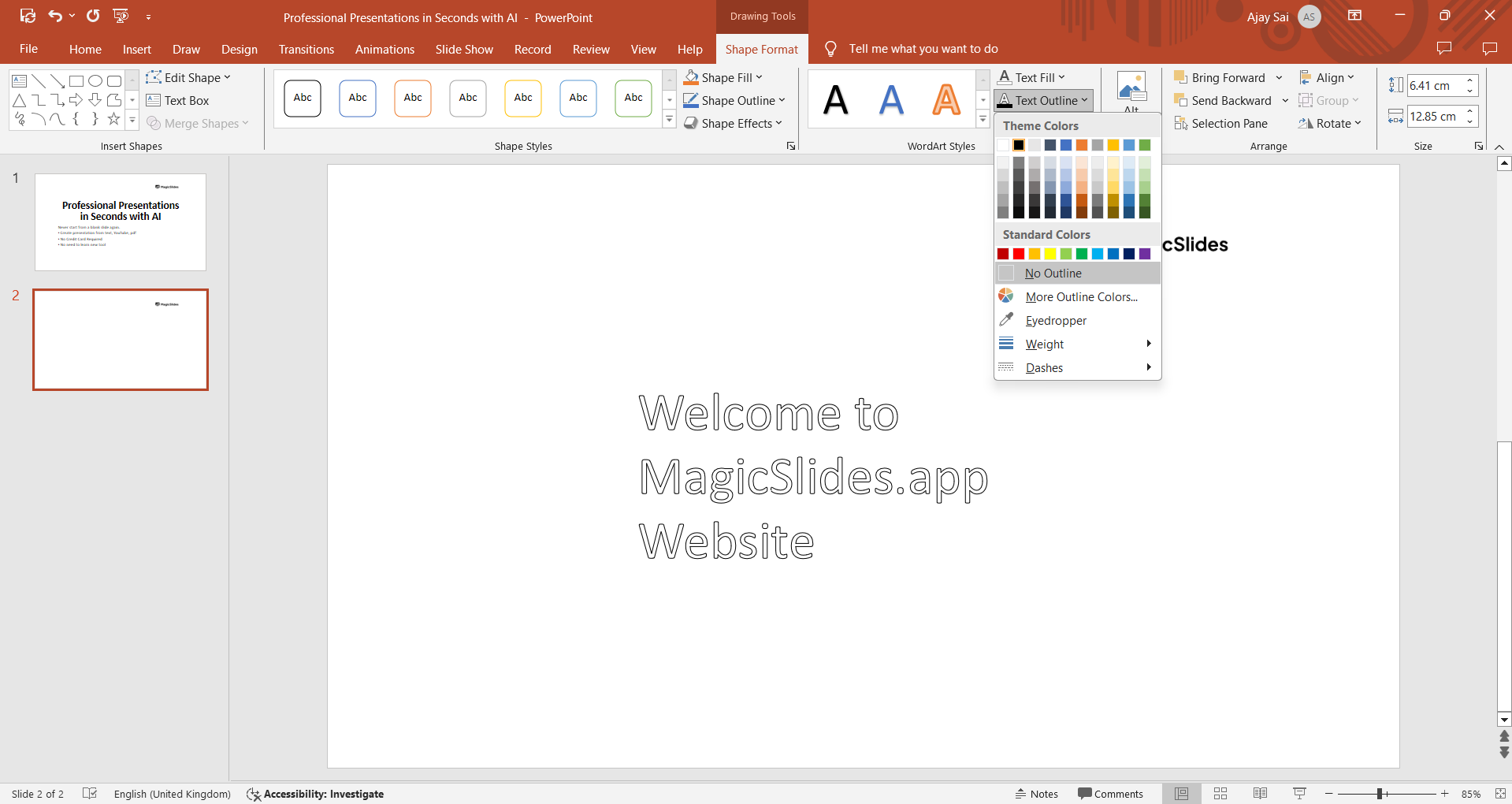
After clicking "Text Outline," a dropdown menu will appear with a selection of colors. Choose the color you want for the outline of your text by clicking on it.
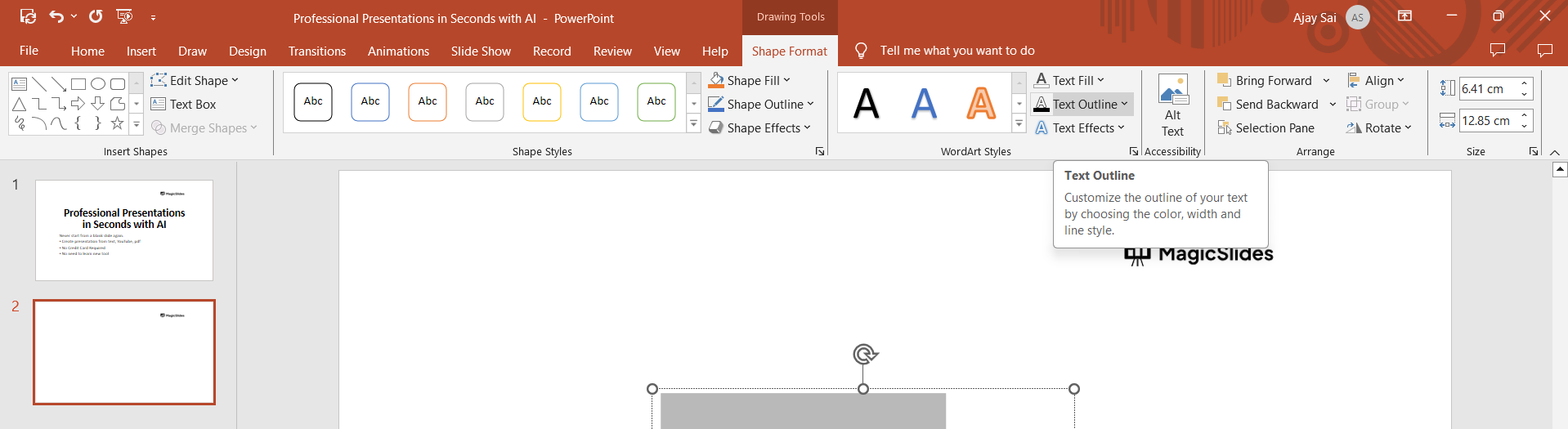
You can also select "More Outline Colors" for additional customization options.
Adjust Outline Thickness:
In addition to choosing the color, you can also adjust the thickness or weight of the outline.
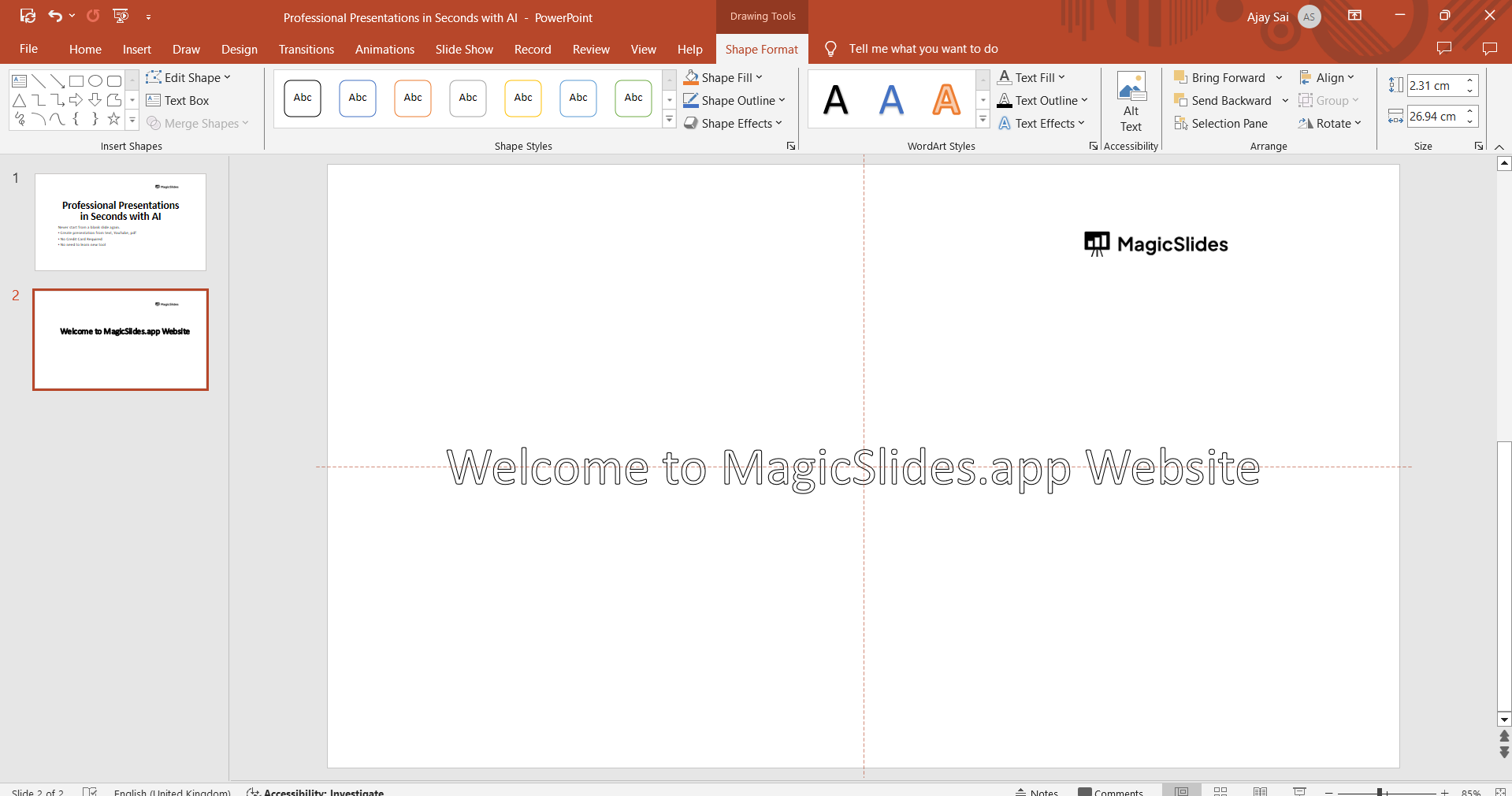
Click on "Weight" in the dropdown menu and select the desired thickness from the options provided or simply increase font and make the selected text bold.
Finalize the Outline:
Once you're satisfied with the color and thickness of the outline, click outside the text box or press the "Enter" key to apply the changes. PowerPoint will apply the outline to the text, making it stand out against the background of the slide.
Conclusion:
Outlining text in PowerPoint is a simple yet effective way to make it more prominent and visually appealing in your presentations. By following the step-by-step guide outlined above, you can easily add outlines to text and create engaging slides that capture your audience's attention. Experiment with different colors, thicknesses, and font styles to find the perfect combination that complements your presentation design. With this skill in your toolkit, you can elevate the visual impact of your slides and deliver more compelling presentations with ease.
Frequently Asked Questions:
Why outline text in PowerPoint?
Outlining text enhances visibility, making it stand out against busy backgrounds or images in presentations.
Can outlines be customized?
Yes, PowerPoint offers options to choose outline color, thickness, and style for tailored text effects.
Does outlining affect text readability?
When appropriately applied, outlines can improve text readability, especially on contrasting backgrounds.
Can outlined text be edited?
Absolutely, outlined text remains editable, allowing adjustments to content, font, size, and other properties.


