How to Outline Words in Google Slides


Outlining words in Google Slides can add emphasis, helping key text stand out effectively in presentations
Outlining words in Google Slides can make your text stand out, adding emphasis and enhancing readability.
While Google Slides doesn’t offer a direct “outline text” option, there are creative workarounds that allow you to achieve this effect.
In this guide, I’ll walk you through the process of outlining words in Google Slides for a visually striking presentation.
How to Outline Words in Google Slides: A Step-by-Step Guide
Step 1: Open Google Slides and Add Your Text
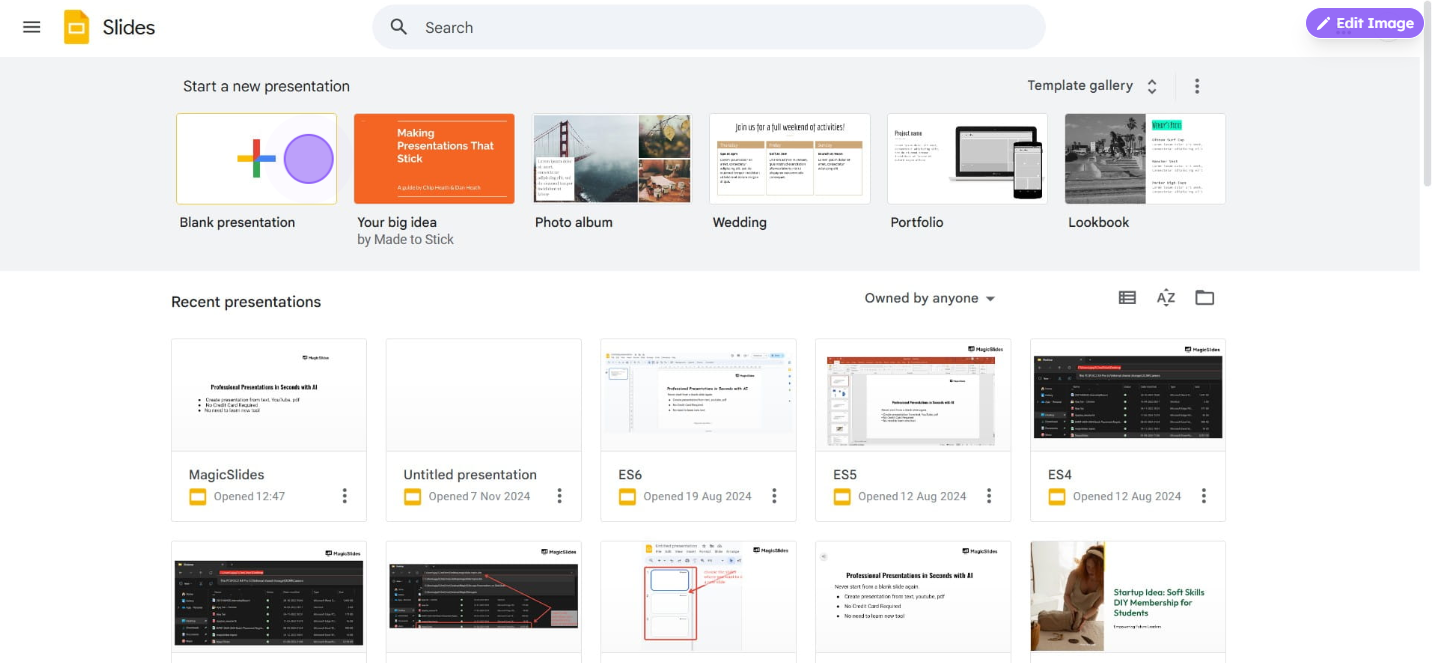
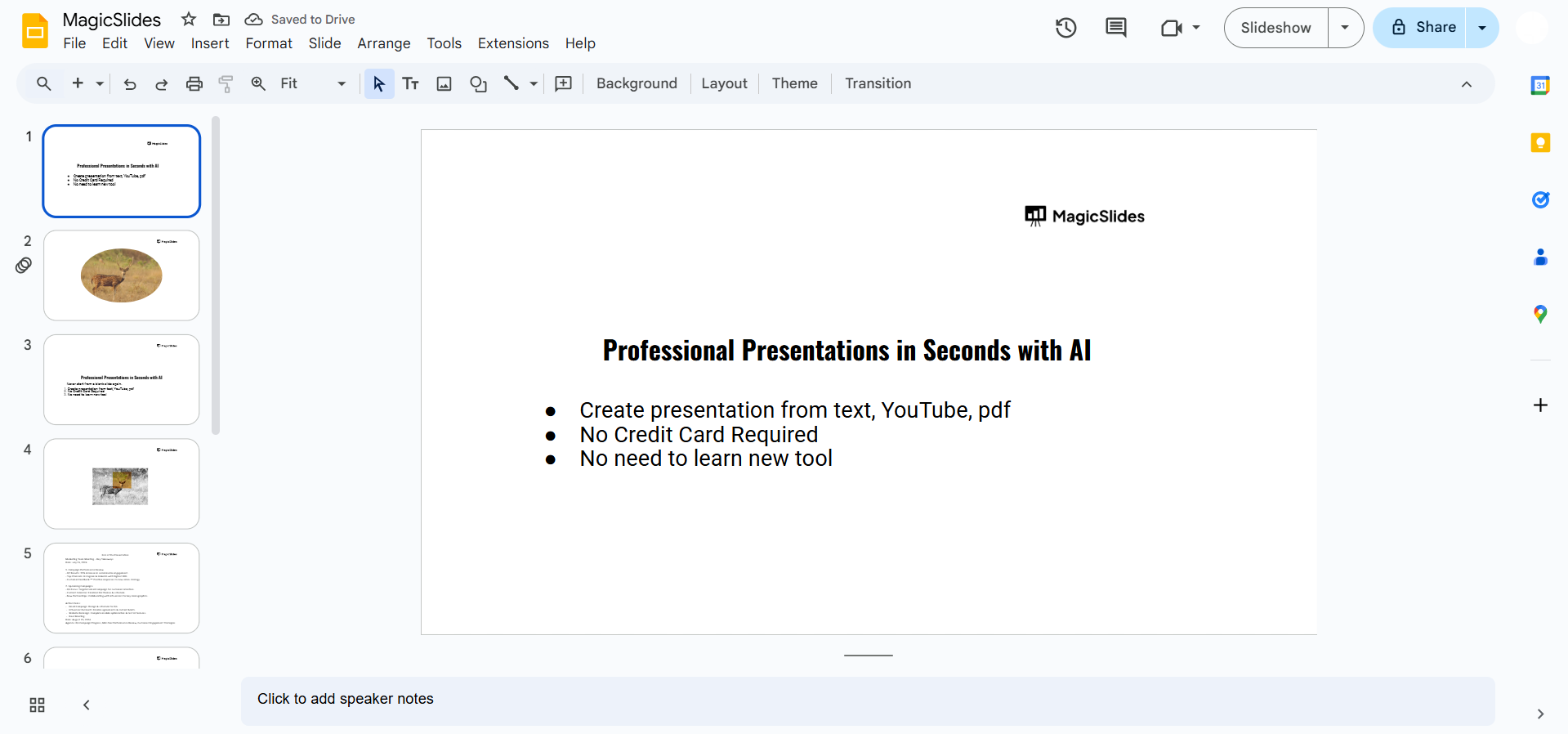
Start by opening Google Slides and either create a new slide or navigate to the slide where you want to outline text.
To add text, click on "Text Box" in the toolbar, draw a box on your slide, and type in the words you want to outline.
Step 2: Format the Text Style and Size
Select your text and use the toolbar to choose the font style, size, and color you want for your outlined text.
Setting up these basic attributes first will help you create a strong visual effect with your outline.
Step 3: Copy and Paste the Text Box
With the text box selected, press "Ctrl + C" to copy it, then "Ctrl + V" to paste a duplicate.
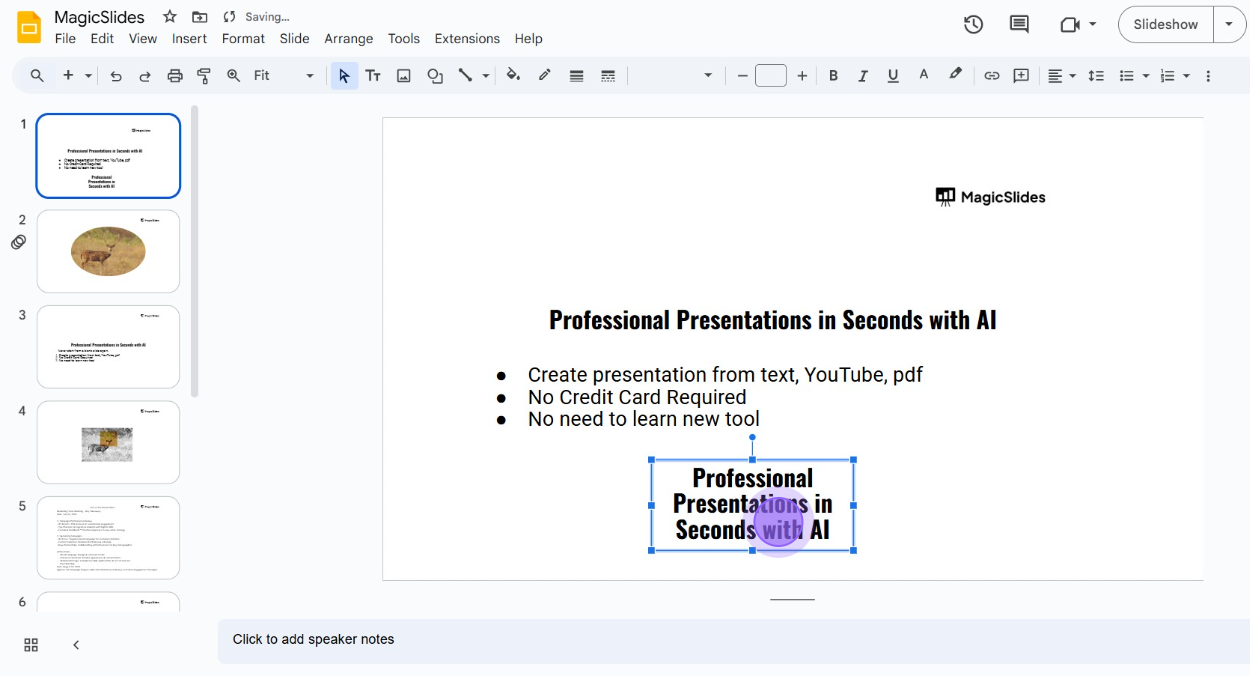
This duplicate text box will serve as the “outline” layer. Place this second text box directly on top of the original one by dragging it into position.
Step 4: Change the Color of the Outline Layer
Now, select the text in the duplicated box and change its color to what you want the outline to be.
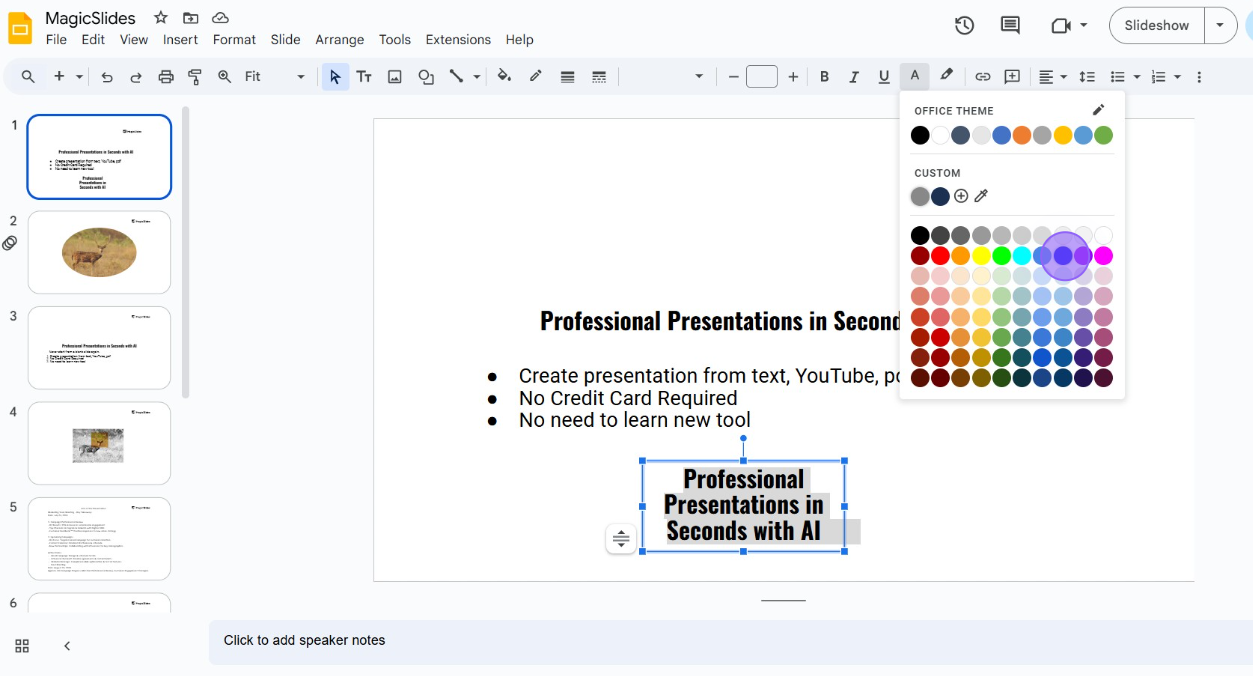
A darker color often works best as it provides contrast with the main text.
Make sure to choose a color that contrasts well with the background as well as the text color.
Step 5: Adjust the Position for an Outlined Effect
To create the outline effect, click on the duplicated text box and use the arrow keys to nudge it slightly to the left, right, up, or down.
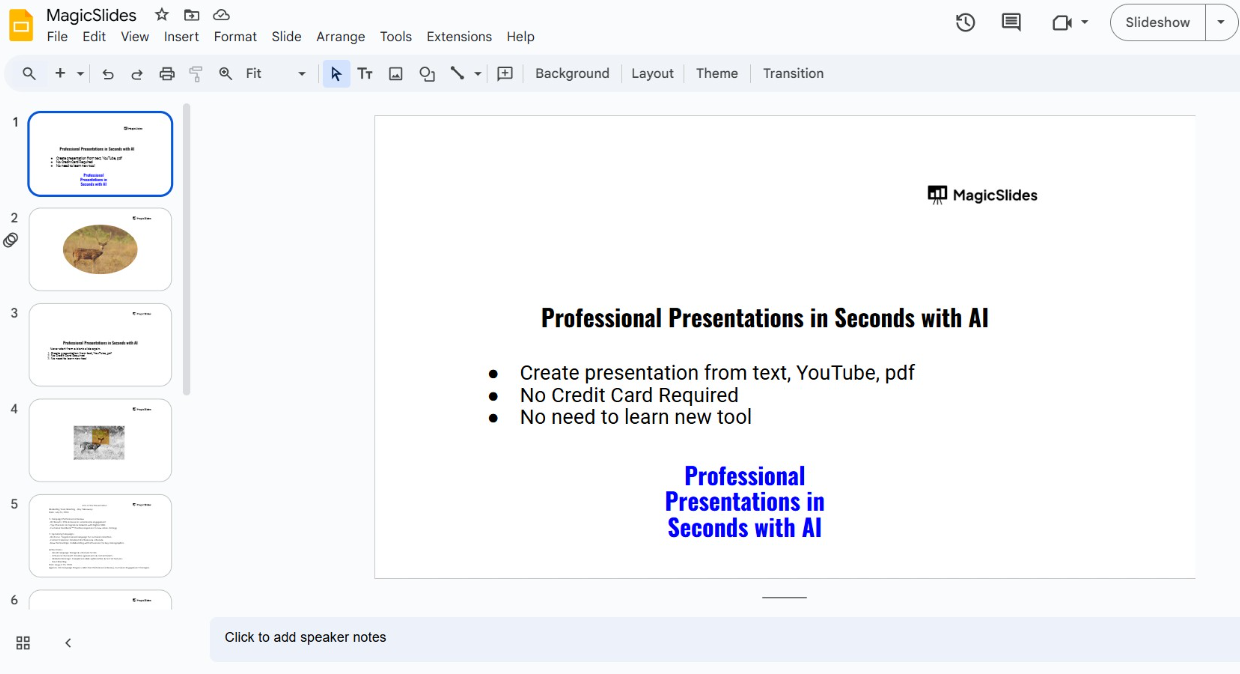
This slight shift will create a shadowed or outlined look around the main text, giving it the outlined appearance.
Conclusion
Outlining text in Google Slides, though not directly available, is easy to achieve with a few creative steps.
This technique helps important words stand out and can make your presentations more engaging.
By following these steps, you can add a unique touch to your slides that draws attention to your content.
FAQs can come handy!
Can I outline text without duplicating the text box?
Unfortunately, Google Slides doesn’t offer a native outline text feature, so duplicating is the best workaround.
What colors work best for outlined text?
Contrasting colors work best; use a dark outline color for light text and vice versa for optimal readability.
Can I add multiple outlines for a layered effect?
Yes, you can duplicate the text box multiple times, changing the color and slightly shifting each one to create a multi-layered outline effect.


