How to Print from Canva


Printing from Canva is simple. Follow these steps to ensure your designs print perfectly every time.
Canva is a versatile design tool that allows you to create stunning graphics, presentations, and documents with ease.
Once you've completed your design, the next step might be to print it, whether for personal use, a presentation, or to share with others.
Printing directly from Canva is straightforward and ensures that your designs come out looking just as vibrant and professional as they do on screen.
In this blog post, we'll walk you through the steps to print your designs from Canva, ensuring that your final product is exactly what you envision.
Step-by-Step Guide to Printing from Canva
Step 1: Log in to Canva
Start by logging into your Canva account. You can do this by going to Canva's website and entering your login details.
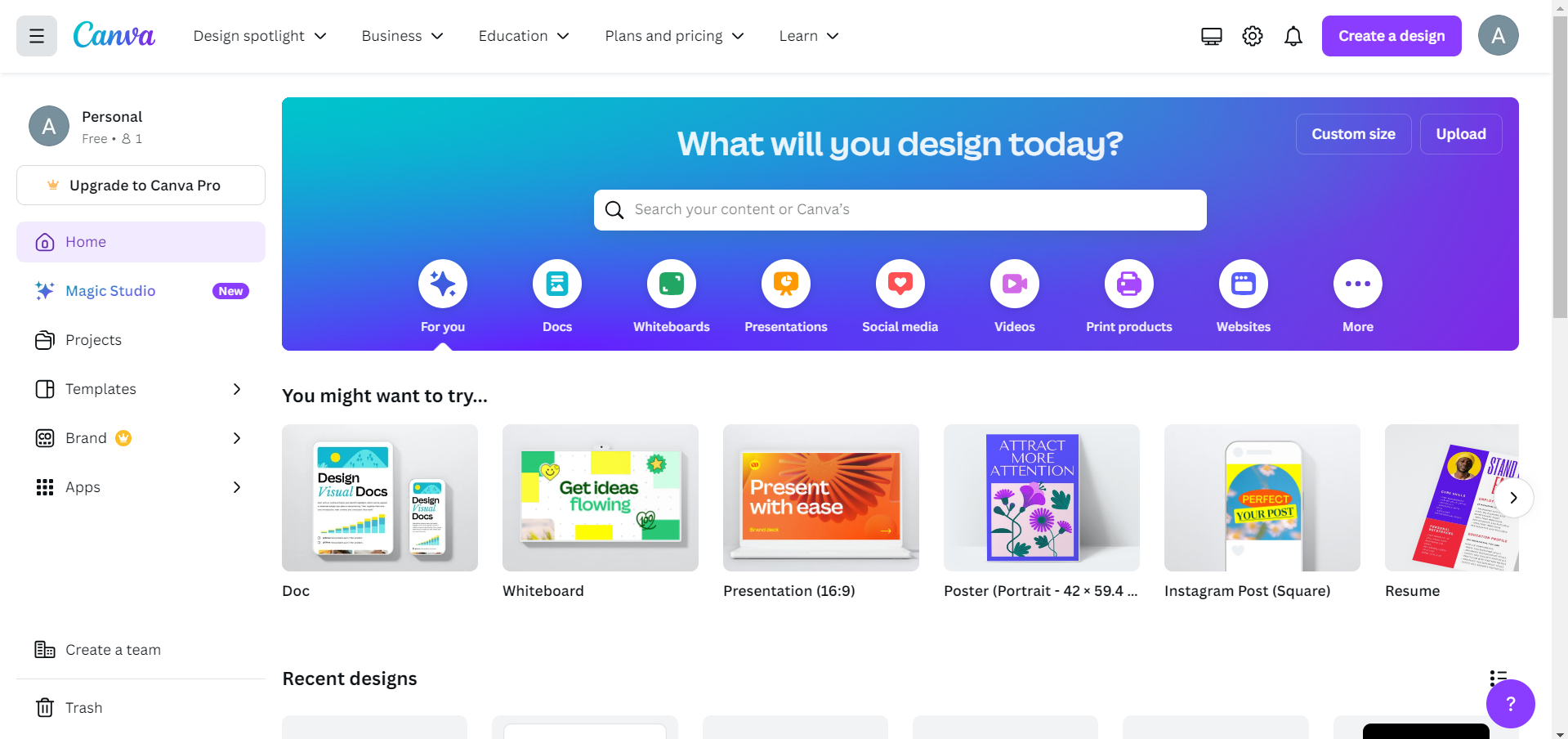
If you don't have an account yet, you can easily create one using your email address, Google account, or Facebook account.
Step 2: Open Your Design
Once you're logged in, navigate to the design you want to print.
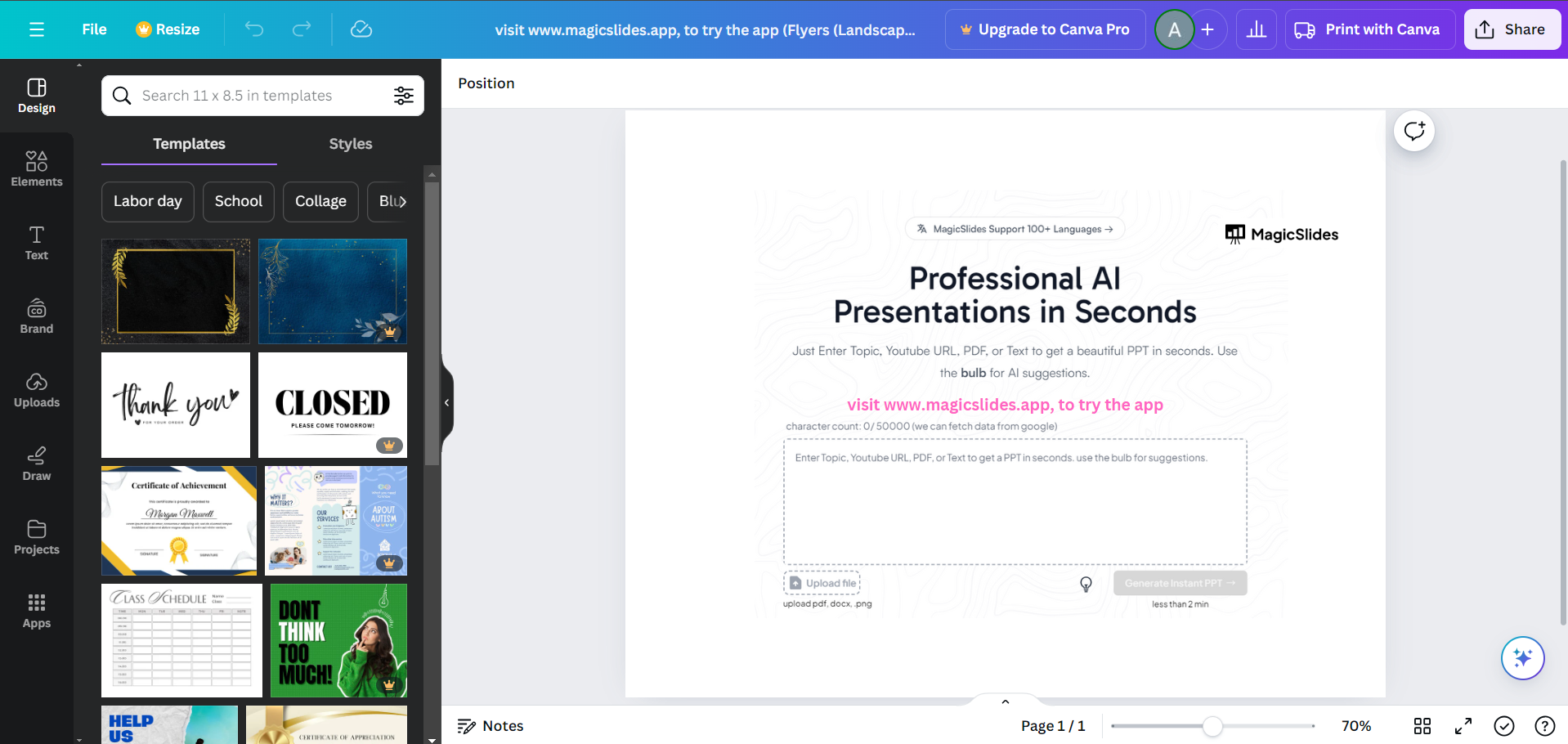
You can find your saved designs by clicking on the "Your projects" tab on the left-hand side of the Canva homepage. Click on the design to open it.
Step 3: Review Your Design
Before printing, take a moment to review your design.
Ensure that all elements are aligned, the text is clear and readable, and that the design is exactly how you want it.
Make any necessary adjustments to colors, fonts, or images to ensure your design will look great when printed.
Creating designs on canva can be a daunting task, magicslides.app helps you solve this by creating presentations in less than a minute with just a prompt, check it out and save your valuable time.
Step 4: Prepare Your Design for Printing
To prepare your design for printing, click on the "Share" button in the top-right corner of the screen. In the dropdown menu, select the "Download" option.
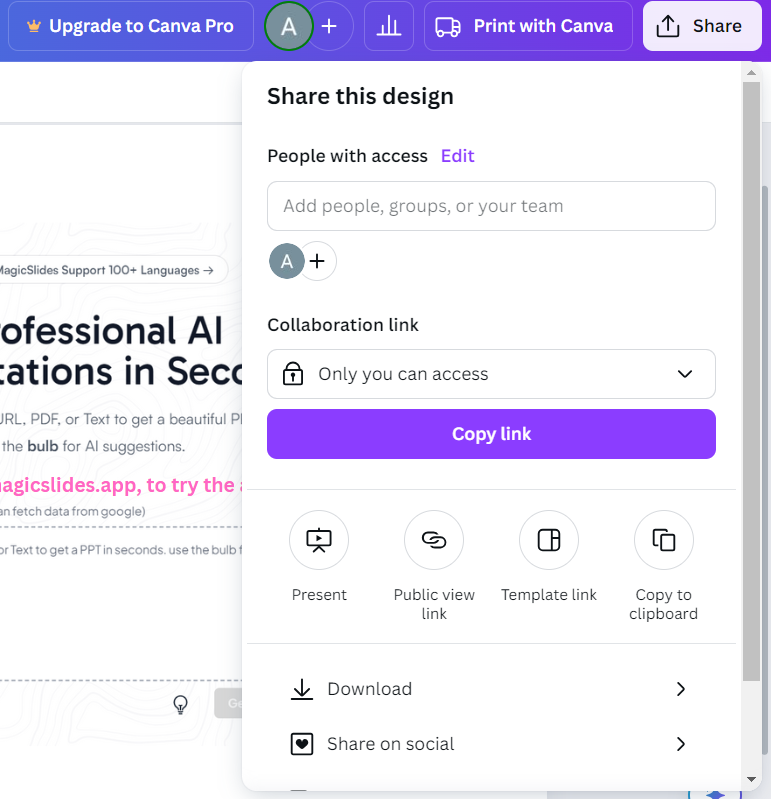
Canva will give you several file format options, including PNG, JPEG, PDF Standard, and PDF Print. For the best printing quality, choose "PDF Print."
Step 5: Download the Print-Ready File
After selecting "PDF Print," you’ll have the option to adjust some settings like crop marks and bleed, which are useful for professional printing.
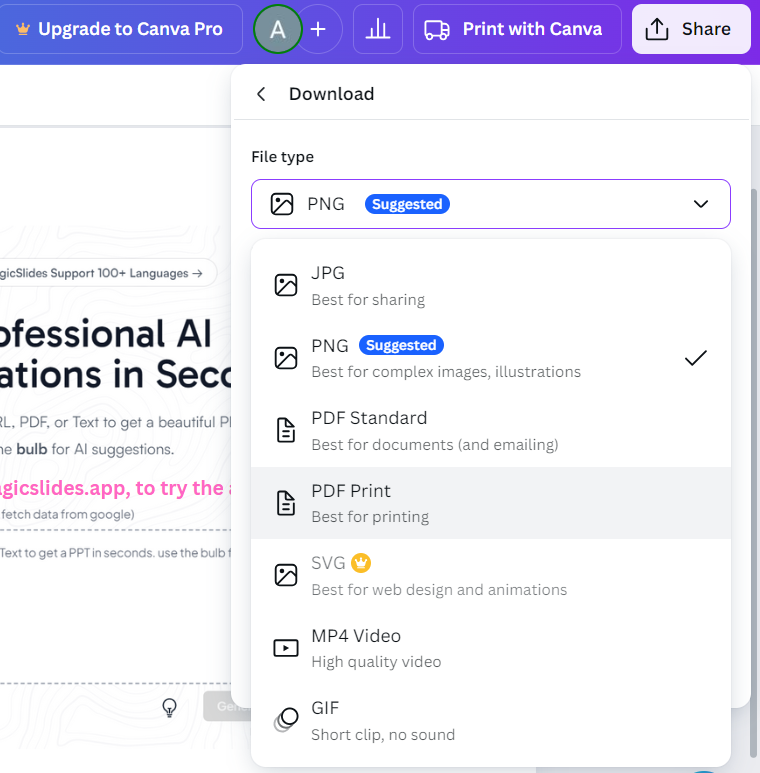
Once you’ve made your selections, click on the "Download" button. Canva will generate a high-resolution PDF file, ready for printing.
Step 6: Print Your Design
Now that you have your print-ready file, you can print it directly from your computer.
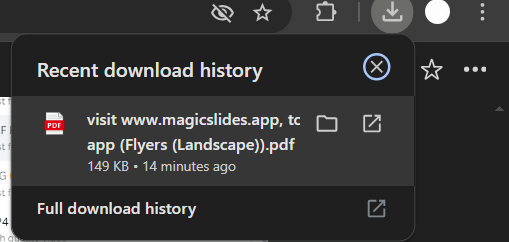
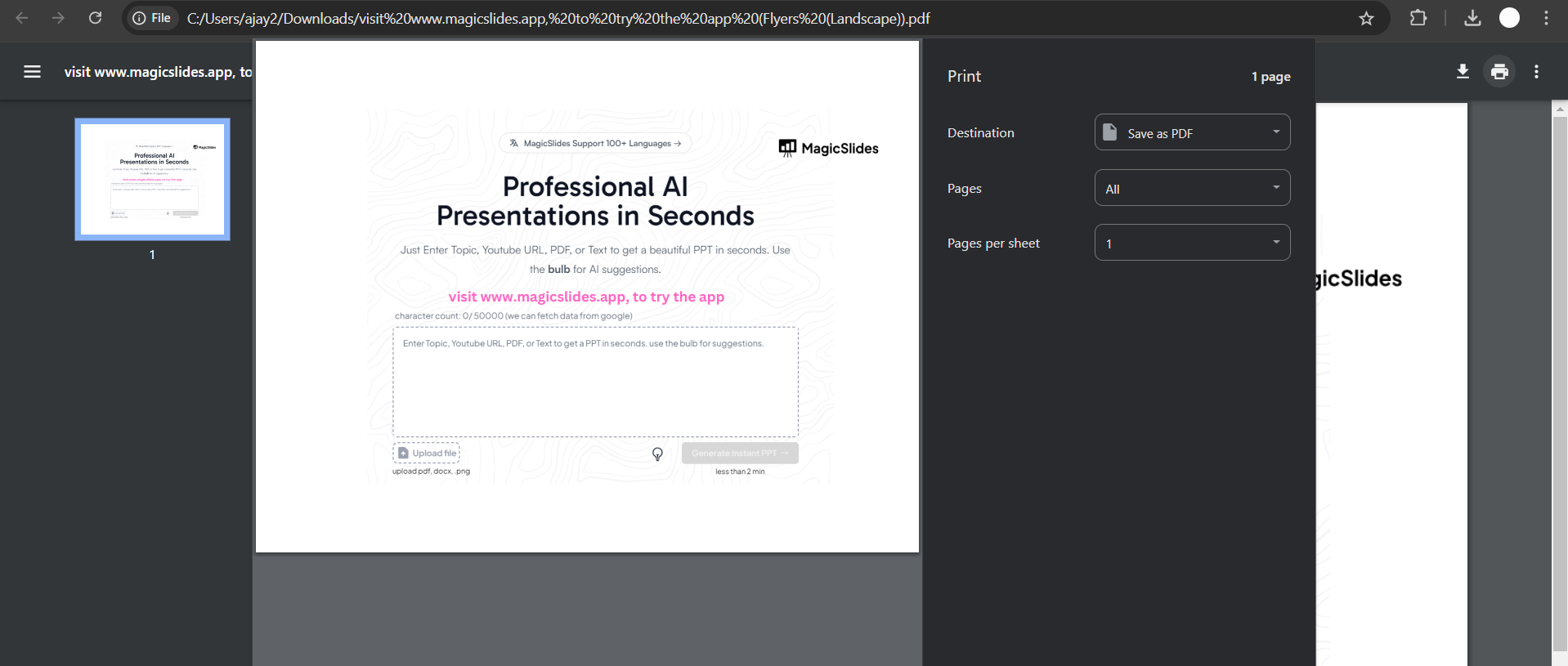
Open the downloaded PDF file, and click on the "Print" icon, or go to "File" > "Print" from the menu.
Choose your preferred printer and adjust the print settings (such as paper size, orientation, and number of copies) to match your needs.
Finally, click "Print" to start the printing process.
Step 7: Check the Printed Output
Once your design has been printed, take a moment to review the output. Check that the colors, alignment, and overall quality match your expectations.
If something seems off, you may need to adjust your print settings or go back to Canva to make further design tweaks.
Conclusion
Printing your designs from Canva is a seamless process that allows you to bring your digital creations into the physical world.
By following these steps, you can ensure that your designs print beautifully and professionally, whether you're creating flyers, posters, invitations, or other printed materials.
With Canva's user-friendly interface and high-quality output, your printed designs are sure to impress. Happy designing and printing!
FAQs are here to help!
What file format should I use for the best print quality?
Use "PDF Print" for the highest print quality.
Can I print directly from Canva without downloading the file?
Yes, Canva offers a direct print service for certain products, but downloading ensures more control.
How do I add bleed to my design for professional printing?
When downloading, select "PDF Print" and check the "Crop marks and bleed" option for professional results


