How to put PowerPoint in Presentation Mode


Presentation Mode in PowerPoint enhances your delivery by displaying slides in full-screen view seamlessly.
Presentation Mode in PowerPoint allows you to showcase your slides in a full-screen format, making your presentation look professional and engaging.
Entering Presentation Mode lets you deliver your content smoothly, using various tools like annotations and slide navigation to enhance your delivery.
Here’s a detailed step-by-step guide on how to put PowerPoint in Presentation Mode.
How to Put PowerPoint in Presentation Mode: A Step-by-Step Guide
Step 1: Open Your PowerPoint Presentation
Start by opening the PowerPoint presentation you want to display.
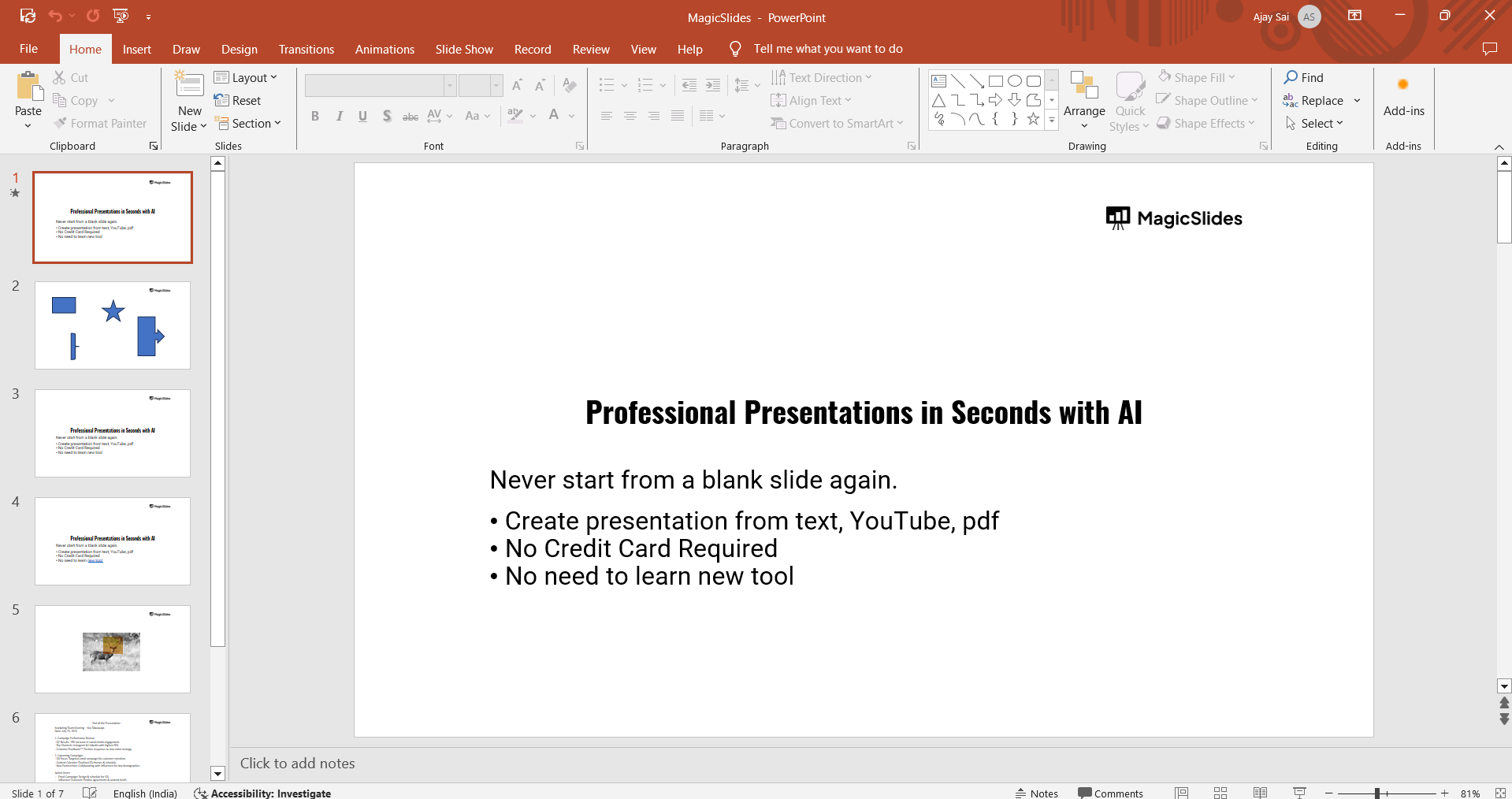
Ensure that all your slides are complete and ready for viewing, and make any final adjustments before entering Presentation Mode.
Step 2: Click on the “Slide Show” Tab
Navigate to the top menu bar and click on the “Slide Show” tab.
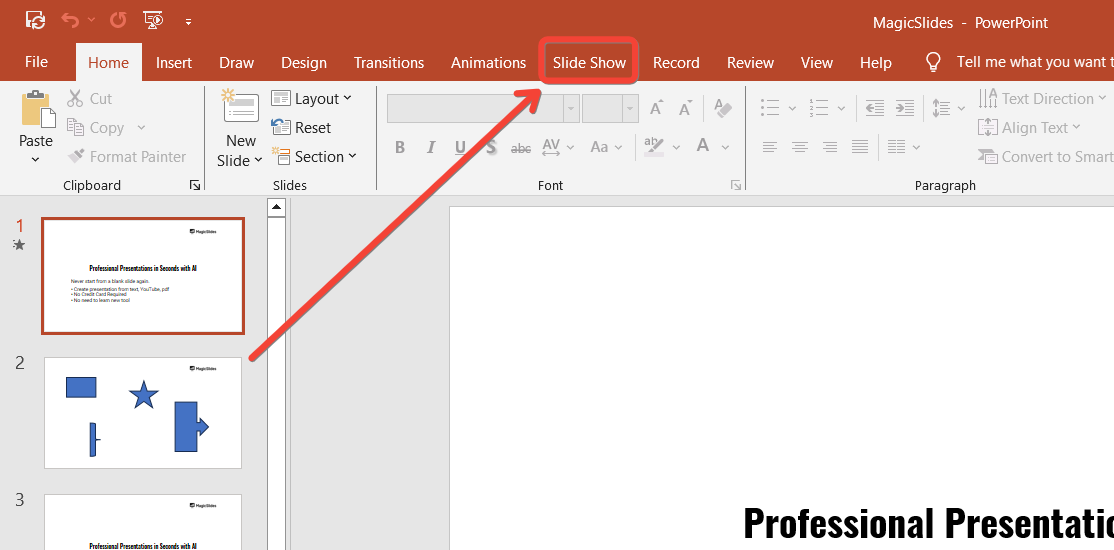
This tab contains all the options related to playing your presentation, including starting the slideshow and customizing your viewing preferences.
Step 3: Choose How to Start the Presentation
Within the “Slide Show” tab, you’ll find several options to start your presentation:
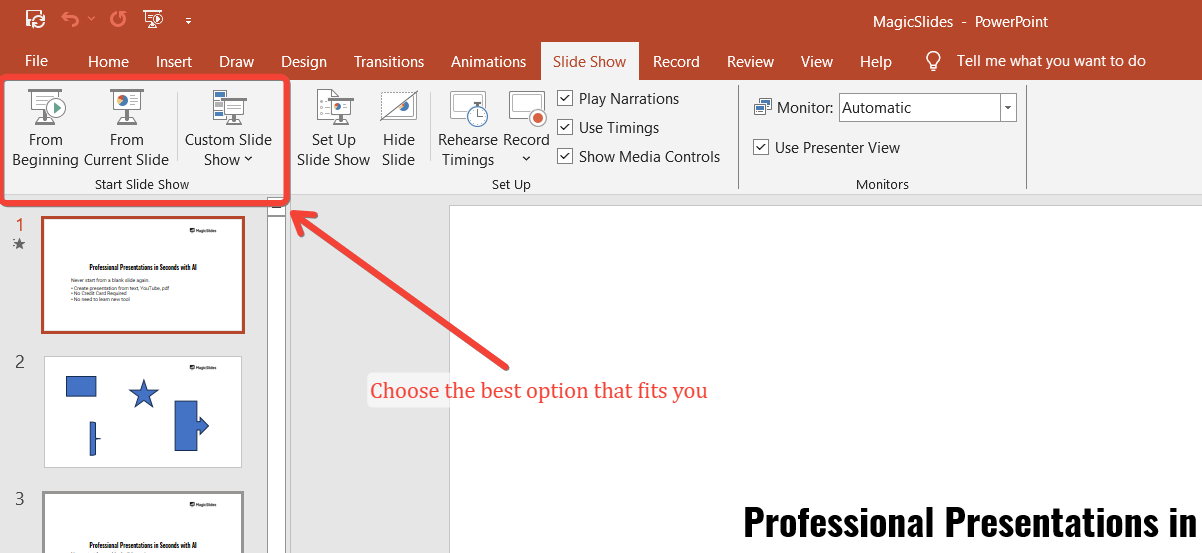
- From Beginning: Click this to start the slideshow from the first slide.
- From Current Slide: Use this option if you want to start from a specific slide.
- Custom Slide Show: This option allows you to start a pre-set custom show if you have one set up.
Select the option that best suits your presentation needs.
Step 4: Use Shortcut Keys (Optional)
To quickly start Presentation Mode, you can use shortcut keys:
- F5: Press F5 to start the slideshow from the beginning.
- Shift + F5: Use this shortcut to start from the current slide you are on.
These shortcuts are handy when you need to jump into Presentation Mode quickly.
Step 5: Navigate Through Your Slides
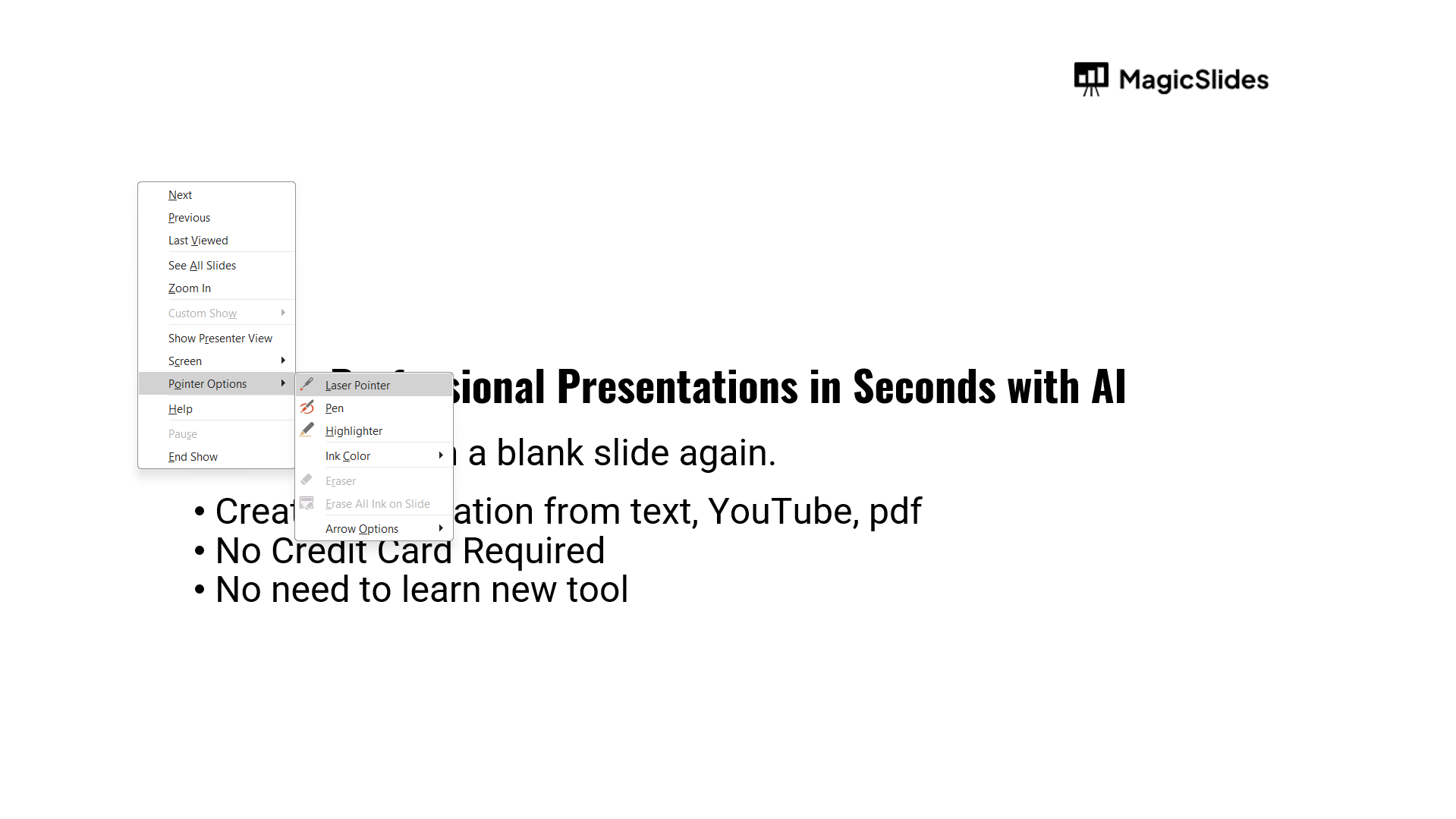
Once in Presentation Mode, use the arrow keys on your keyboard or click the mouse to advance through your slides.
You can also use tools like the laser pointer or pen annotations, available by right-clicking during the slideshow.
Conclusion
Putting PowerPoint into Presentation Mode is straightforward and crucial for delivering a smooth, professional presentation.
Whether you start from the beginning, the current slide, or a custom slide show, PowerPoint provides flexible options to fit your presentation style.
Utilize these steps to effectively engage your audience and showcase your content with confidence!
FAQs can take you forward!
What is Presentation Mode in PowerPoint?
Presentation Mode is a full-screen view that displays your slides for a professional presentation experience.
How do I exit Presentation Mode in PowerPoint?
Press the “Esc” key on your keyboard to exit Presentation Mode and return to the editing view.
Can I start a presentation from a specific slide?
Yes, you can start from a specific slide by selecting “From Current Slide” in the “Slide Show” tab.


