How to Randomize Slides in PowerPoint


Randomizing slides in PowerPoint adds variety and interaction to presentations, especially for quizzes or games
Randomizing slides in PowerPoint can make your presentation more dynamic, especially for quizzes or interactive sessions.
While PowerPoint doesn’t offer a built-in randomization feature, you can still easily shuffle your slides manually.
Follow this step-by-step guide to randomize your slides and make your presentation more engaging.
How to Randomize Slides in PowerPoint: A Step-by-Step Guide
Step 1: Open Your PowerPoint Presentation
Start by opening the PowerPoint presentation you wish to randomize.
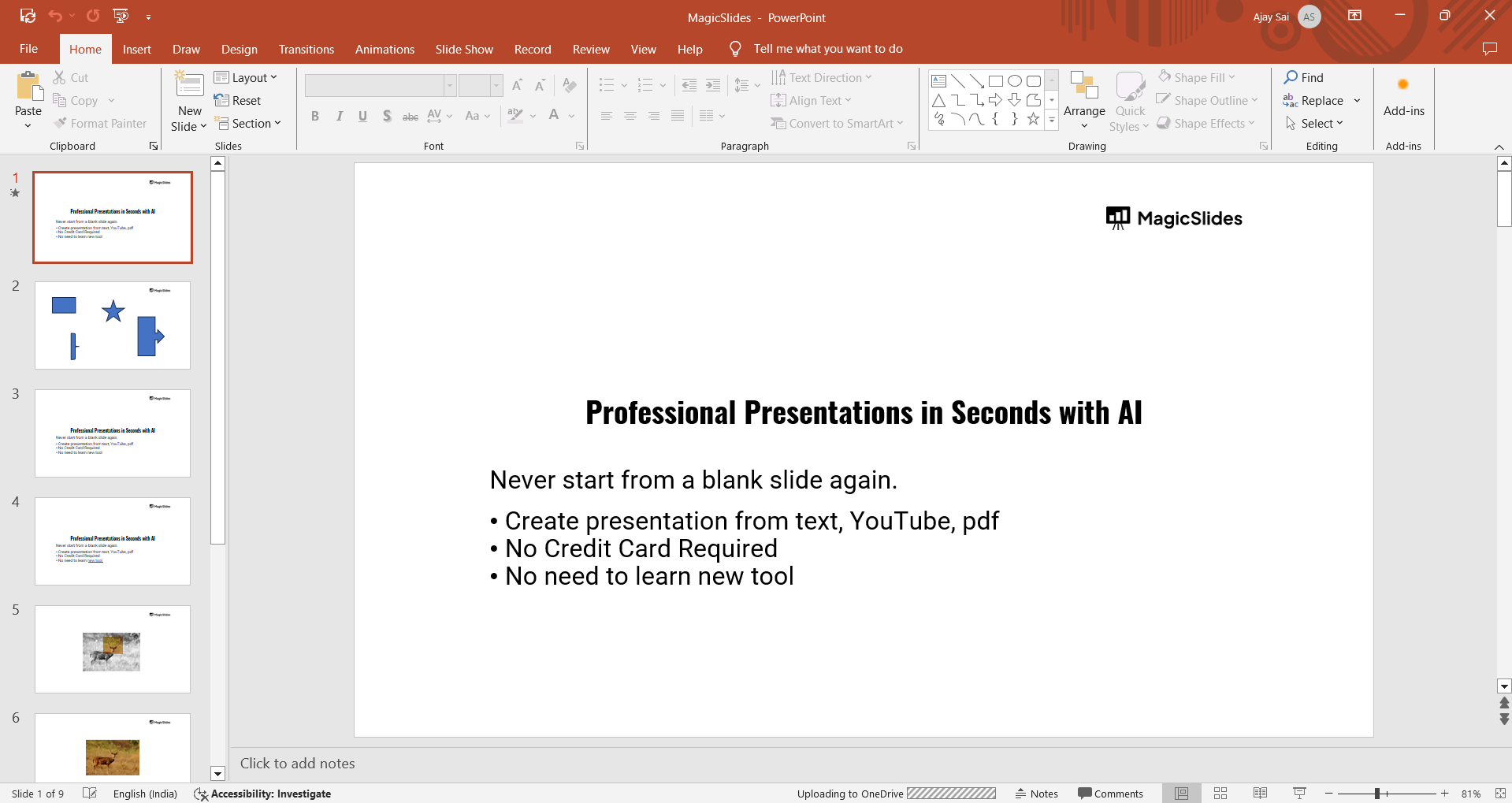
Make sure all the slides are complete and ready for the shuffle process.
Step 2: Switch to Slide Sorter View
To make it easier to see all your slides at once, click on the “Slide Sorter” view at the bottom right of the screen.
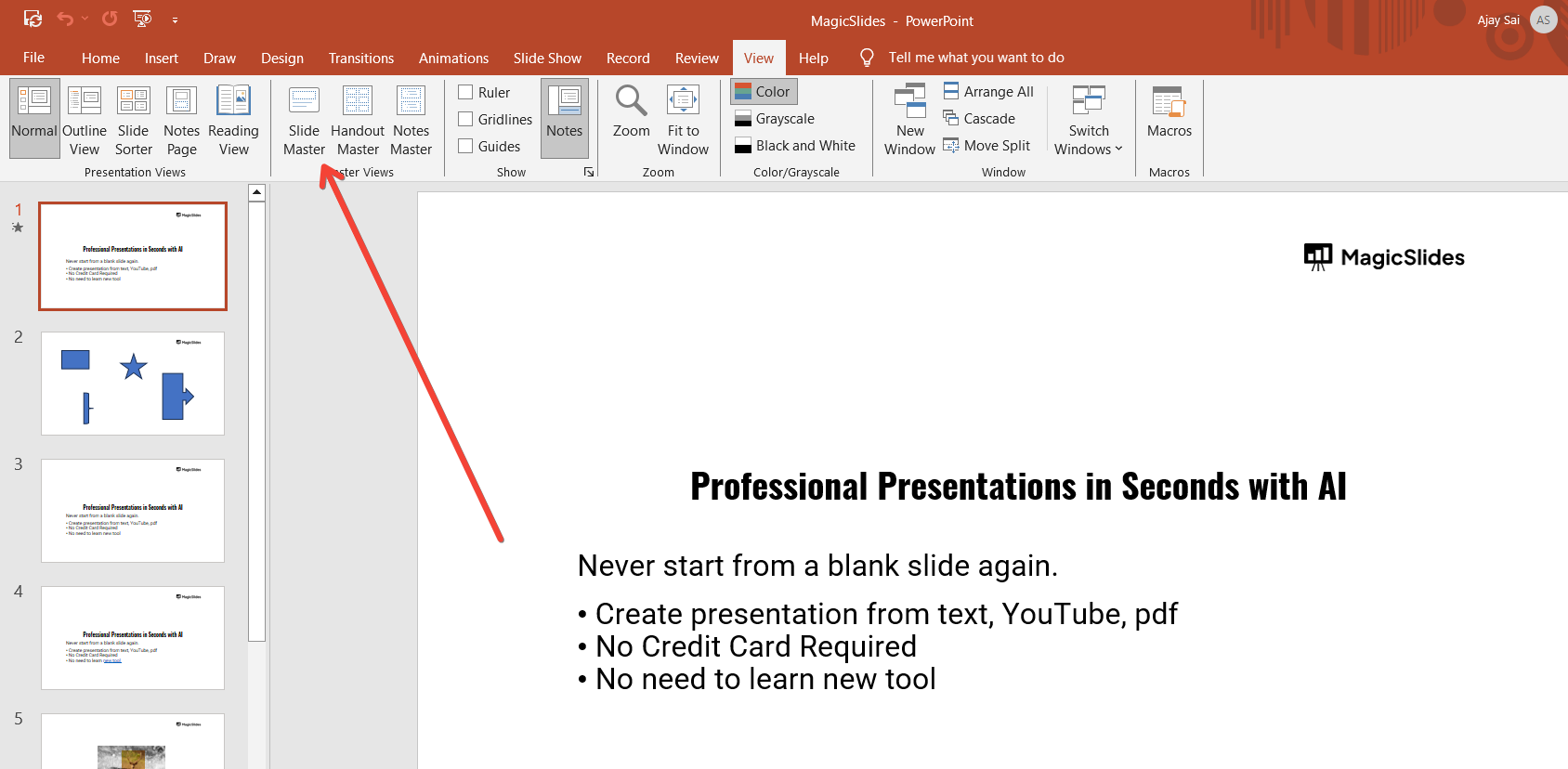
This view shows a thumbnail of each slide in your presentation, making it easier to rearrange them.
Step 3: Manually Shuffle Your Slides
In Slide Sorter view, you can easily randomize your slides by clicking and dragging them to new positions.
Select a slide, hold down the mouse button, and move it to a different spot in the presentation.
Repeat this process for each slide until you're happy with the randomized order.
Step 4: Review Your New Slide Order
Once you've rearranged your slides, go back to the “Normal” view and review the order of your slides to ensure everything looks right.
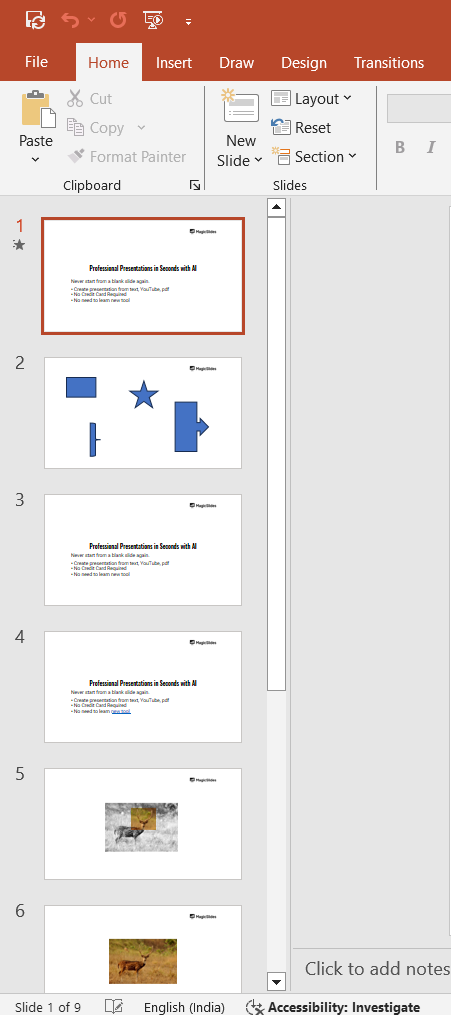
You may want to make adjustments to the content or transitions if needed.
Step 5: Save Your Presentation
After confirming that your slides are properly randomized, save your PowerPoint presentation by clicking “File” > “Save As” and giving it a new name if you want to keep the original order as a backup.
Conclusion
Although PowerPoint lacks a direct randomization feature, manually shuffling your slides using the Slide Sorter view is an easy and effective way to achieve the desired result.
Randomizing slides adds variety to your presentation and keeps your audience engaged.
Now you can confidently introduce randomness to your next PowerPoint presentation!
FAQs can come handy!
Can PowerPoint automatically randomize slides?
No, PowerPoint doesn’t have an automatic feature, but you can manually shuffle slides.
How do I view all slides at once for easy randomization?
Use the "Slide Sorter" view to see thumbnails of all slides and rearrange them.
Will randomizing slides affect animations or transitions?
No, randomizing slides won’t remove animations or transitions, but you may need to review their order.


