How to record Google Slides with Loom while Viewing Notes


Record Google Slides with Loom while viewing notes to deliver a smooth and professional presentation effortlessly
How to Record Google Slides with Loom While Viewing Notes
Recording Google Slides with Loom while viewing your notes allows you to deliver a smooth and well-prepared presentation.
This step-by-step guide will help you record your presentation without showing the speaker notes to your audience.
Steps to Record Google Slides with Loom While Viewing Notes
Step 1: Open Your Google Slides Presentation
Go to Google Slides. Open the presentation you want to record.
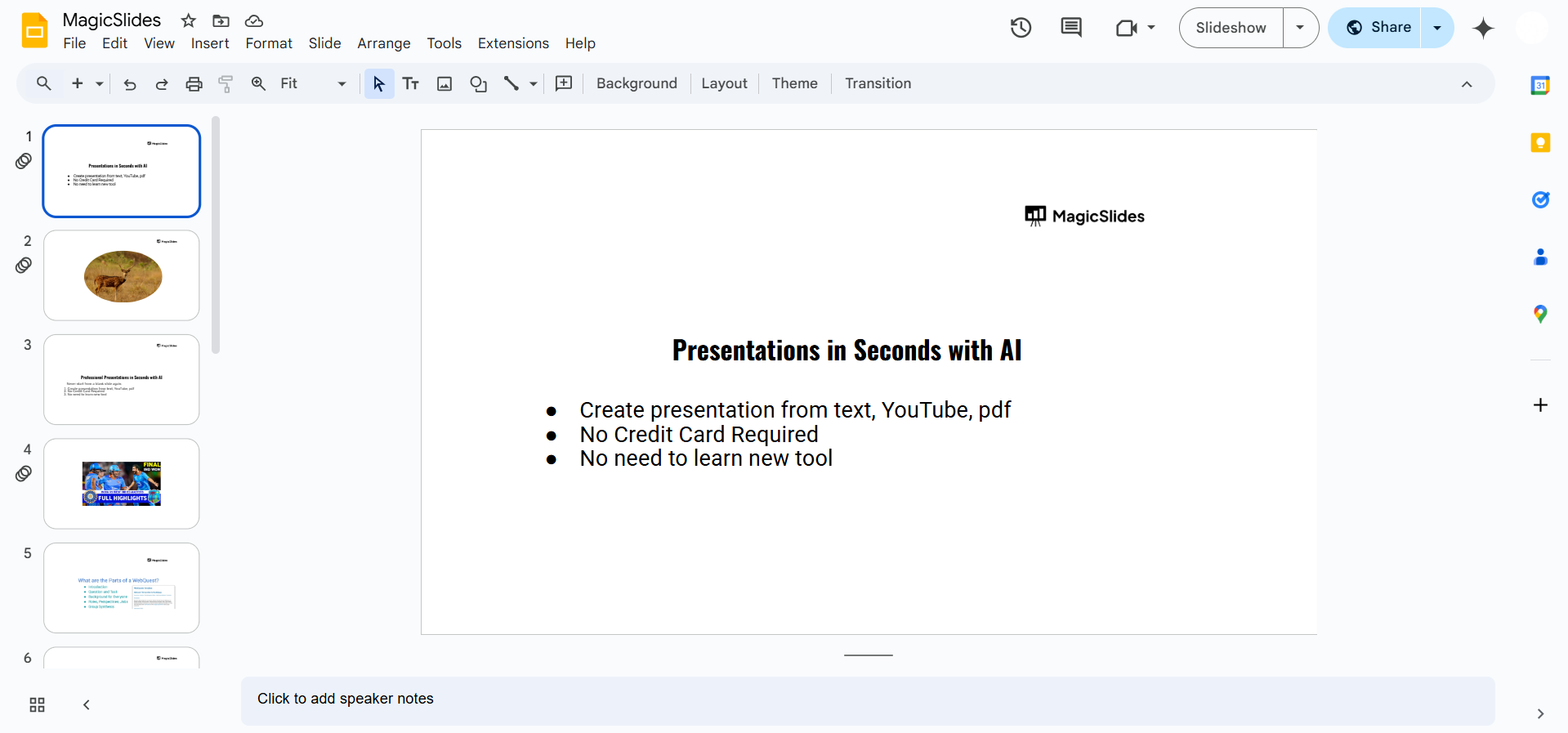
Ensure your speaker notes are properly added to each slide.
Step 2: Open Presenter View to Access Notes
Click on the Slideshow dropdown (next to the "Present" button). Select Presenter View from the menu.
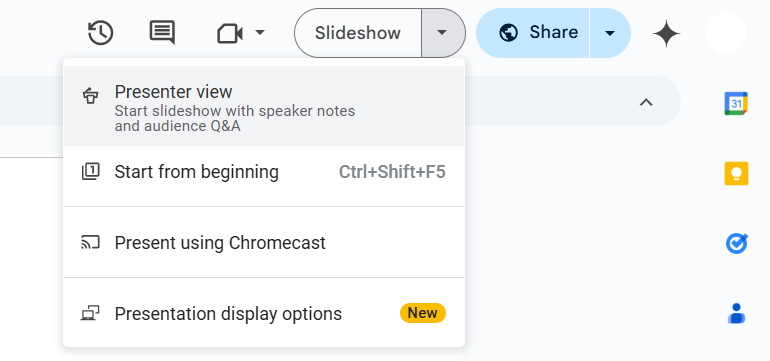
A new window will open, showing your slides on one screen and your notes in another.
Step 3: Open Loom and Set Up Recording
Install and open the Loom extension in your Chrome browser or launch the Loom desktop app.
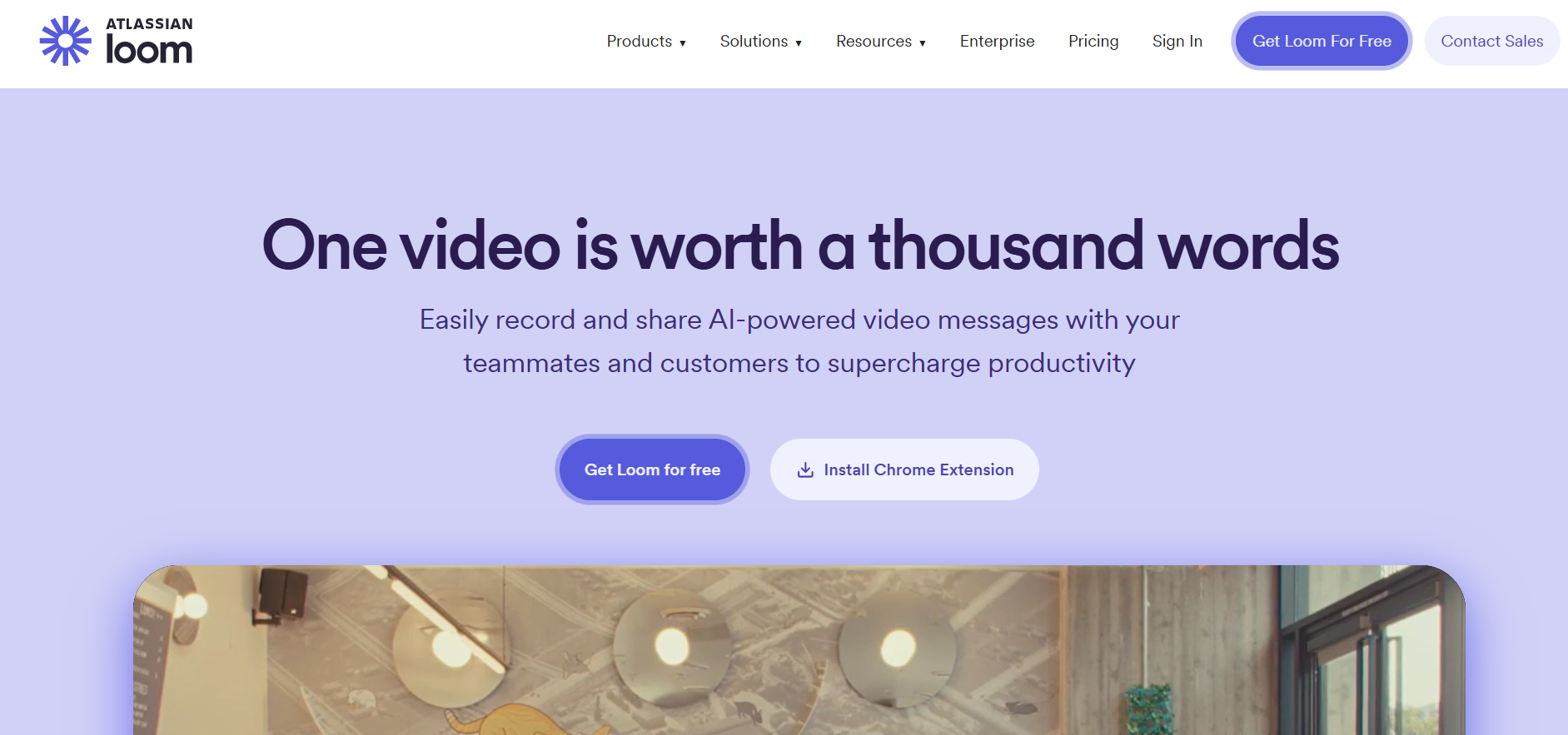
Click on the Loom extension icon or open the desktop app. Choose Screen + Camera mode to record your screen and webcam together.
Select the Window or Custom Area option to capture only the slides (not your notes).
Step 4: Start Recording with Loom
Click on the Start Recording button. Select the Google Slides window that shows only the slides (not the notes).
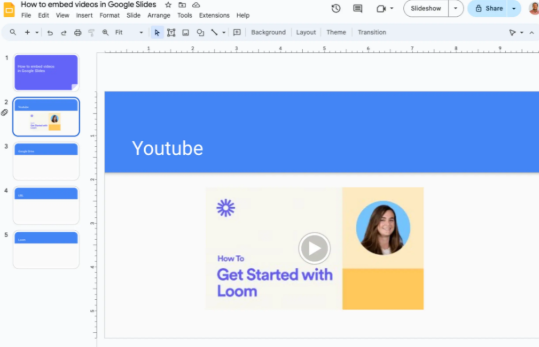
Minimize the Presenter View window with notes to reference them without showing them in the recording.
Step 5: Deliver Your Presentation and Stop Recording
Navigate through your slides while referring to your notes. When finished, click on Stop Recording in Loom.
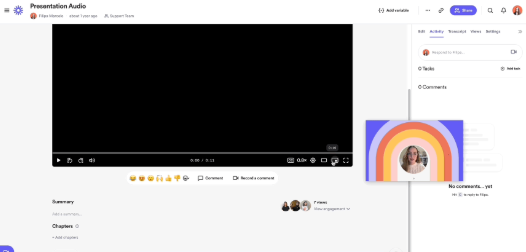
Loom will automatically process and upload the video.
Step 6: Edit and Share Your Recording
Trim any unnecessary parts using Loom’s editing tools. Copy the video link or download it for sharing.
Recording Google Slides with Loom helps deliver polished presentations. To save time on slide creation, try MagicSlides.app AI-powered slides ready in seconds with structured content and design!
Conclusion
Using Loom to record Google Slides while viewing notes allows you to create professional and engaging presentations without revealing your notes to the audience.
Follow these steps to streamline your workflow and produce high-quality recordings.
FAQs are here to guide!
Can I record Google Slides with notes on Loom for free?
Yes, Loom's free plan allows you to record videos up to 5 minutes long. A paid plan is required for longer recordings.
How do I make sure my notes are visible only to me?
Open the Presenter View in a separate window and share only the slideshow window in Loom.
Can I add my webcam while recording Google Slides?
Yes, Loom allows you to include your webcam while recording for a more engaging presentation.


