How to record PowerPoint presentation with Audio and Video


Learn how to easily record PowerPoint presentations with both audio and video for engaging content.
Recording your PowerPoint presentation with both audio and video is a fantastic way to create engaging, self-paced presentations.
Whether you're delivering a lecture, sharing a business proposal, or creating online content, adding voice narration and video can make your presentations more dynamic.
In this blog post, we’ll guide you through the step-by-step process of recording a PowerPoint presentation with both audio and video.
How to record PowerPoint presentation with Audio and Video
Step 1: Open Your PowerPoint Presentation
First, open the PowerPoint presentation you want to record.
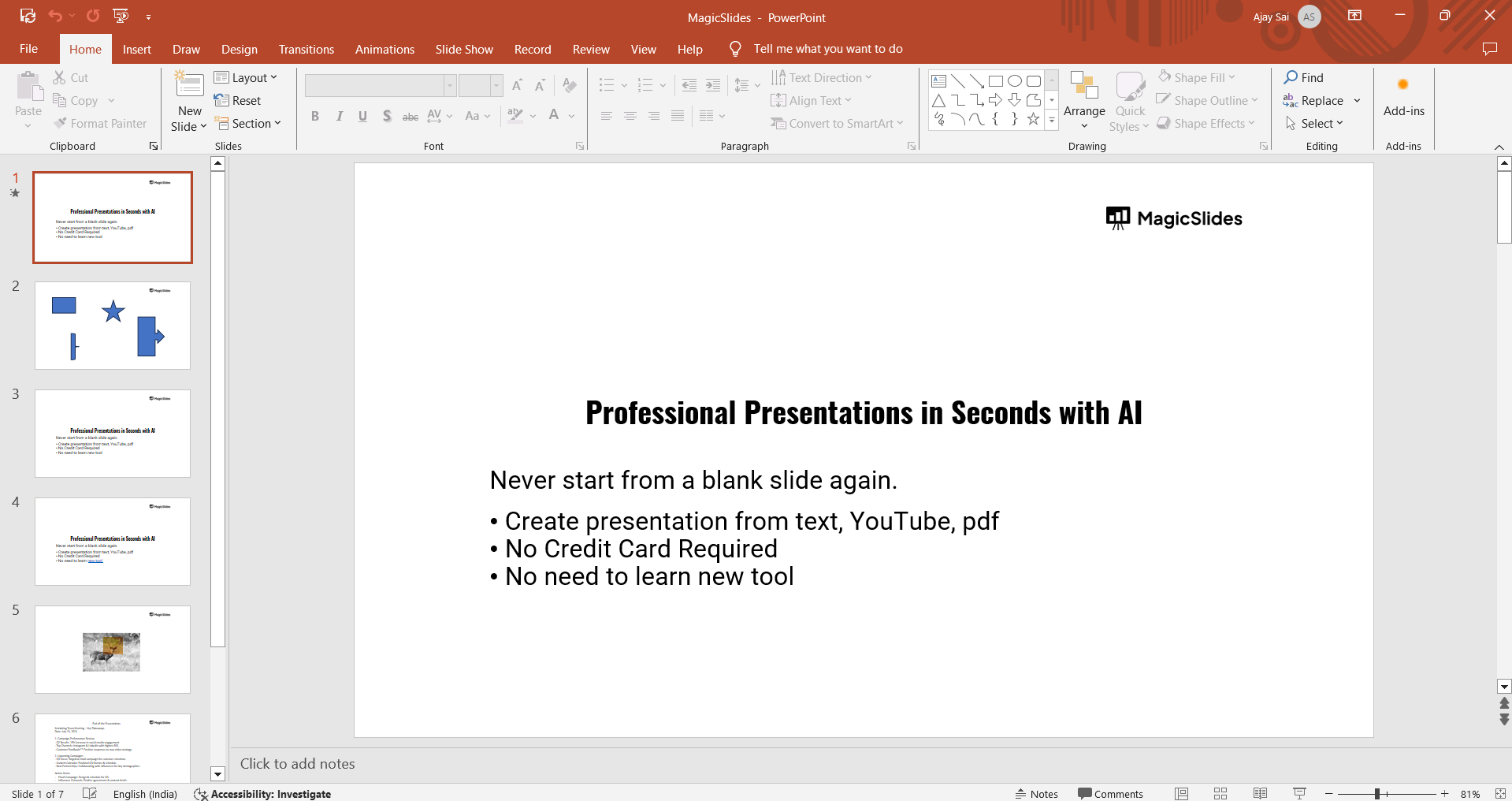
Ensure that your slides are complete and ready, as you will be recording your narration and video based on this final version.
Step 2: Go to the "Slide Show" Tab
Once your presentation is ready, navigate to the "Slide Show" tab at the top of the PowerPoint window.
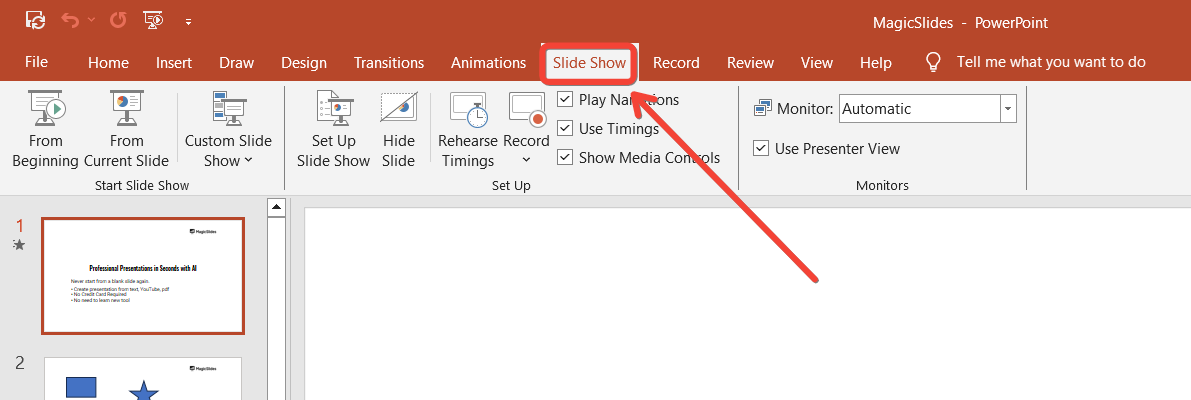
This tab contains various options for presenting and recording your slides.
Step 3: Select "Record Slide Show"
In the "Slide Show" tab, you’ll see an option labeled "Record Slide Show."
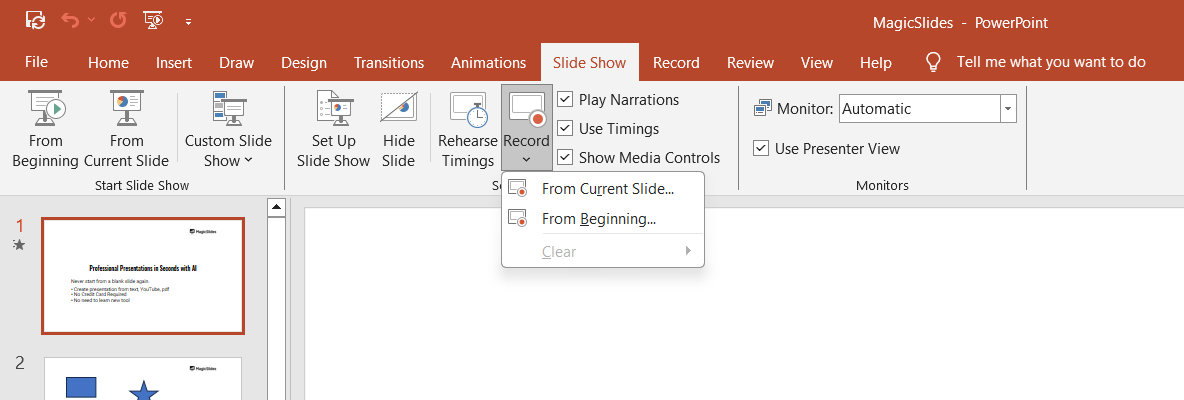
Click on the dropdown arrow next to it and select either "Record from Beginning" if you want to start recording from the first slide or "Record from Current Slide" if you want to start from a specific slide. This will open the recording interface.
Step 4: Enable Audio and Video
In the recording interface, you will see a toolbar at the top. Ensure that your microphone and camera are enabled.
PowerPoint will display your video in the bottom-right corner of the slides as you record. You can adjust the video window’s size if needed. Make sure your microphone is working so that your voice is captured clearly.
Step 5: Start Recording
Click on the red "Record" button at the top-left corner to begin recording your presentation.
As you record, PowerPoint will capture both your video and audio as you move through each slide.
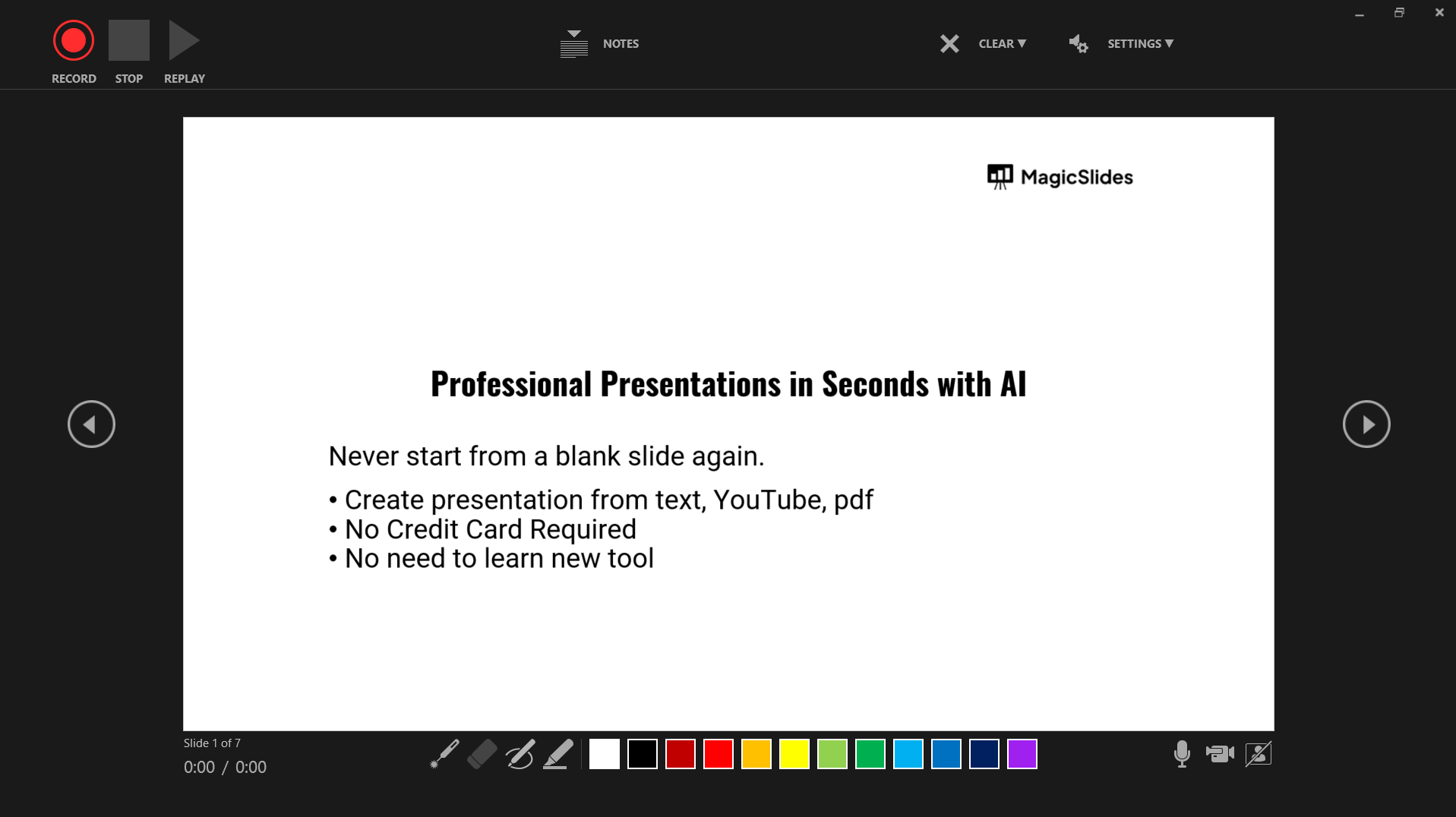
You can narrate your presentation, explain key points, and provide additional insights. Use the arrow keys or your mouse to advance to the next slide.
Step 6: Pause or Stop Recording
If you need to take a break during the recording, click the "Pause" button in the recording toolbar.
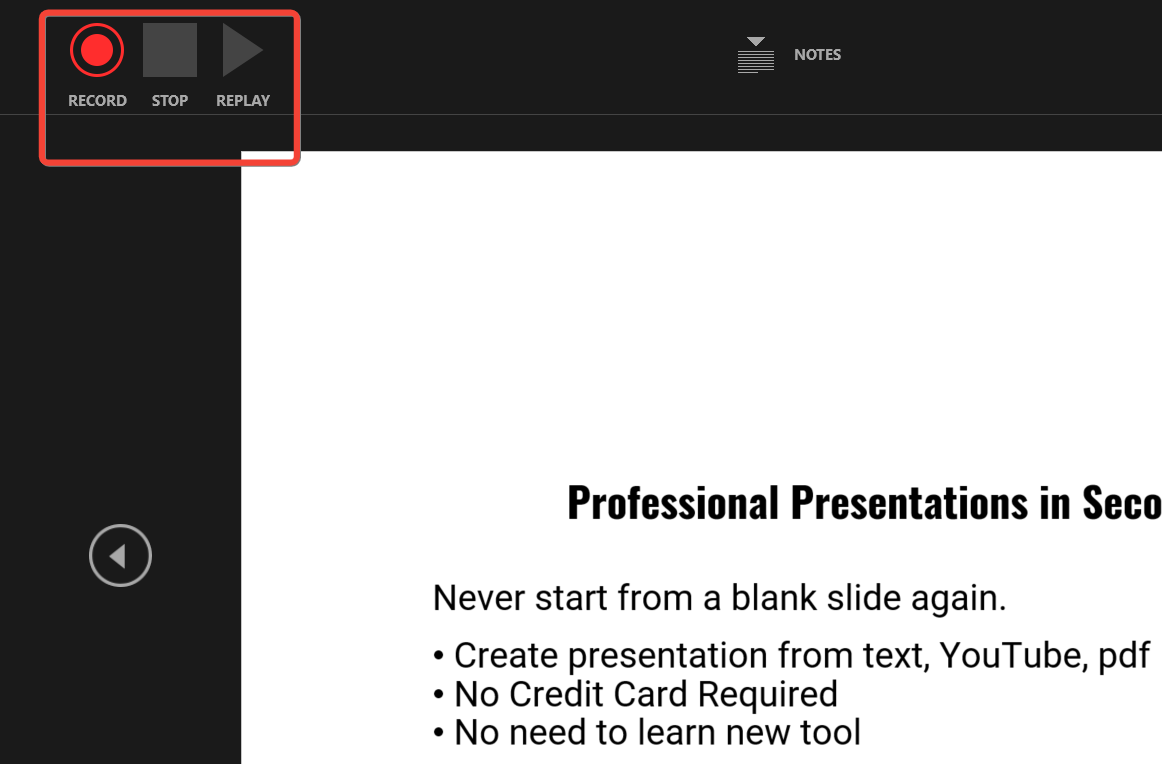
When you’re ready to continue, click "Resume Recording." Once you have finished your presentation, click the "Stop" button to end the recording.
Step 7: Preview and Save Your Recording
After recording, you can preview your presentation by going to the "Slide Show" tab and selecting "Play from Beginning." Your audio and video will play along with the slides.
Once you're satisfied with the recording, save your presentation by going to "File" and clicking "Save As." You can save it as a regular PowerPoint file or as a video by selecting "MP4" or "WMV" from the file format drop down menu.
After recording your PowerPoint presentation with audio and video, consider using a presentation tool powered by AI to enhance your slides with just a prompt or a website/ YouTube link. It can create visually appealing slides from your content, making your presentations more professional and engaging.
Conclusion
Recording a PowerPoint presentation with audio and video adds a professional and interactive element to your presentations.
This feature is ideal for creating online lessons, virtual presentations, or tutorials.
By following these simple steps, you can record, edit, and save your presentation, making it accessible to your audience anytime, anywhere.
FAQs can come handy!
Can I edit my recording after it's done?
No, PowerPoint doesn’t offer editing features for recorded audio/video. You’ll need third-party software for edits.
Which video format does PowerPoint save the recorded presentation in?
You can save the presentation as an MP4 or WMV video file.
Can I record just the audio without video?
Yes, you can disable the camera and record only audio while narrating your slides.


