How to Remove Background From Picture in Google Slides


In this blog post we will uncover how to remove background from picture in google slides
Removing backgrounds from images can greatly enhance the visual appeal of your presentations in Google Slides. While Google Slides doesn't have a built-in background removal feature, you can easily accomplish this task using third-party tools. Follow these simple steps to seamlessly remove backgrounds from pictures and elevate your presentations.
Here we are using an external tool to remove background and then use it in our local Google Slides as the in-built option to remove background may or may not be available to all users as the feature is rooling out slowly by Google.
How to remove background from picture in Google Slides
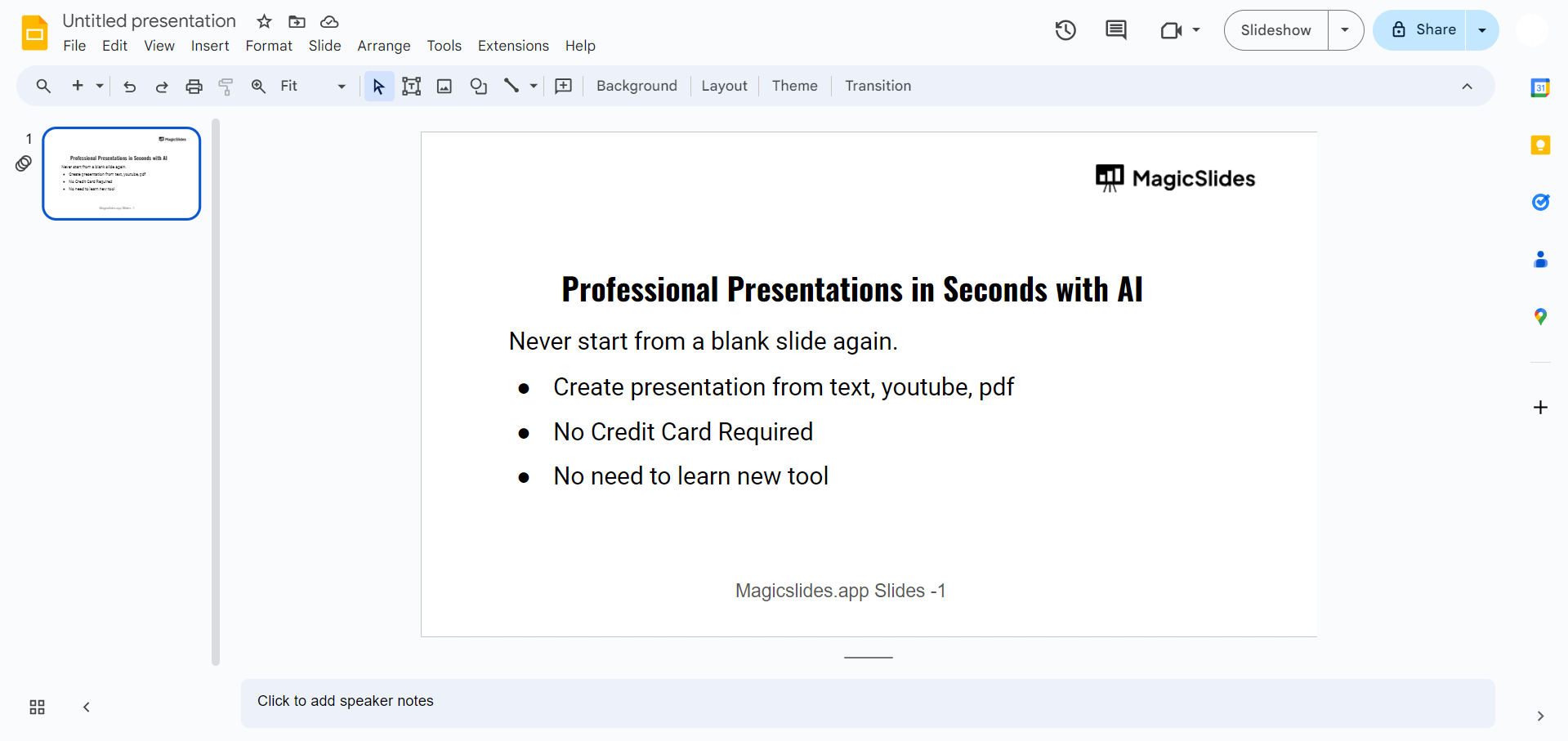
Open Google Slides:
Launch your web browser and navigate to Google Slides. Sign in to your Google account if prompted.
Visit a Background Remover Website:
Open a new tab in your browser and visit a background remover website such as www.remove.bg. Alternatively, you can use any other background removal tool of your choice.

Upload Your Image:
On the background remover website, upload the image from which you want to remove the background. Follow the instructions provided by the tool to initiate the background removal process.
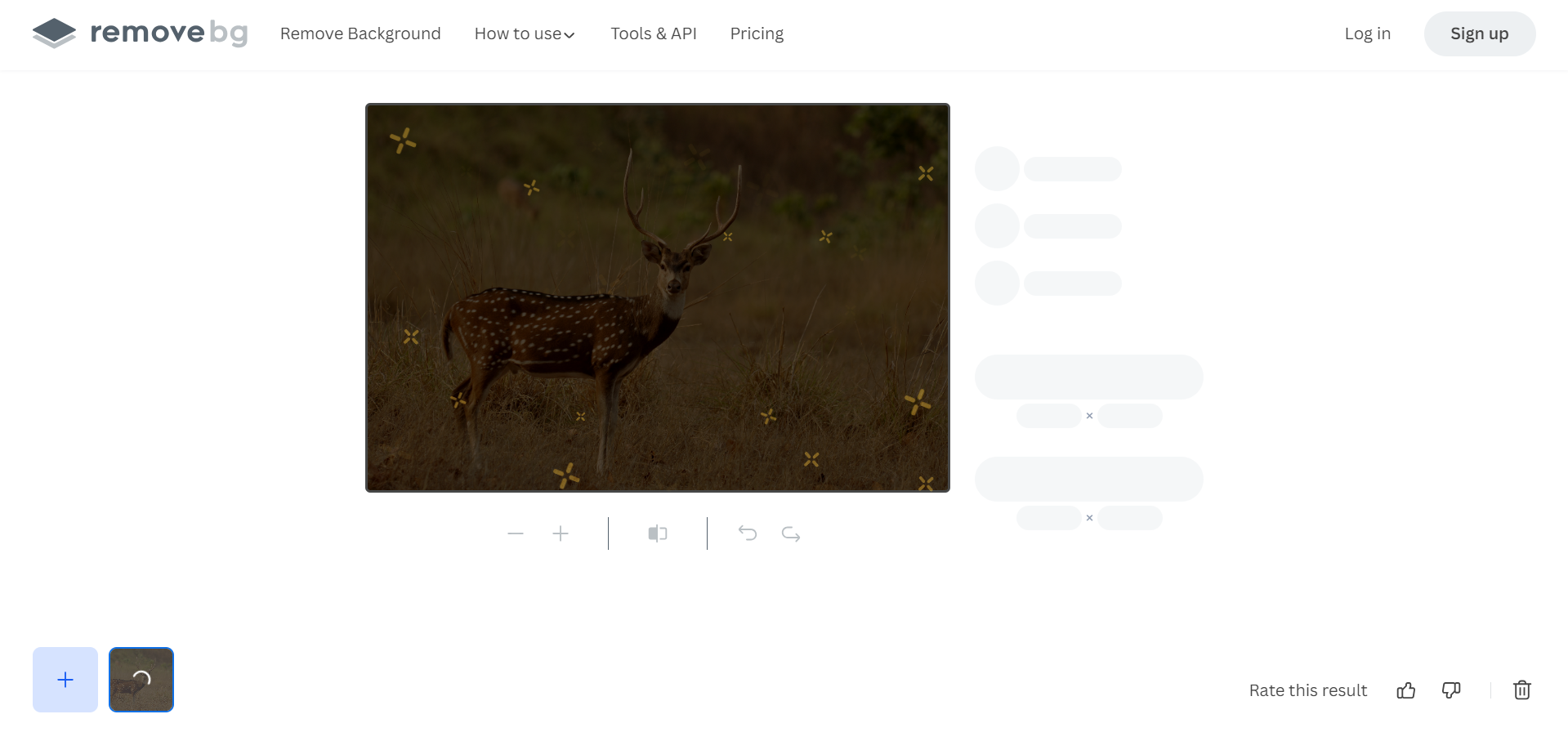
Remove Background:
Once the image is uploaded, the background remover tool will automatically detect and remove the background. Depending on the complexity of the image, this process may take a few seconds to complete.
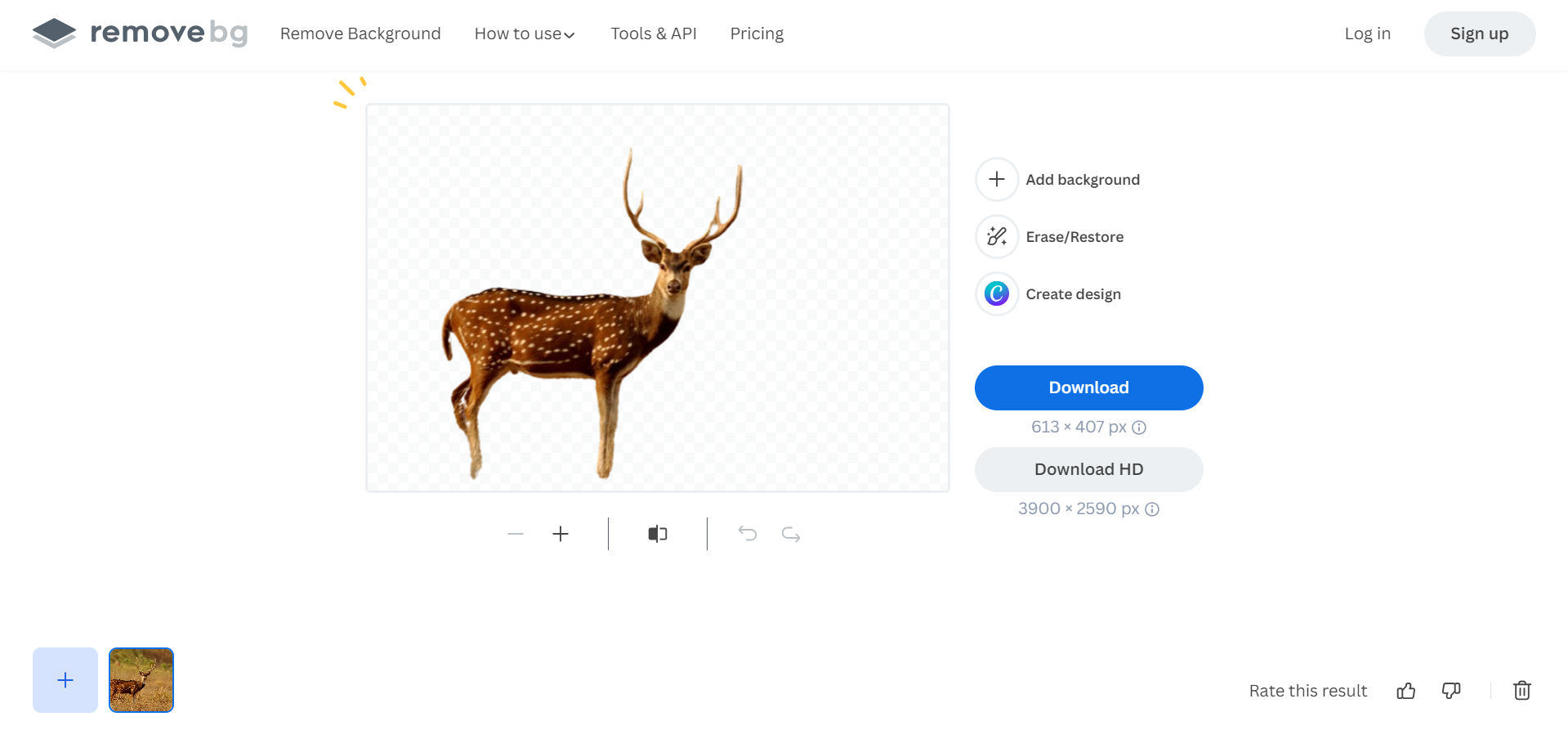
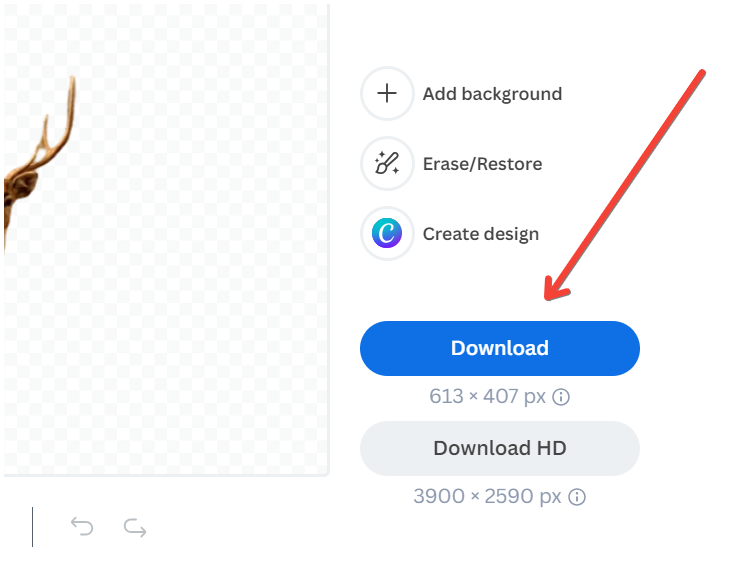
Download the Background-Less Image:
After the background has been successfully removed, download the edited image to your local system. Ensure that the downloaded image is saved in a format compatible with Google Slides, such as JPG or PNG.
Navigate to Google Slides:
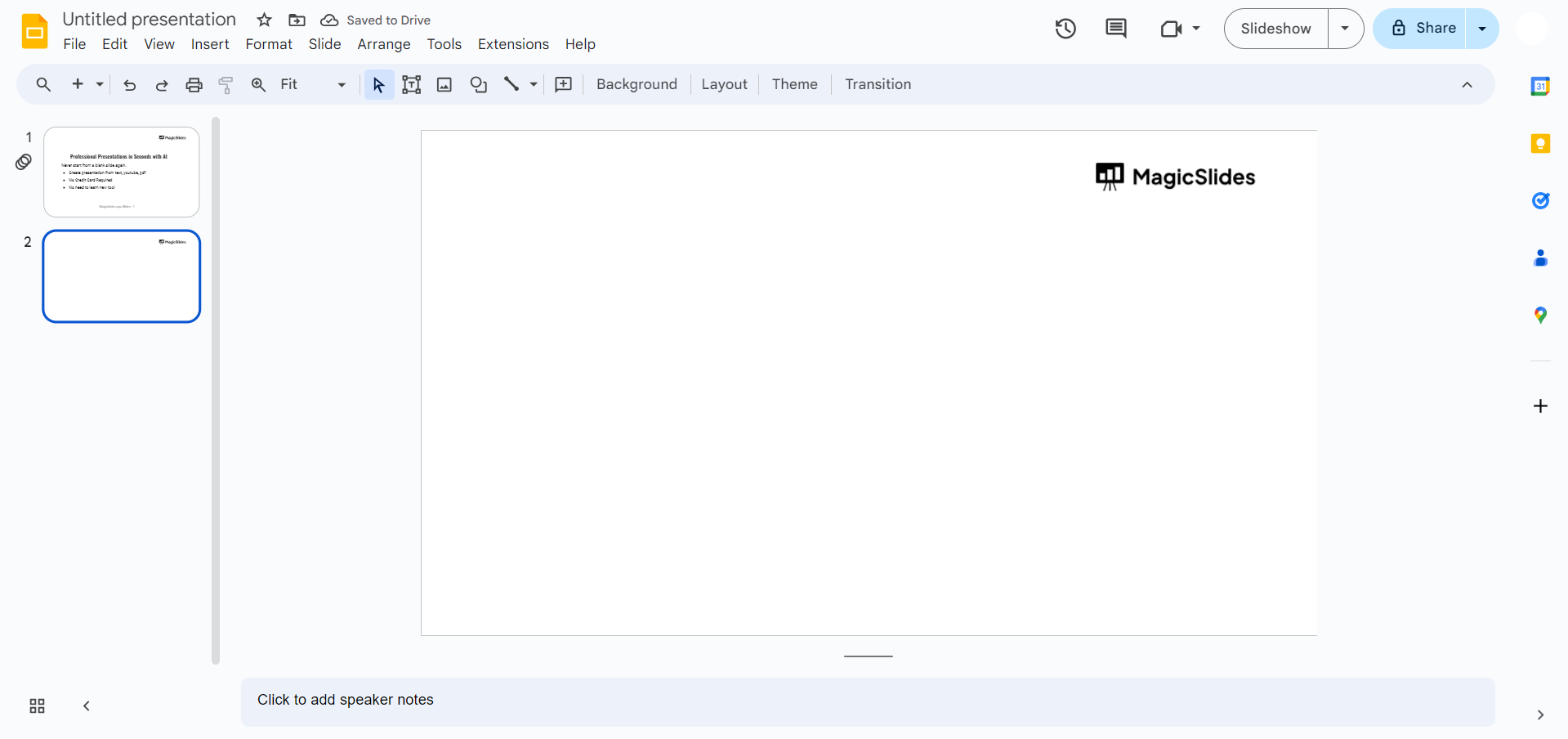
Return to Google Slides and open the presentation where you want to add the background-less image.
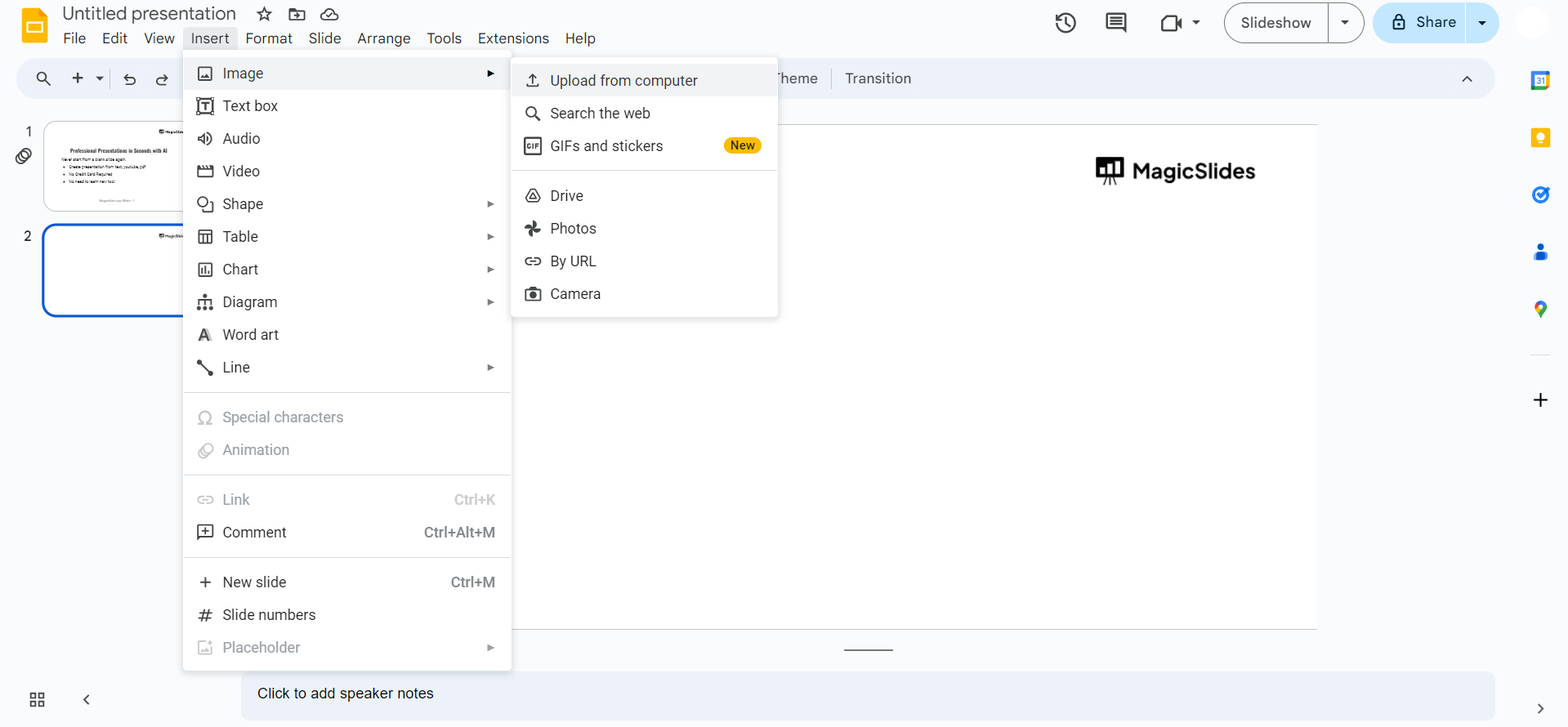
Upload the Image:
Click on the "Insert" tab in the top menu and select "Image" from the dropdown menu. Choose to upload the background-less image from your local system.
Create Stunning Presentations:
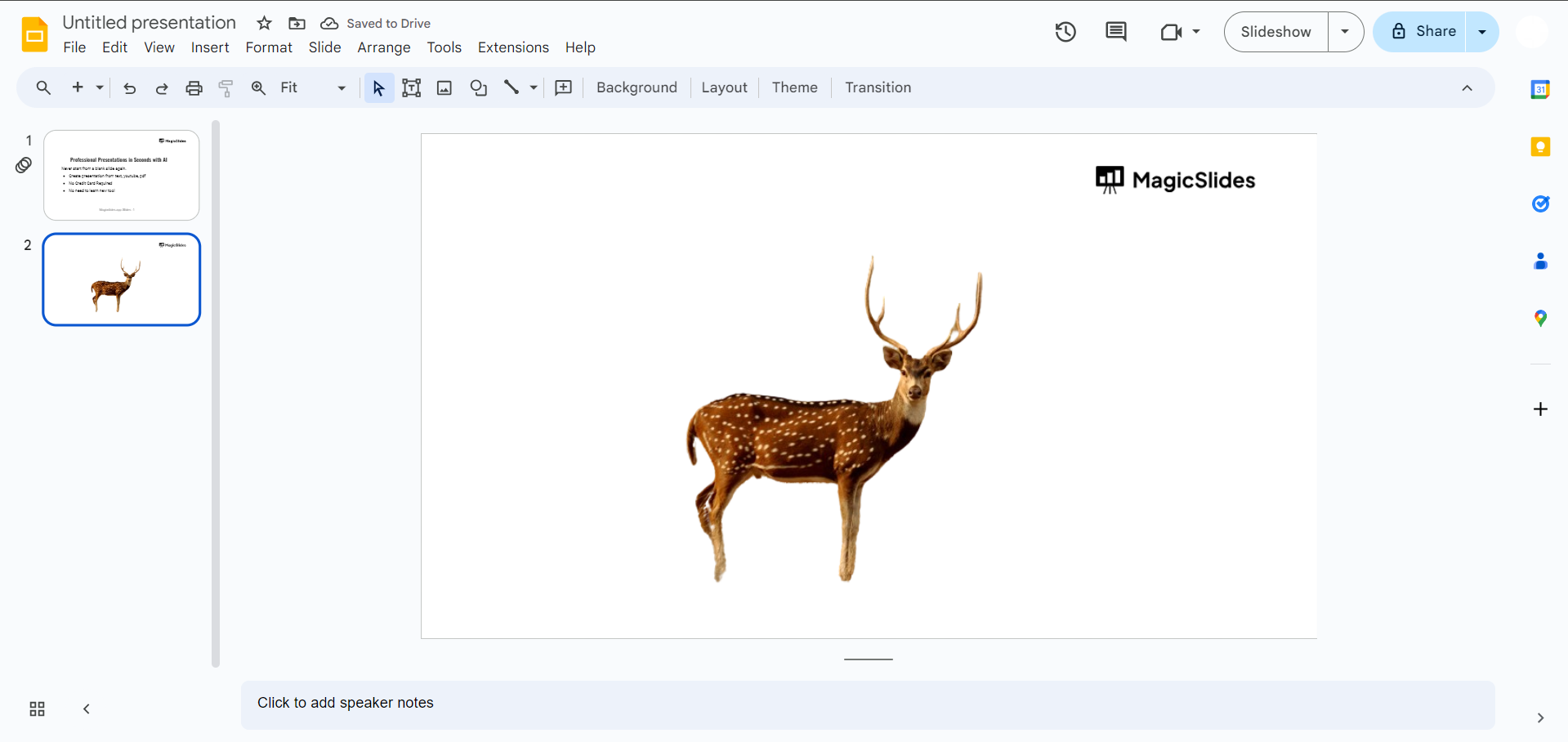
With the background-less image added to your slide, you can now arrange it, resize it, and incorporate it into your presentation to create visually stunning slides that effectively convey your message.
Conclusion:
By following these straightforward steps, you can effortlessly remove backgrounds from images and seamlessly integrate them into your Google Slides presentations. Whether you're creating professional presentations or engaging slideshows, the ability to remove backgrounds enhances the overall aesthetics and impact of your visuals. Experiment with different images and backgrounds to unleash your creativity and captivate your audience.
Frequently Asked Questions:
Can I remove the background from images directly within Google Slides?
No, Google Slides does not have a built-in feature for removing backgrounds from images. However, you can easily achieve this by using third-party background remover tools and then uploading the edited images to Google Slides.
Are there any limitations to the types of images that can have their backgrounds removed?
Background remover tools generally work well with most images, but complex backgrounds or intricate details may require more advanced editing techniques. It's recommended to use images with clear subjects and distinguishable backgrounds for the best results.
Do I need to have advanced editing skills to use background remover tools?
No, background remover tools are designed to be user-friendly and intuitive, requiring minimal technical expertise. Simply upload your image to the tool's website and follow the provided instructions to remove the background in just a few clicks.
Will removing the background from images affect their quality or resolution?
When using reputable background remover tools like remove.bg, the quality and resolution of your images are generally preserved. However, it's always a good idea to download and review the edited images to ensure they meet your standards before incorporating them into your Google Slides presentations.


