How to Remove Background in Canva


Easily remove backgrounds in Canva to create clean, professional designs that stand out.
Removing the background from an image in Canva is a powerful feature that allows you to create clean, professional-looking designs.
Whether you're creating a logo, social media post, or presentation, the ability to remove the background lets you seamlessly integrate images into your projects.
In this blog post, we'll guide you through the steps to remove a background in Canva, helping you enhance your designs with a polished, professional touch.
How to Remove Background in Canva
Step 1: Log in to Canva
Start by logging into your Canva account. Head to Canva's website and enter your login credentials.
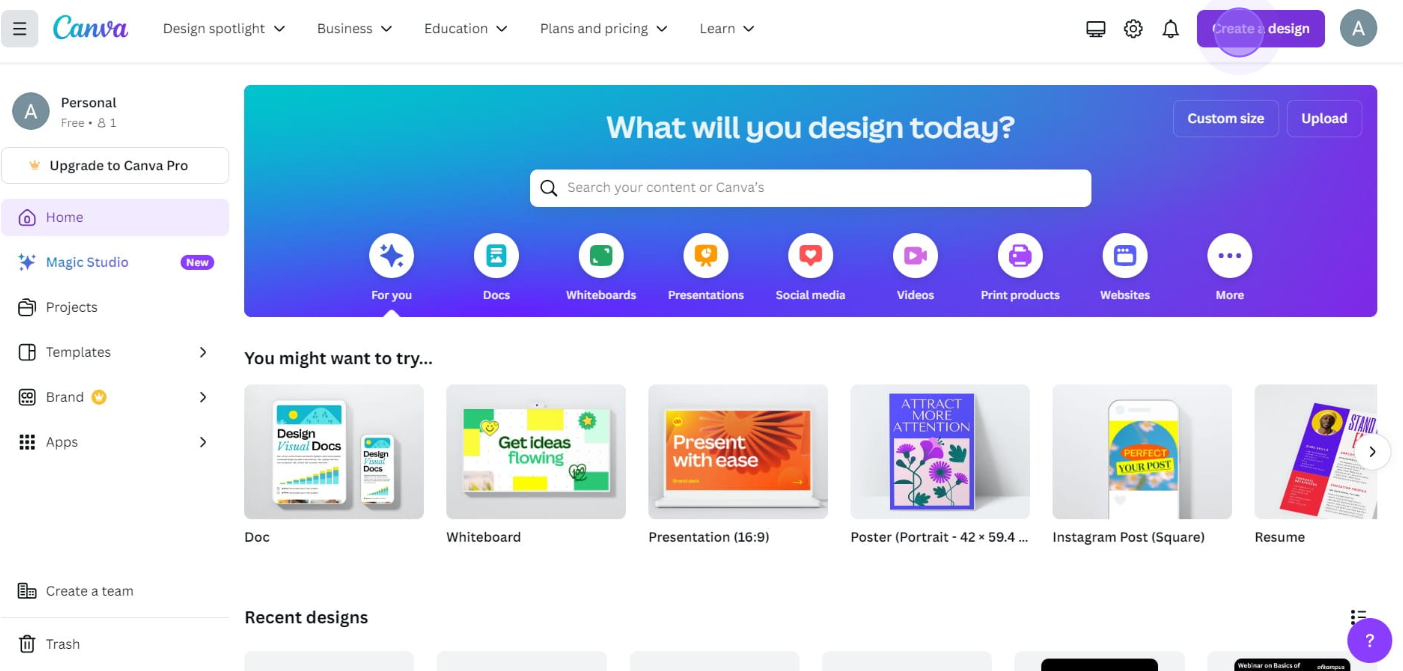
If you don’t have an account, you can easily sign up using your email, Google, or Facebook account.
Step 2: Create or Open a Design
Once logged in, you can create a new design or open an existing one. To start a new project, click on "Create a design" and select your preferred template or custom dimensions.
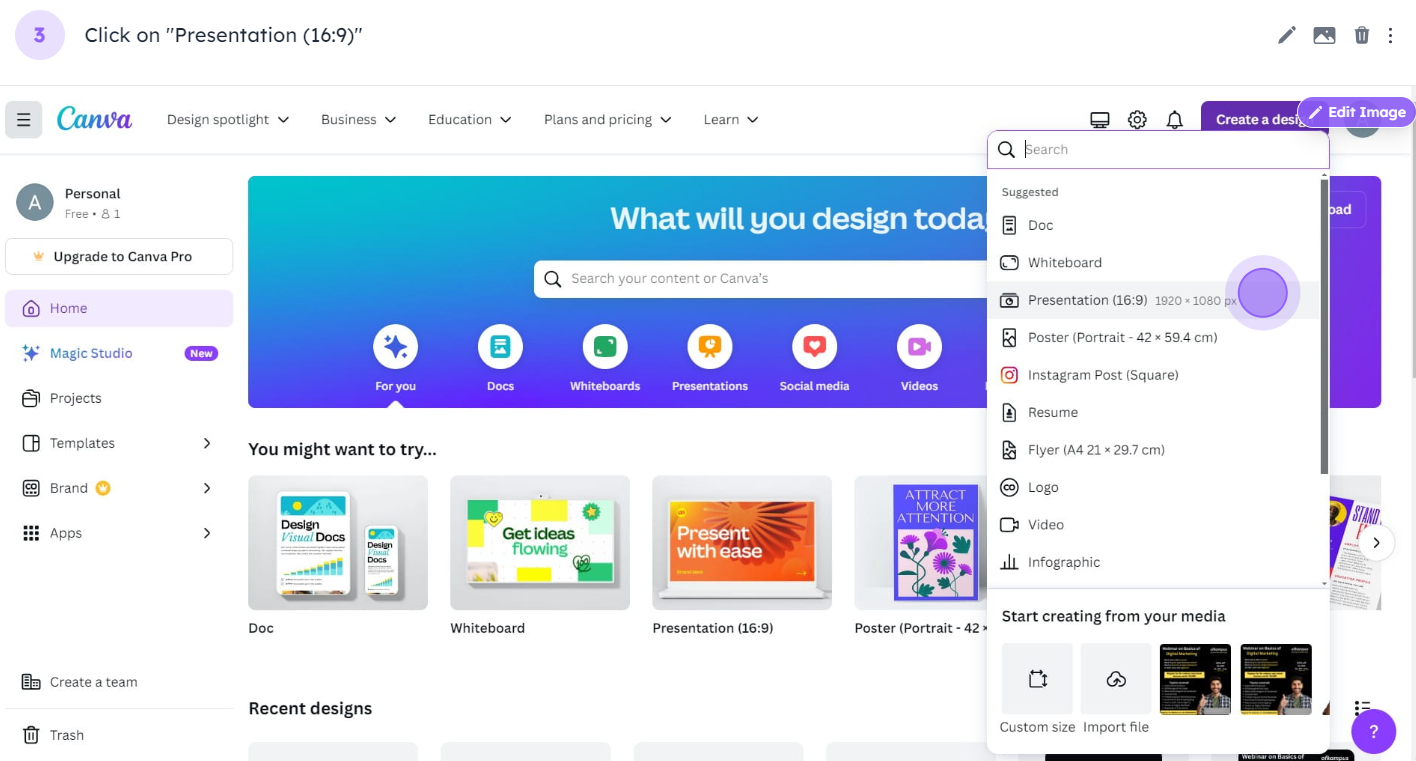
To work on an existing design, go to the "Your projects" tab and choose the design you want to edit.
Step 3: Upload/ Select Your Image/ create a Design
After opening your design, upload the image from which you want to remove the background.
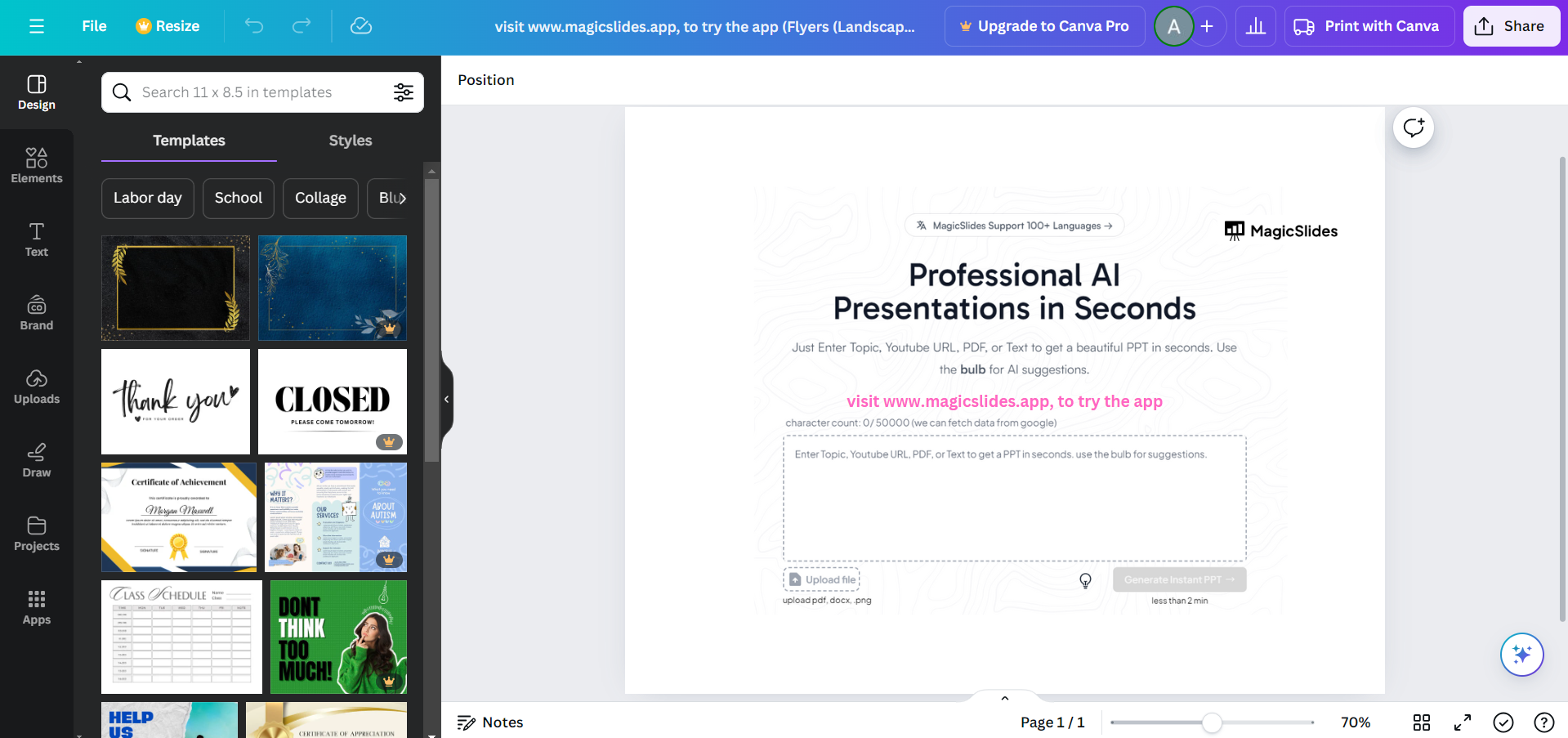
Click on the "Uploads" tab on the left-hand toolbar, then click "Upload files" to add your image. If you're using a photo from Canva’s library, simply search for it and add it to your design.
Step 4: Select the Image and Open the Effects Menu
Click on the image in your design to select it. Once selected, you'll see a toolbar at the top of the screen.
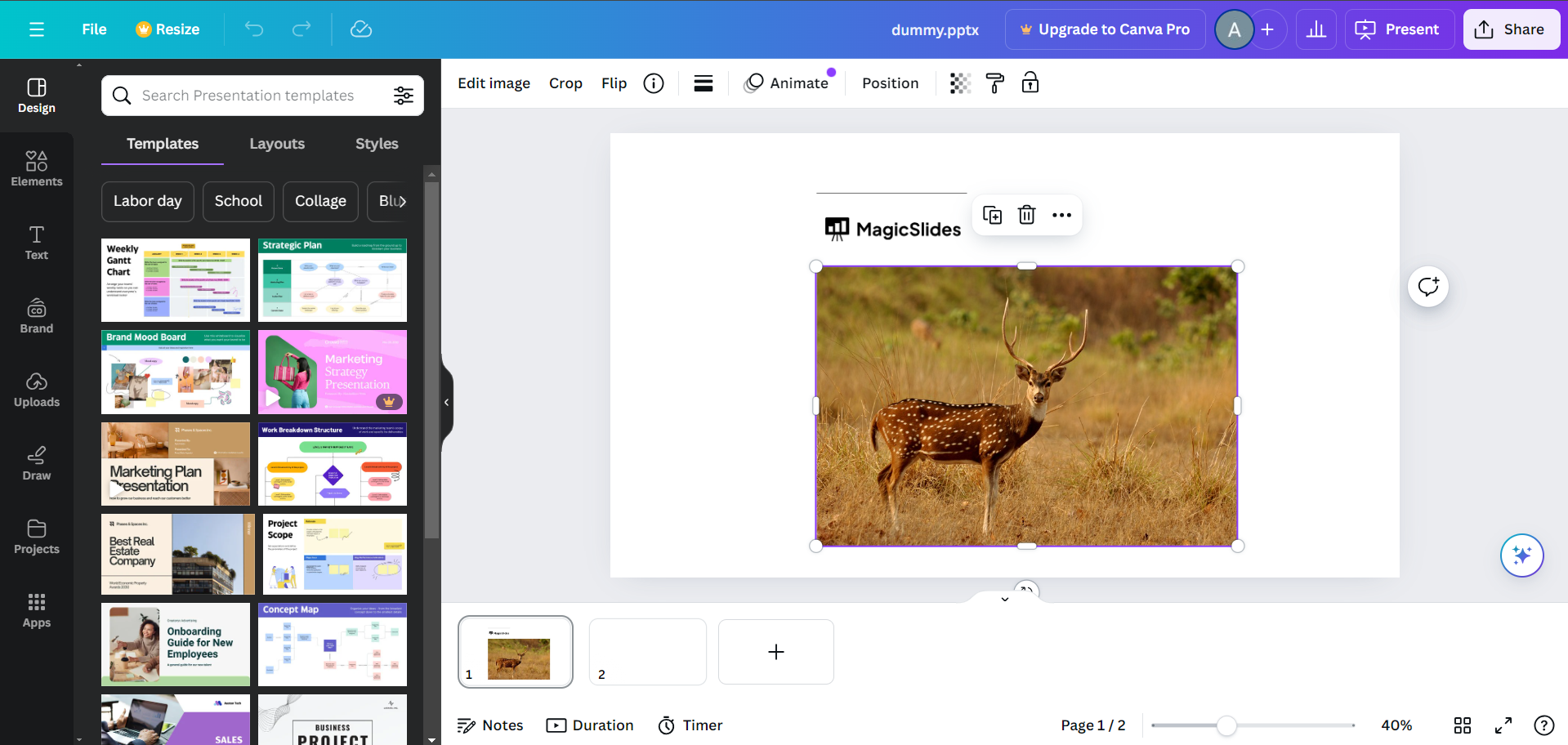
Look for the "Edit Image" button, usually located above the toolbar. Click this button to open the image editing options, where you'll find various effects and adjustments.
Step 5: Apply the Background Remover Tool
In the image editing options, locate the "Background Remover" tool. This feature is available for Canva Pro users.
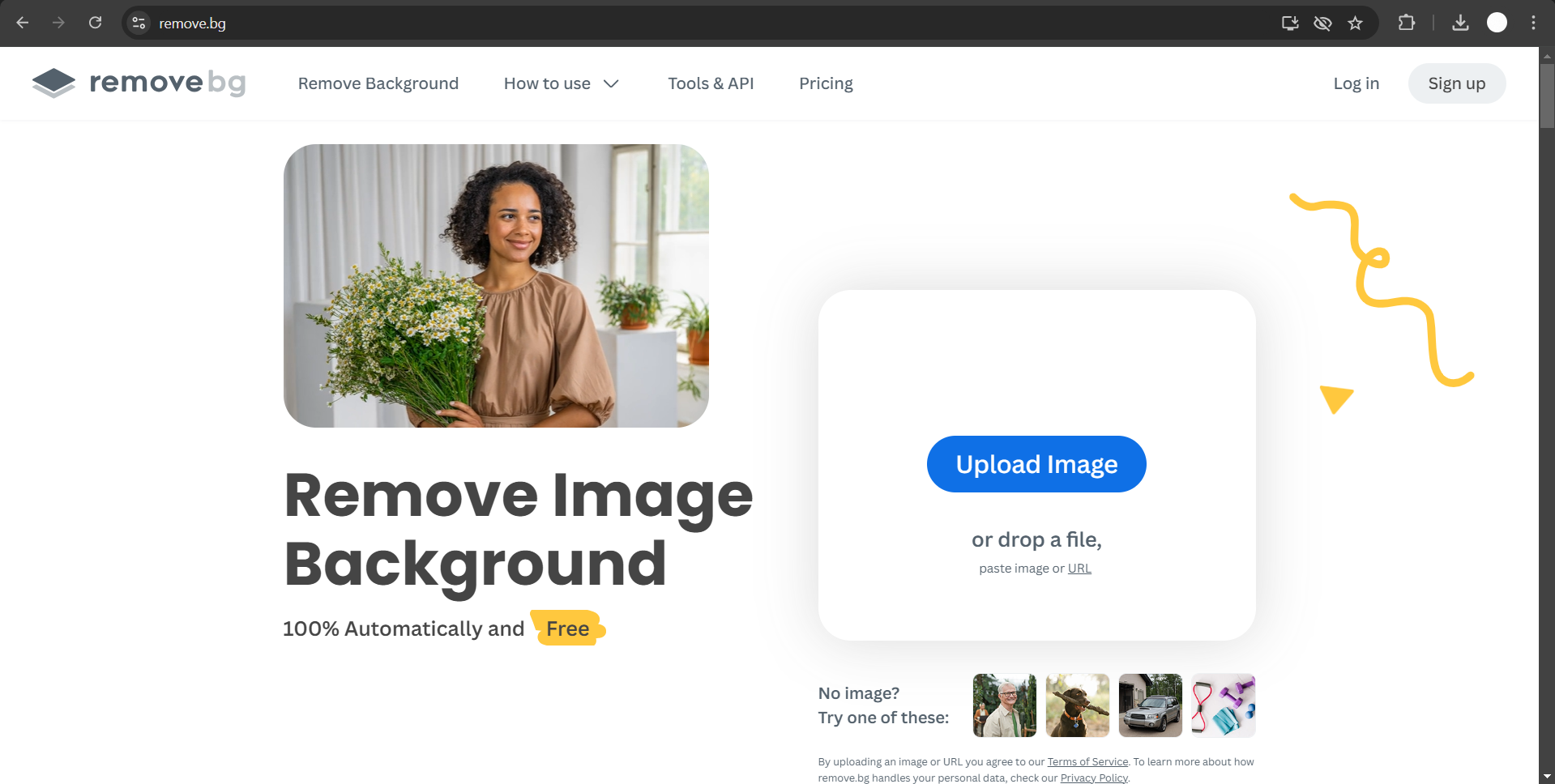
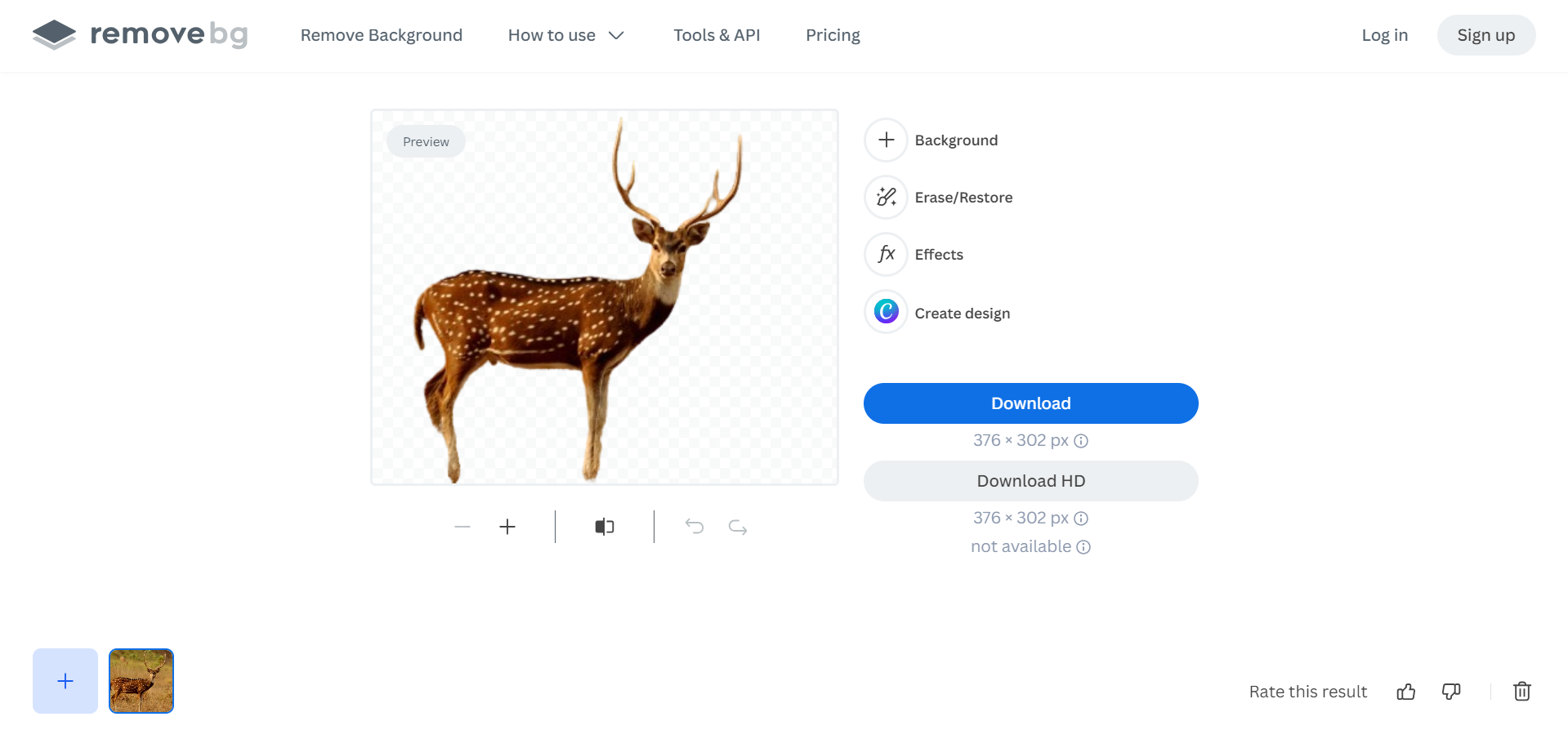
You can use external background removing tools like remove.bg and remove the image there and come back to canva.com and resume your design creation.
Step 6: Save Your Design
After finalizing your design with the background-removed image, be sure to save your work.
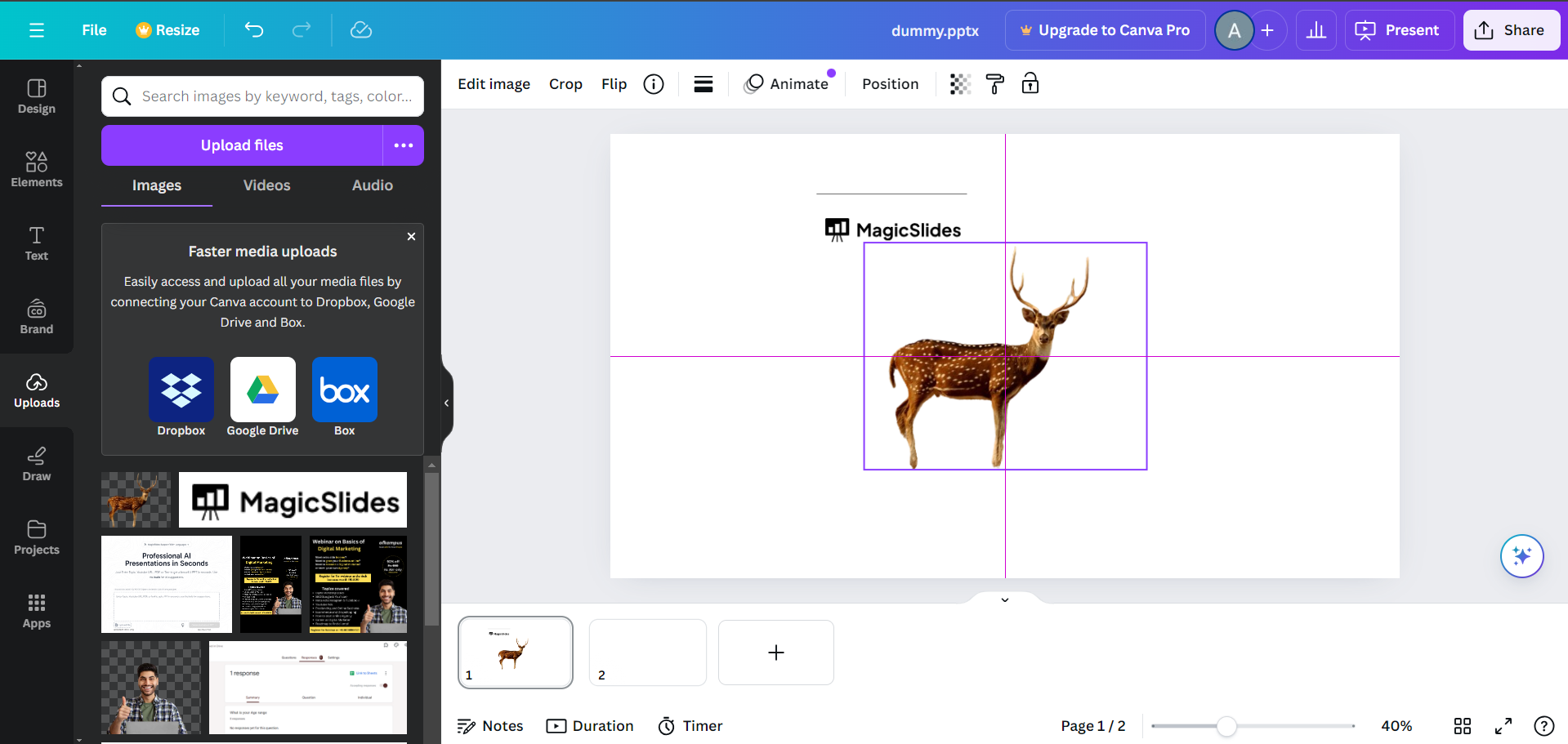
Click on the "Share" button in the top-right corner, select "Download," choose your preferred file format, and click "Download" to save your design to your computer.
Conclusion
Removing backgrounds in Canva is a simple yet powerful tool that can elevate the quality of your designs.
Whether you're working on marketing materials, presentations, or personal projects, this feature allows you to create clean, professional visuals with ease.
By following these steps, you’ll be able to remove backgrounds in Canva efficiently, giving your designs a polished and professional look. Explore this tool and see how it can enhance your creative projects!
FAQs can take you forward!
Is the Background Remover tool available in Canva's free version?
No, the Background Remover tool is available only in Canva Pro. You can instead use third party tools like remove.bg in that case.
Can I manually adjust the background removal?
Yes, you can refine the edges using the "Erase" and "Restore" brushes after removing the background.
Can I use the Background Remover on any image?
Yes, the tool works on any image, but results may vary based on the image's complexity.


