How to Remove the Background of a Picture in Canva


Easily remove backgrounds in Canva to create clean, professional visuals for your designs and presentations
Removing the background of a picture in Canva allows you to isolate the main subject, making your designs cleaner and more focused.
Whether you're creating a professional presentation or a social media post, this feature can help your images stand out.
Follow this step-by-step guide to remove the background from any picture using Canva.
How to Remove the Background of a Picture in Canva: A Step-by-Step Guide
Step 1: Open Canva and Upload Your Image
Start by logging into Canva and opening an existing design or creating a new one.
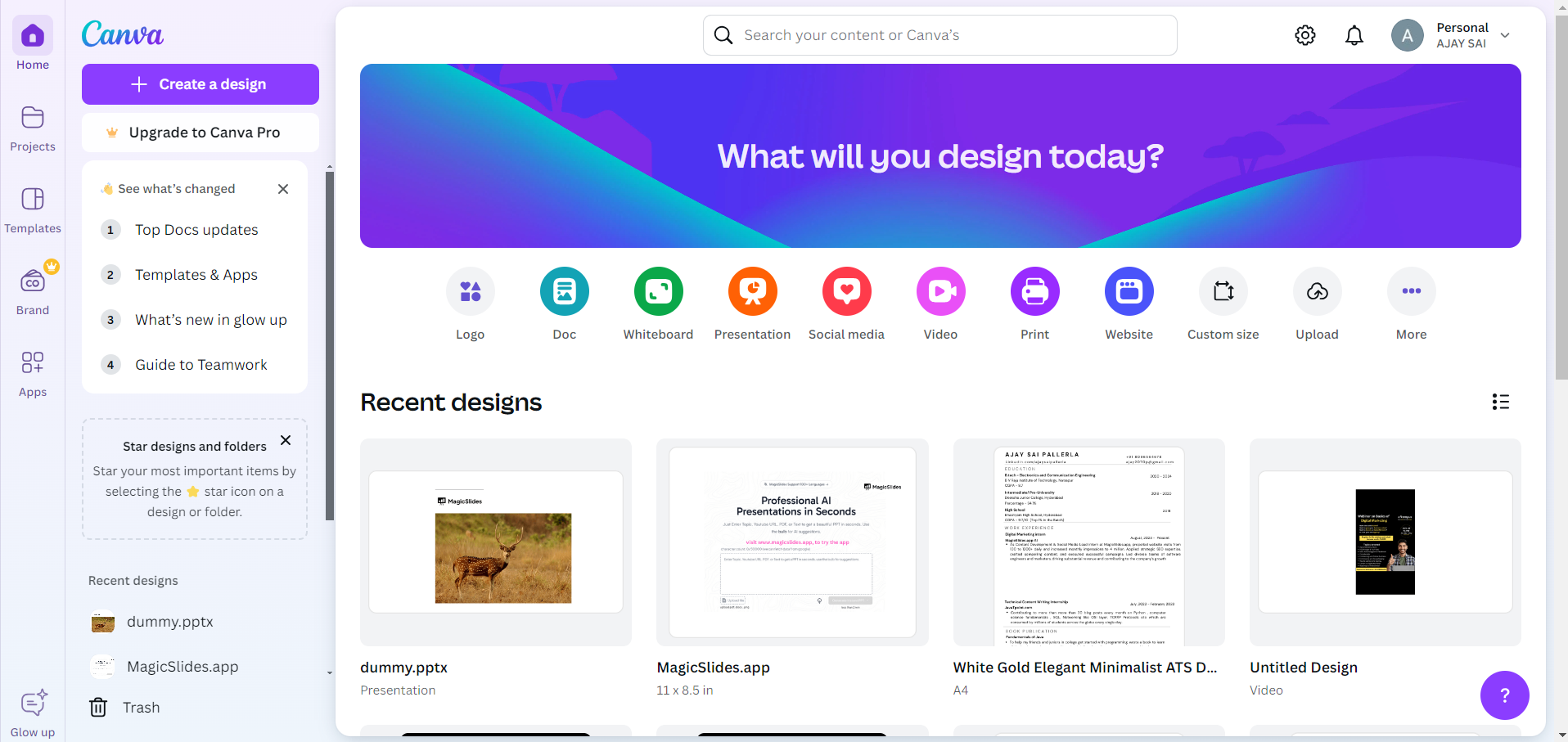
Once inside the Canva editor, click on the "Uploads" tab located in the left panel.
Upload the image you want to edit by clicking on the "Upload media" button and selecting the file from your device.
Step 2: Add the Image to Your Design
Once your image is uploaded, click on it to add it to your Canva workspace.
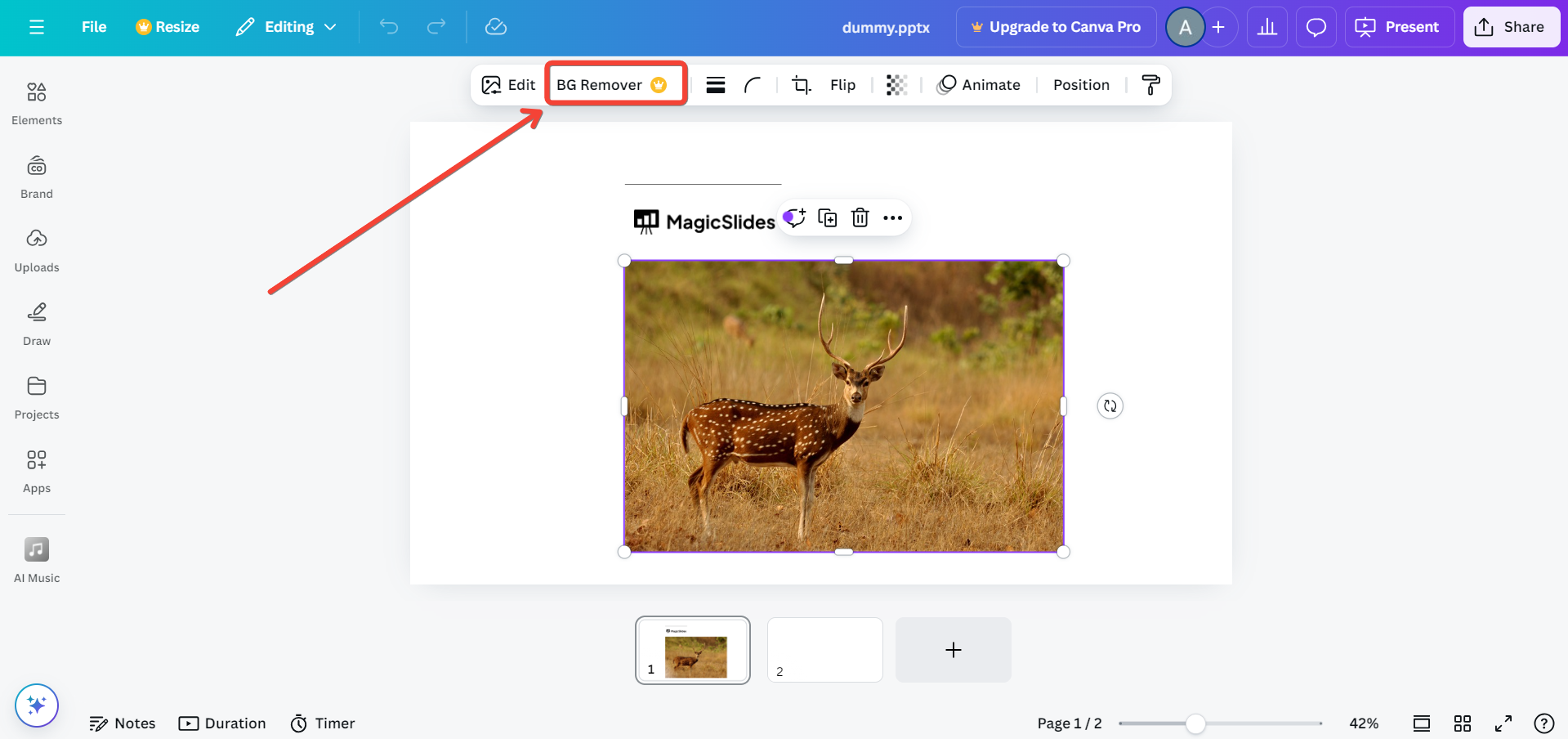
Resize or position the image as necessary by clicking and dragging its corners.
Make sure the image is selected before proceeding to the next step.
Step 3: Use the Background Remover Tool
With your image selected, navigate to the top menu and click on the "Edit Image" button.
From the options available, choose the "Background Remover" tool.
Canva will automatically process the image and remove the background in a few seconds.
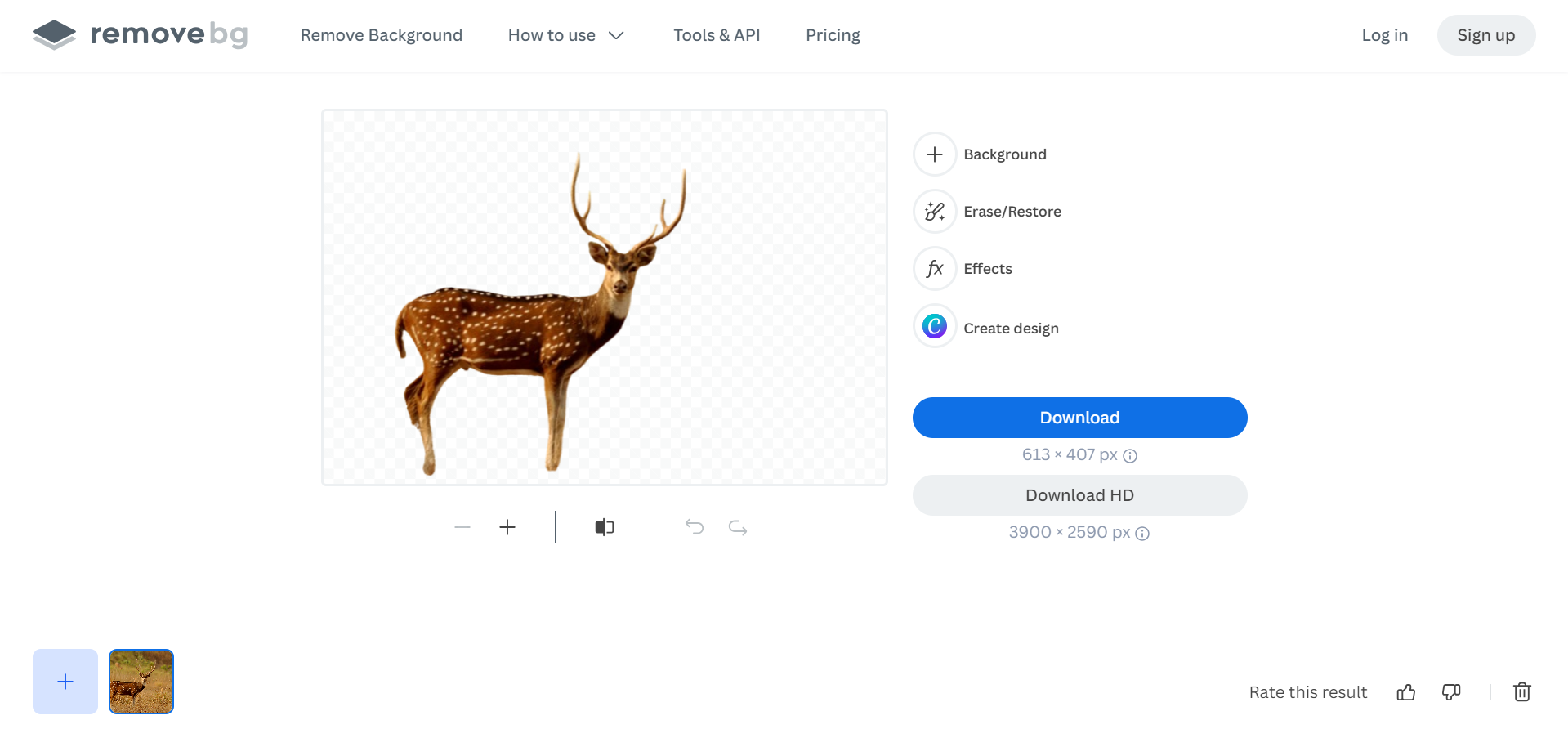
If you are not a Canva pro user, visit remove.bg and clear the background of the picture from there and paste it in your canva design.
Step 4: Save or Export Your Edited Image
Once you're satisfied with how the image looks, click outside of the editing panel to finalize the changes.
Now, you can either continue designing with your image or export it.
To export the image, click the "Share" button in the top-right corner, choose "Download," select your preferred file format (PNG is recommended for images with transparent backgrounds), and save the file to your device.
Conclusion
Removing the background from a picture in Canva is an easy way to make your designs look more professional and visually appealing.
With just a few clicks, you can isolate subjects and create clean, dynamic visuals for presentations, social media, or any other project.
By following these steps, you'll be able to master this feature and enhance your designs effortlessly.
FAQs can come handy!
Is the Background Remover tool available in Canva's free version?
No, the Background Remover tool is only available for Canva Pro users.
Can I restore parts of an image after using the Background Remover?
Yes, you can use the "Restore" brush to bring back any areas mistakenly removed.
What file format should I use to save images with transparent backgrounds?
PNG is the recommended format for saving images with transparent backgrounds.


