How to Replace an Image in Canva in Just a Few Clicks


Learn how to replace an image in Canva without affecting your design layout. Follow this step-by-step guide to swap images quickly and easily.
Replacing an image in Canva is one of the quickest ways to update your design without starting over. Whether you’re editing a presentation, social media post, flyer, poster, or marketing material, Canva makes it easy to swap images while preserving the original layout, size, crop, and applied effects. In just a few clicks, you can refresh your design without affecting the rest of your work.
In this guide, I’ll show you exactly how to replace an image in Canva in just a few clicks.
How to Replace an Image in Canva: A Step-by-Step Guide
Learn how to replace an image in Canva while keeping your design layout intact. Follow this quick step-by-step guide with tips below.
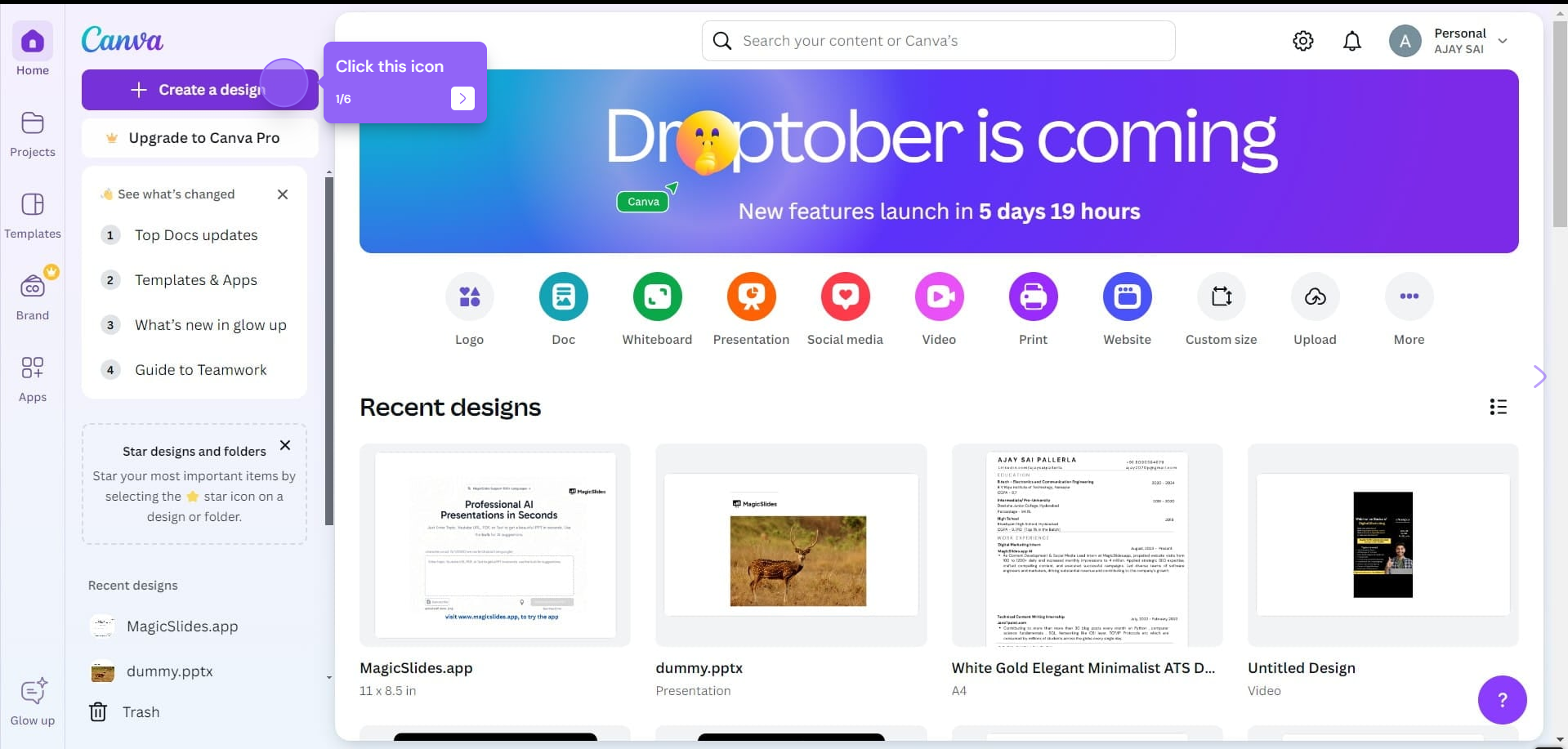
Step 1: Open Your Canva Design
Log in to Canva and navigate to the design where you want to replace the image. Once inside the editor, locate the image you want to change on your canvas.
This could be a background image, an element in a template, or an uploaded image.
Step 2: Select the Image to Replace
Click on the image you want to replace.
When you select the image, a border will appear around it, along with additional options in the top toolbar.
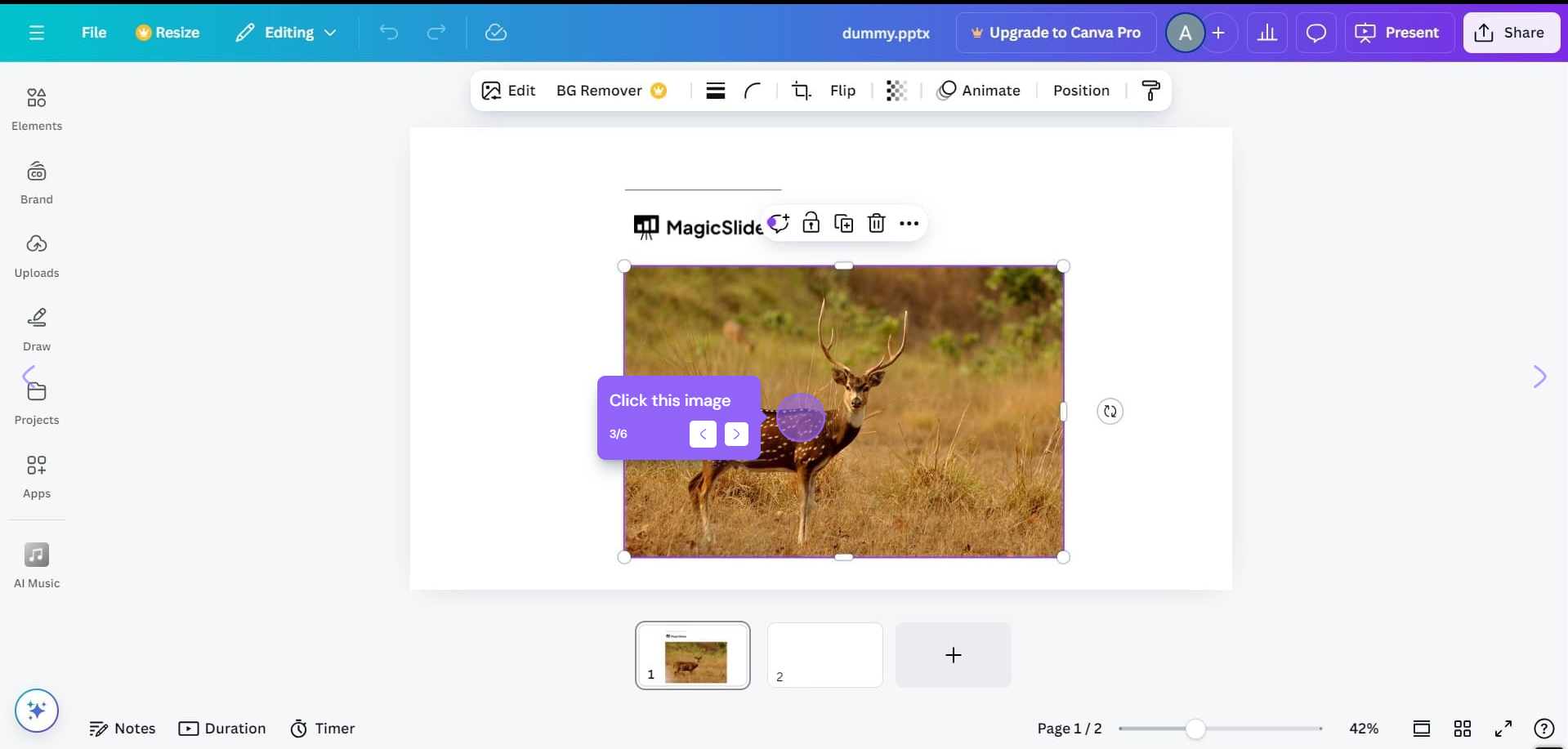
This means the image is ready for editing.
Step 3: Upload a New Image or Choose from Canva’s Library
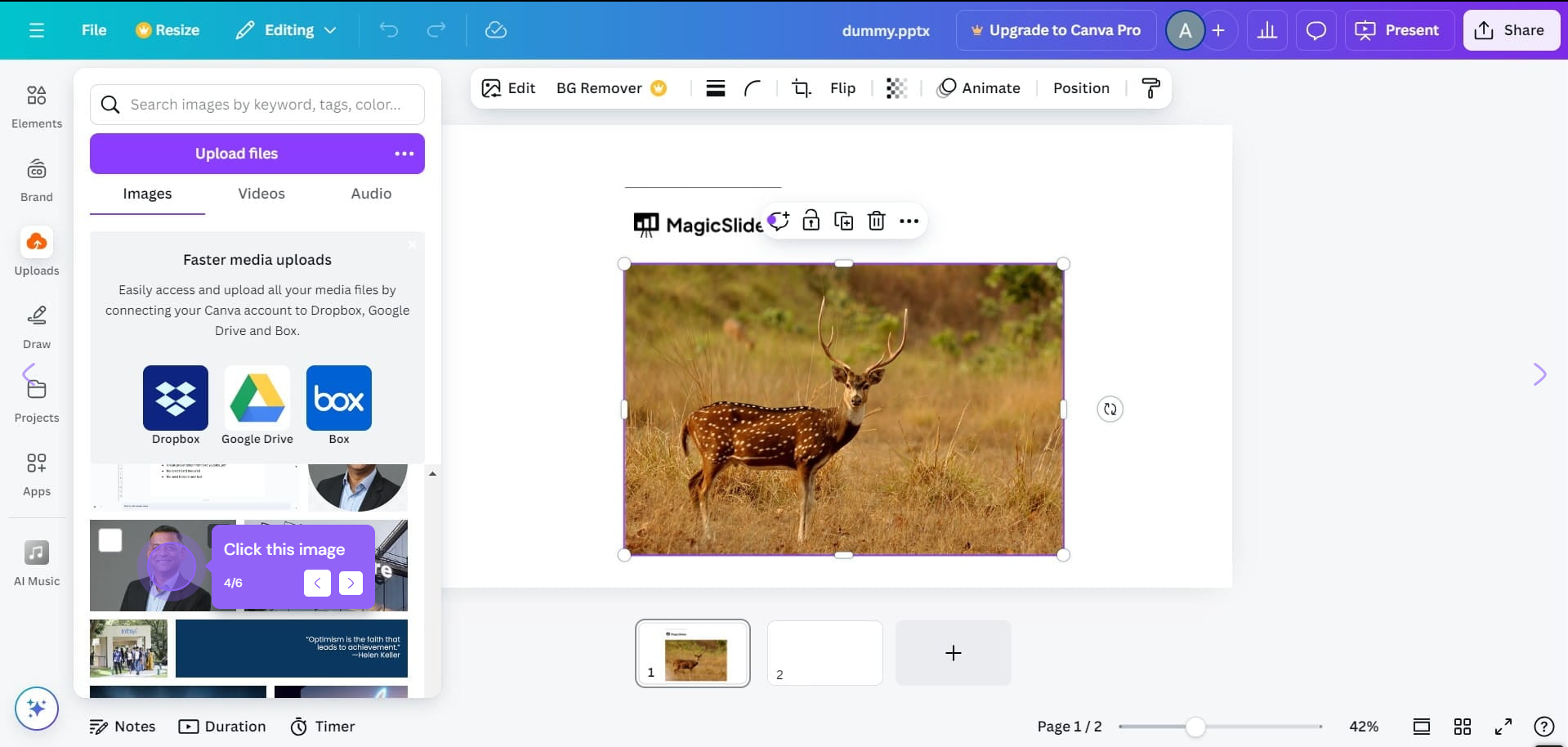
If you already have a replacement image, click on the “Uploads” tab in the left-hand toolbar to upload your new image from your computer.
Alternatively, browse Canva’s built-in image library by opening the Photos or Elements tab and choosing an image that best matches your design.
Step 4: Replace the Image
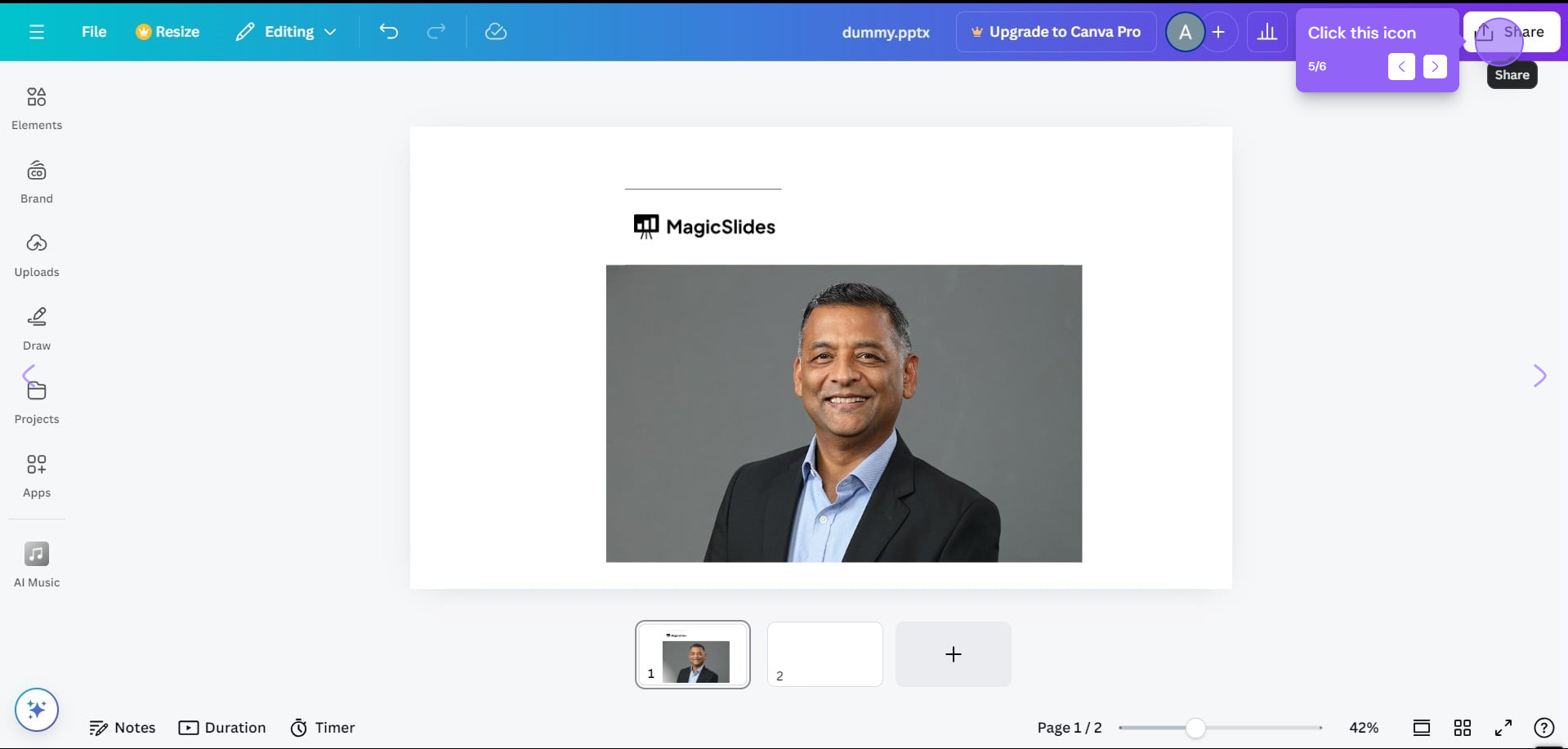
Once you’ve found or uploaded the new image, simply drag and drop it over the existing image on your canvas.
Canva automatically replaces the old image while keeping its frame, size, position, crop, and most applied effects, making it easy to update your design without reformatting it.
Step 5: Adjust the New Image
Depending on the dimensions of your new image, you may want to fine-tune its placement. Use the Crop tool to reposition the image within its frame, resize it if necessary, and apply filters or effects from the top toolbar to match the rest of your design.
Once you’ve replaced an image in Canva, consider learning how to change the color of an image in Canva to further customize your design elements.
Troubleshooting Common Issues
- The image isn’t replacing correctly: Make sure you’re dragging the new image directly over the existing image or frame until Canva highlights it.
- The new image looks cropped: Double-click the image and reposition it within the frame or use the Crop tool to adjust its placement.
- The layout changed unexpectedly: This usually happens if the original image wasn’t inside a frame. Resize and align the new image manually if needed.
Create Professional Presentations Faster with MagicSlides
If you’re creating presentations in Canva, you can save even more time by using MagicSlides to create AI PowerPoint Slides.
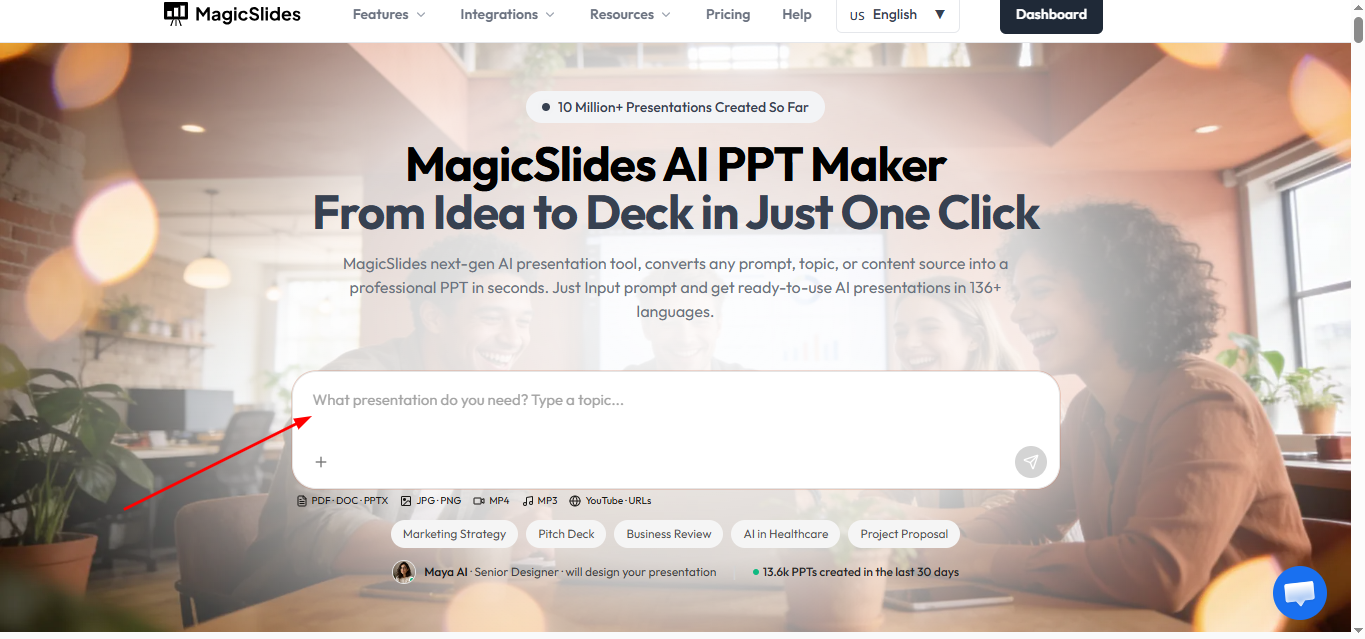
Instead of designing every slide manually, MagicSlides uses AI to generate:
- A simple topic to a PowerPoint presentation
- Text prompts to presentation slides
- PDFs to presentation
- Word documents to presentation slides
- YouTube to PowerPoint presentation
- Web pages to presentation slides
- Images to PowerPoint presentation
Within minutes, you’ll have a professionally designed presentation that you can edit further in Canva or PowerPoint.
Whether you’re a student, teacher, marketer, or business professional, MagicSlides helps you create polished presentations in a fraction of the usual time.
Conclusion
Replacing an image in Canva takes only a few seconds and lets you refresh your design without affecting its layout. Whether you’re updating branding, changing product photos, or experimenting with new visuals, Canva makes the process simple and efficient.
FAQs are here to help!
Q1. Can I replace an image in Canva without changing the layout?
Yes. Canva keeps the image frame, size, position, cropping, and most effects when you drag a new image over an existing one.
Q2. Can I replace multiple images at once?
No. Canva currently allows you to replace one image at a time. You’ll need to repeat the process for each image.
Q3. What image formats does Canva support?
Canva supports several image formats, including:
- PNG
- JPG/JPEG
- SVG (Canva Pro and supported designs)
- GIF
- WEBP (in many cases)
Q4. Will replacing an image remove filters and effects?
In most cases, Canva preserves filters, cropping, and positioning. However, some effects may need minor adjustments depending on the new image.
Q5. Can I replace images in Canva on mobile?
Yes. The Canva mobile app also supports image replacement by selecting an existing image and choosing a new one from your uploads or Canva’s library.


