how to save a powerpoint as a pdf


Transforming the carefully crafted presentation to our desired format is easy, learn how to save a powerpoint as a pdf
Saving a PowerPoint presentation as a PDF file is a common way to share your slides while ensuring that the formatting and layout remain consistent across different devices and platforms. Here are the steps to save a PowerPoint presentation as a PDF:
Step-by-Step Guide to Saving a PowerPoint Presentation as a PDF:
→ Open Your PowerPoint Presentation: Open the PowerPoint presentation you want to save as a PDF.
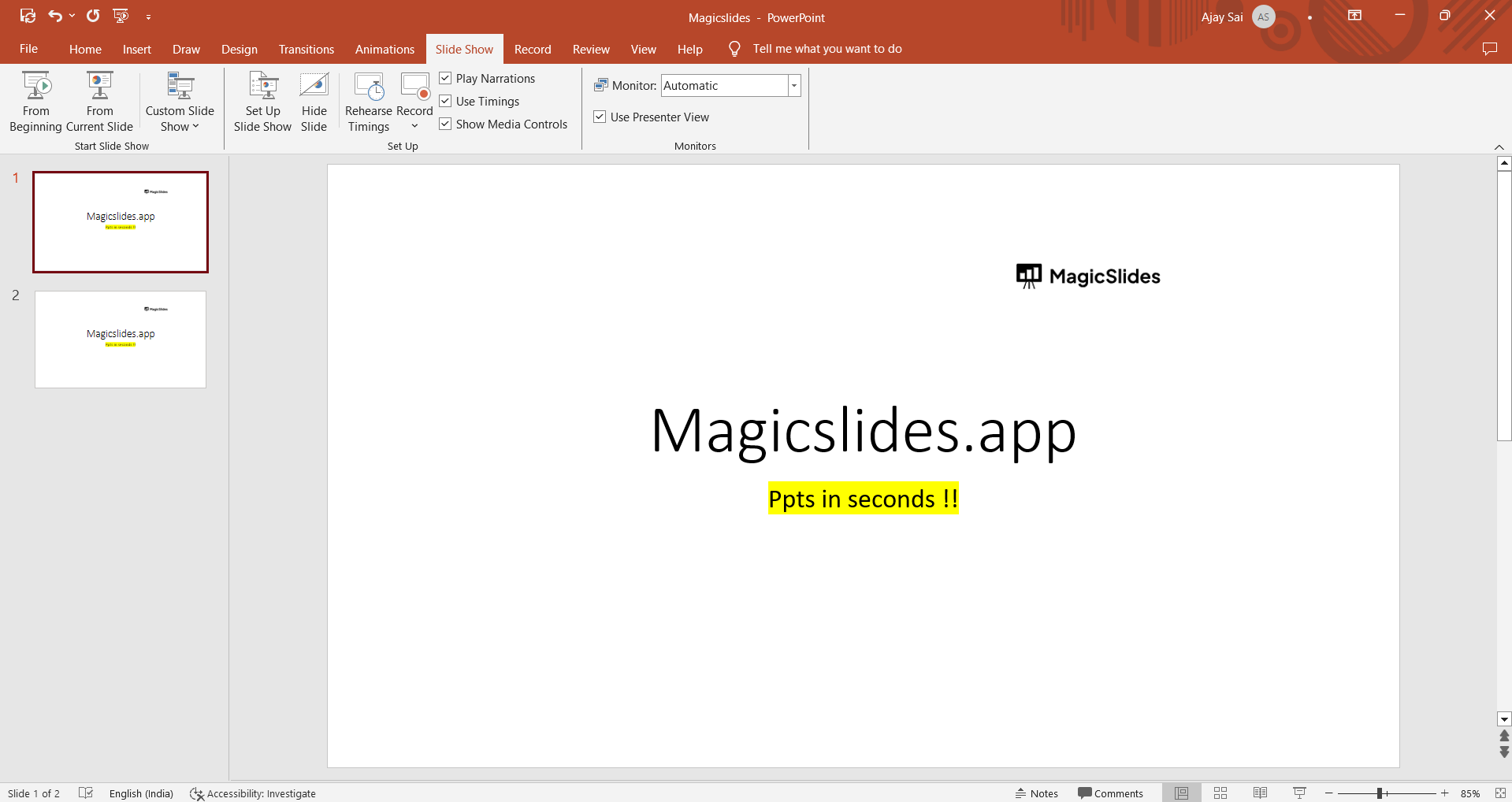
→ Click on "File": In the top-left corner of the PowerPoint window, click on the "File" tab.
→ Choose "Save As" or "Save a Copy": In the left-hand sidebar, click on "Save As" or "Save a Copy." The exact wording may vary depending on your version of PowerPoint.
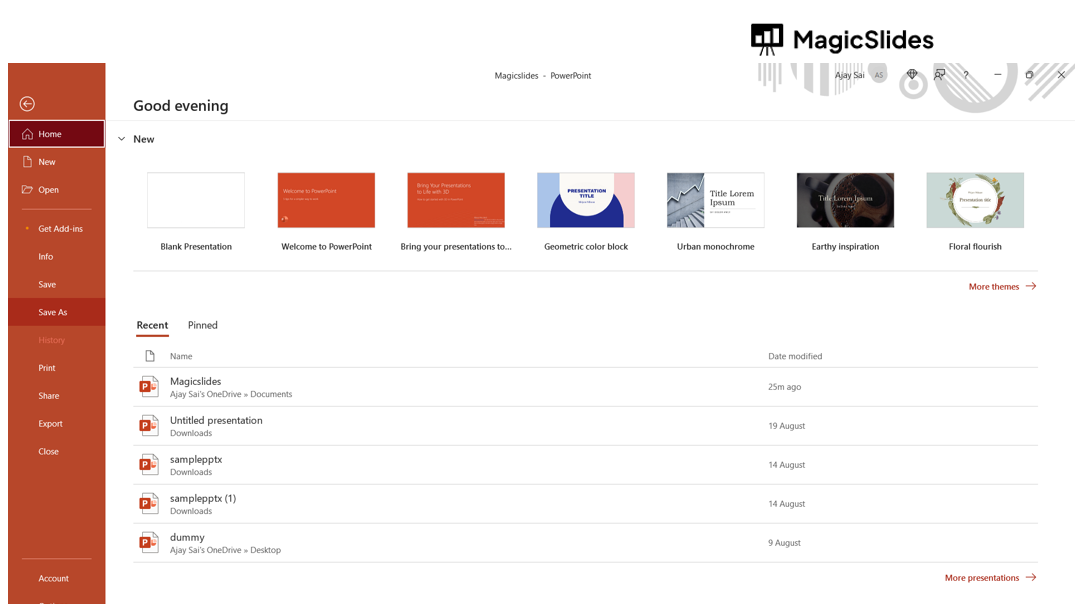
→ Select the Location: Choose the location on your computer where you want to save the PDF file.
→ Choose "PDF" as the File Format: In the "Save As" dialog box, you'll see a dropdown menu for selecting the file format. Click on it, and choose "PDF (*.pdf)" from the list of available formats.
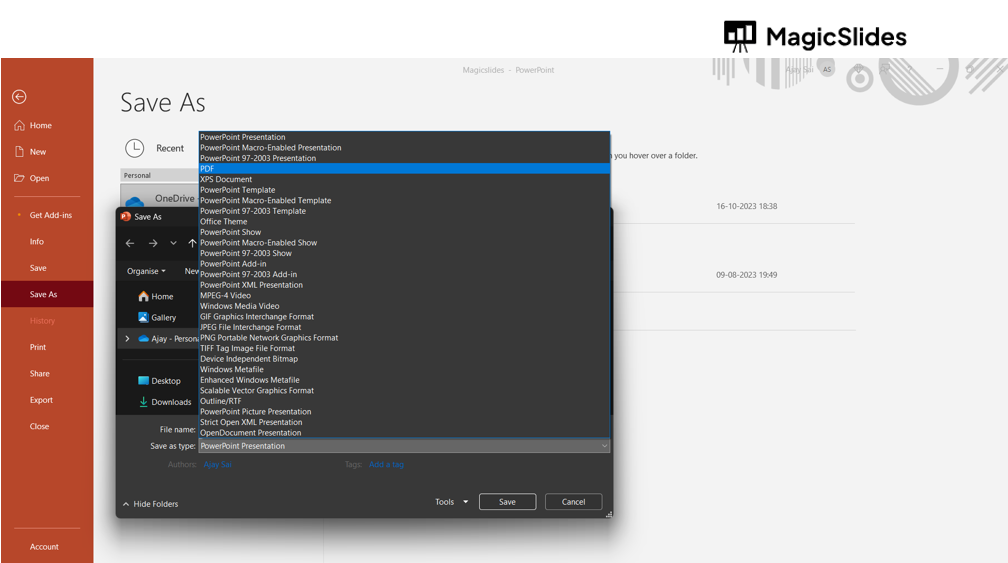
→ Adjust PDF Options (Optional): You may see an "Options" button or a similar feature that allows you to adjust PDF settings. This may include options like the quality of images, whether to include hidden slides, or whether to include speaker notes. Customize these settings to your preference.
→ Click "Save" or "Export": Once you've selected the location, format, and adjusted any optional settings, click the "Save" or "Export" button. PowerPoint will save your presentation as a PDF in the chosen location.
Conclusion:
Saving a PowerPoint presentation as a PDF is a straightforward process and is useful for sharing your slides with others who may not have PowerPoint installed on their devices.
By following the steps outlined in this guide, you can easily convert your presentation into a portable and universally compatible PDF format, ensuring that your content retains its quality and structure.


