How to auto-save a PowerPoint in offline mode while still working


Master PowerPoint safety offline with these FAQs save smart, use AutoRecover, and embrace cloud syncing solutions.
Ensuring the safety of your work in offline mode is a paramount concern for anyone working on a PowerPoint presentation. While PowerPoint doesn't offer an automatic offline auto-save feature similar to some other productivity tools, there are several strategies you can employ to safeguard your work. In this blog post, we will explore practical tips and features within PowerPoint that can help minimize the risk of data loss and provide you with the peace of mind to focus on your creative process.
How to auto-save a PowerPoint in offline mode while still Working
Regularly Save Your Work:
Manually save your presentation frequently using the Ctrl + S (Windows) or Command + S (Mac) keyboard shortcuts.
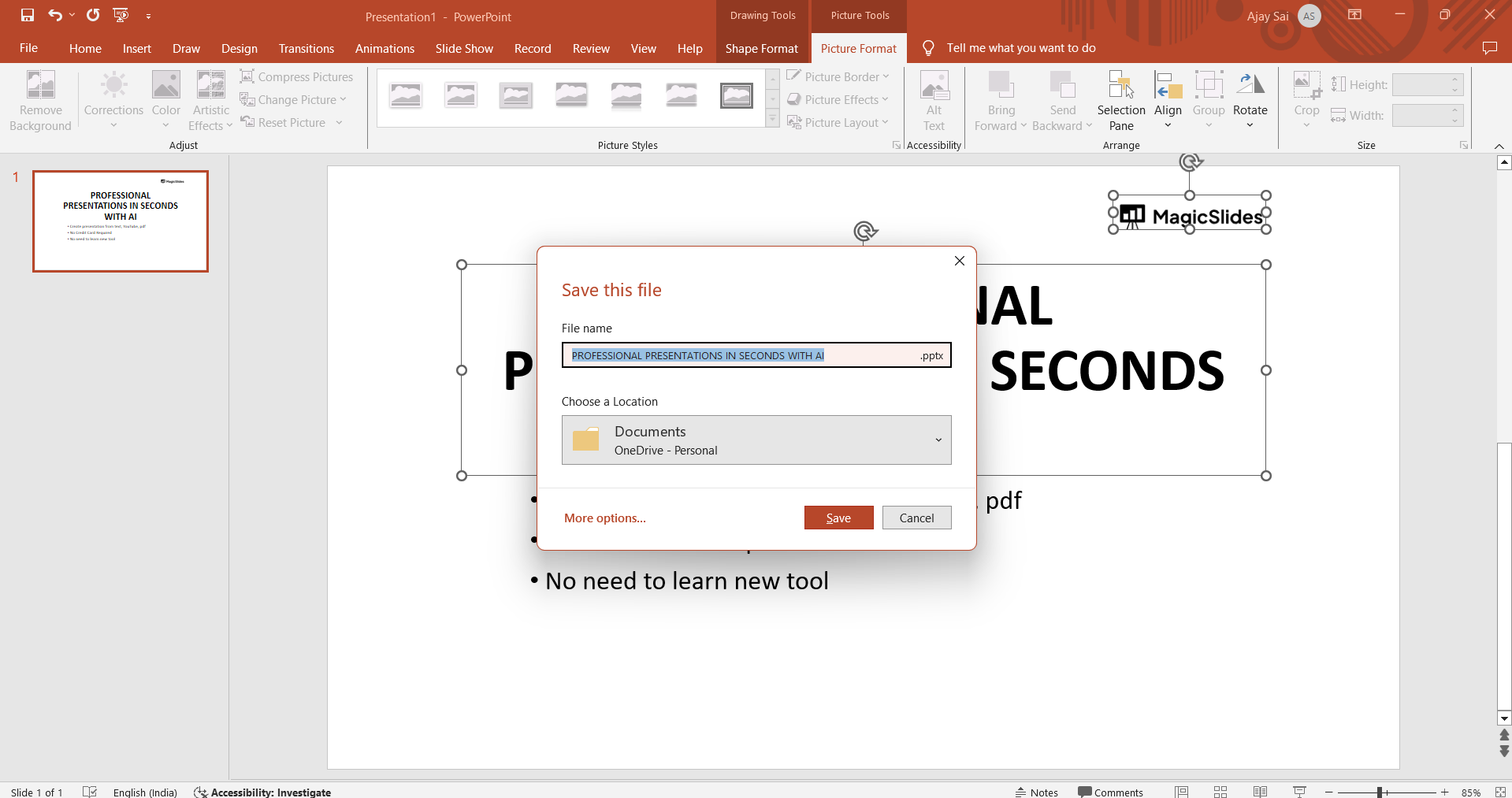
Enable the AutoRecover Feature:
- PowerPoint has an AutoRecover feature that automatically saves a temporary copy of your presentation at set intervals. In the event of a crash or unexpected shutdown, PowerPoint can recover your unsaved changes.
- Go to "File" -> "Options" -> "Save."
- Check the "Save AutoRecover information every X minutes" box and set the desired interval.

Use OneDrive or SharePoint:
- Save your PowerPoint presentation to a cloud storage service like OneDrive or SharePoint. This allows you to access and save your files even when offline, and the changes will be synced when you are online.

Enable AutoSave (Office 365):
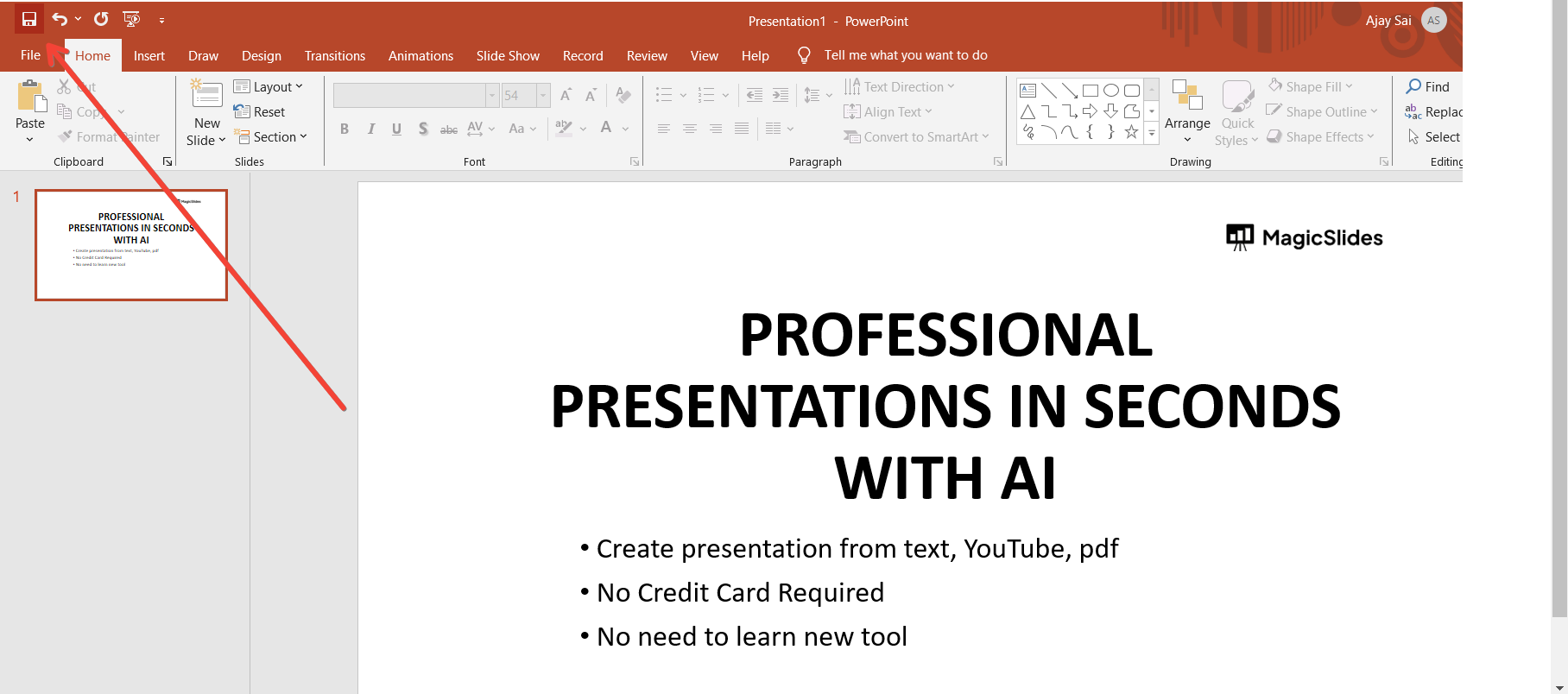
- If you're using Office 365, PowerPoint may have an AutoSave feature. Ensure it's enabled by default. AutoSave automatically saves changes to the document in real-time.
- Check if the "AutoSave" switch is on in the top-left corner of the PowerPoint window.
Conclusion:
By implementing a combination of manual saving habits, leveraging AutoRecover features, creating backup copies, utilizing cloud storage services like OneDrive or SharePoint, and taking advantage of the AutoSave and Version History features in Office 365, you can significantly reduce the impact of unexpected issues. With these strategies in mind, you can confidently delve into your PowerPoint projects, knowing that your efforts are well-protected against unforeseen challenges.
Frequently Asked Questions:
How often should I save my PowerPoint presentation?
Ans: Regularly save your work using shortcuts like Ctrl + S (Windows) or Command + S (Mac) every few minutes. This practice minimizes the risk of losing unsaved changes during unexpected disruptions.
Does PowerPoint have an automatic save feature offline?
Ans: PowerPoint lacks an automatic offline auto-save feature. However, the AutoRecover feature creates temporary copies at intervals, offering some protection against crashes.
Can I access previous versions of my presentation?
Ans: Yes, Office 365 users can use Version History to view and restore previous versions. Find it under "File" -> "Info" -> "Version History" -> "View Version History."
How do cloud storage services enhance safety offline?
Ans: Storing files on OneDrive or SharePoint lets you access and save them offline. Changes made offline sync when you reconnect to the internet, ensuring consistent backup and updates.


