How to save a PowerPoint template


Learn how to save your custom PowerPoint template for easy reuse in future presentations.
Creating and saving your own PowerPoint template is a great way to maintain consistency in your presentations, whether for business, education, or personal use.
A custom template allows you to reuse design elements, fonts, colors, and slide layouts without having to recreate them for every new presentation.
In this blog post, we’ll guide you through the step-by-step process of saving a PowerPoint template after creating it. Follow these simple steps to store your custom template and access it whenever you need it.
How to save a PowerPoint template
Step 1: Open Your PowerPoint Template
Before saving, ensure that you have finalized the design of your template. This includes adding all custom slide layouts, colors, fonts, and any specific elements you want to reuse.
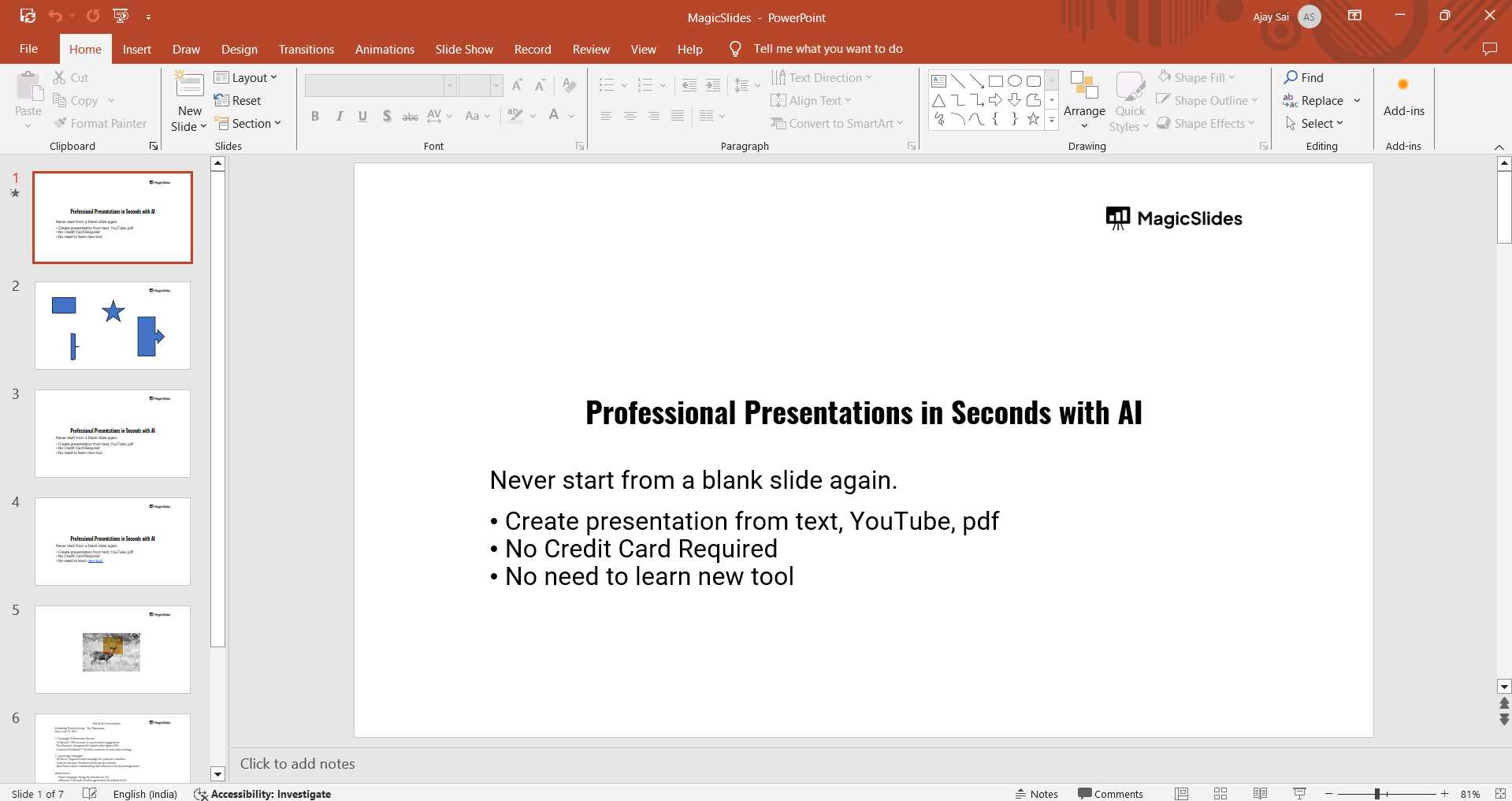
You can either create a new presentation or modify an existing one to suit your template needs.
Step 2: Go to "File" Tab
Once you're satisfied with your design, navigate to the "File" tab located in the top-left corner of the PowerPoint window.
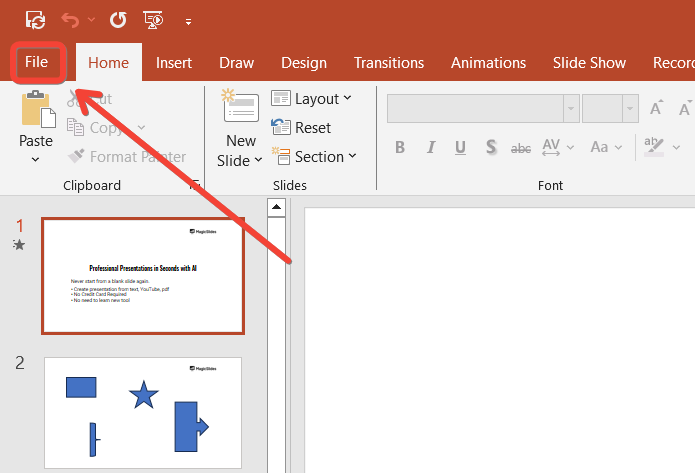
This will open the file menu, where you can access different options for saving and exporting your presentation.
Step 3: Select "Save As"
In the "File" menu, click on "Save As." This option allows you to save your file under a new name or format.
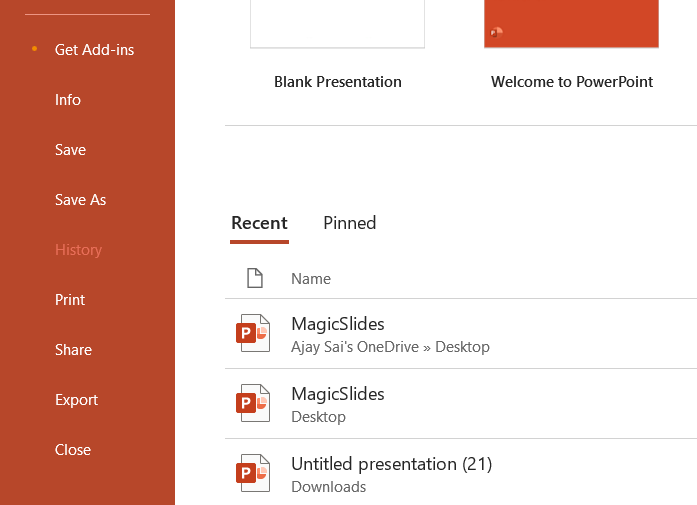
When you click it, a window will pop up asking where you want to save your file.
Step 4: Select the File Type as "PowerPoint Template (.potx)"
In the same dialog box, you’ll see an option to choose the file type. Click on the dropdown menu and select "PowerPoint Template (*.potx)."
This is the file format for PowerPoint templates, ensuring that your custom design will be saved as a reusable template.
Step 5: Access Your Template
After saving your template, you can access it any time you create a new presentation.
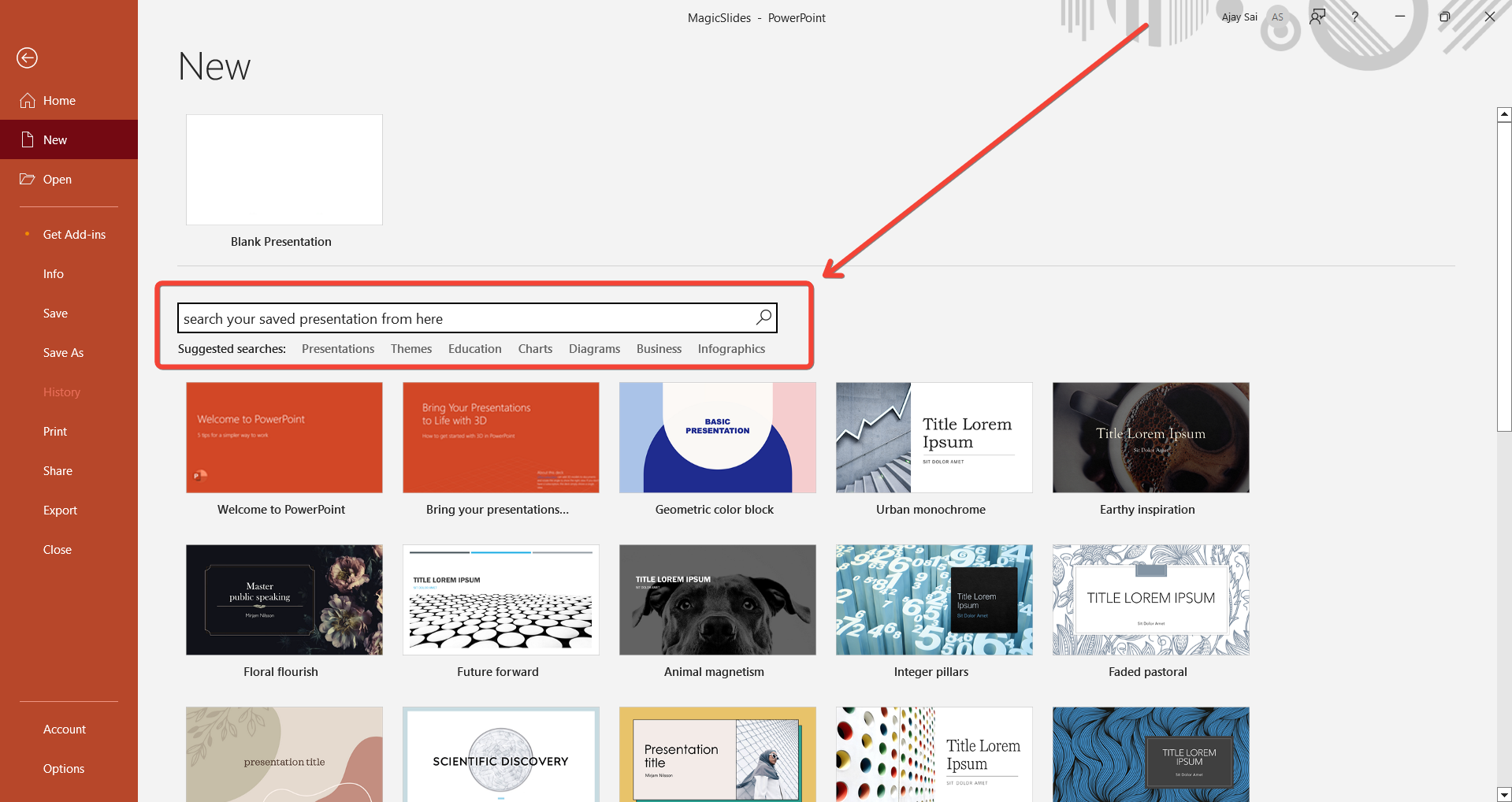
To do this, open PowerPoint, go to the "File" tab, click "New," and select "Custom" from the templates available. You’ll find your saved template in the "Custom Office Templates" section.
Once you've saved your PowerPoint template, you can elevate your presentations even further by using a tool that generates slide content with AI. This solution helps streamline the design and content creation process, allowing you to create impactful slides with minimal effort.
Conclusion
By saving your PowerPoint template, you ensure that your design, layout, and formatting choices are always readily available for future use.
This saves you time and helps keep your presentations consistent and professional.
Follow the simple steps outlined in this post to create and save your custom PowerPoint templates with ease.
Now, you can focus more on your content and less on design when preparing future presentations!
FAQs can take you forward!
Can I edit a saved PowerPoint template later?
Yes, you can open and edit your saved template by modifying the .potx file.
Where are my saved PowerPoint templates stored?
By default, templates are stored in the "Custom Office Templates" folder, usually in the Documents directory.
Can I share my PowerPoint template with others?
Yes, simply share the .potx file, and others can use it in their PowerPoint software.


