How to save PowerPoint template


Enhance your presentations with a personalized touch by learning how to save your own PowerPoint template.
Creating a consistent and professional look for your presentations is crucial in leaving a lasting impression on your audience. One way to achieve this is by designing a custom PowerPoint template that reflects your brand or personal style. In this step-by-step guide, we'll walk you through the process of saving your own PowerPoint template, ensuring that you can easily apply your unique design to future presentations.
How to save PowerPoint template
Step 1: Open PowerPoint and Create Your Design
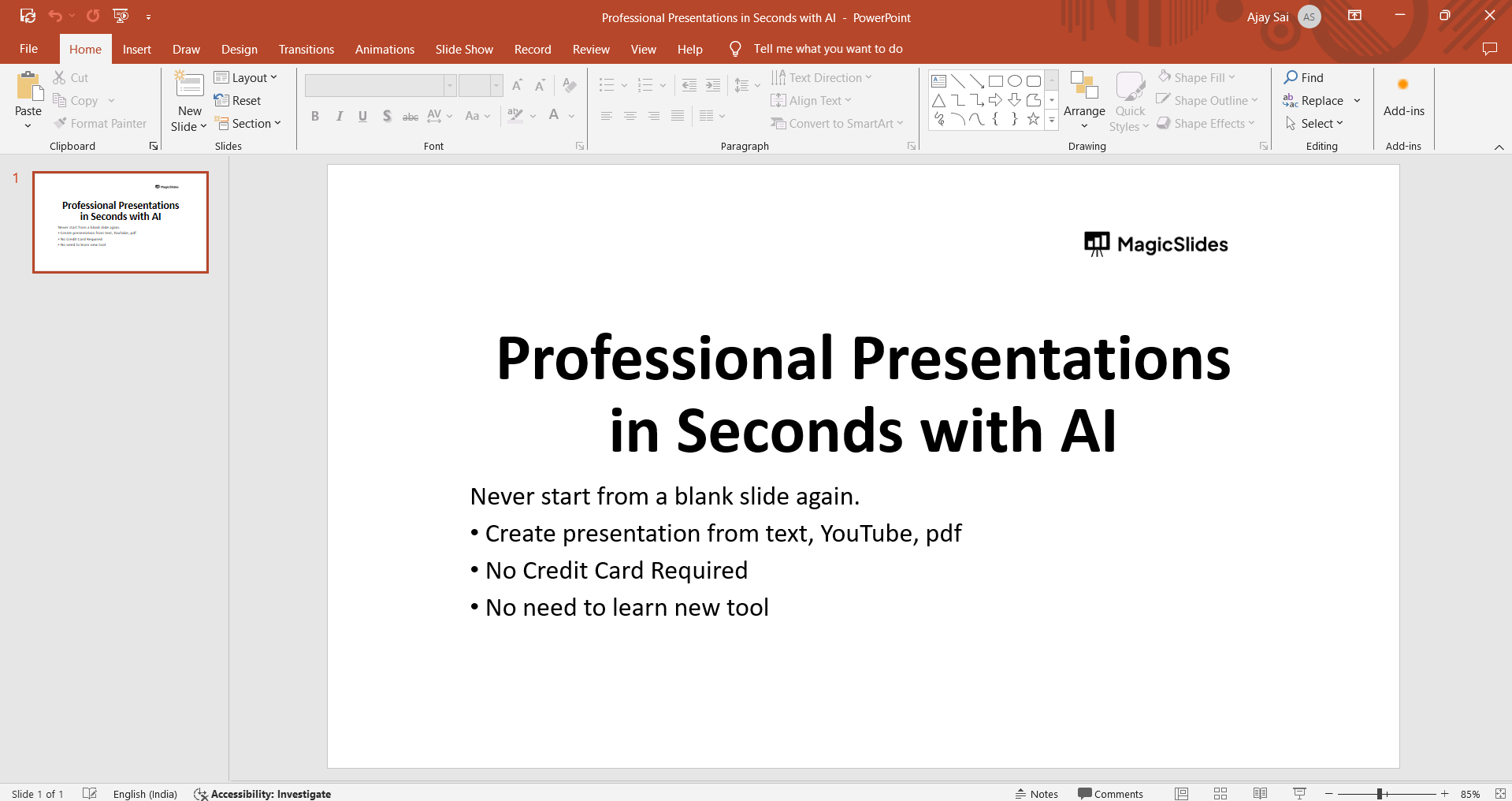
The first step in saving a PowerPoint template is to open the PowerPoint software and design your presentation as you desire. This includes selecting the theme, choosing fonts, setting color schemes, and arranging placeholders for text, images, and other elements.
Step 2: Access the "Save As" Option
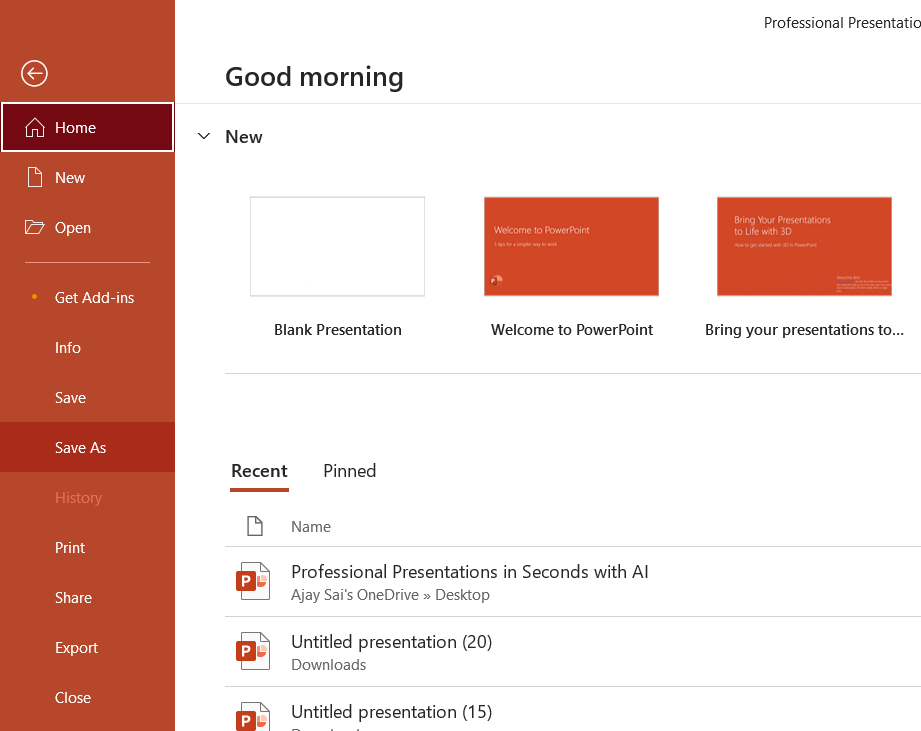
After finalizing your design, go to the "File" menu in the top-left corner of the PowerPoint interface. Click on "Save As" to open the save options.
Step 3: Choose PowerPoint Template Format
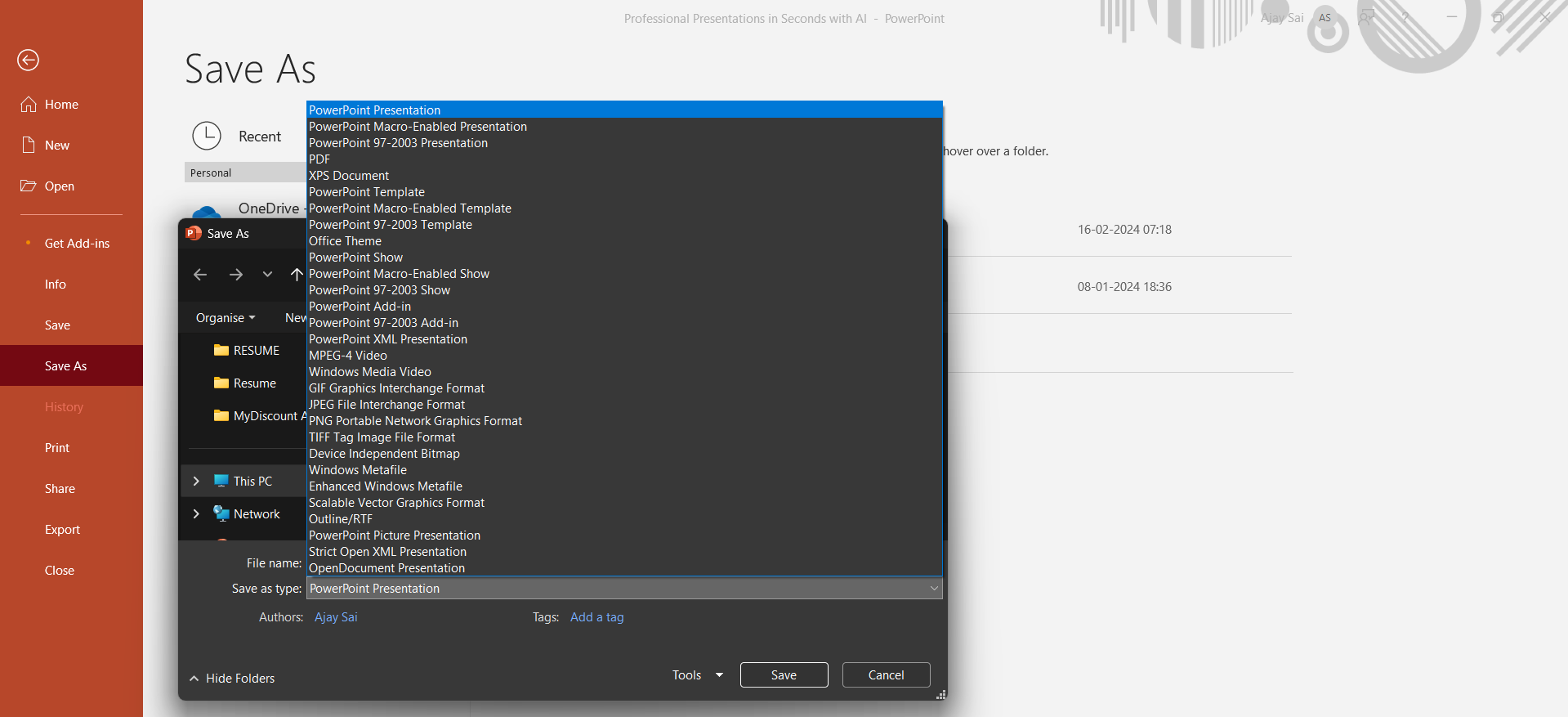
In the "Save As" dialog box, navigate to the location where you want to save your template. Next, under the "Save as type" dropdown menu, select the "PowerPoint Template (*.pptx)" option. This format is specifically designed for templates and will allow you to reuse your design in future presentations.
Step 4: Name Your Template
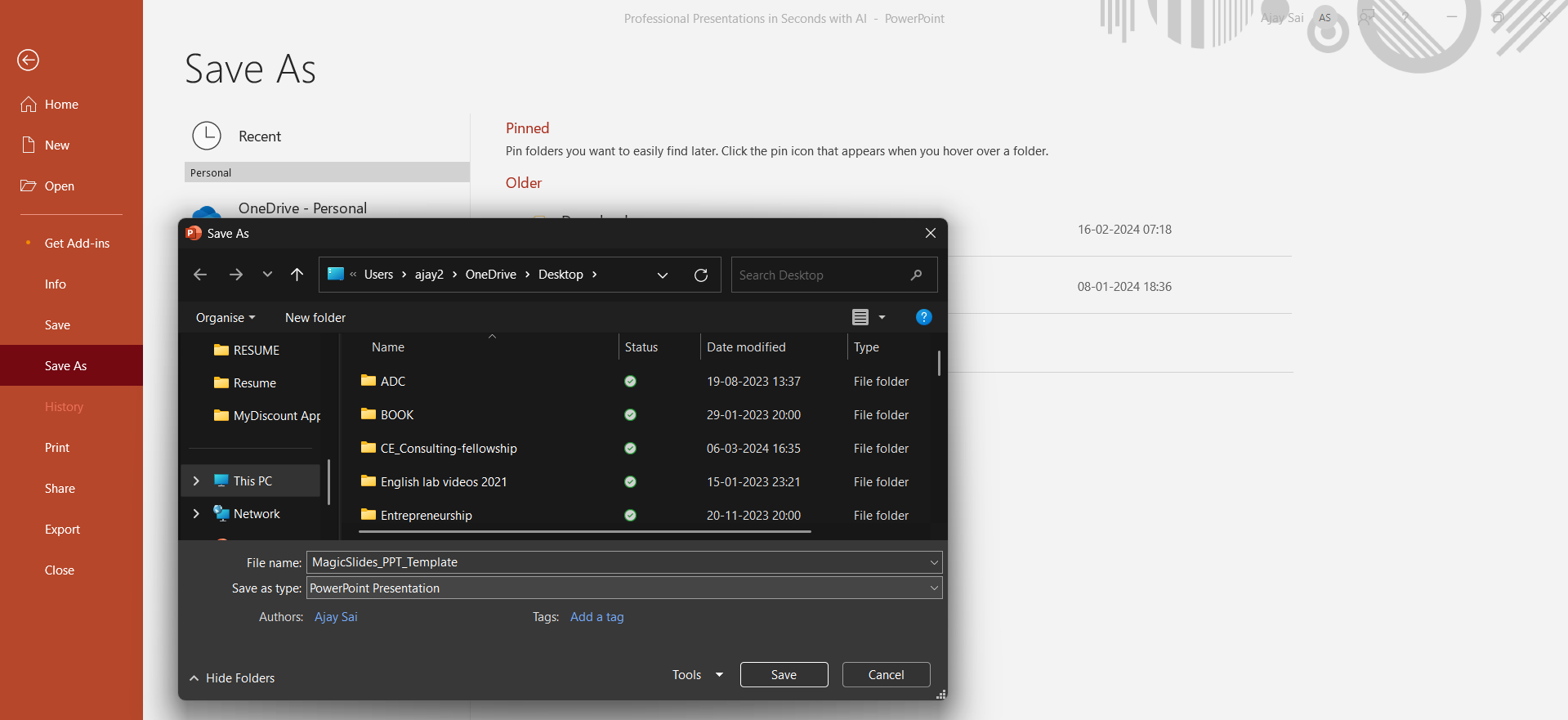
Give your template a descriptive and memorable name in the "File Name" field. This will make it easy for you to identify and select the template when creating new presentations.
Step 5: Save and Confirm
Click the "Save" button to save your PowerPoint template. PowerPoint will automatically direct you to the default template location, but you can choose a different location if you prefer. Confirm your decision, and your custom template is now ready for use.
Conclusion:
Creating and saving your own PowerPoint template not only saves time but also ensures a consistent and professional appearance for all your presentations. By following these simple steps, you can easily establish a cohesive visual identity that aligns with your brand or personal style. Now, armed with your custom template, you're ready to impress your audience with visually stunning and cohesive presentations every time.
Frequently Asked Questions:
Why should I create a custom PowerPoint template?
A personalized template establishes a consistent and professional brand identity for your presentations.
Can I edit my saved template later?
Absolutely! You can modify and update your template to adapt to evolving design preferences or branding changes.
Are custom templates compatible with different PowerPoint versions?
Yes, PowerPoint templates are generally compatible across different versions, ensuring seamless usability for your presentations.
Can I share my custom template with others?
Certainly! You can share your template files with colleagues or friends, allowing them to benefit from your unique design.


