how to share power point


Sharing PowerPoint enhances communication, simplifies complex data, engages the audience, and fosters understanding and collaboration.
PowerPoint presentations are a powerful tool for conveying information, whether you're giving a business pitch, delivering a lecture, or sharing insights with your team. However, the question of how to efficiently share your PowerPoint creation with others can sometimes be a bit perplexing. Whether you're dealing with a small group or a large audience, the method you choose can impact how seamlessly your message gets across. In this guide, we'll explore various ways to share your PowerPoint presentation, ensuring that your content reaches its intended audience without a hitch.
Step 1: Create Your PowerPoint Presentation
Before you can share a PowerPoint presentation, you need to create it. Open Microsoft PowerPoint or your preferred presentation software and craft your slides, adding content, images, and formatting as needed. Make sure your presentation is ready for sharing.
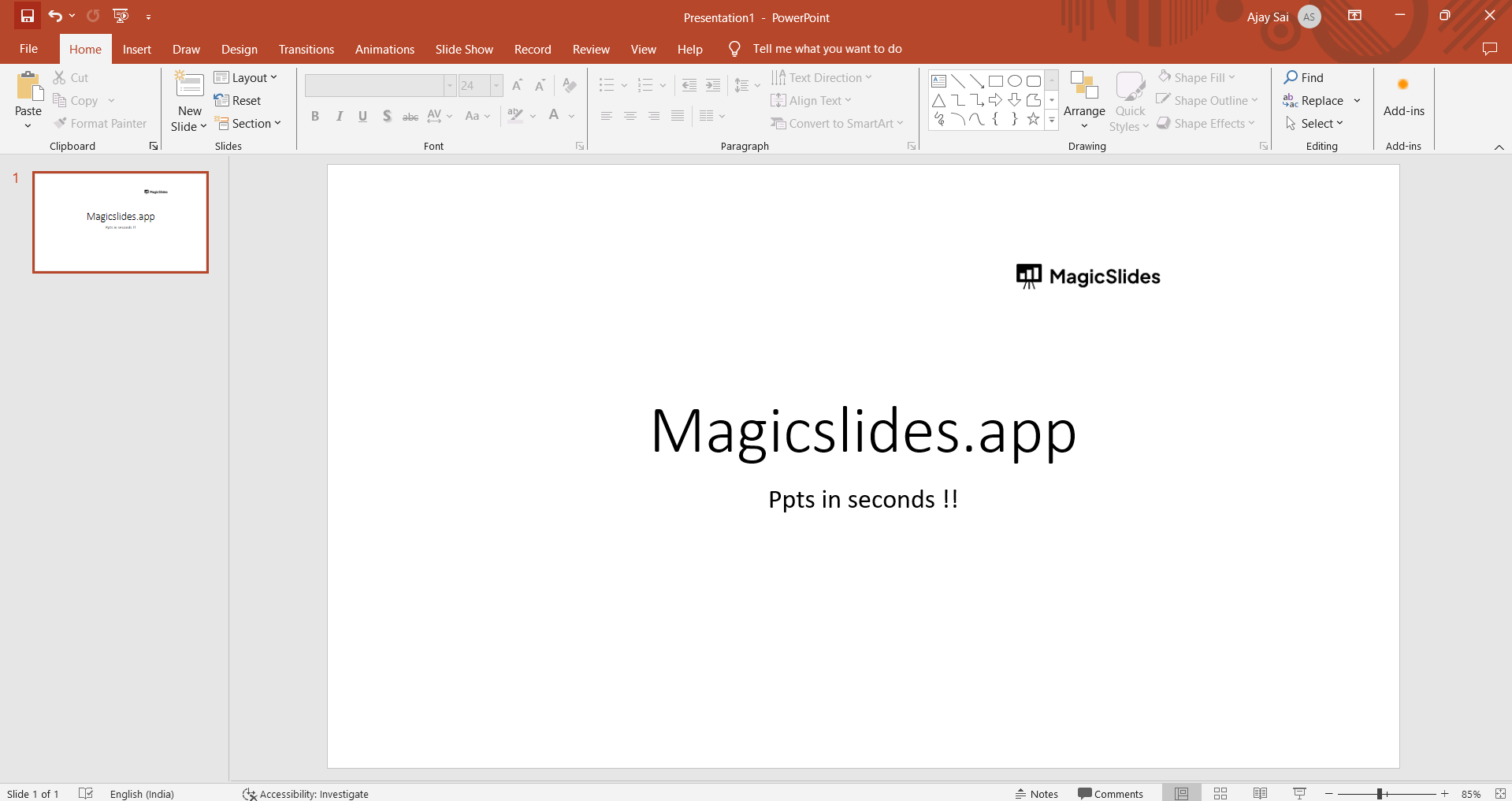
Step 2: Click on "Share" Below the Close, Minimize, Maximize Buttons
Once your presentation is complete, it's time to share it with others. To do this, you'll need to access the sharing options in your presentation software. In Microsoft PowerPoint, look for the "Share" option. It's usually located below the close (X), minimize (-), and maximize (square) buttons in the upper right-hand corner of the window.
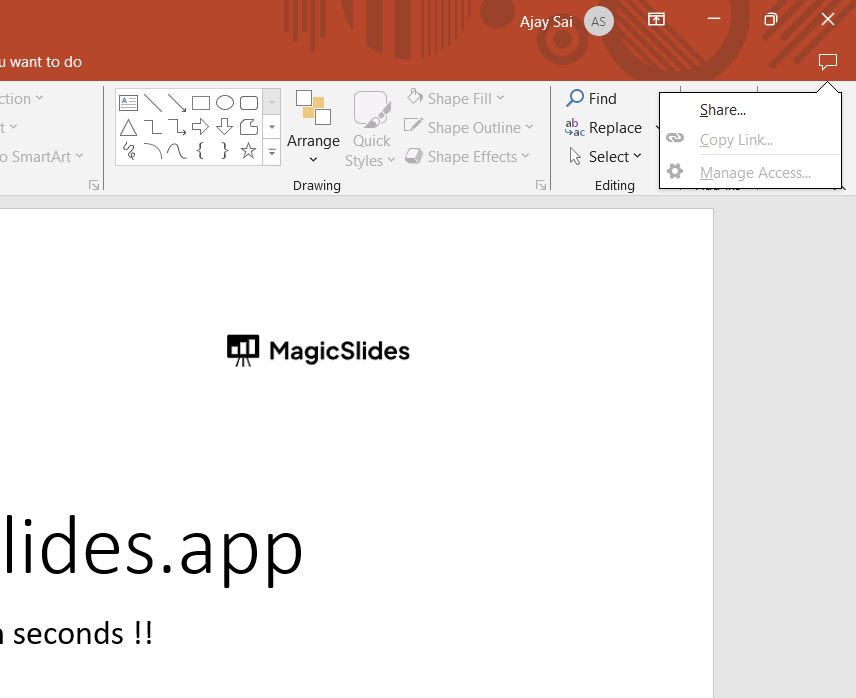
Step 3: Click on "Share to Cloud"
When you click on the "Share" option, a menu or dialog box will typically appear. In some cases, you may see the option to "Share to Cloud" directly in this menu. This option allows you to upload your presentation to a cloud storage service such as OneDrive, Google Drive, or Dropbox. Choose this option if you want to store your presentation in the cloud and share it with others through a link.
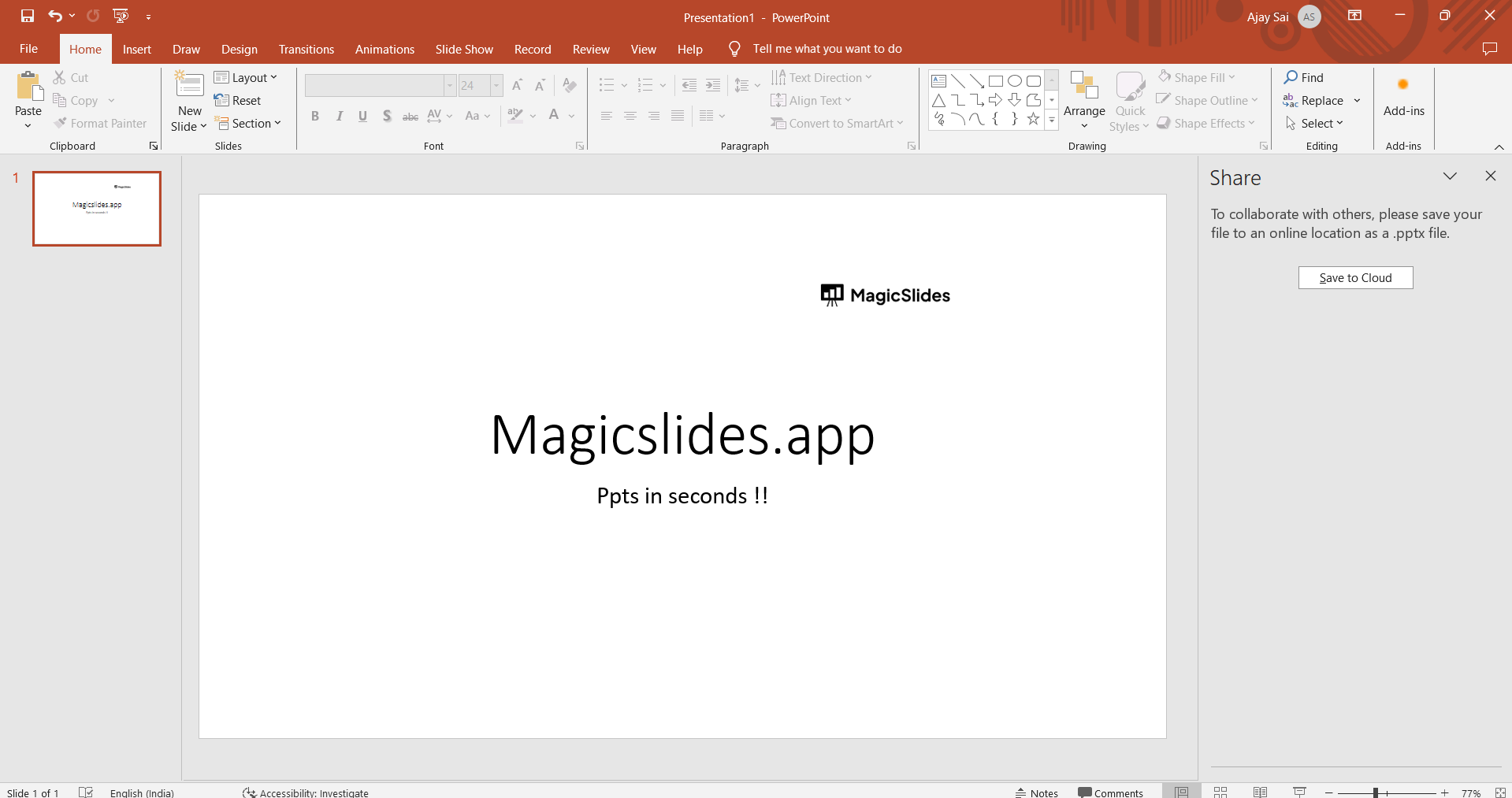
Step 4: Select the Cloud Storage Service
If you clicked on "Share to Cloud," you'll need to select the cloud storage service you want to use. Depending on your software, you may need to sign in to your cloud storage account or authenticate your credentials.
Step 5: Generate a Shareable Link
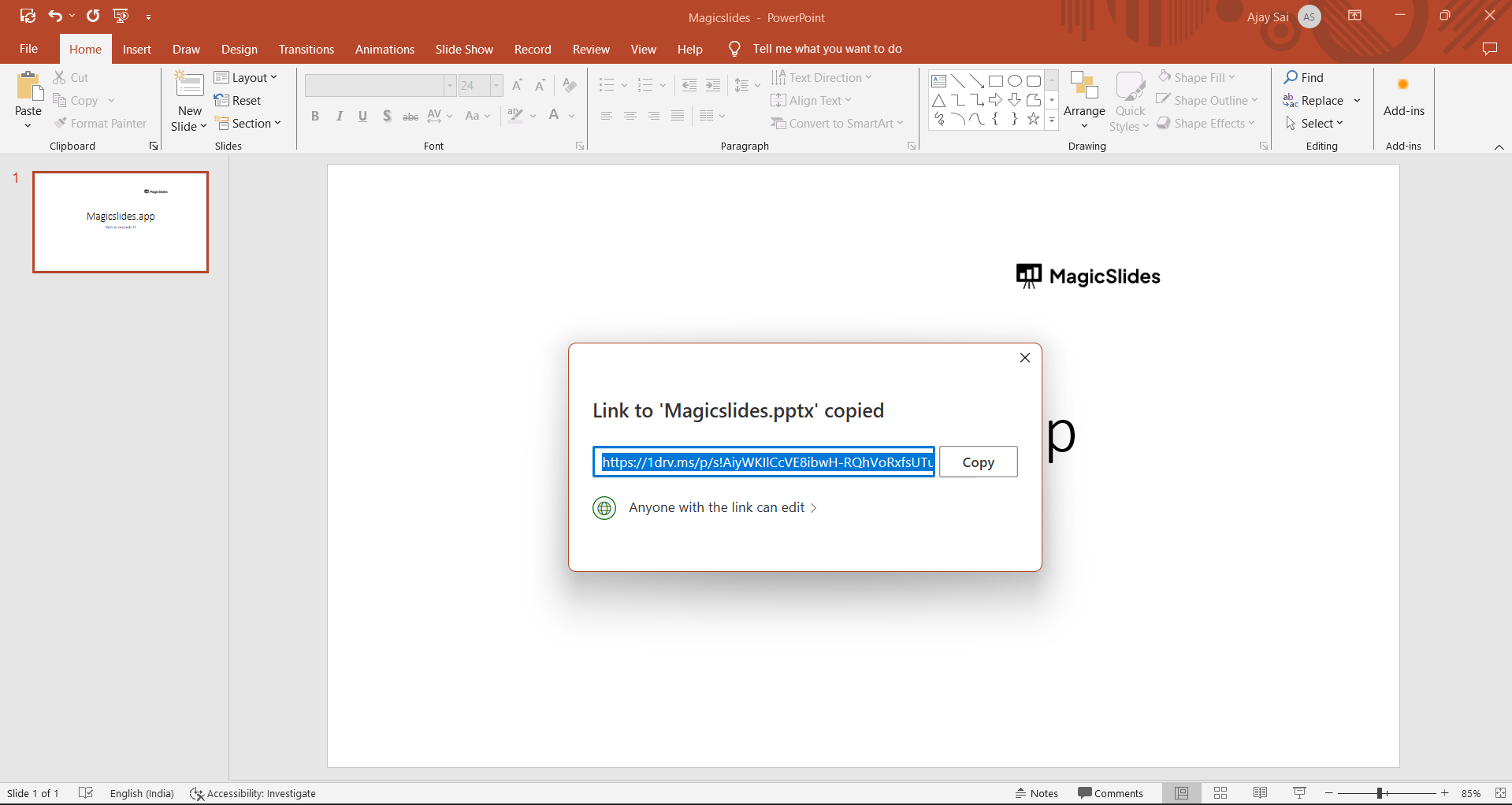
Once your presentation is uploaded to the cloud, you'll typically have the option to generate a shareable link. This link will allow others to view your presentation. Click on the "Share" or "Copy Link" option to obtain the link.
Step 6: Share the Link
With the shareable link copied to your clipboard, you can now share it with your intended audience. You can send it via email, messaging apps, or any other communication method you prefer. People who receive the link will be able to access and view your presentation online.
In the world of business, education, and communication, sharing your PowerPoint presentation effectively is a skill worth mastering. From cloud storage services to presentation sharing platforms and even traditional printouts, the options are vast, and choosing the right one depends on your audience and purpose. By selecting the most suitable method for your situation, you can ensure that your carefully crafted slides make the impact they deserve.


