How to Spell check on Canva


Ensure your Canva designs are error-free with these simple steps to spell check effectively
Creating visually stunning designs on Canva is essential, but ensuring your text is error-free is equally important.
While Canva doesn’t have a built-in spell check feature, there are simple ways to spell check your content and maintain professionalism.
Follow this step-by-step guide to keep your Canva designs free from spelling errors.
How to Spell Check on Canva | Steps to Spell Check on Canva
Step 1: Review Your Text Within Canva
Carefully read through the text you’ve added to your Canva design.
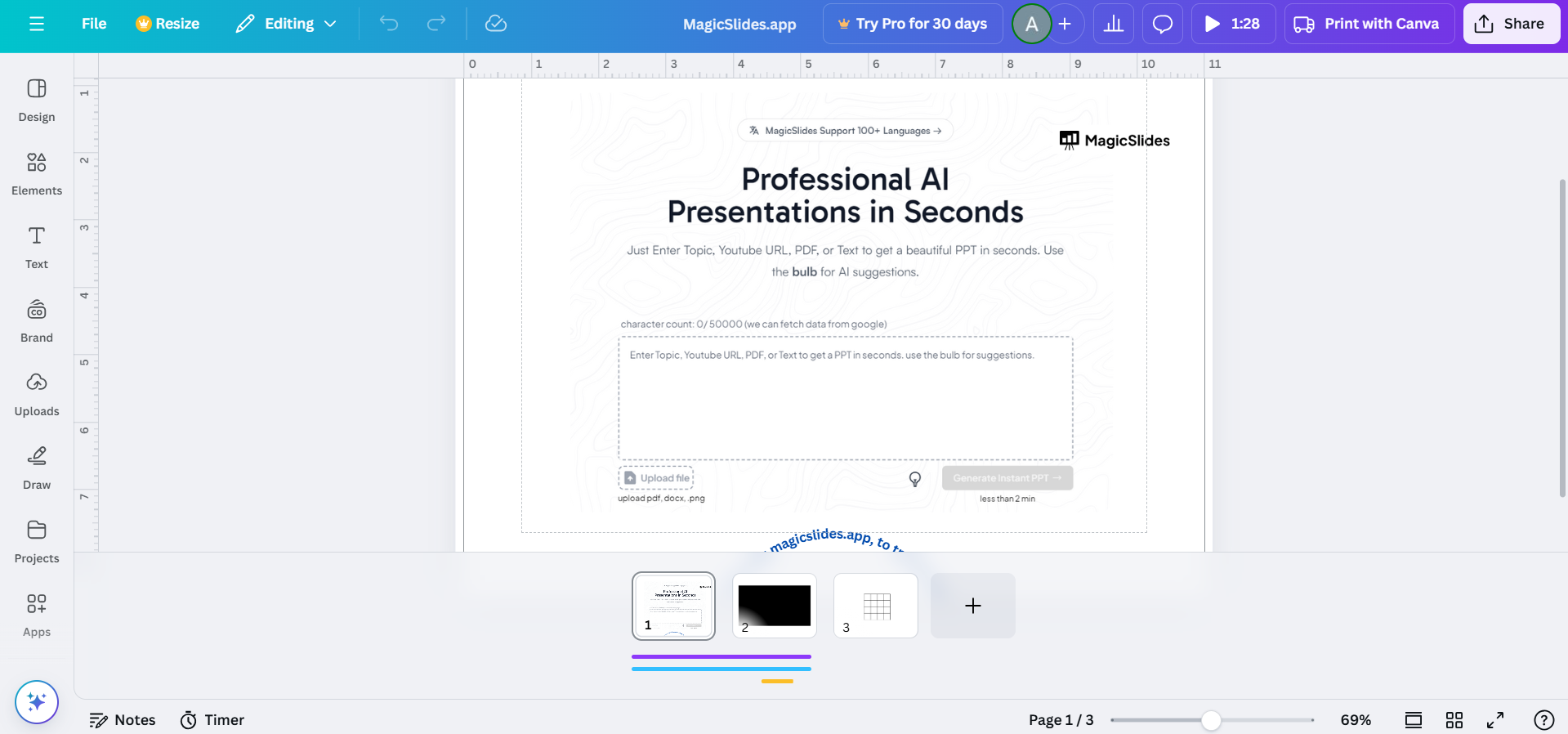
Identify any visible spelling or grammatical errors before exporting or sharing the design.
Step 2: Use a Third-Party Browser Extension
Install a browser extension like Grammarly or LanguageTool in Chrome, Firefox, or Safari.
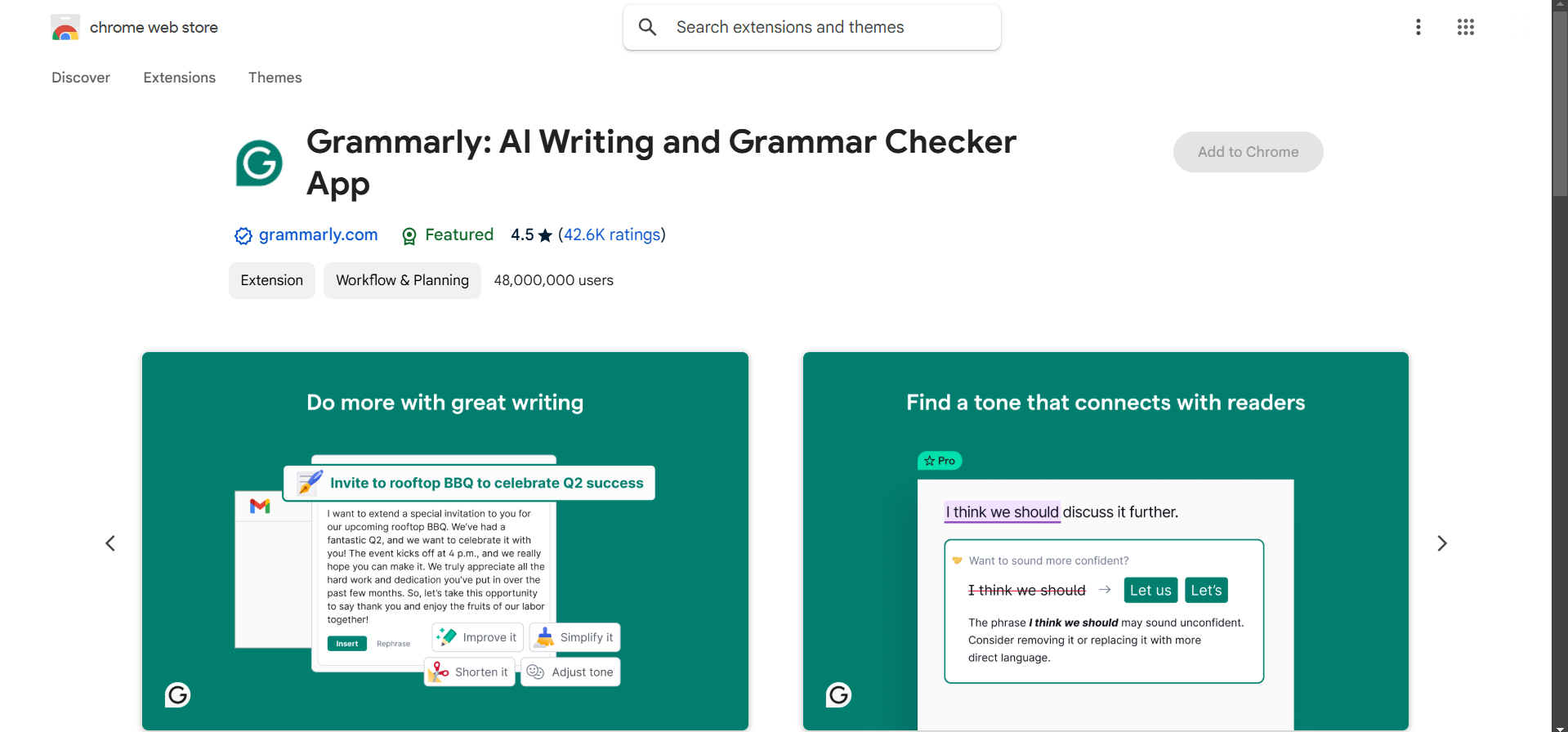
Open Canva in your browser while the extension is active.
As you type text into your Canva design, the extension will underline potential errors and offer suggestions for correction.
Step 3: Copy and Paste Your Text for Manual Checking
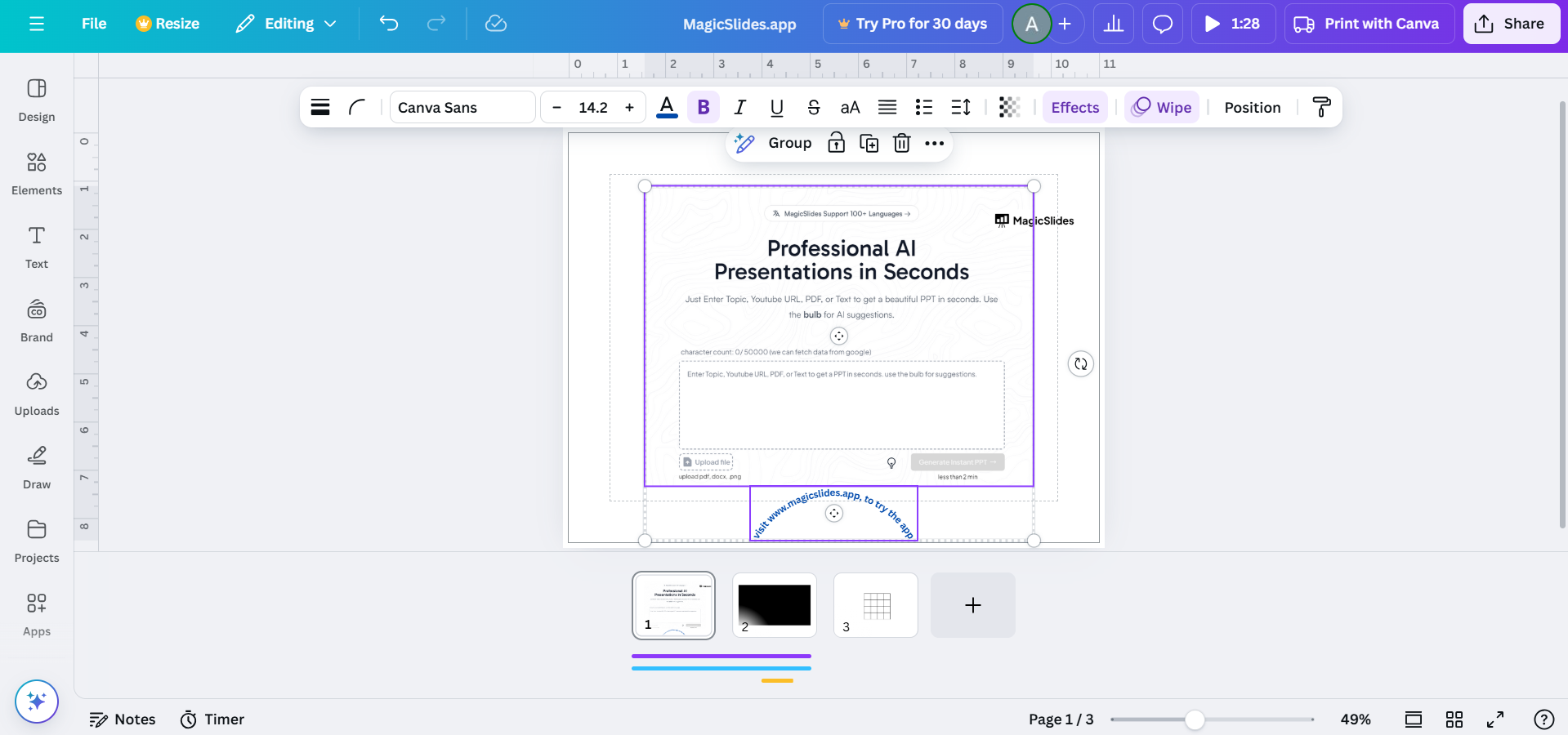
Select the text in your Canva design by double-clicking it.
Copy the text using Ctrl + C (Windows) or Cmd + C (Mac).
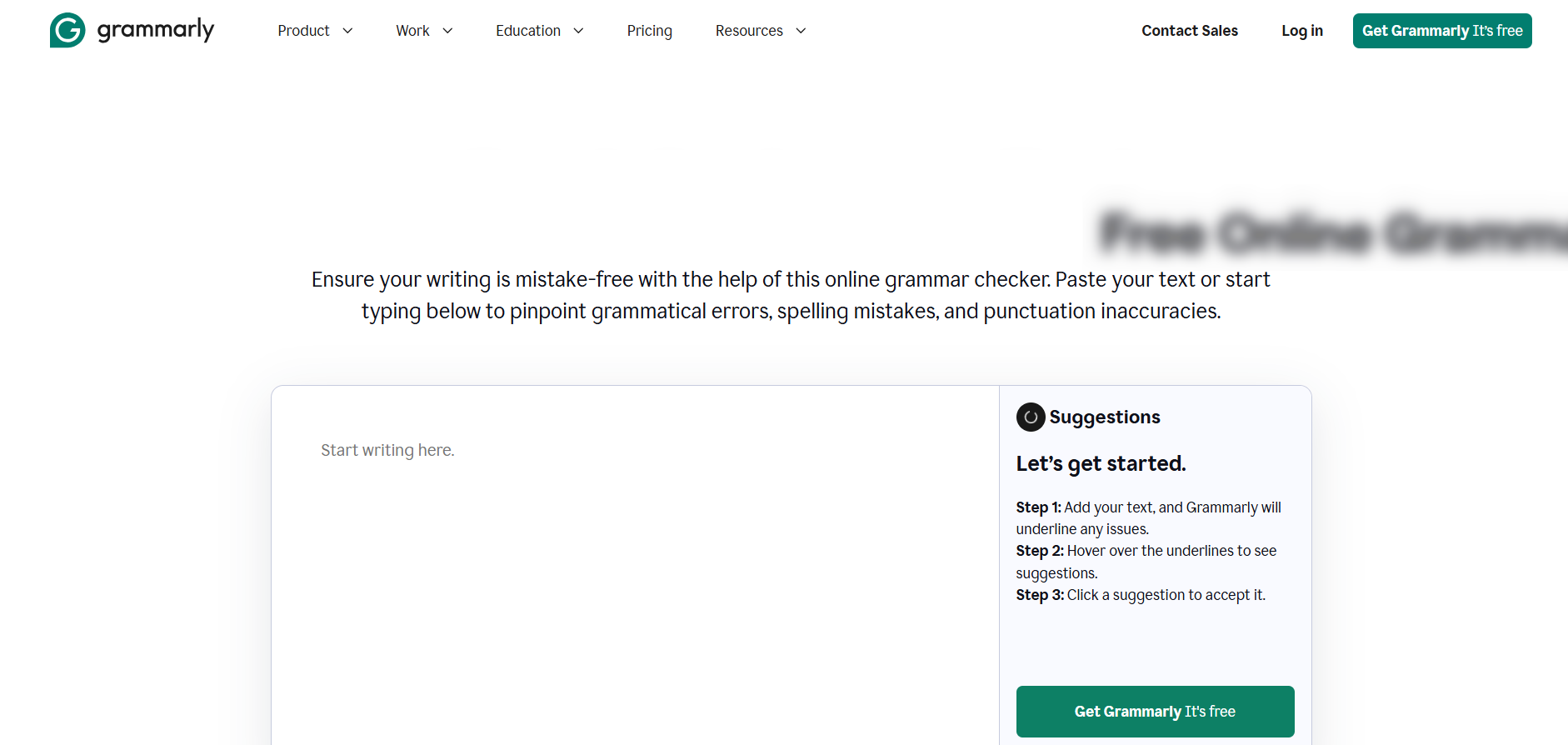
Paste it into a word processor or online spell checker like Google Docs, Microsoft Word, or Grammarly’s web app to identify and correct errors.
Step 4: Reinsert the Corrected Text Into Canva
Once the text is corrected, copy it from the word processor or tool you used.
Go back to Canva and paste the error-free text into your design by selecting the text box and using Ctrl + V (Windows) or Cmd + V (Mac).
Step 5: Proofread Before Finalizing Your Design
Perform a final manual review of your Canva design to ensure there are no overlooked errors.
Check for consistency in capitalization, punctuation, and spacing to maintain a polished look.
Conclusion
Although Canva doesn’t offer built-in spell checking, using third-party tools and manual proofreading ensures your designs remain error-free and professional.
By taking these extra steps, you’ll not only improve the quality of your work but also enhance your audience's trust in your content.
FAQs on Spell Checking in Canva
Does Canva have a built-in spell checker?
No, Canva doesn’t have a native spell checker. You can use browser extensions or external tools for spell checking.
Which browser extensions work best for spell checking in Canva?
Grammarly and LanguageTool are popular extensions that work seamlessly with Canva.
Can I spell check Canva designs on mobile?
Yes, copy the text from the Canva mobile app and use a mobile spell-checking app or tool like Grammarly.
By following this guide, you can easily spell check your Canva designs and create error-free, impactful content!


