How to Transform Interview Transcripts into PowerPoint Slides?


Learn to seamlessly convert interview transcripts into engaging PowerPoint slides with our step-by-step guide. Elevate your presentations effortlessly!
In today's fast-paced world, visual presentations are crucial for effective communication. Converting interview transcripts into engaging PowerPoint slides can be a powerful way to share insights, findings, or highlights. In this guide, we'll walk you through the process using the MagicSlides extension for Google Slides.
How to Transform Interview Transcripts into PowerPoint Slides?
Step 1: Visit Google Slides
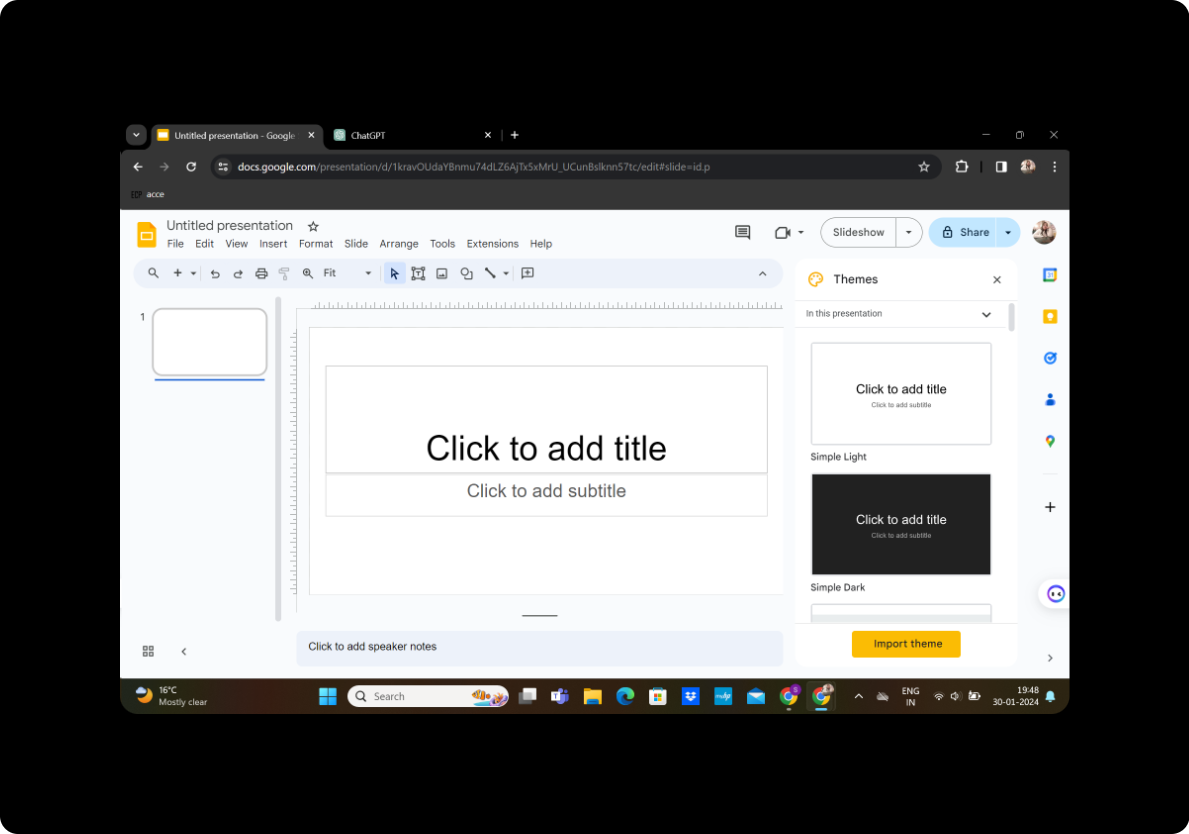
Begin by visiting Google Slides. If you don't have a Google account, create one to access the platform and start crafting your presentation.
Step 2: Sign In with Google to Google Slides
Log in to your Google account to access the full functionality of Google Slides. This ensures that your work is saved seamlessly in the cloud.
Step 3: In Extensions, Click on MagicSlides GPT if Downloaded
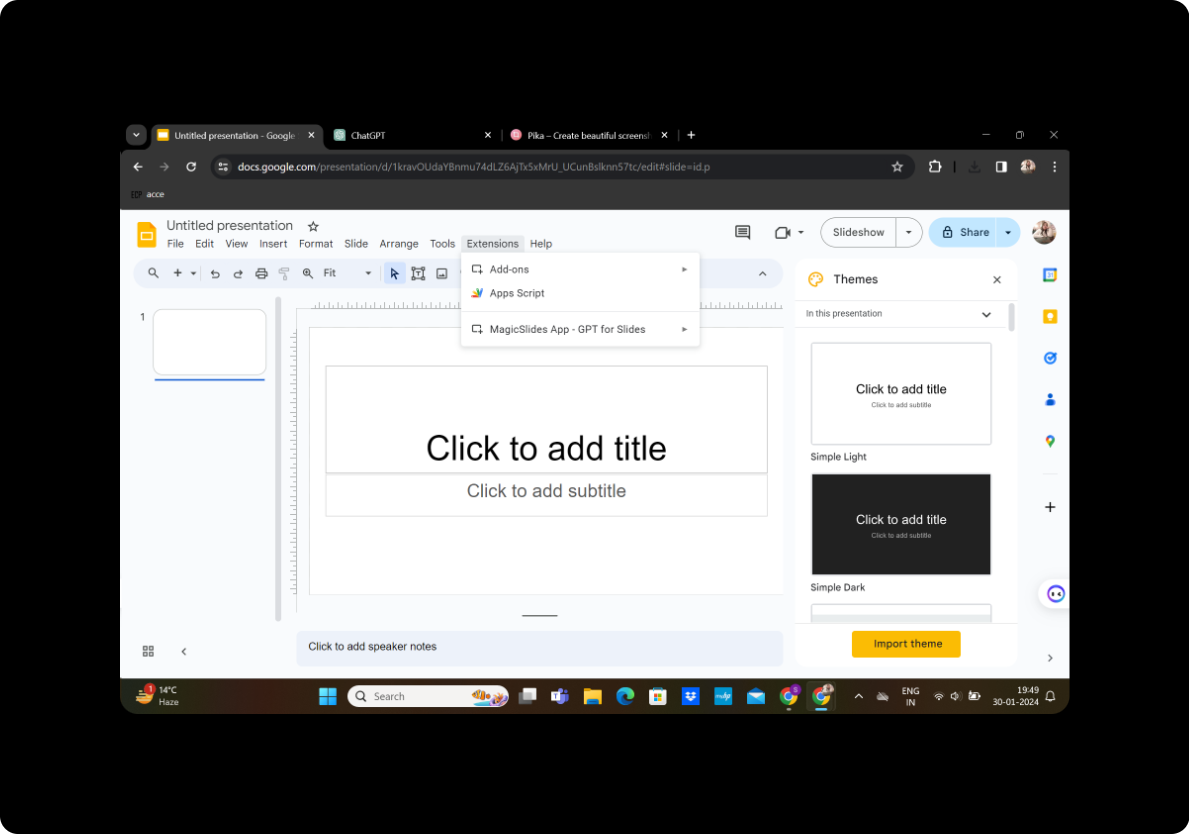
If you've already downloaded the MagicSlides GPT extension, navigate to your extensions and click on MagicSlides GPT to activate it.
Step 4: If Not Downloaded, First Download as an Extension, Then Open
If you haven't downloaded the MagicSlides GPT extension, take a moment to download it as an extension. Once downloaded, open the extension to integrate it with your Google Slides.
Step 5: Click on Generate PPT in MagicSlides GPT
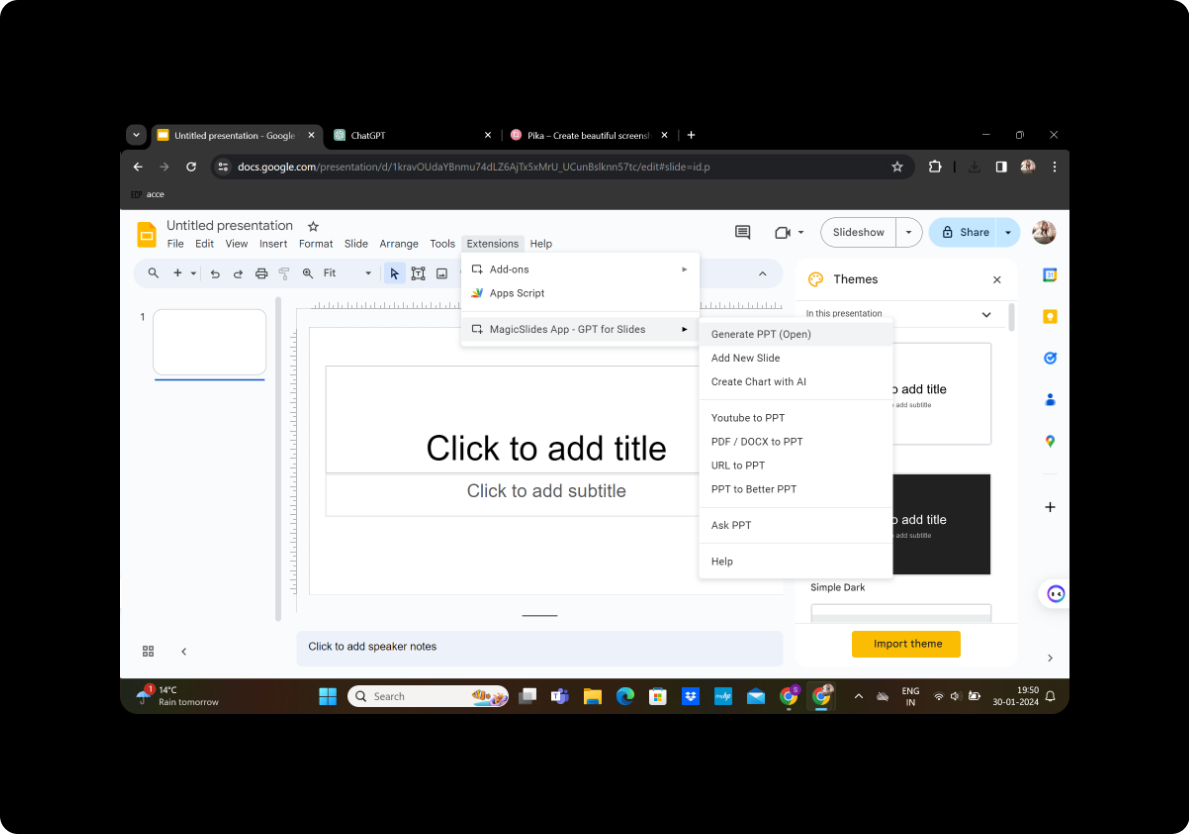
Activate MagicSlides GPT and click on "Generate PPT" to initiate the conversion process.
Step 6: In the Box for Title Option, Add Your Title
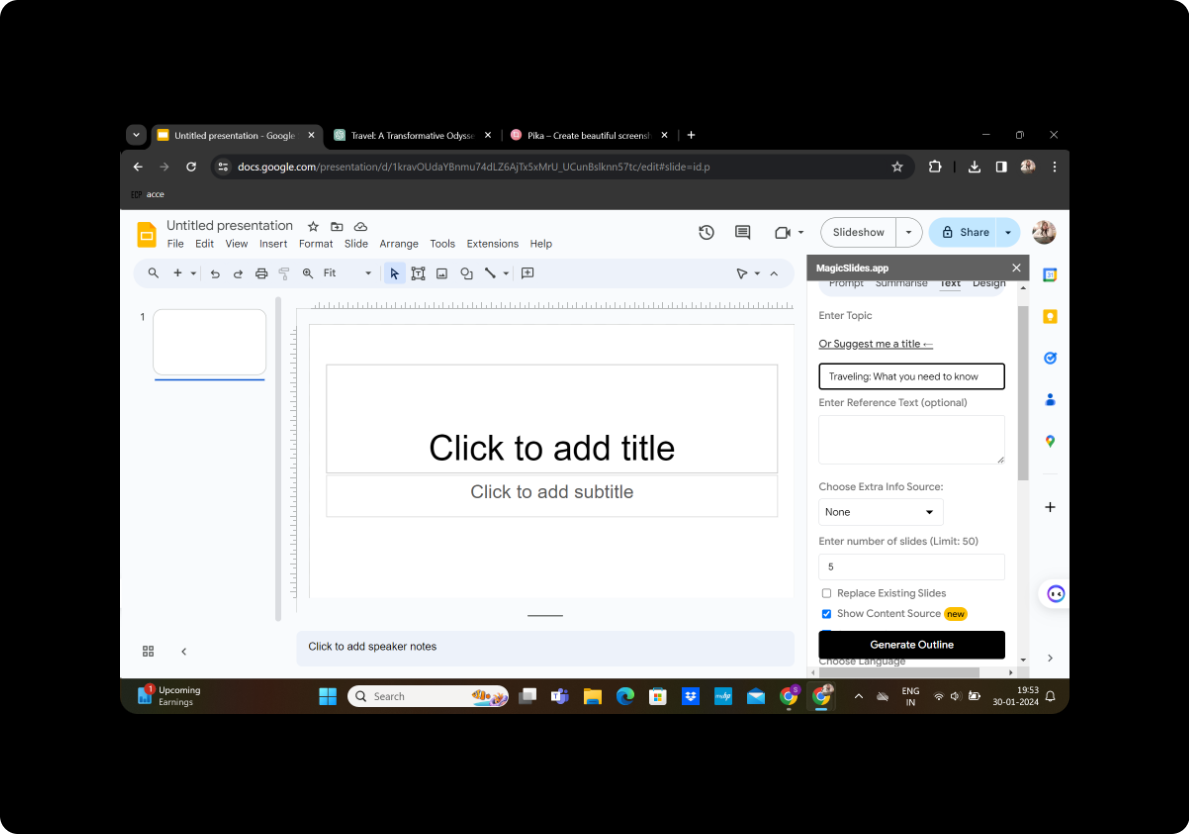
Specify the title of your presentation in the designated box to give it a clear focus.
Step 7: Copy and Paste Text Content in the Box for Text
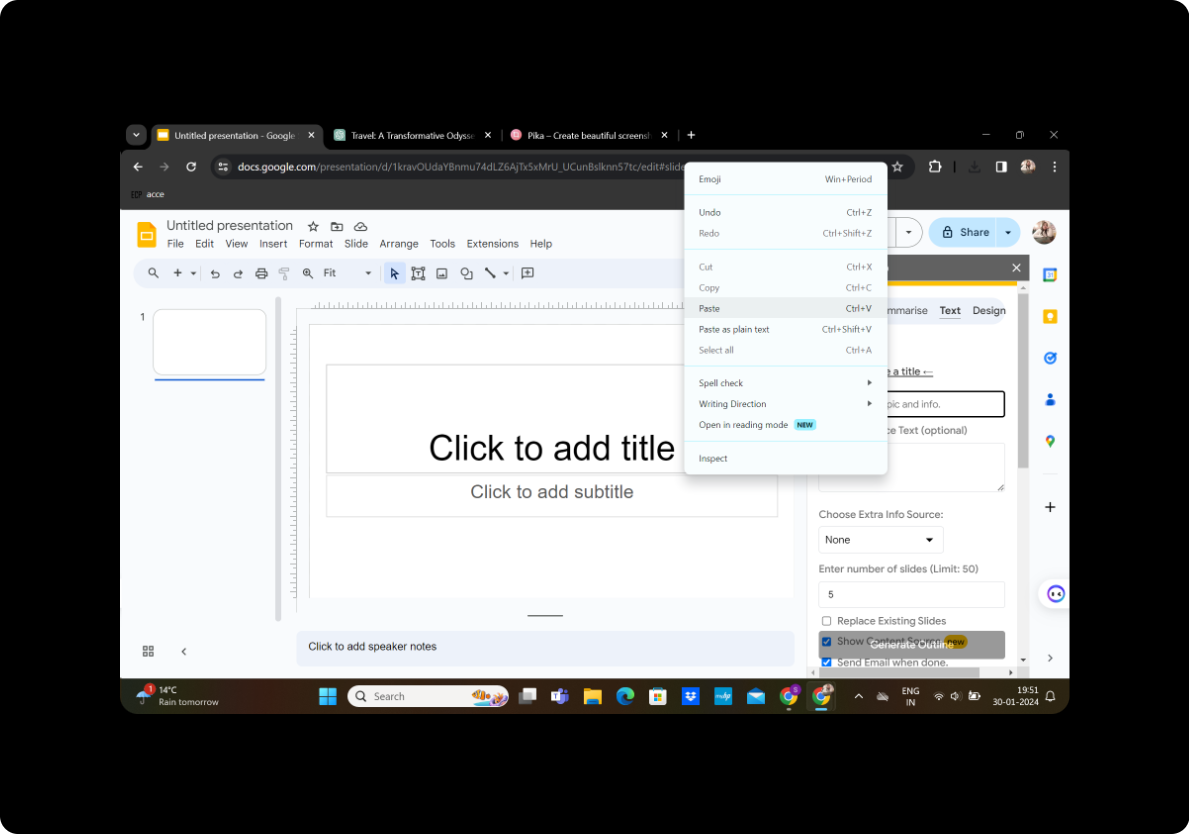
Copy and paste the relevant interview transcript content into the provided text box.
Step 8: Select the Number of Slides
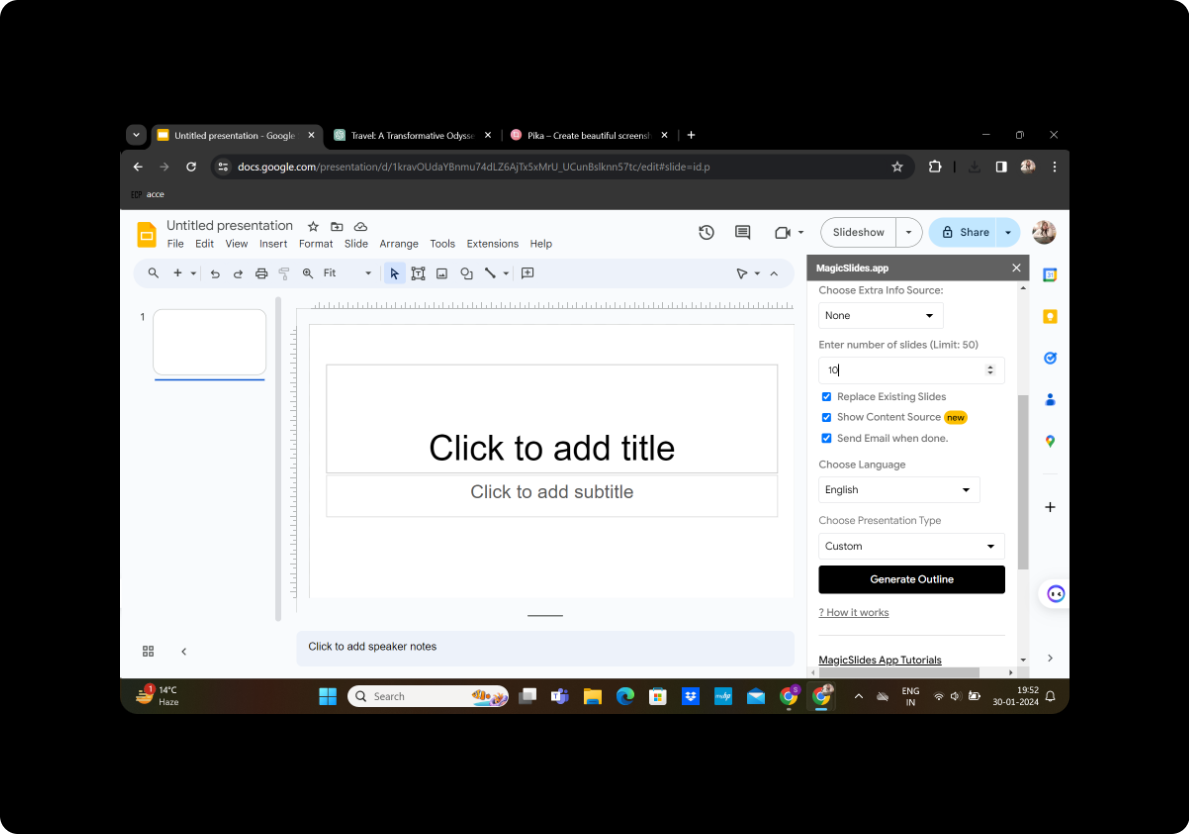
Determine the number of slides you want for your presentation to ensure a well-structured delivery.
Step 9: Click on Generate Outline
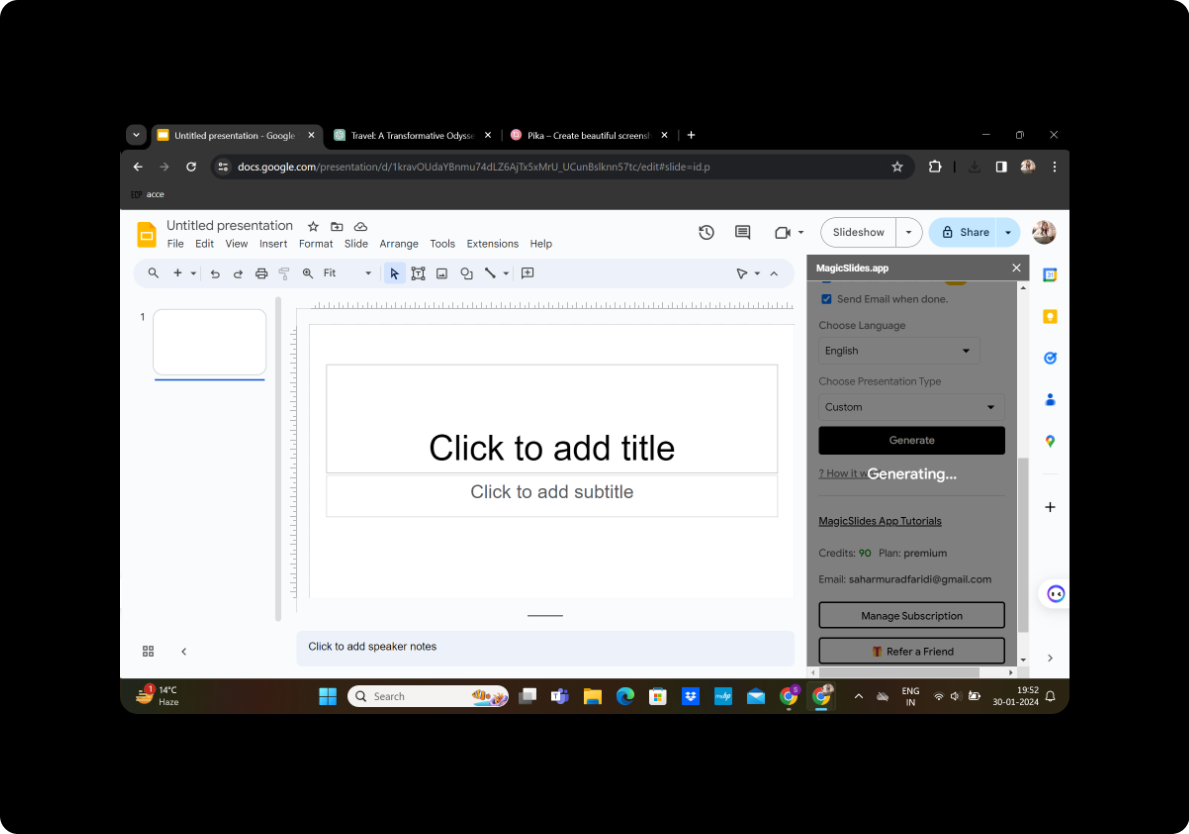
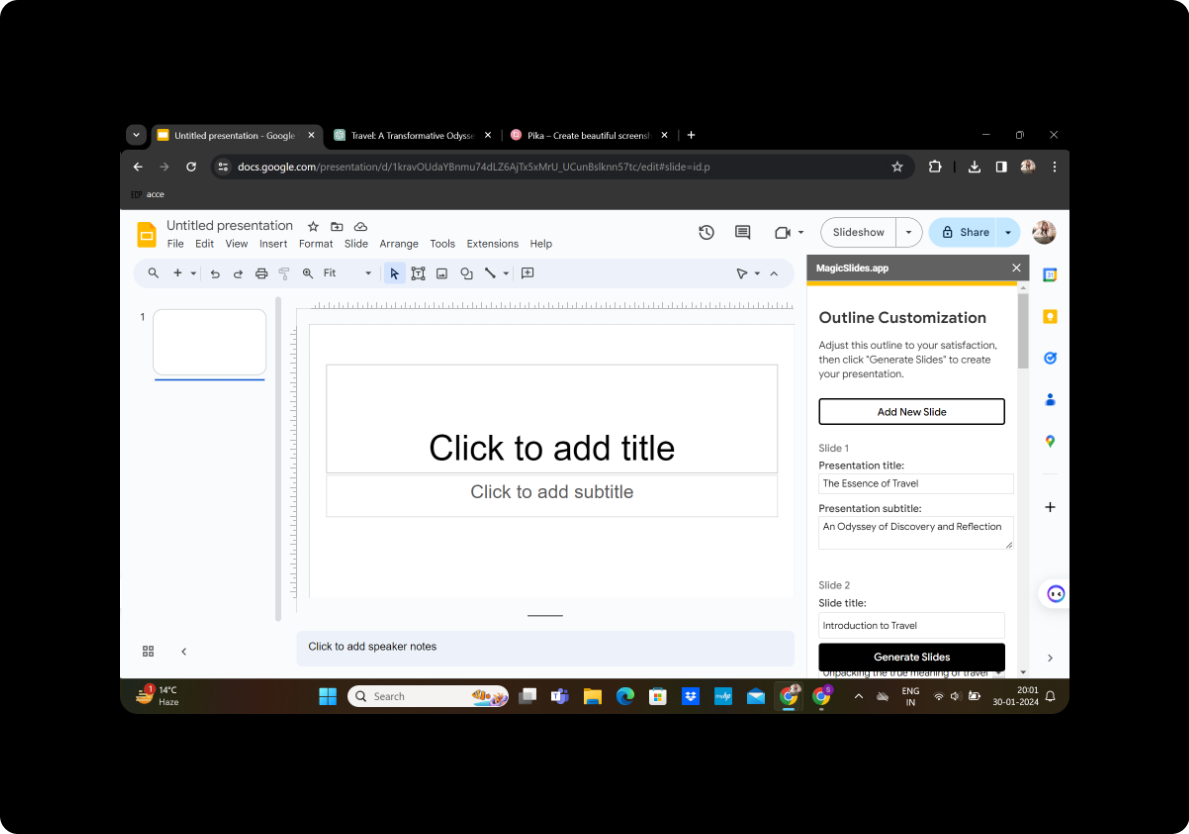
Click the "Generate Outline" button to let MagicSlides analyze your content and propose a structure for your presentation.
Customizing Your Presentation
You have the flexibility to modify everything according to your preferences.
After Satisfied, Click on Generate Presentation
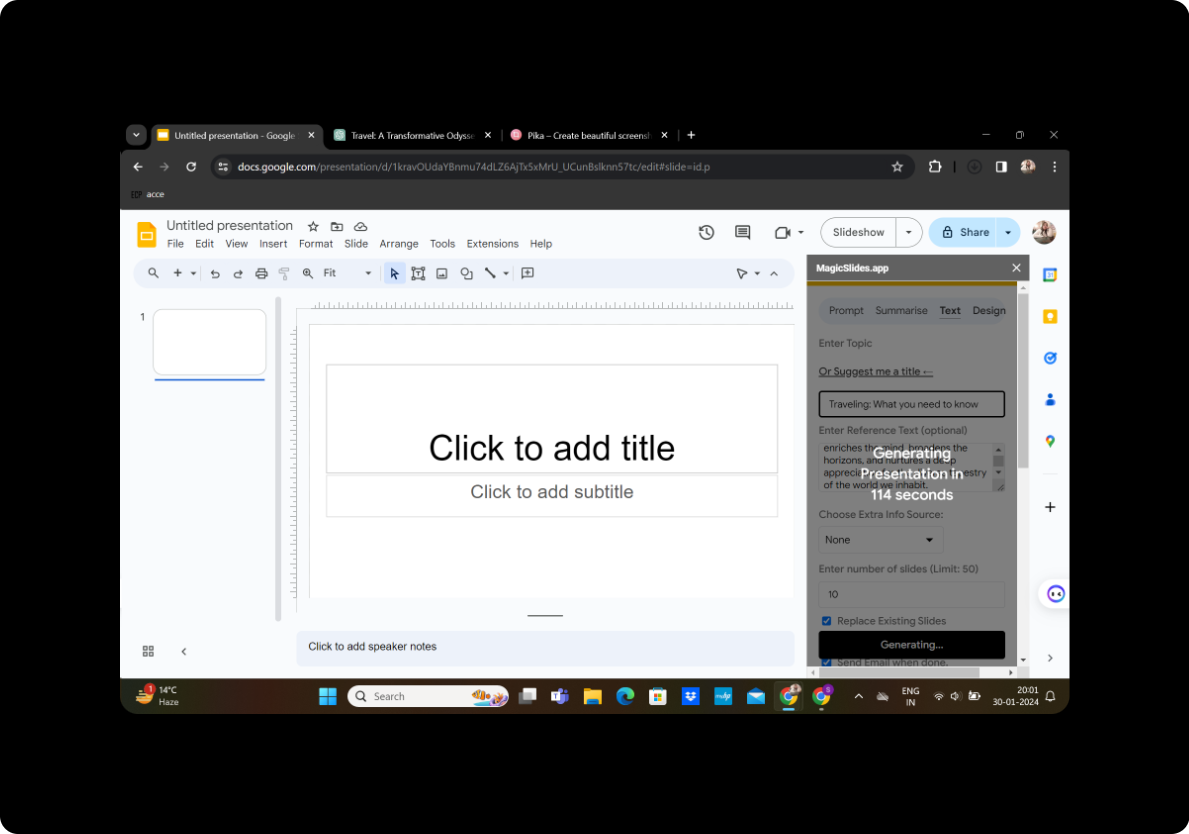
Once satisfied with the outline, proceed to click on "Generate Presentation" to transform your interview transcript into a visually appealing PowerPoint.
Your Presentation is Ready
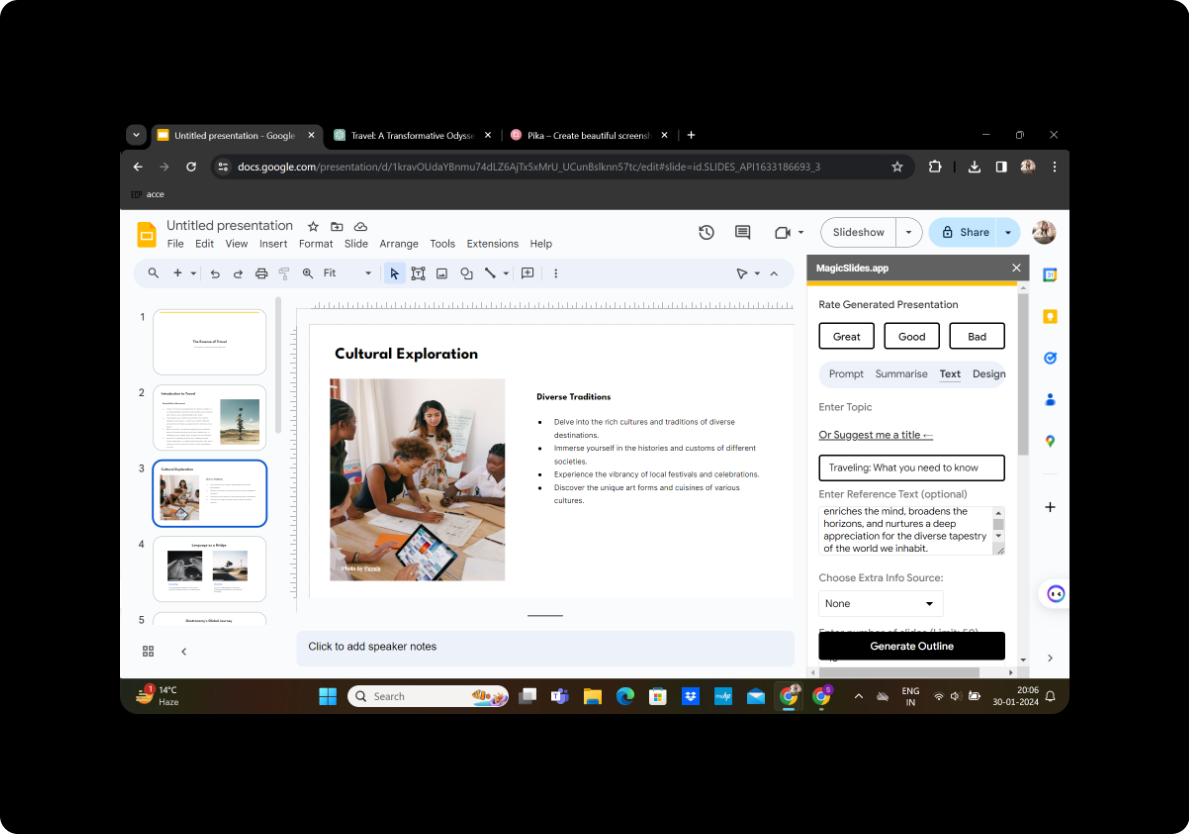
Congratulations! Your presentation is now ready for sharing and presenting.
Conclusion
Transforming interview transcripts into PowerPoint slides can enhance the impact of your communication. With the user-friendly MagicSlides extension for Google Slides, the process becomes efficient and accessible. Experiment with customization options to create a presentation that effectively conveys your message.
Frequently Asked Questions
Can I use MagicSlides for other types of content?
Yes, MagicSlides is versatile and can be used for various types of content conversion.
Are there limitations to the number of slides I can generate?
No, you can adjust the number of slides based on the content and your presentation needs.
Can I edit the generated slides manually?
Absolutely! MagicSlides provides flexibility for manual editing to meet your specific requirements.
Is MagicSlides compatible with all browsers?
MagicSlides is optimized for Google Chrome but is also compatible with other major browsers.
How do I share my presentation with others?
Simply use the sharing options in Google Slides to collaborate and distribute your presentation effortlessly.


