How to Turn a Presentation into a Doc Without Losing Impact


Easily convert presentations into documents without losing impact. Follow best practices and use MagicSlides.app to streamline your workflow. Learn more now!
Turning a presentation into a document is a common necessity in business, academia, and content creation. Whether you need to create reports, meeting notes, or educational materials, it’s crucial to ensure the transformation retains the clarity, engagement, and visual appeal of the original slides. This guide will help you seamlessly convert your presentation into a document without losing impact while introducing an AI-powered tool, MagicSlides.app, to enhance your workflow.
Why Convert a Presentation into a Document?
There are multiple reasons you might need to convert a presentation into a document:
- Detailed Reports: Presentations are often high-level summaries. A document allows you to add context, explanations, and references.
- Meeting Minutes & Summaries: After meetings, converting slides into a document provides a structured record of discussions and decisions.
- Educational Materials: Academic lectures and training sessions may need to be compiled into study guides or reference documents.
- Content Repurposing: Reusing presentation content for blogs, whitepapers, or proposals extends its value.
Best Practices for Converting a Presentation into a Document
- Structure Your Content for Readability
- Use clear headings and subheadings.
- Maintain logical flow from one section to the next.
- Break down complex ideas into digestible paragraphs.
- Expand on Slide Content
- Most presentations are brief. Add full explanations to bullet points.
- Use examples and data to support key takeaways.
- Use Visuals Wisely
- Include key images, charts, and graphs.
- Use captions to explain the visuals.
- Ensure that the visuals are high-quality and relevant.
- Convert Speaker Notes into Narrative Text
- If you had speaker notes, incorporate them as descriptive text.
- Maintain a professional but conversational tone to ensure readability.
- Ensure Formatting Consistency
- Use consistent fonts and spacing.
- Stick to professional formatting styles like APA or MLA if applicable.
- Utilize bullet points and numbered lists to improve clarity.
How to Use MagicSlides.app to Create Instant Presentations
If you frequently create presentations before converting them into documents, an AI-powered tool like MagicSlides.app can simplify your process. Here’s how you can generate presentations quickly and effectively:
Steps to Use MagicSlides.app
- Visit MagicSlides.app – Go to the official website to get started.
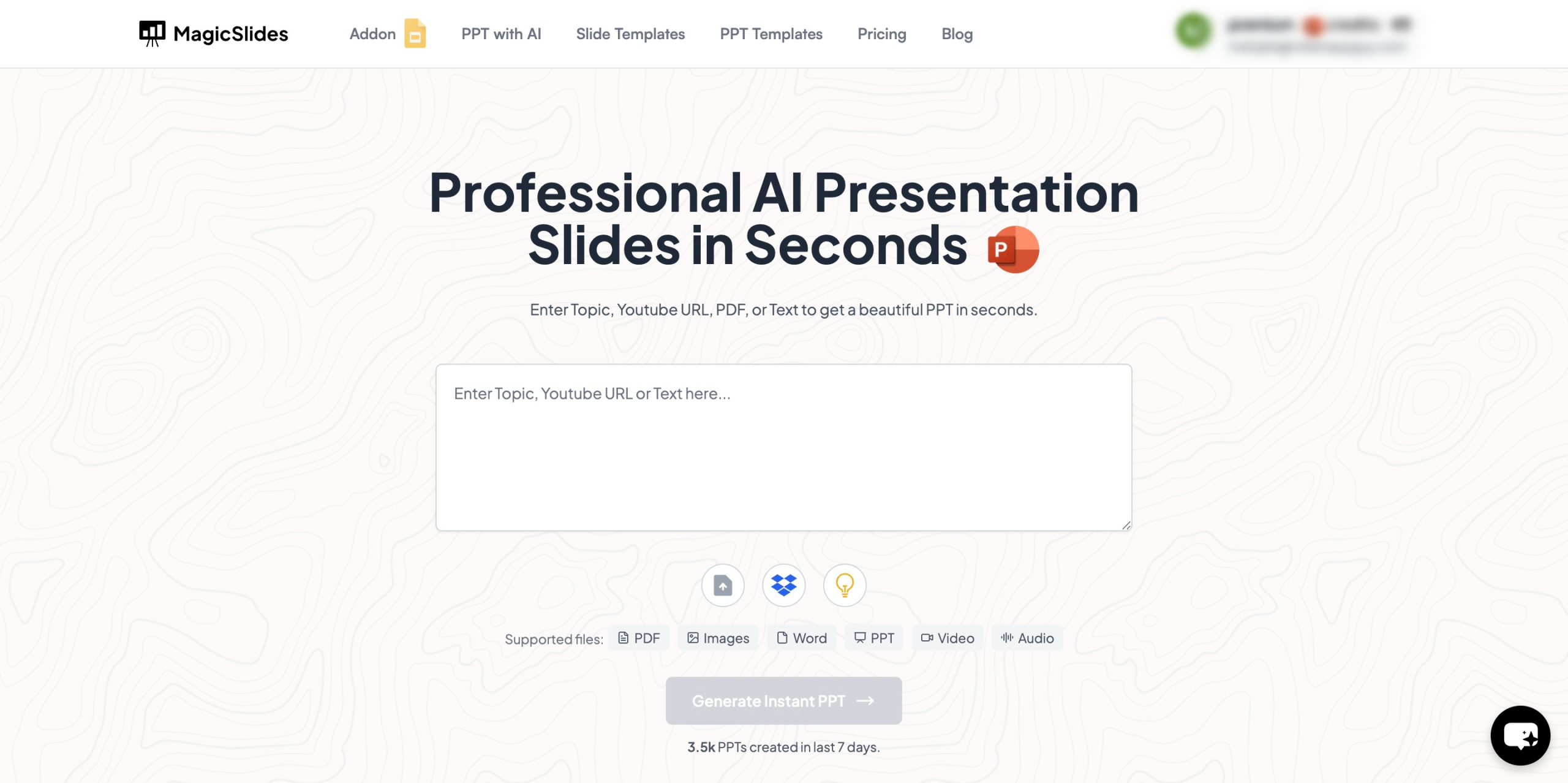
- Enter Your Topic – In the designated field, type your presentation topic.
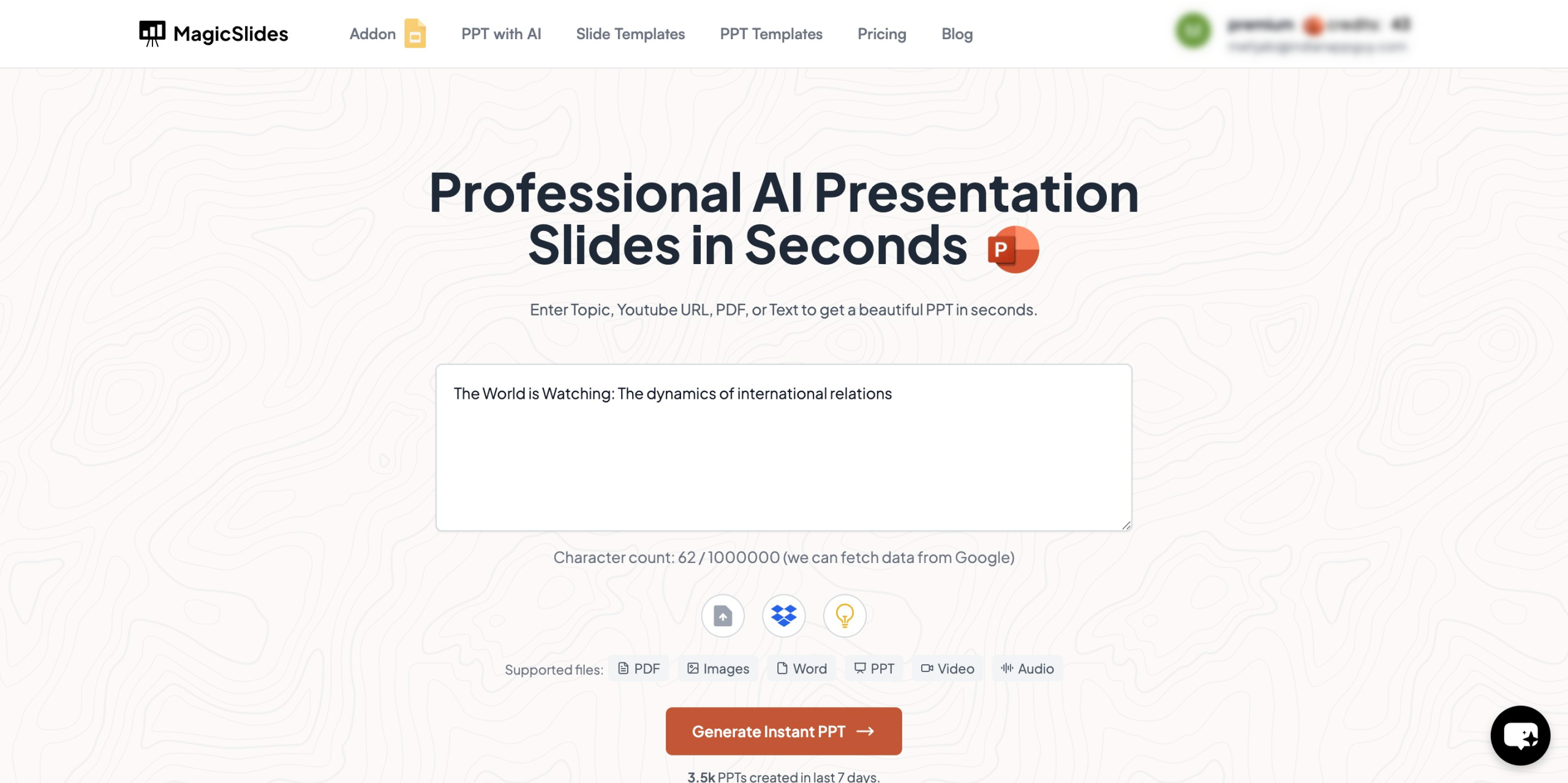
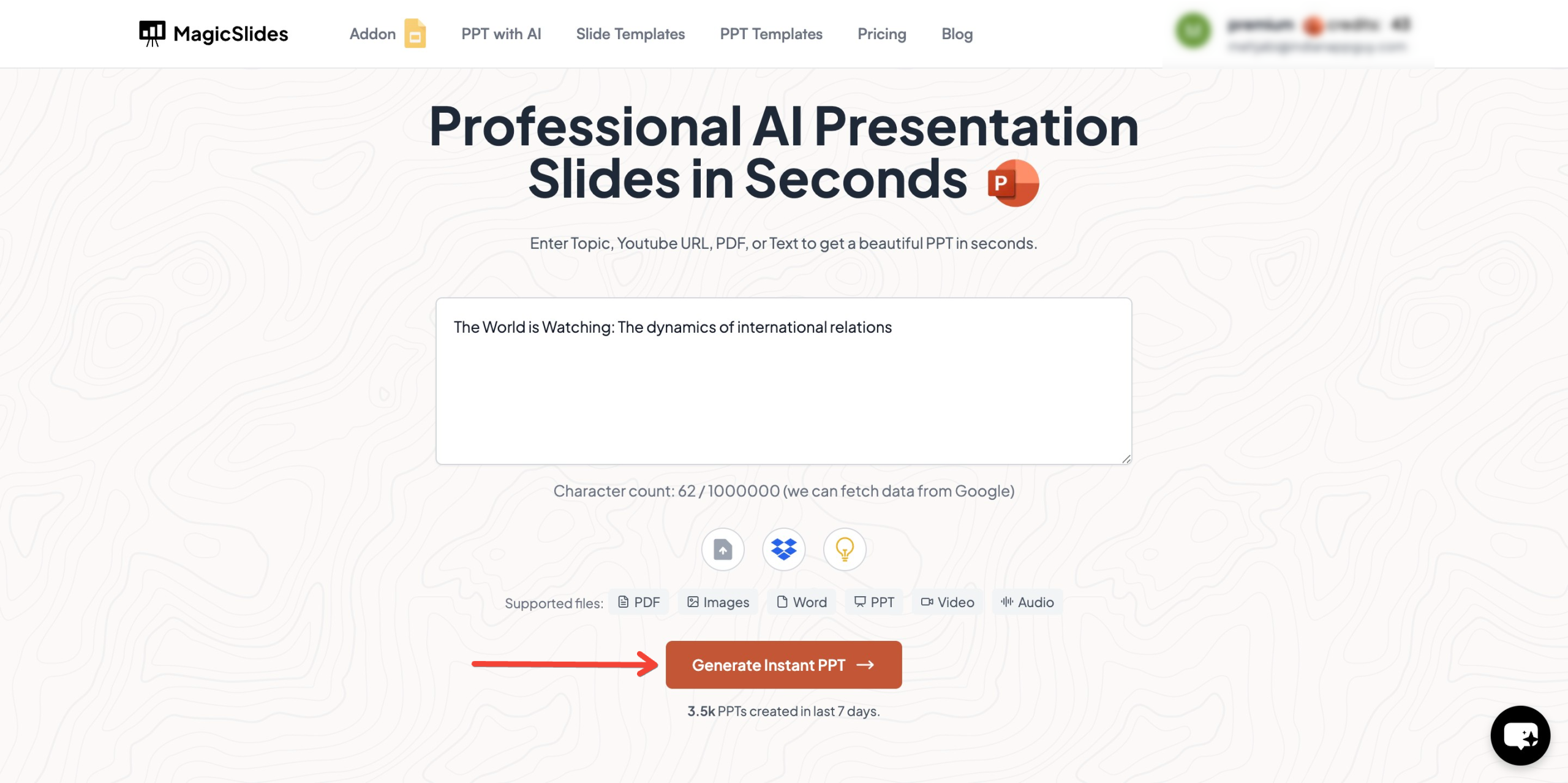
- Click ‘Generate Instant PPT’ – The AI will instantly generate a PowerPoint presentation based on your topic.
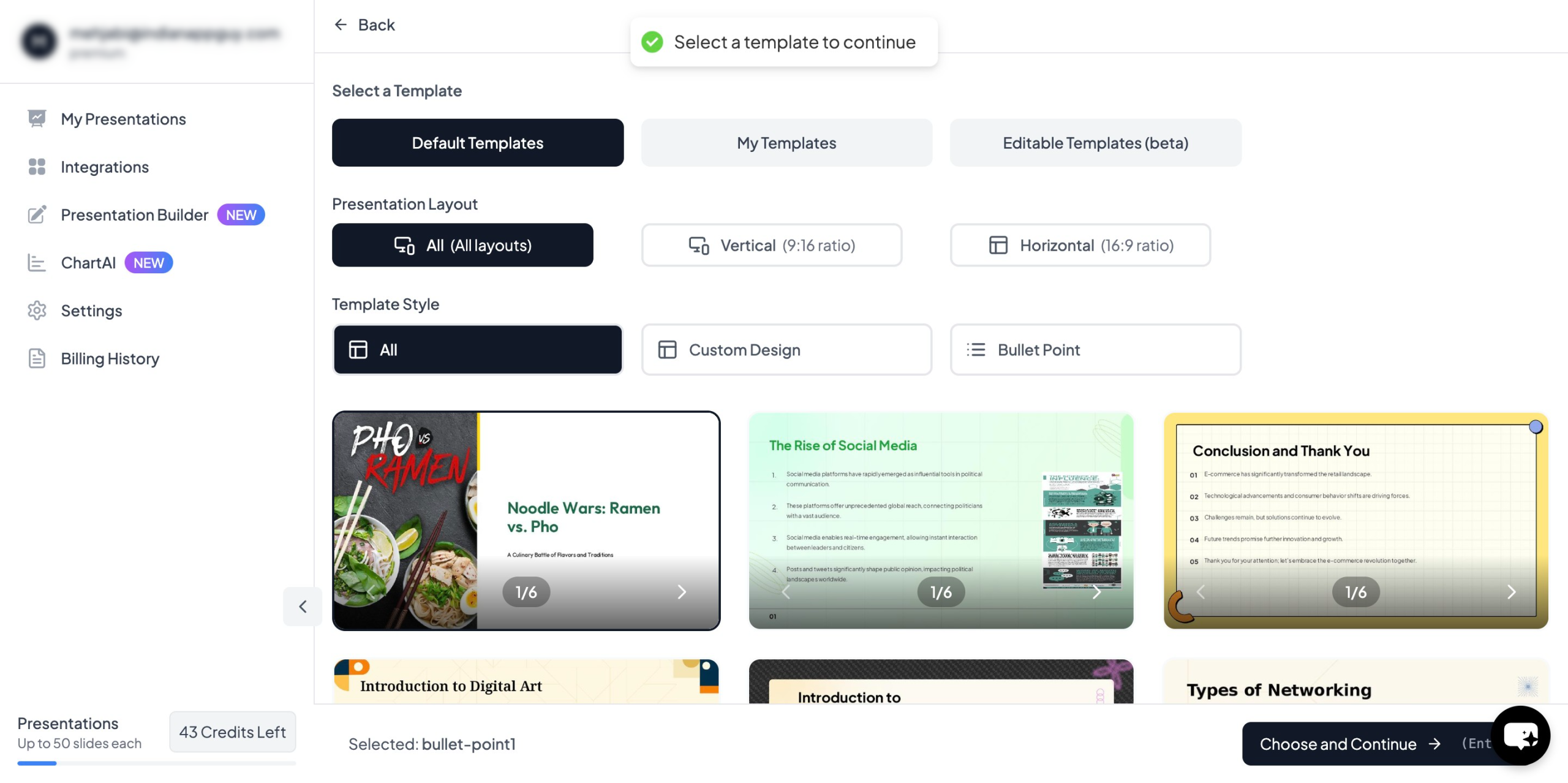
- Choose Your Template and Number of Slides – Select from various templates and define how many slides you need.
- Fill in Additional Details – Adjust settings as needed, including visual styles and AI-generated content preferences.
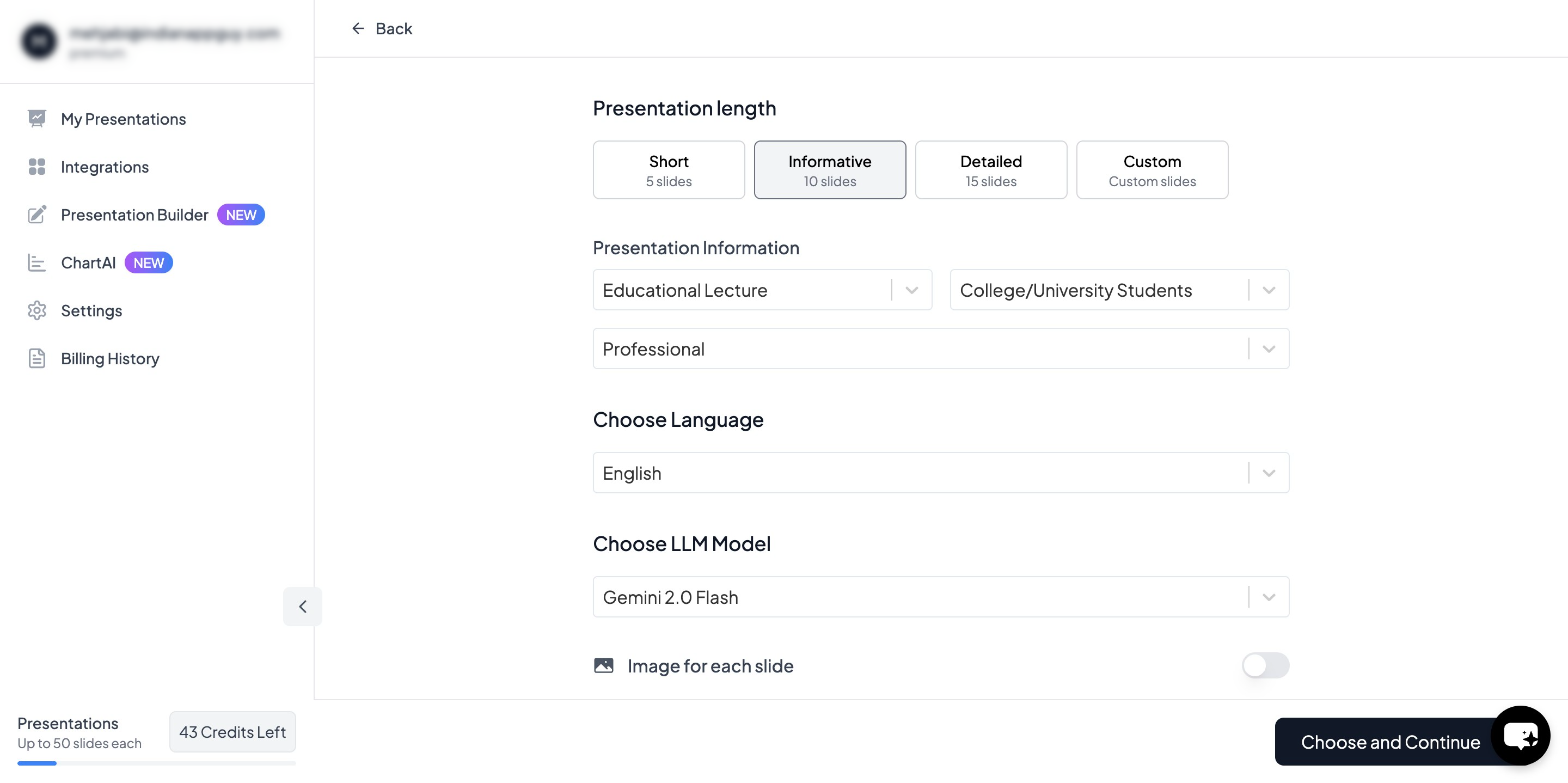
- Click ‘Generate Instant PPT’ – Your professionally designed presentation will be ready for download.
This process makes it incredibly easy to create structured presentations that can later be repurposed into documents.
MagicSlides.app Pricing & Features
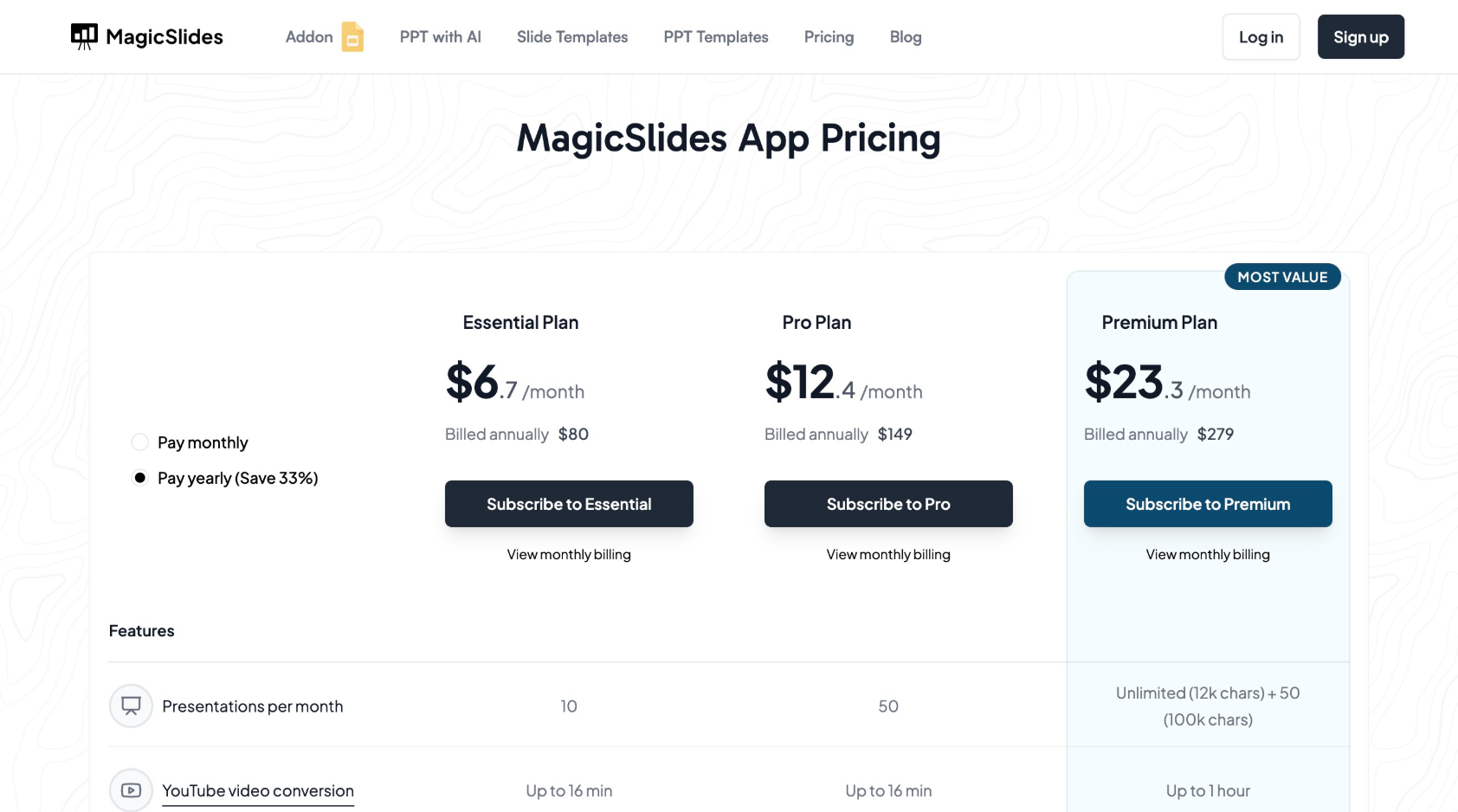
MagicSlides offers flexible pricing plans to cater to different user needs:
Essential Plan – $6.7/month (Billed Annually: $80)
- 10 presentations per month
- Up to 10 slides per presentation
- PDF conversion (5 pages)
- 12,000 character input limit
- Video to PPT (10 videos/month, up to 16 min each)
- Images and data from Google and Wikipedia
Pro Plan – $12.4/month (Billed Annually: $149)
- 50 presentations per month
- Up to 15 slides per presentation
- PDF conversion (5 pages)
- 12,000 character input limit
- AI Images and additional data sources
- YouTube video conversion (up to 16 min)
- Video to PPT (20 videos/month, up to 16 min each)
- GPT for ChatGPT & Zapier Integration
Premium Plan – Custom Pricing
- Unlimited presentations (12k characters) + 50 (100k characters)
- Up to 50 slides per presentation
- PDF conversion (20 pages)
- YouTube video conversion (up to 1 hour)
- AI Images, Data, and 100+ Language Support
- Video to PPT (40 videos/month, up to 1 hour each)
- Use any PPT as a template & AskPPT for chat
MagicSlides provides an efficient way to create structured presentations that can be easily converted into comprehensive documents. By leveraging its AI capabilities, you can save time and enhance productivity.
Conclusion
Converting a presentation into a document doesn’t have to be a cumbersome task. By following structured formatting techniques, expanding content thoughtfully, and utilizing AI-powered tools like MagicSlides.app, you can create impactful documents without losing clarity and engagement. Whether you’re a professional, educator, or content creator, this streamlined approach will help you maximize the value of your presentation materials.


