How to Turn in a PowerPoint on Blackboard


Easily submit your PowerPoint presentation on Blackboard with this step-by-step guide for smooth assignment uploads
How to Turn in a PowerPoint on Blackboard
Submitting a PowerPoint presentation on Blackboard is essential for students who need to complete assignments and share their work with instructors.
Blackboard is a widely used learning management system (LMS) that allows users to upload and submit assignments easily.
This step-by-step guide will help you navigate the submission process smoothly.
Step-by-Step Guide to Submitting a PowerPoint on Blackboard
Step 1: Log in to Blackboard
Open your web browser and go to your institution’s Blackboard.com login page.

Enter your username and password, then click Log In. Navigate to your course dashboard.
Step 2: Access the Assignment Submission Page
Click on the course where the assignment is due. Locate the Assignments section on the left-hand menu.
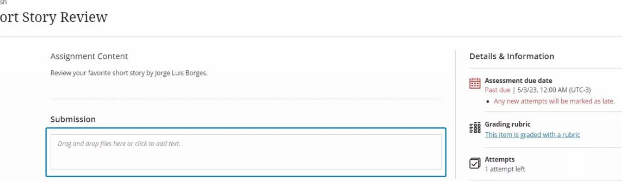
Select the specific assignment where you need to upload your PowerPoint.
Step 3: Upload Your PowerPoint File
Click the Browse Local Files button. Select your PowerPoint file (.pptx or .ppt) from your computer.
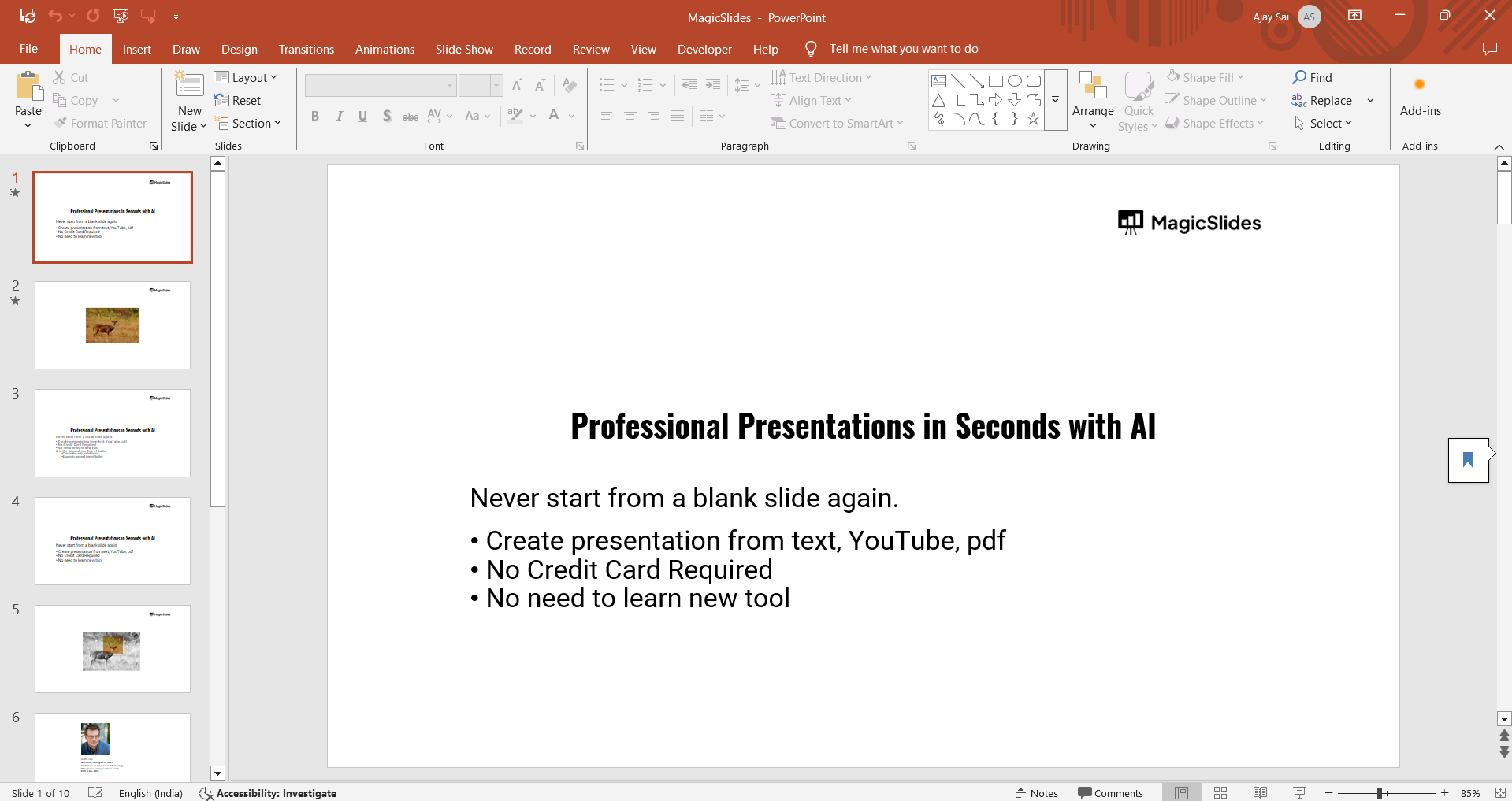
If needed, add comments in the text box provided.
Step 4: Confirm and Submit Your Assignment
Double-check that the correct PowerPoint file has been uploaded. Click the Submit button to complete the process.
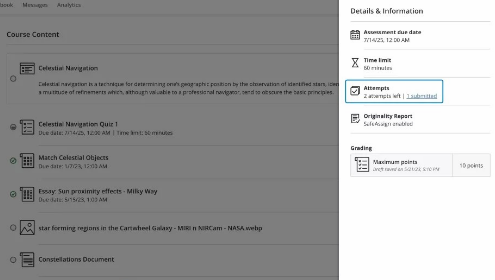
Wait for the confirmation message indicating successful submission.
Step 5: Verify Your Submission
Go back to the Assignments section. Click on the submitted assignment to ensure the file is correctly uploaded.
If your instructor allows multiple attempts, you may be able to resubmit a revised version before the deadline.
Submitting a PowerPoint on Blackboard is simple, but creating an impactful presentation is even easier with MagicSlides.app. Generate high-quality slides from topics, PDFs, or even YouTube videos instantly!
Conclusion
Submitting a PowerPoint on Blackboard is a straightforward process that ensures your work is delivered successfully.
By following these steps, you can confidently turn in your assignments on time and avoid submission errors.
Always verify your upload and check for instructor feedback after submission.
FAQs About Turning in a PowerPoint on Blackboard
What file formats does Blackboard accept for PowerPoint?
Blackboard supports .ppt, .pptx, and sometimes .pdf formats for PowerPoint presentations.
Can I edit or resubmit my PowerPoint after submission?
It depends on your instructor’s settings. If allowed, you can resubmit before the deadline.
How do I know my submission was successful?
You will receive a confirmation message on Blackboard and can verify your submission under My Grades or Assignments.
Now you’re ready to submit your PowerPoint presentations on Blackboard with confidence! 🚀


