How to Turn Research Findings or Academic Papers into PowerPoint Slides?


Transforming academic insights into impactful presentations! Learn the art of converting research findings into compelling PowerPoint slides with expert tips
Crafting impactful PowerPoint presentations from research findings or academic papers is a valuable skill, allowing for the clear communication of intricate information. In this guide, we'll take you through the process, making it straightforward to convert your scholarly work into engaging presentations.
How to Turn Research Findings or Academic Papers into PowerPoint Slides?
Visit Google Slides
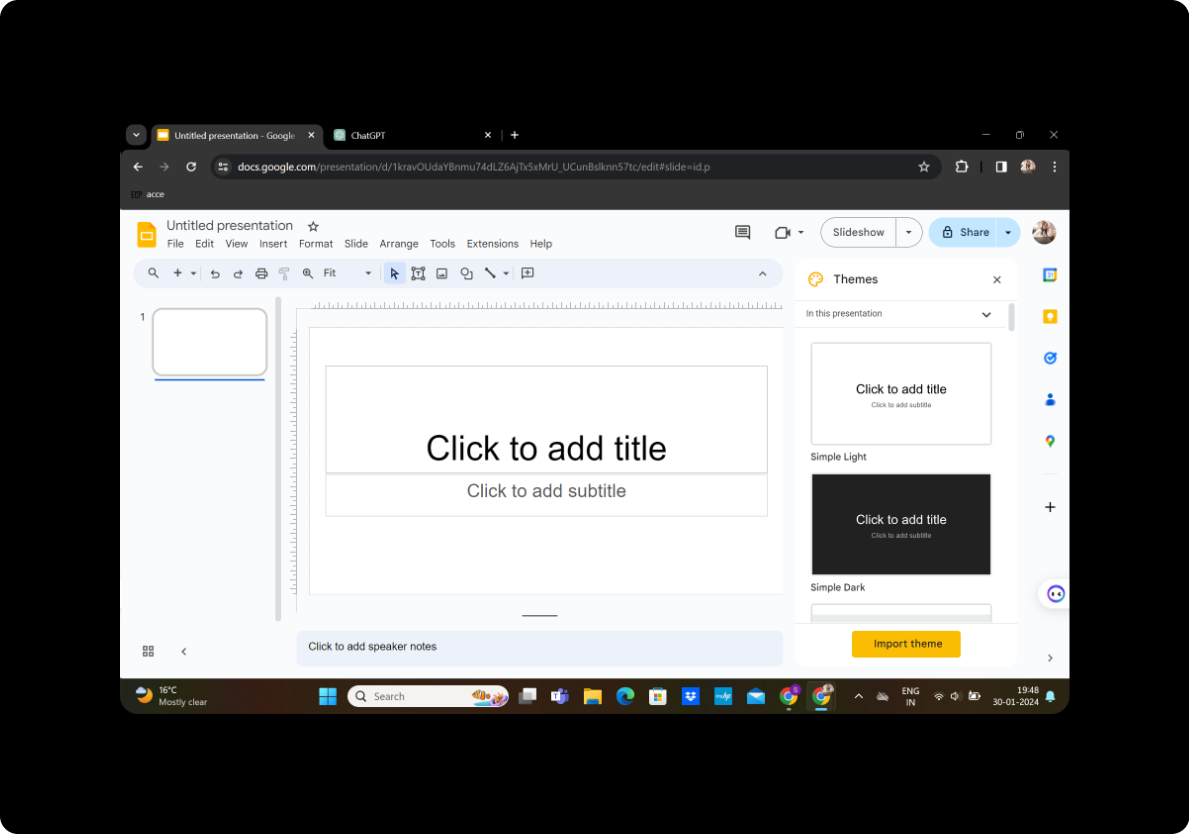
Begin by going to slides.google.com, a user-friendly cloud-based presentation tool provided by Google.
Sign In with Google to Google Slides
Create a Google account if you don't have one and sign in to Google Slides using your credentials.
Step 1: Install MagicSlides GPT Extension (if not downloaded)
In the Extensions menu, find and click on "MagicSlides GPT" to download the extension. If it's already downloaded, move on to the next step.
Step 2: Open MagicSlides GPT
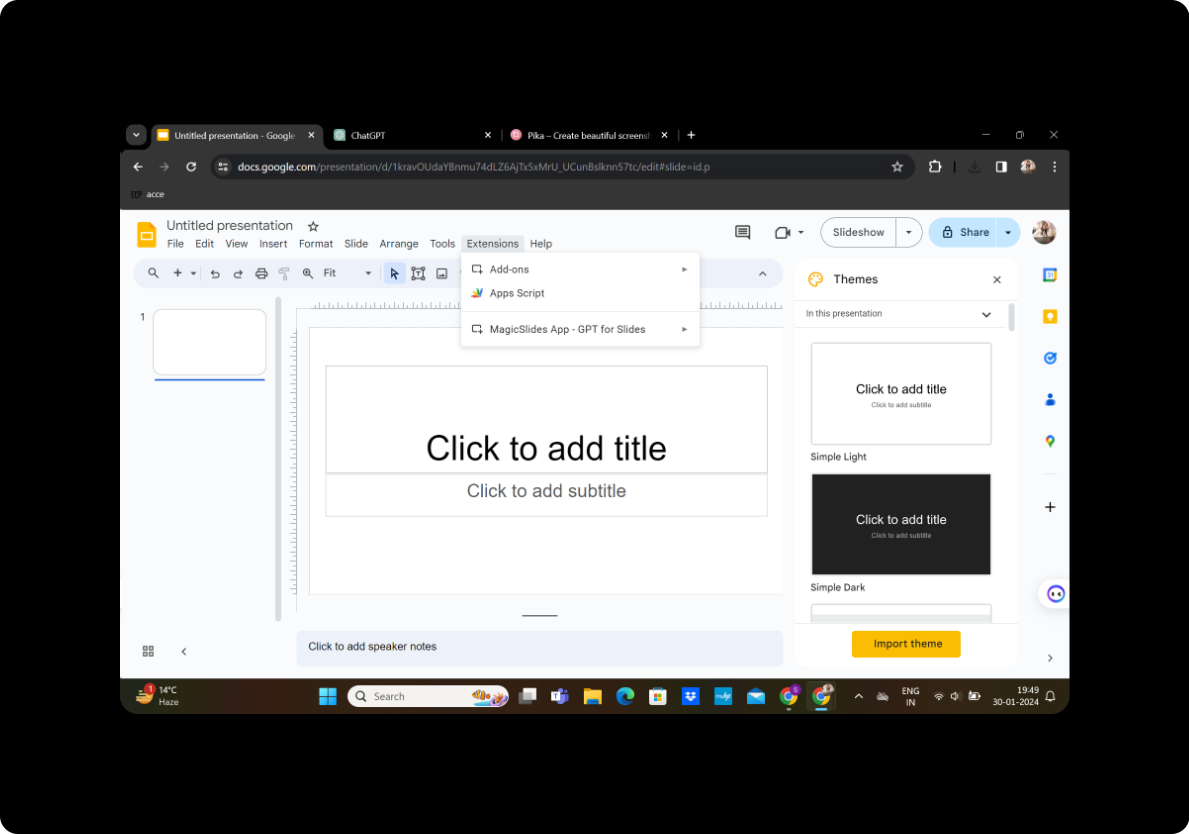
Once downloaded, open the MagicSlides GPT extension.
Step 3: Click on "Generate PPT" in MagicSlides GPT
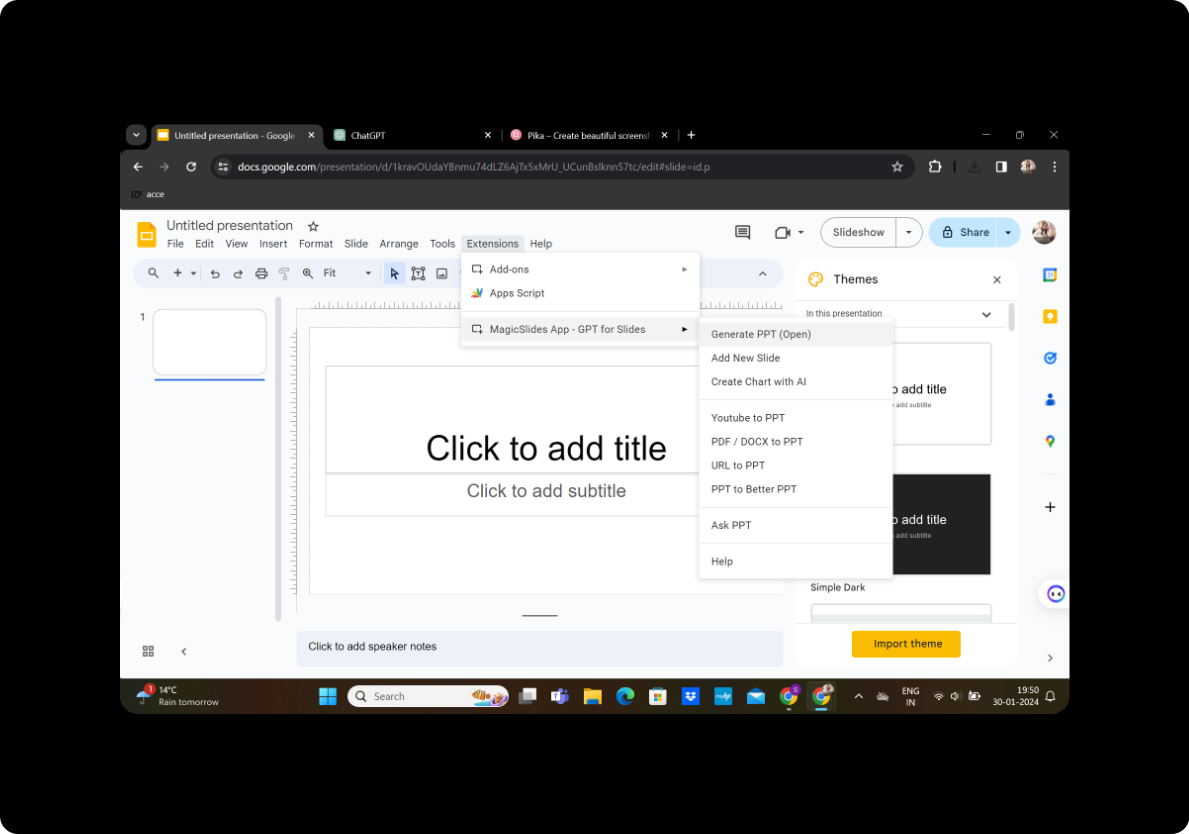
Within the MagicSlides GPT interface, initiate the process by clicking on "Generate PPT."
Step 4: Title Your Presentation
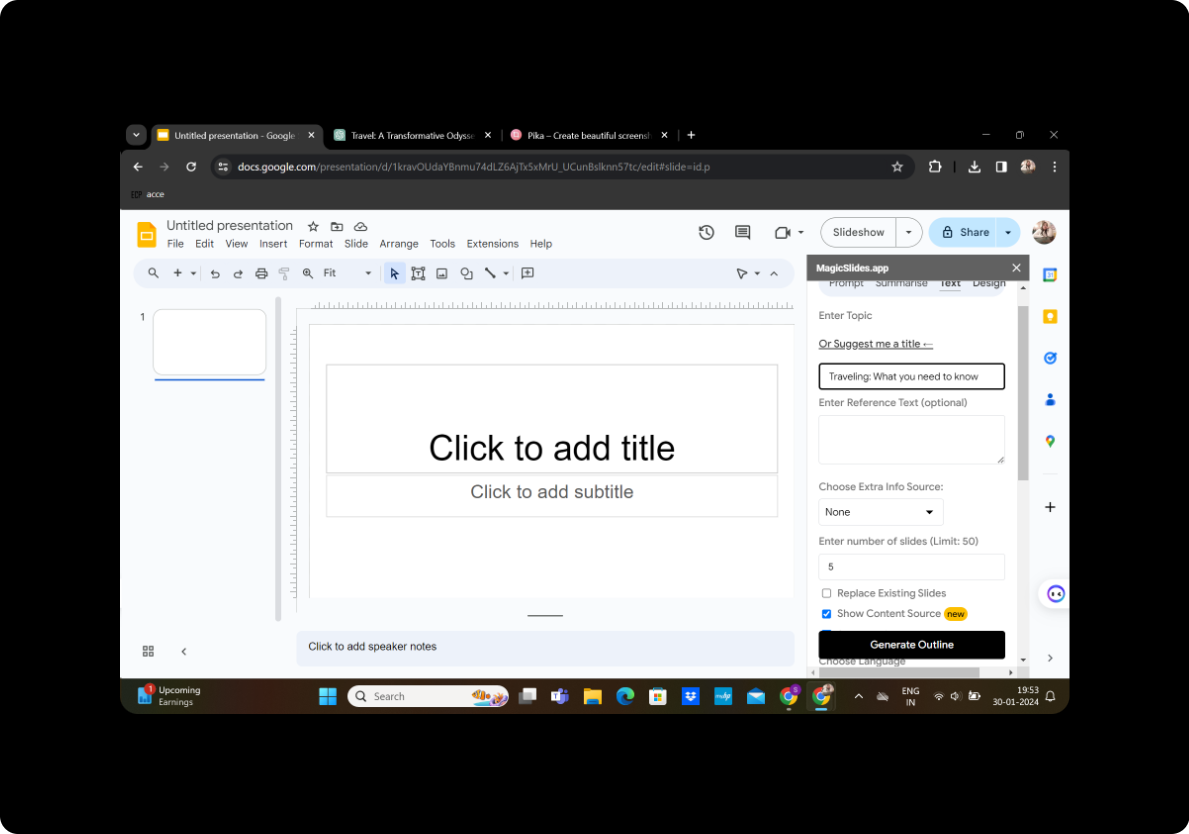
Provide a concise and descriptive title for your presentation in the designated box.
Step 5: Input Text Content
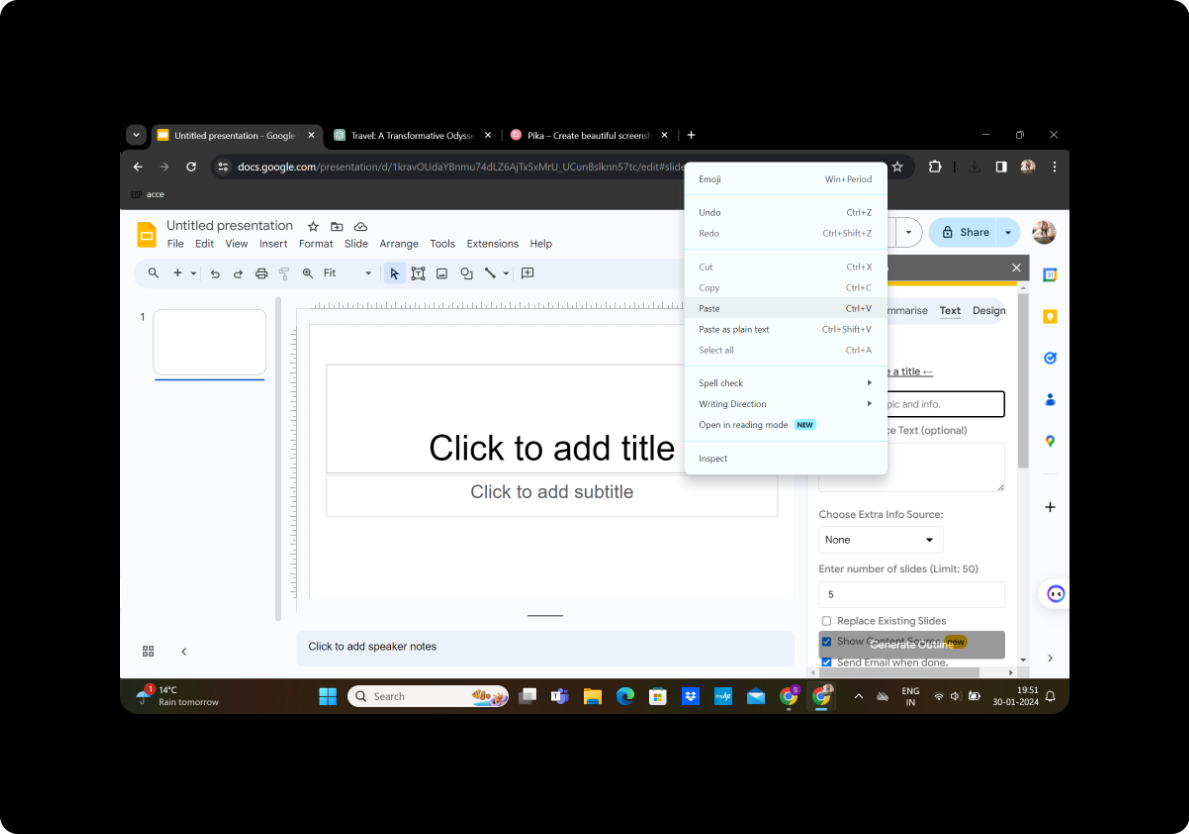
Copy and paste relevant text content from your research findings into the designated box.
Step 6: Select Number of Slides
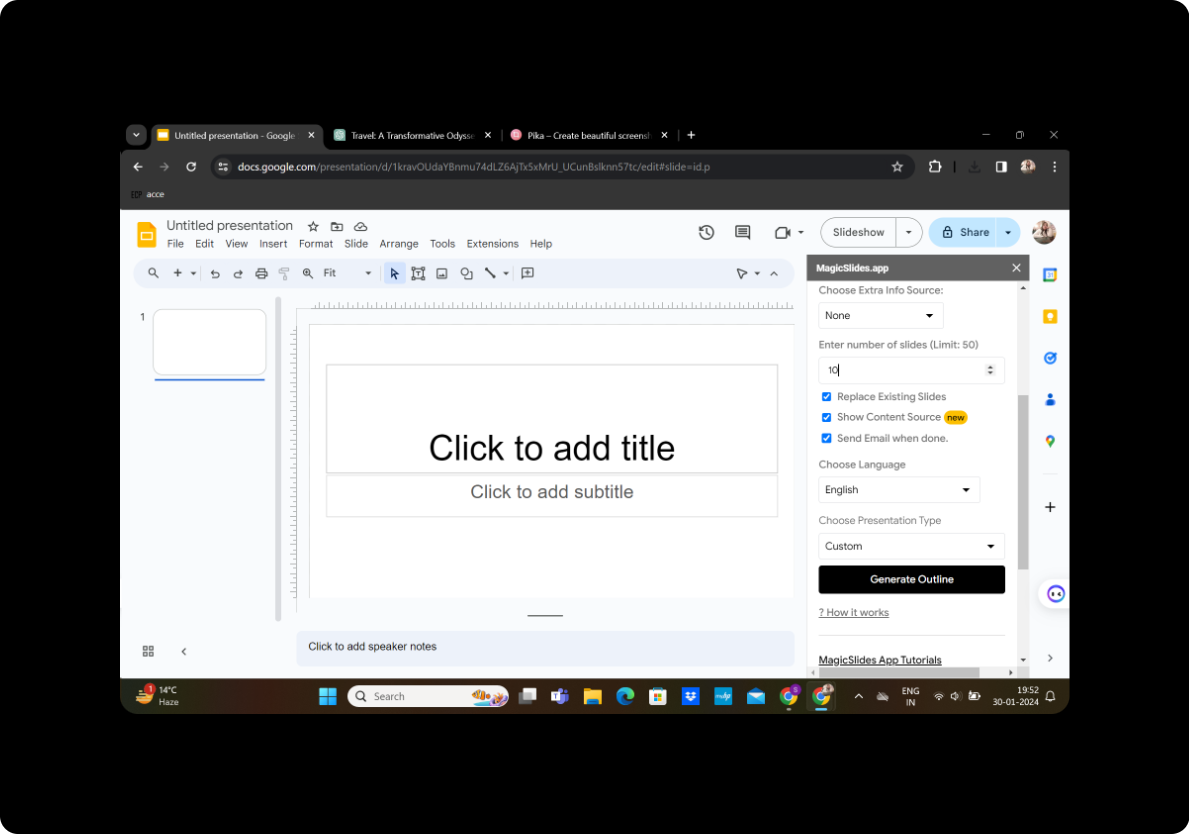
Choose the desired number of slides for your presentation.
Step 7: Generate Outline
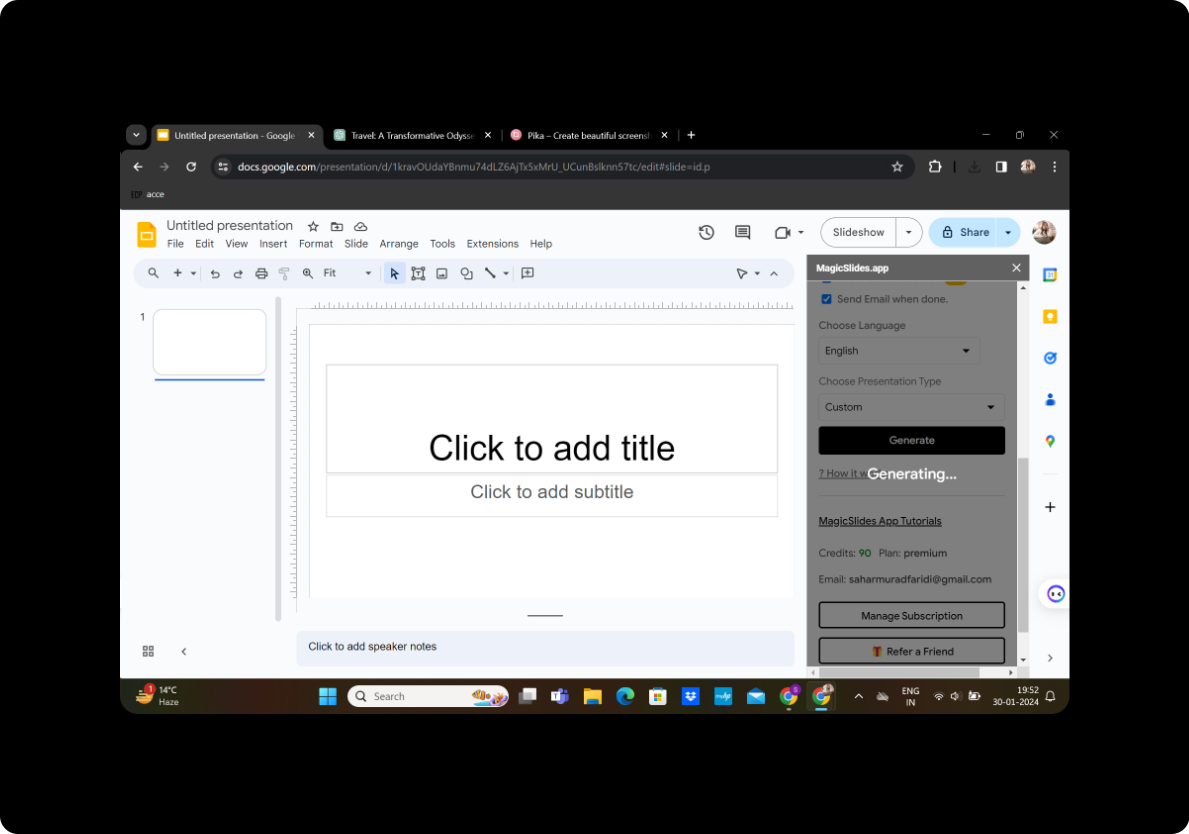
Click on "Generate Outline" to let MagicSlides GPT create an initial outline for your presentation.
Step 8: Modify as Per Preference
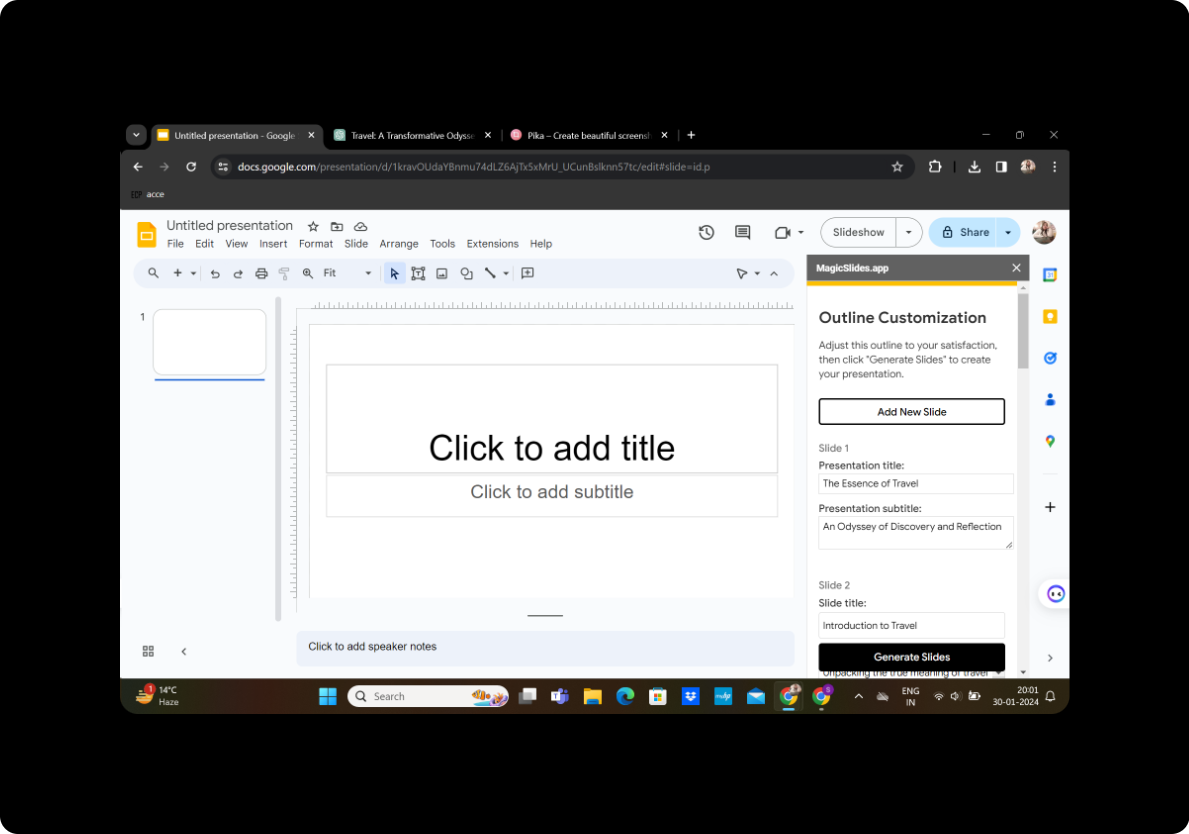
Review the generated outline and make modifications to slides, text, or layout according to your preferences.
Step 9: Generate Presentation
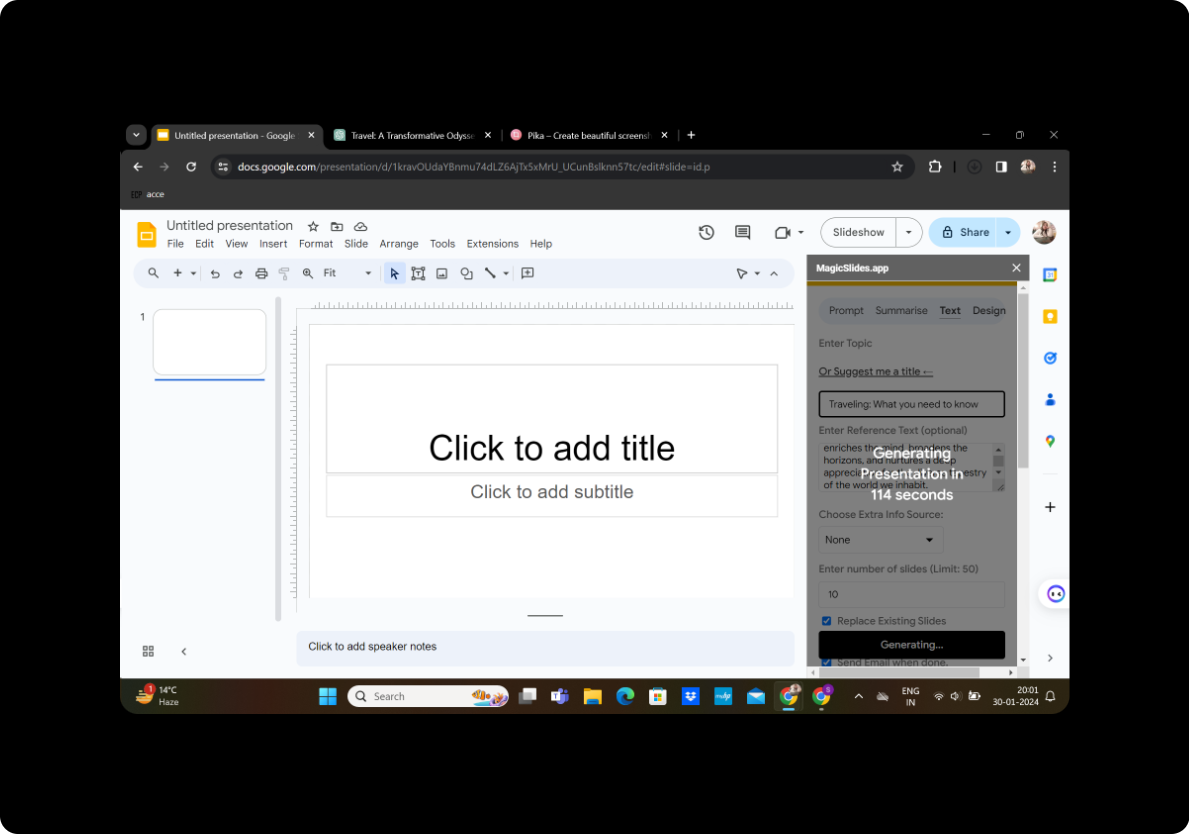
Once satisfied with your modifications, click on "Generate Presentation" to finalize the transformation.
Conclusion
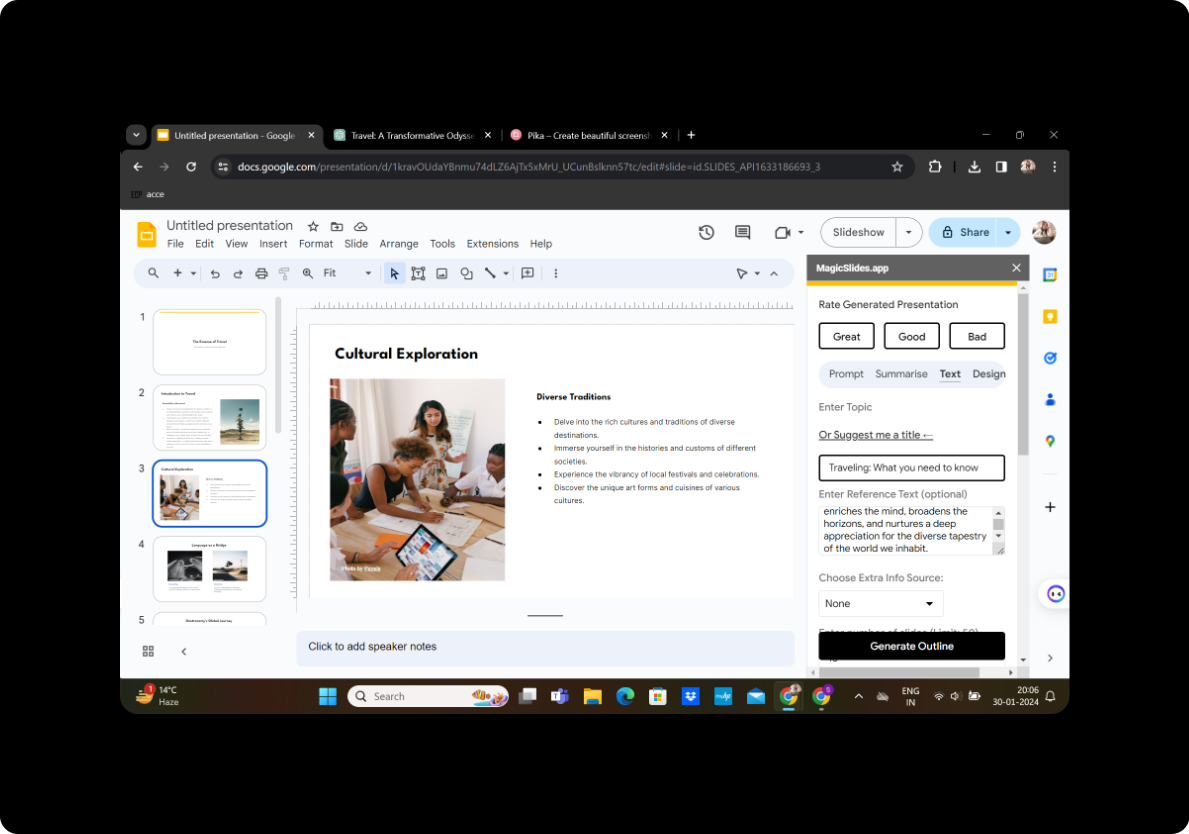
Your presentation is now ready to captivate your audience. The process, facilitated by the MagicSlides GPT extension in Google Slides, streamlines the conversion of academic content into engaging presentations. This not only saves time but also ensures the effective dissemination of research findings.
Frequently Asked Questions
Can I use MagicSlides GPT with any type of research content? Yes, MagicSlides GPT is versatile and can be applied to various types of research content, making it suitable for academic papers, reports, and more.
Can I customize the design of the generated slides? Absolutely! MagicSlides GPT provides flexibility in customizing slides, allowing you to tailor the presentation to your preferred style.
How do I share the presentation with others? Once your presentation is generated, you can easily share it using the sharing options within Google Slides.
Can I use MagicSlides GPT offline? No, MagicSlides GPT requires an internet connection as it leverages cloud-based functionality for optimal performance.
Are there limitations on the length of the research content that can be converted? While MagicSlides GPT can handle a substantial amount of content, it's advisable to ensure conciseness for a more effective presentation.


