How to Unhide a Slide in PowerPoint


Unhiding slides in PowerPoint allows you to include previously hidden content in your presentation easily.
In PowerPoint, slides can be hidden during a presentation to skip certain content without deleting it. However, there may be times when you need to unhide a slide to include it back in your presentation.
Unhiding a slide is simple and can be done in just a few clicks. This step-by-step guide will show you how to unhide a slide in PowerPoint and ensure your content is ready to present.
How to Unhide a Slide in PowerPoint: A Step-by-Step Guide
Step 1: Open Your PowerPoint Presentation
Open your PowerPoint presentation where the slide is hidden.
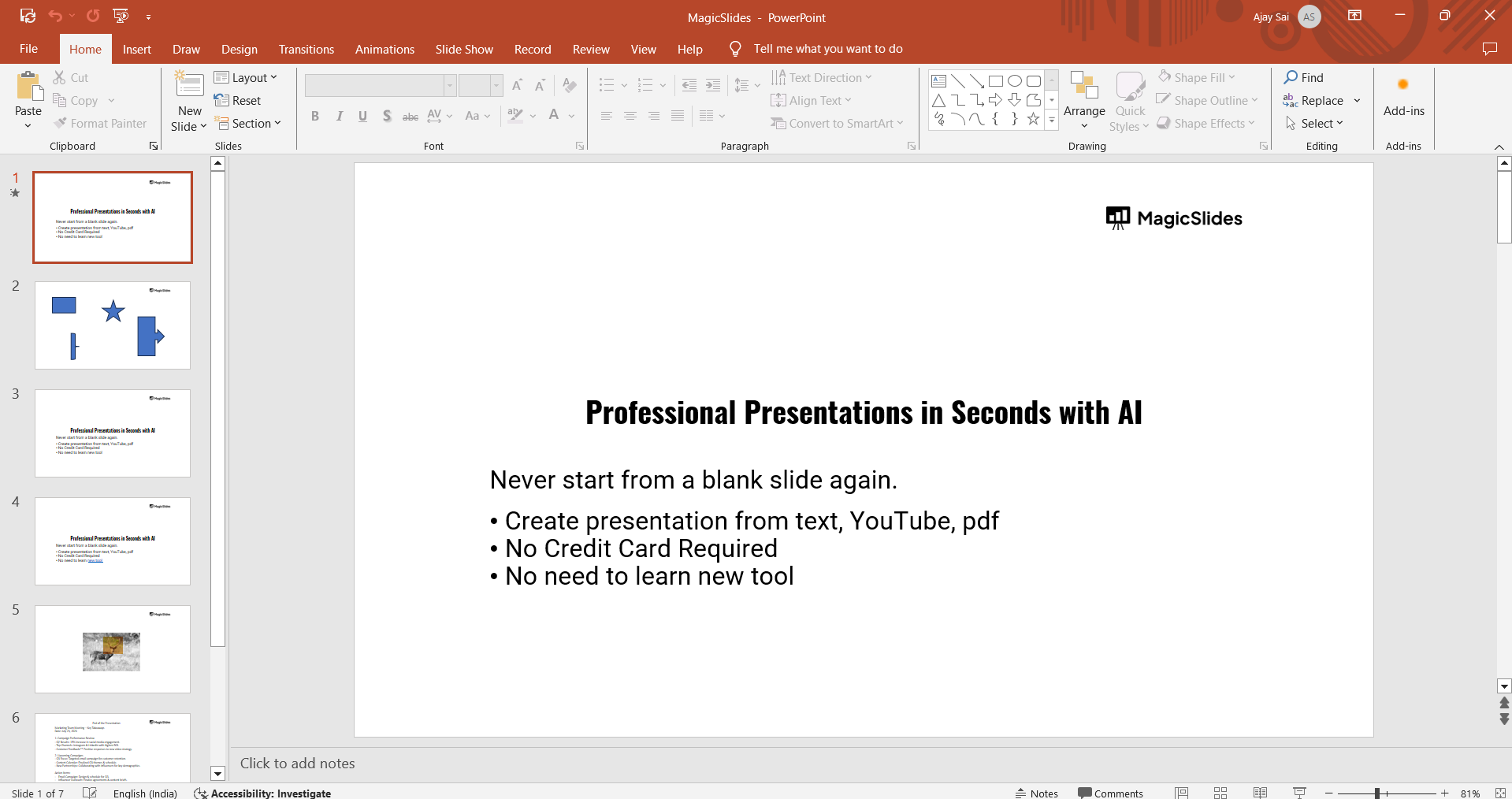
Navigate through the slides by scrolling down the slide thumbnails on the left-hand side of the screen.
Step 2: Locate the Hidden Slide
Hidden slides will appear faded or grayed out in the slide thumbnail pane on the left side of the screen.
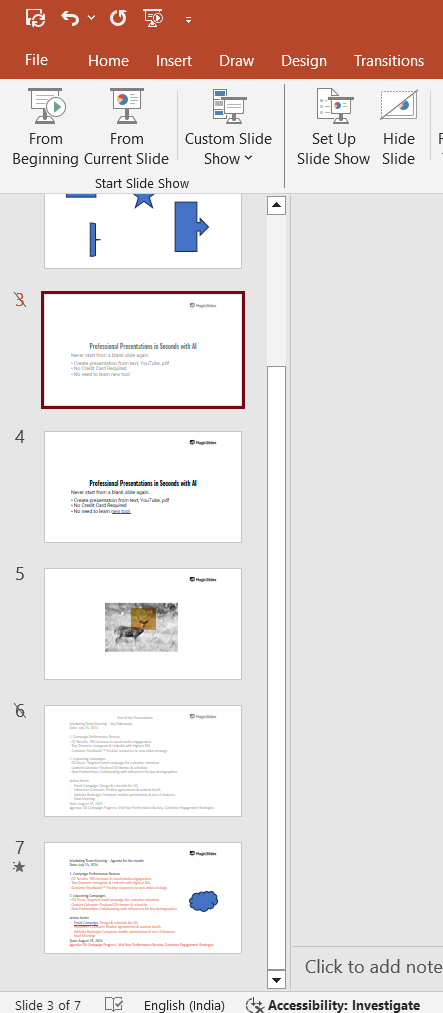
Scroll through the list of slides to find the one you want to unhide.
Step 3: Right-Click on the Hidden Slide
Once you locate the hidden slide, right-click on it.
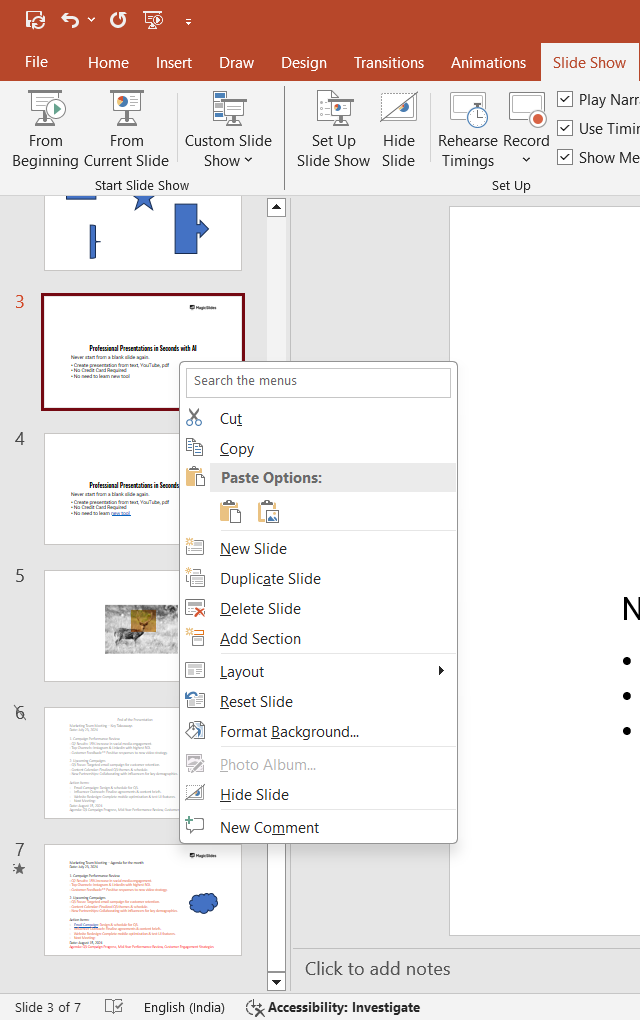
A context menu will appear, displaying various options related to slide editing and formatting.
Step 4: Click on “Hide Slide” to Unhide It
From the context menu, click on the “Hide Slide” option.
This will remove the checkmark next to “Hide Slide,” making the slide visible again.
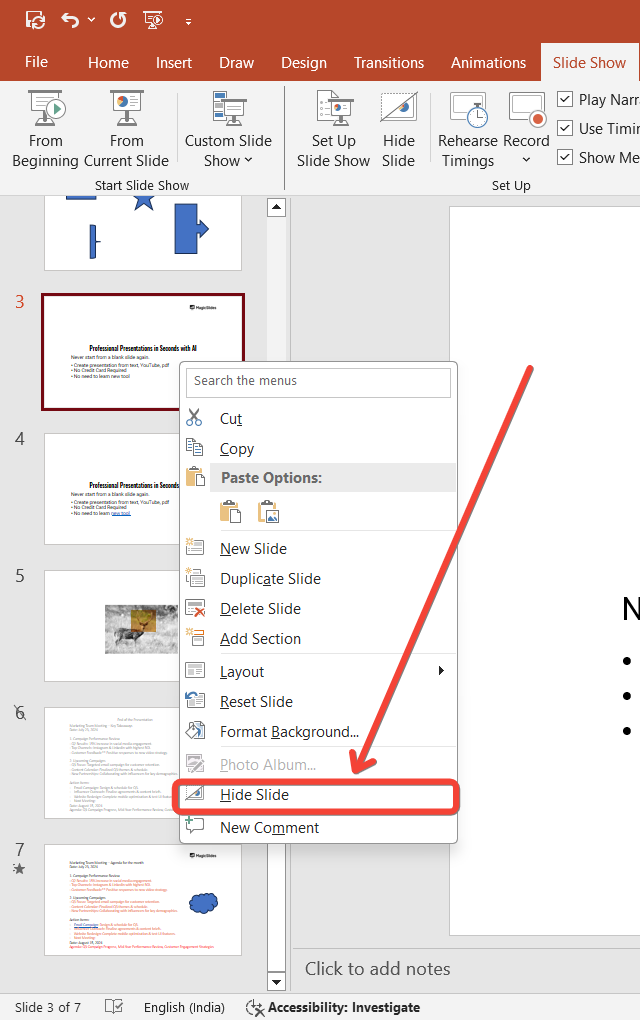
You’ll notice that the slide is no longer grayed out, indicating it’s now active in the presentation.
Step 5: Verify the Slide is Unhidden
To ensure the slide is unhidden, go to the “Slide Show” tab at the top and click “From Current Slide” to preview.

The previously hidden slide should now appear as part of the slideshow.
Conclusion
Unhiding a slide in PowerPoint is quick and easy, allowing you to seamlessly adjust your presentation without losing any content.
Whether you need to include additional information or change the flow of your slideshow, this feature helps you maintain flexibility in your presentations.
Use these steps to unhide slides confidently and ensure your presentation runs smoothly!
FAQs can come handy!
How do I know if a slide is hidden in PowerPoint?
Hidden slides appear grayed out in the slide thumbnail pane on the left side of the screen.
Can I unhide multiple slides at once in PowerPoint?
Yes, you can select multiple hidden slides by holding the “Ctrl” key and clicking, then right-click and select “Hide Slide” to unhide them.
Does unhiding a slide affect slide numbers in the presentation?
Unhiding a slide restores its original position and number, adjusting the slide order accordingly during the presentation.


