How to unlock PowerPoint from editing


Regain control: Learn how to unlock PowerPoint files for editing with these simple steps.
In collaborative environments or when sharing presentations, you may need to lock or unlock PowerPoint files to prevent or allow editing by others. Understanding how to unlock a PowerPoint presentation for editing is essential for maintaining control over your content. In this guide, we'll walk through a step-by-step process to help you unlock a PowerPoint file, allowing editing privileges as needed.
How to unlock PowerPoint from editing
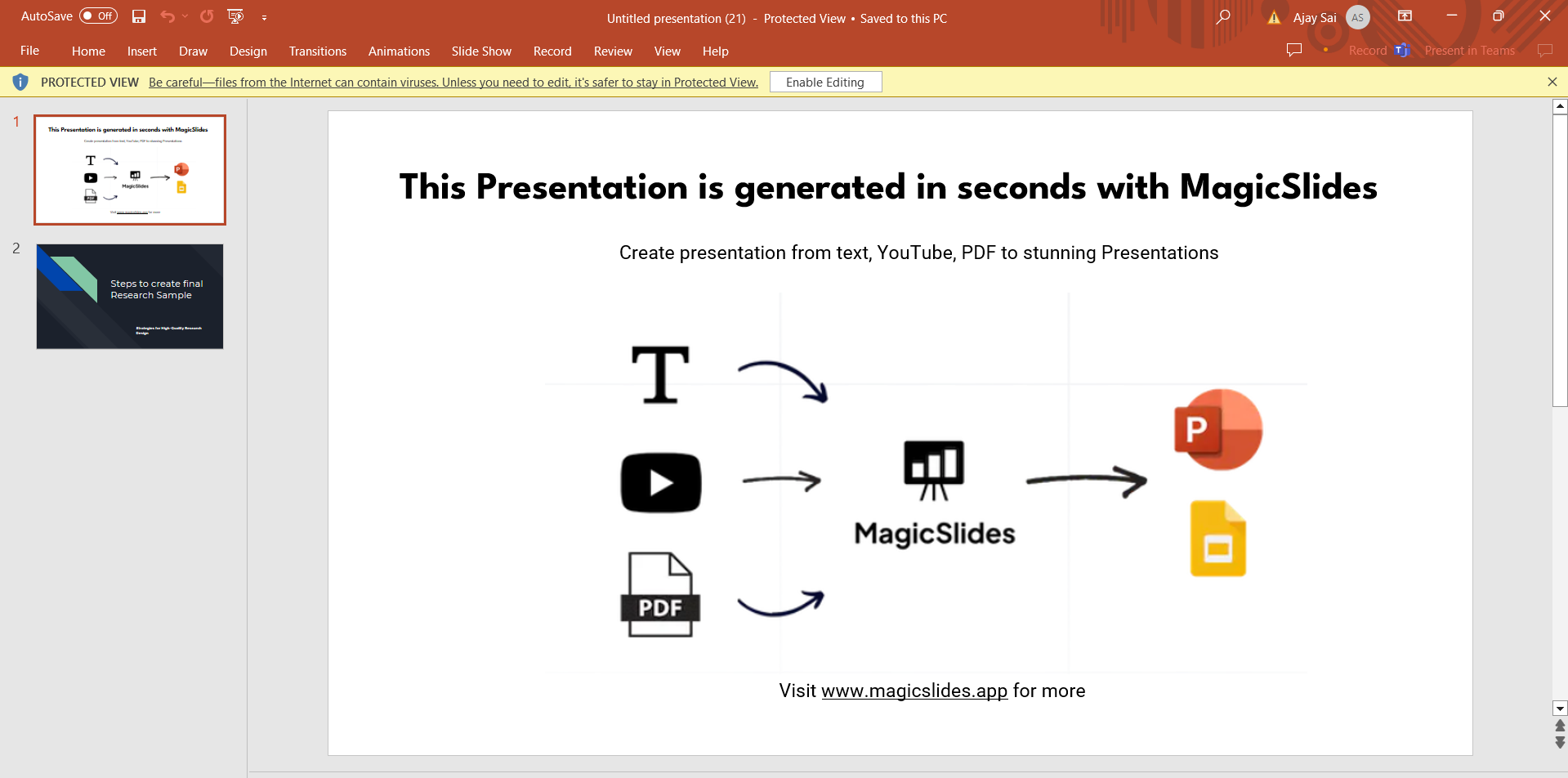
Step 1: Open the Locked PowerPoint File
Start by opening the PowerPoint file that is currently locked from editing. You will need to have access to the file and sufficient permissions to make changes.
Step 2: Navigate to File Properties
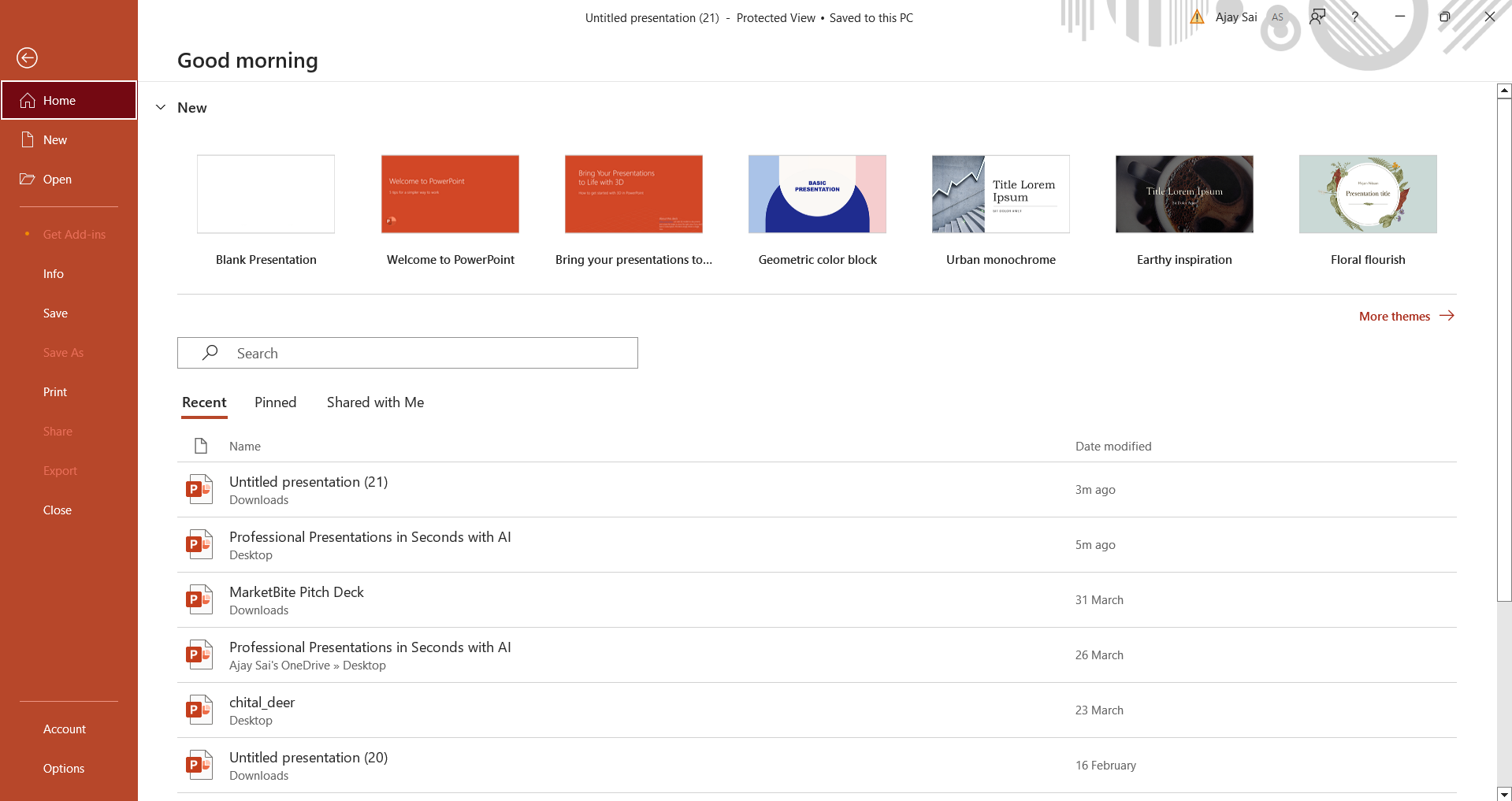
Click on the "File" tab in the PowerPoint ribbon menu to access the File menu options. Then, select "Info" from the sidebar to view file properties and settings.
Step 3: Check for File Protection
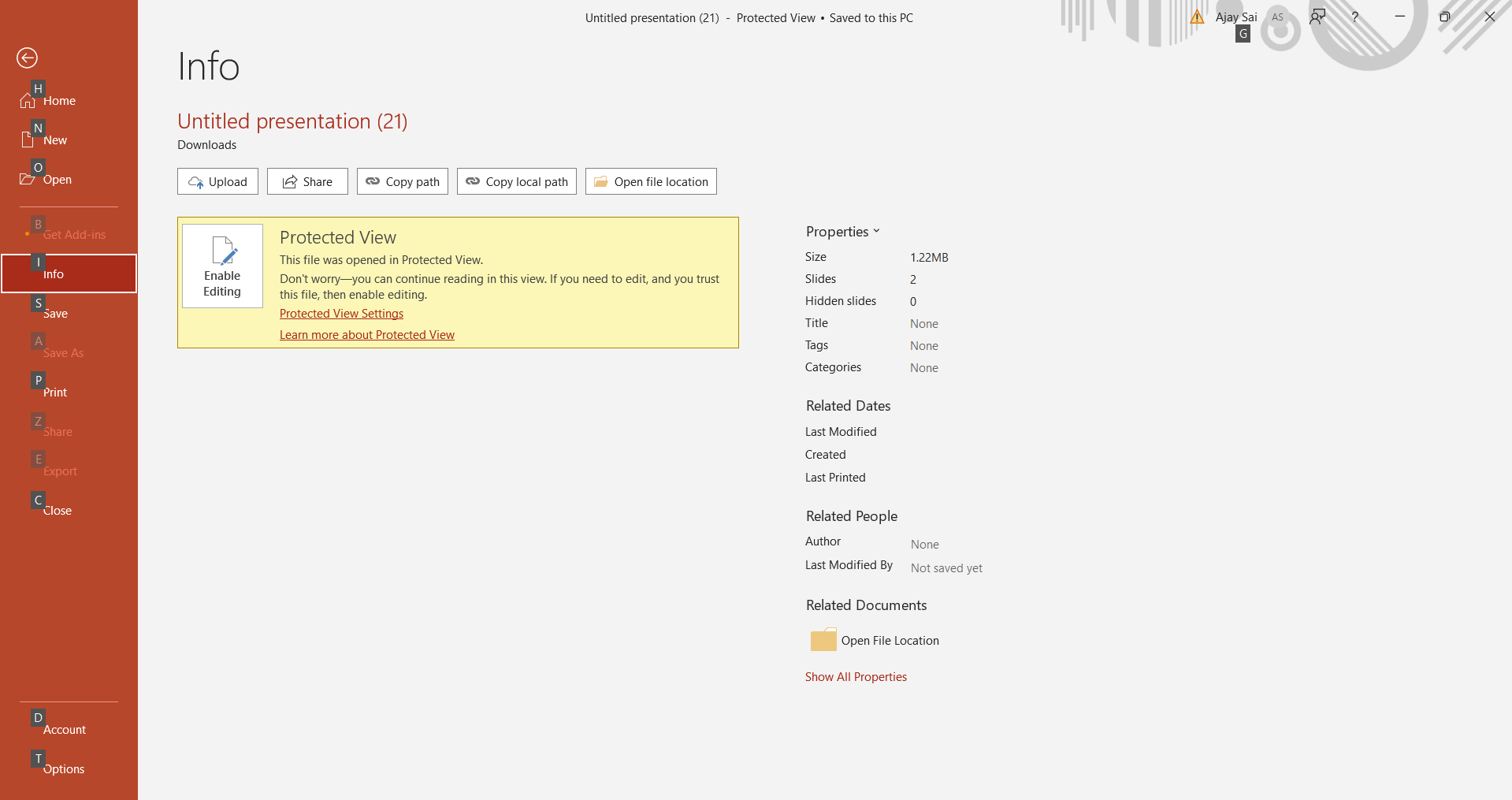
In the Info section, look for any indications that the file is protected or restricted, such as a message stating "Protected View" or "Read-Only." This indicates that the file is currently locked from editing.
Step 4: Unblock the File
If the file is protected or in read-only mode, you can unblock it by clicking on the "Enable Editing" or "Edit Anyway" button that appears in the File tab or in the message prompt. This action unlocks the file for editing.

Step 5: Save Changes
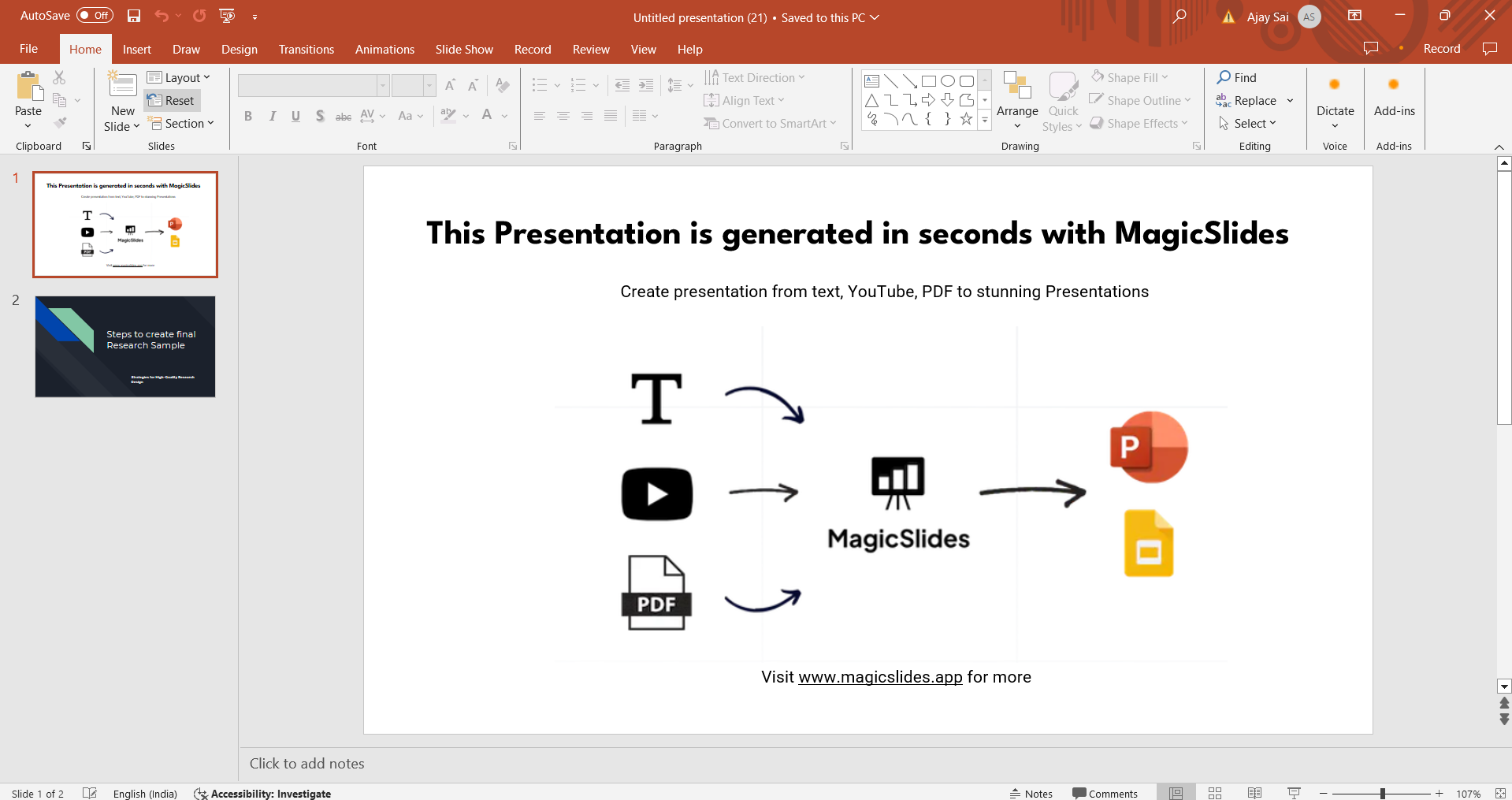
After unlocking the file for editing, make any necessary changes or modifications to the PowerPoint presentation. Once you've completed your edits, remember to save the changes to ensure they are preserved.
Conclusion:
Unlocking a PowerPoint file from editing is a straightforward process that allows you to regain control and make changes to your presentations as needed. By following this step-by-step guide, you can easily unblock a PowerPoint file that is protected or in read-only mode, granting you full editing privileges. Whether you're collaborating with colleagues or need to update a presentation, knowing how to unlock PowerPoint presentations ensures smooth workflow and flexibility in managing your content. Incorporate these techniques into your PowerPoint editing routine to maximize productivity and maintain control over your presentations.
Frequently Asked Questions:
Can I unlock a PowerPoint file if I don't have the password?
No, unlocking a password-protected PowerPoint file requires the correct password. Without it, you won't be able to edit the file.
What should I do if the "Enable Editing" option is grayed out in PowerPoint?
If the "Enable Editing" option is disabled or grayed out, it's likely that the file is still locked by another user or system restriction. Contact the file owner or administrator for assistance.
Is it possible to re-lock a PowerPoint file after making edits?
Yes, you can re-lock a PowerPoint file by saving it with password protection or adjusting the file permissions to restrict editing access again.
Will unlocking a PowerPoint file affect its formatting or content?
Unlocking a PowerPoint file for editing doesn't alter its formatting or content by default. However, any changes made during the editing process will be saved as part of the file.


