How to update PowerPoint


Stay current and efficient by learning how to easily update your PowerPoint software today.
Keeping your software up to date is crucial for ensuring optimal performance, accessing new features, and maintaining compatibility with other tools. Updating Microsoft PowerPoint, part of the Office suite, is a straightforward process that ensures you have the latest enhancements and security patches. In this step-by-step guide, we'll walk you through the process of updating PowerPoint on Windows and macOS systems.
How to update PowerPoint
Step 1: Open Microsoft PowerPoint
Begin by launching Microsoft PowerPoint on your computer. Ensure that you are connected to the internet as updates require an active connection.
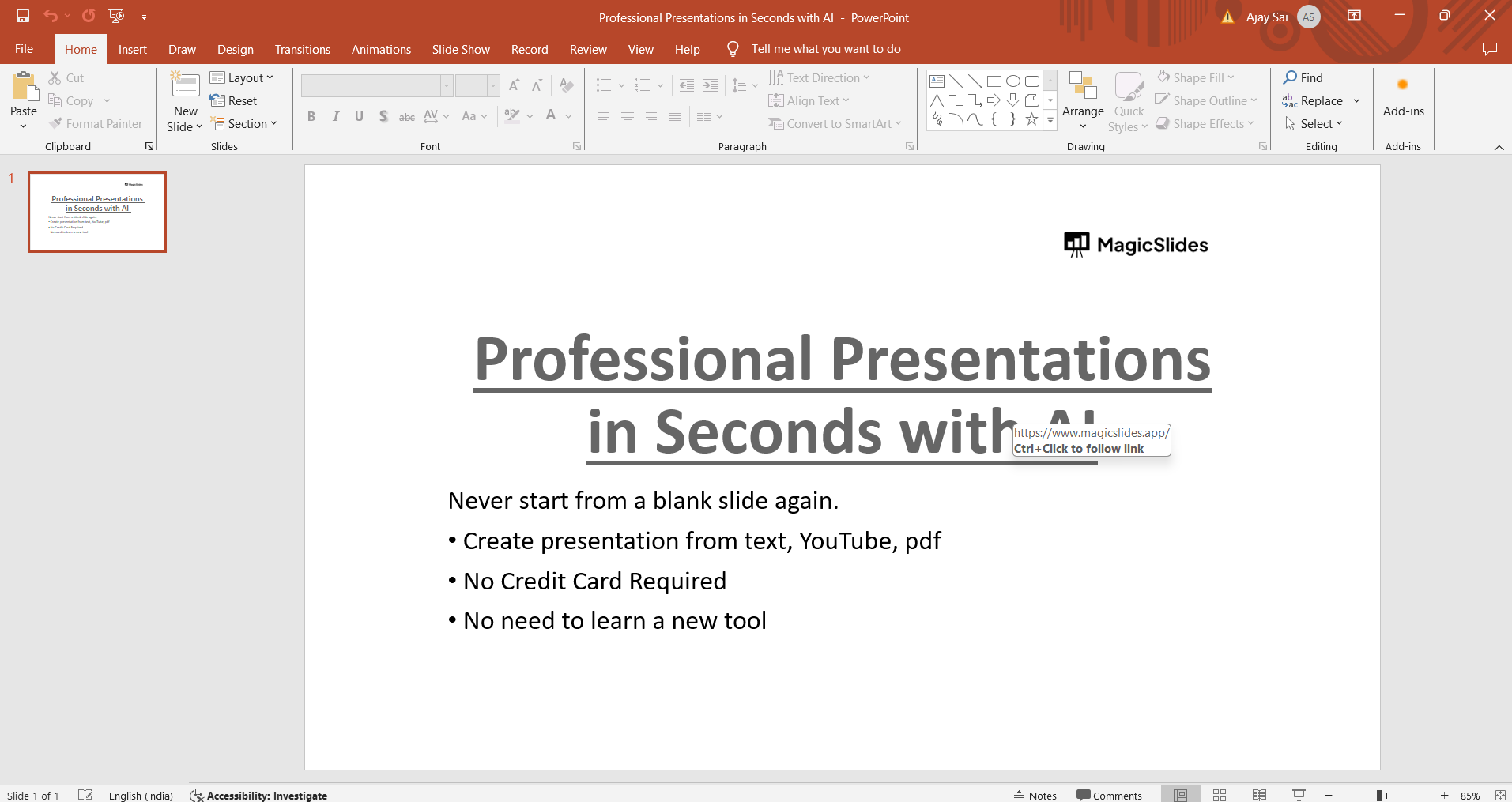
Step 2: Check for Updates (Windows)
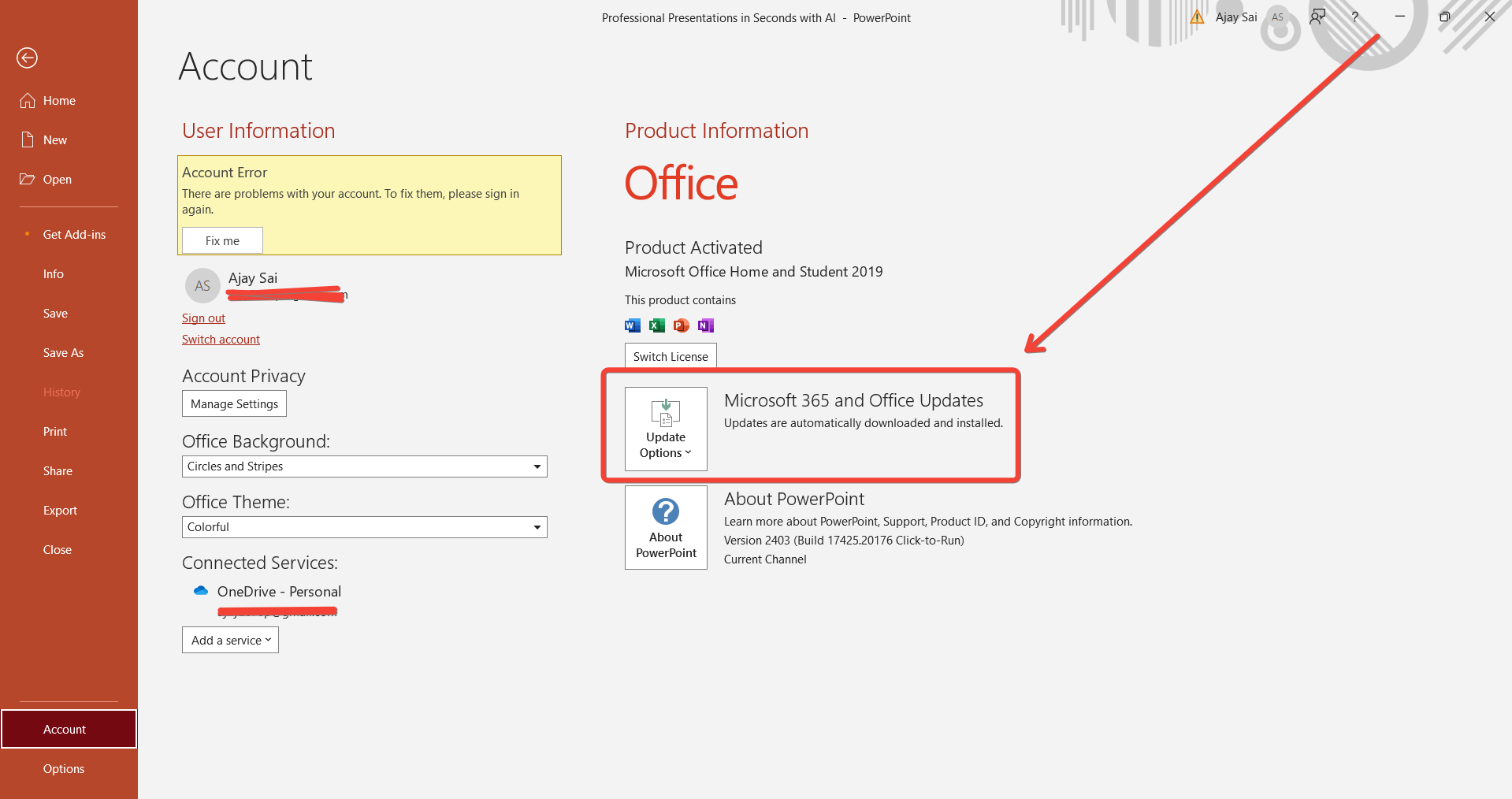
For Windows users, click on the "File" tab in the top-left corner of the PowerPoint window. From the menu on the left, click on "Account" or "Office Account." Then, click on "Update Options" and select "Update Now" to check for and install available updates.
Step 2: Check for Updates (macOS)
If you're using macOS, open PowerPoint and click on the "Help" menu in the top menu bar. Choose "Check for Updates" from the dropdown menu. This action will prompt Microsoft AutoUpdate to check for and install any available updates for Office applications, including PowerPoint.
Step 3: Download and Install Updates
Once you initiate the update process, your computer will connect to Microsoft's servers to download the latest updates for PowerPoint. Depending on your internet speed and the size of the update, this process may take some time. Follow any on-screen prompts to confirm and install the updates.
Step 4: Restart PowerPoint
After the updates are successfully installed, it's recommended to close and reopen PowerPoint to ensure that the changes take effect. Save any ongoing work before closing the application.
Conclusion:
Keeping your PowerPoint software up to date is essential for accessing new features, improving performance, and ensuring compatibility with other tools and services. By following this step-by-step guide, you can easily check for and install updates for PowerPoint on both Windows and macOS systems. Regularly updating your software not only enhances your user experience but also helps in staying protected against security vulnerabilities and bugs. Stay current and make the most out of your PowerPoint presentations by staying updated with the latest software releases.
→ Along with updating your PowerPoint Application, it is important to know current trending tools for creating stellar presentations, know more about them here: https://www.magicslides.app/blog/top-ai-tools-for-enhancing-presentations
Frequently Asked Questions:
Why should I update PowerPoint regularly?
Regular updates ensure you have the latest features, bug fixes, and security patches, improving performance.
Can I update PowerPoint on both Windows and macOS?
Yes, both Windows and macOS users can update PowerPoint through their respective update options.
Do I need an internet connection to update PowerPoint?
Yes, an active internet connection is required to download and install updates for PowerPoint.
How often should I check for updates in PowerPoint?
It's recommended to check for updates regularly or enable automatic updates for seamless maintenance.


