How to Use Google Slides Offline? Work Without Internet Anywhere


Learn how to use Google Slides offline with this step-by-step guide. Enable offline mode, edit presentations without internet, and sync changes automatically.
Google Slides has become one of the most popular presentation tools for students, professionals, teachers, and businesses. Since it works in the cloud, many people assume that an internet connection is always required.
Fortunately, Google Slides includes an offline mode that allows you to create, edit, and present slides without an active internet connection. Whether you’re traveling, working remotely, experiencing poor connectivity, or simply want uninterrupted productivity, offline mode ensures your presentations remain accessible.
In this guide, you’ll learn how to enable Google Slides offline mode, use it effectively, and troubleshoot common issues.
Benefits of Using Google Slides Offline
Google Slides offline mode gives users the flexibility to continue working even without an internet connection. Whether you’re traveling, working remotely, or facing connectivity issues, offline access ensures your presentations remain available.
Some key benefits include:
- Edit presentations without Wi-Fi.
- Access important files during travel.
- Continue working during internet outages.
- Present slides anywhere without connectivity concerns.
- Automatically sync changes once you’re back online.
Requirements for Using Google Slides Offline
Before enabling offline mode, make sure you have the following:
- A Google account.
- Google Chrome browser.
- Internet access during the initial setup.
- The Google Docs Offline extension may be required.
- Sufficient storage space on your device.
Offline mode must be enabled while you’re connected to the internet before you can access files offline.
How to Use Google Slides Offline?
Step 1. Accessing Google Drive
Begin by navigating to Google Drive, the hub for all your Google Workspace applications.
Step 2. Accessing Drive Settings
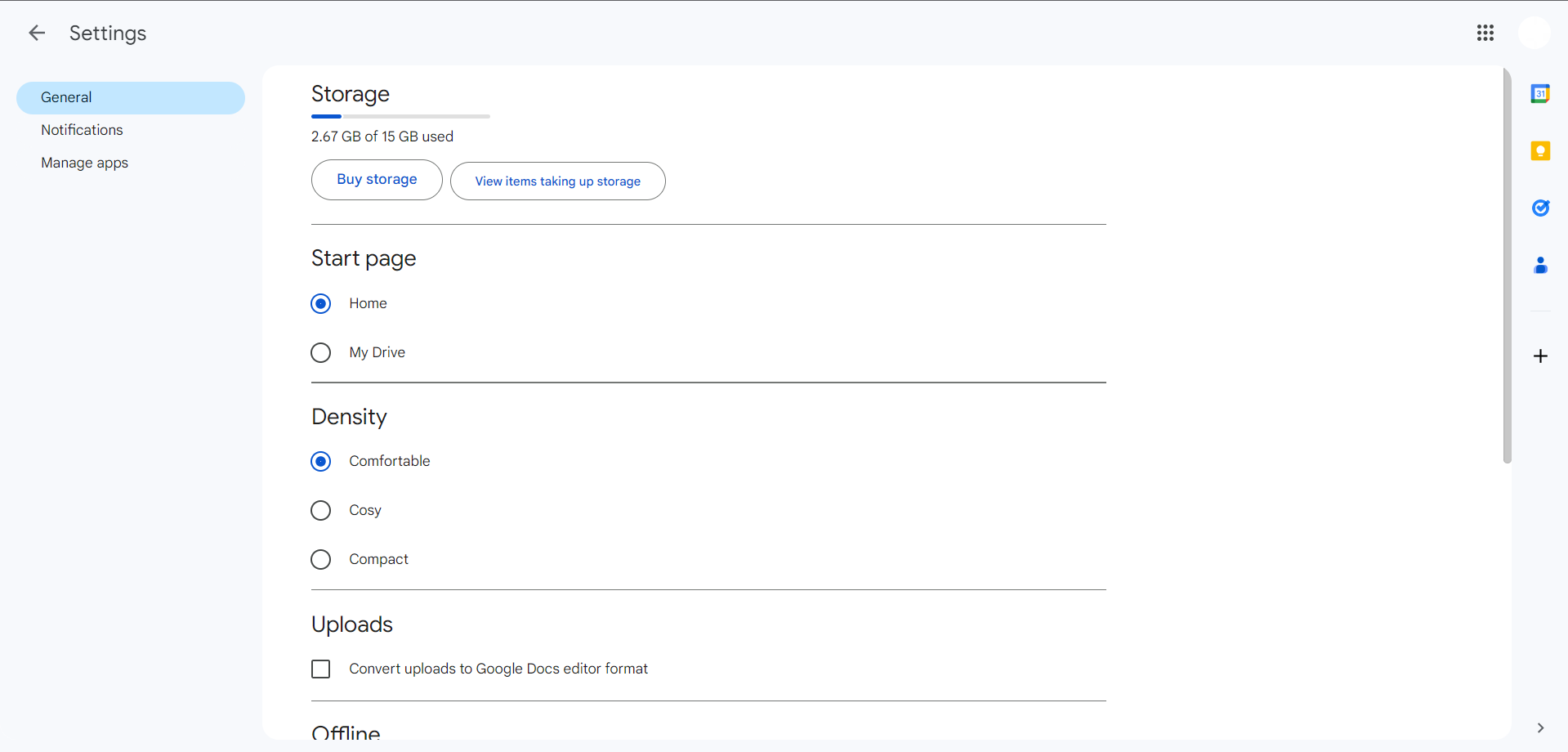
Once in Google Drive, click on the gear icon (Settings button) located in the top right corner of the screen. This will open a drop-down menu with three options: Settings, Get Drive for desktop, and Keyboard Shortcuts. Choose “Settings” to proceed.
Step 3. Navigating to Offline Settings
In the Settings menu, scroll down to find the Offline settings, positioned below Language and above Density. Click on the checkbox next to “Offline” to enable offline editing. Afterward, click on the blue “Done” button in the top right corner to confirm your selection.
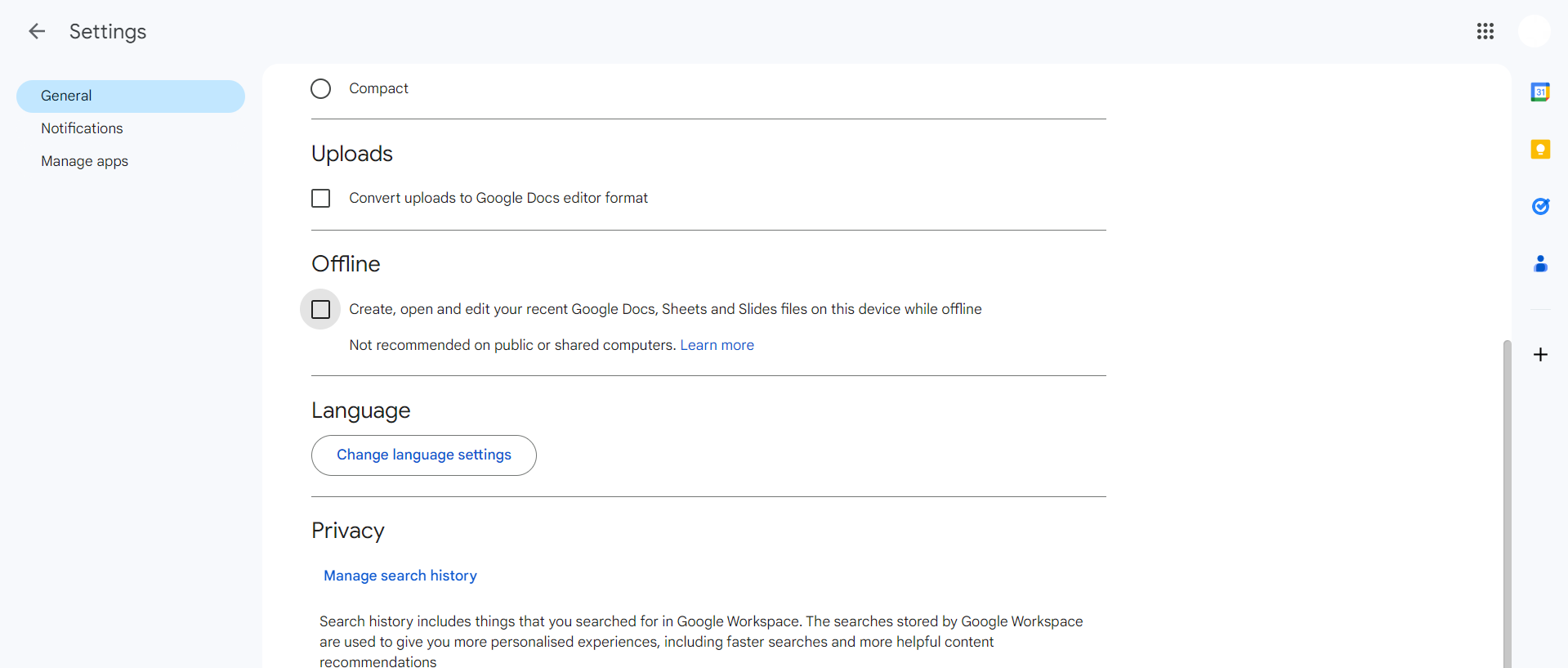
Note: Google may prompt you to install the Google Docs Offline extension to successfully activate offline mode. Follow the on-screen instructions to complete this step.
Step 4. Opening Google Slides
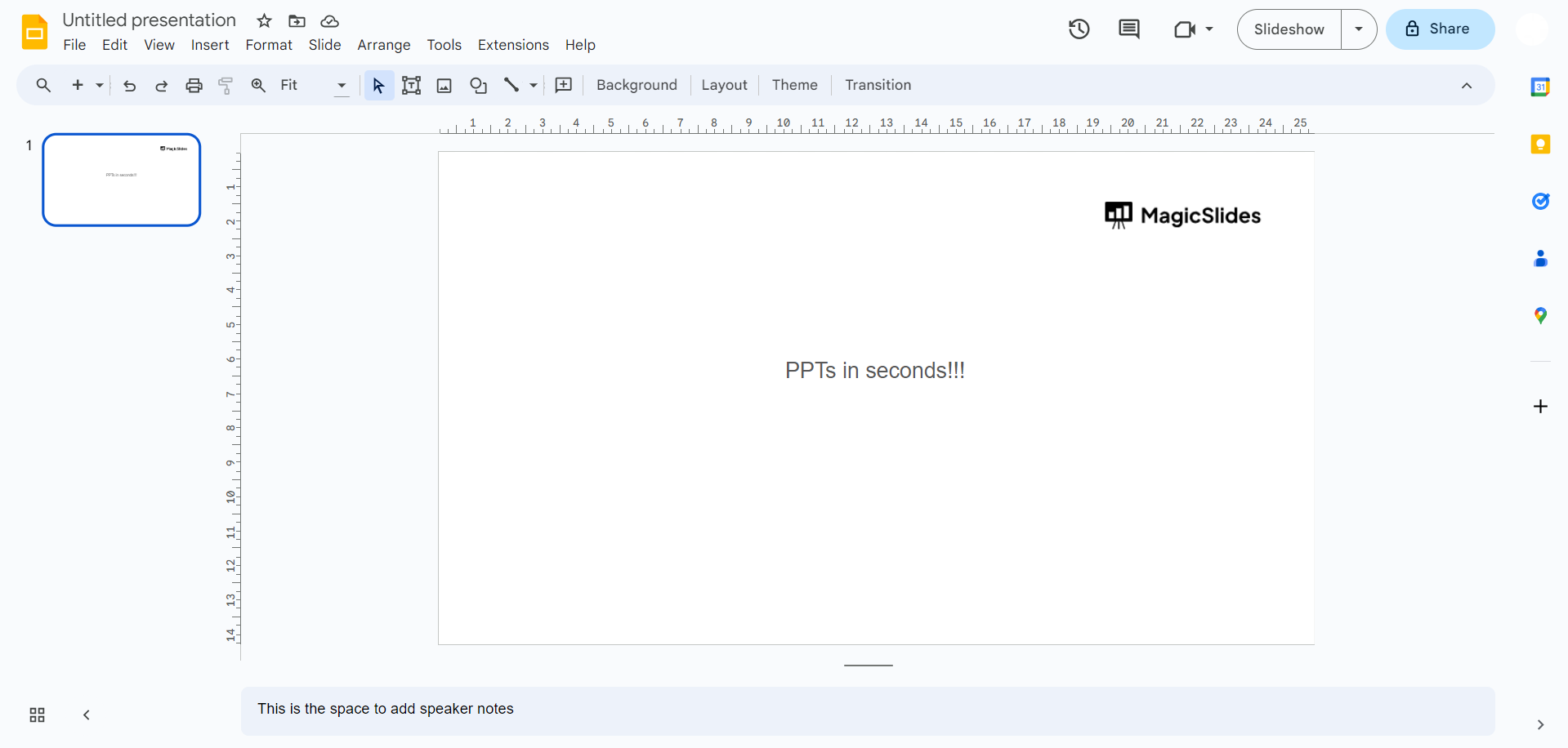
Once offline mode is enabled, you can open Google Slides and continue creating or editing presentations even when you lose your internet connection.
Step 5. Make Presentations Available Offline
To ensure important presentations remain accessible without internet:
- Open Google Drive.
- Locate your presentation.
- Right-click the file.
- Select Available offline.
This downloads the presentation to your device so you can access and edit it anytime.
What Can You Do While Offline in Google Slides?
Google Slides offers many essential features even when you’re not connected to the internet.
You can:
- Create new presentations.
- Edit existing slides.
- Add and modify text.
- Rearrange slides.
- Change themes and layouts.
- Present your slides.
These features allow you to continue working without interruption.
What Doesn’t Work Offline in Google Slides?
Although Google Slides offers many offline features, some functions still require an internet connection.
These include:
- Real-time collaboration.
- Comments and suggestions.
- Sharing presentations.
- Add-ons and extensions.
- Online image searches.
- Automatic updates from collaborators.
Once your internet connection returns, these features become available again.
Can You Use Google Slides Offline on Mobile?
Yes. The Google Slides mobile app allows users to download presentations for offline viewing and editing.
To enable offline access on mobile:
- Open the Google Slides app.
- Tap the three-dot menu beside a presentation.
- Select Available offline.
Any changes made on mobile while offline will automatically sync once your device reconnects to the internet.
Create Presentations Faster with AI Technique
While Google Slides’ offline mode helps you continue working without an internet connection, creating presentations from scratch can still take time.
MagicSlides AI Presentation Maker helps users generate professional presentations in seconds directly inside Google Slides. Simply enter a topic, provide text, upload a document, or use AI to create structured slides automatically.

Whether you’re a student preparing assignments, a teacher creating lesson presentations, or a professional building business decks, MagicSlides can significantly reduce the time required to create presentations.
Some key features of MagicSlides include:
- AI-powered presentation generation.
- Create slides from text, documents, or topics.
- Professional templates and layouts.
- Works directly inside Google Slides.
- Quick editing and customization options.
Whether you’re creating presentations online or preparing content before going offline, MagicSlides helps you generate professional slides in seconds directly inside Google Slides.
Final Thoughts
Google Slides Offline Mode provides flexibility and reliability for anyone who works with presentations. Whether you’re traveling, attending meetings, teaching classes, or facing internet interruptions, offline access ensures that your work continues uninterrupted.
By enabling offline mode in advance, you can confidently create, edit, and present your slides anytime and anywhere.
Frequently Asked Questions
Q1. Do I need special software to use Google Slides offline?
No. You only need Google Chrome and, in some cases, the Google Docs Offline extension.
Q2. Can I collaborate with others while offline?
No. Collaboration features require an internet connection. Your changes will sync once you’re back online.
Q3. Does offline mode work on mobile devices?
Yes. The Google Slides mobile app allows selected presentations to be downloaded for offline use.
Q4. Will my changes be lost?
No. Changes made offline are saved locally and automatically uploaded once your device reconnects.


