How to Write a Presentation Title That Captivates Your Audience


Learn how to write a presentation title that captivates your audience and generates instant presentations using MagicSlides.app for effortless slide creation
A compelling presentation title is the first step in engaging your audience. It sets the stage for your talk, sparks interest, and conveys the core message of your presentation. Without an attention-grabbing title, even the most well-prepared content may fail to attract the right audience. In this guide, we’ll explore key strategies to craft a presentation title that captivates your audience while also introducing an AI-powered tool, MagicSlides.app, to simplify your presentation creation process.
Why Is a Strong Presentation Title Important?
Your presentation title is the first impression your audience gets. A well-crafted title:
- Grabs attention – It makes your audience curious about your content.
- Sets expectations – It tells the audience what they will learn.
- Encourages engagement – It compels people to attend or stay focused.
- Enhances credibility – A well-thought-out title reflects professionalism.
- Boosts memorability – A strong title makes it easier for the audience to recall your presentation later.
- Improves discoverability – If your presentation is shared online, a well-crafted title makes it more likely to be found through search engines.
Strategies to Create a Captivating Presentation Title
1. Keep It Clear and Concise
Your title should communicate the essence of your presentation in a simple and straightforward manner. Avoid jargon or overly complex words that may confuse your audience. The goal is to make the topic easily digestible at a glance.
Example: Instead of “Advanced Neural Network Applications in AI-Powered Robotics,” try “How AI is Revolutionizing Robotics.”
2. Use Power Words
Powerful, emotive words can make your title more compelling. Words like secrets, proven, essential, ultimate, masterclass, breakthrough, unlock, and game-changing add weight and urgency.
Example: “The Ultimate Guide to Effective Public Speaking” instead of “Tips on Public Speaking.”
3. Incorporate a Question
Questions make people curious and encourage engagement. They create an immediate connection with your audience by addressing their needs or concerns. When people read a question, they naturally want to find the answer.
Example: “Are You Making These Mistakes in Your Business Presentations?”
4. Add Numbers or Lists
Including numbers in your title makes it more structured and appealing. It signals that the presentation is organized and actionable. People love numbered lists because they provide clarity and predictability.
Example: “5 Essential Strategies for Writing a Winning Pitch Deck”
5. Highlight the Benefit
What will the audience gain from your presentation? If your title emphasizes the benefit, more people will be interested in attending. A strong benefit-driven title answers the question, Why should I care?
Example: “How to Increase Sales by 30% with Better Storytelling”
6. Make It Audience-Focused
Your audience wants to know how your presentation will help them. Use words like you, your, or guide to make it more personal. This approach ensures your title resonates with your target audience.
Example: “Your Step-by-Step Guide to Creating a Winning Business Plan”
7. Use Contrasts or Opposites
Juxtaposing two opposing ideas in a title can make it more compelling. This contrast piques curiosity and draws the audience in.
Example: “Success vs. Failure: What Makes a Presentation Memorable?”
8. Add a Sense of Urgency
Creating urgency encourages immediate action. Phrases like last chance, don’t miss out, secrets revealed today, or limited-time strategies can make your title more compelling.
Example: “Last Chance: Learn How to Sell Your Ideas Like a Pro”
9. Test and Optimize
If you have multiple title ideas, test them with colleagues, social media polls, or A/B testing in email invitations. Pay attention to engagement metrics to determine which titles resonate best.
How to Use MagicSlides.app to Instantly Generate a Presentation
Creating a presentation manually can be time-consuming, but with AI-powered tools like MagicSlides.app, you can generate a professional presentation in minutes. Here’s how:
Steps to Use MagicSlides.app:
- Visit MagicSlides.app
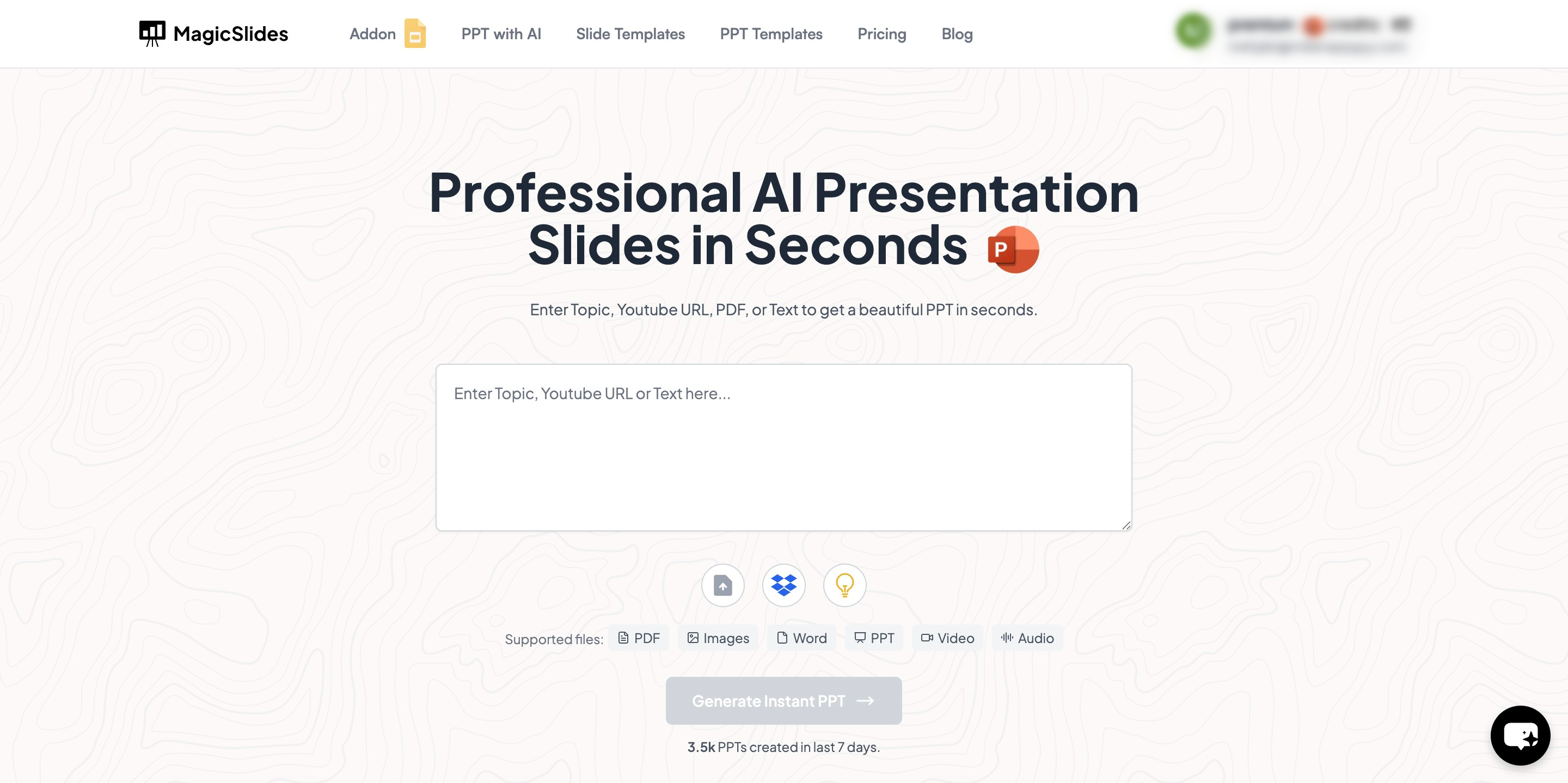
- Enter Your Topic – Type your presentation topic in the provided space.

- Click ‘Generate Instant PPT’ – Let AI generate a draft presentation.

- Choose a Template & Number of Slides – Select from a variety of designs and specify the number of slides.

- Customize Your Content – Fill in additional details if needed, such as adding specific points or modifying slide layouts.
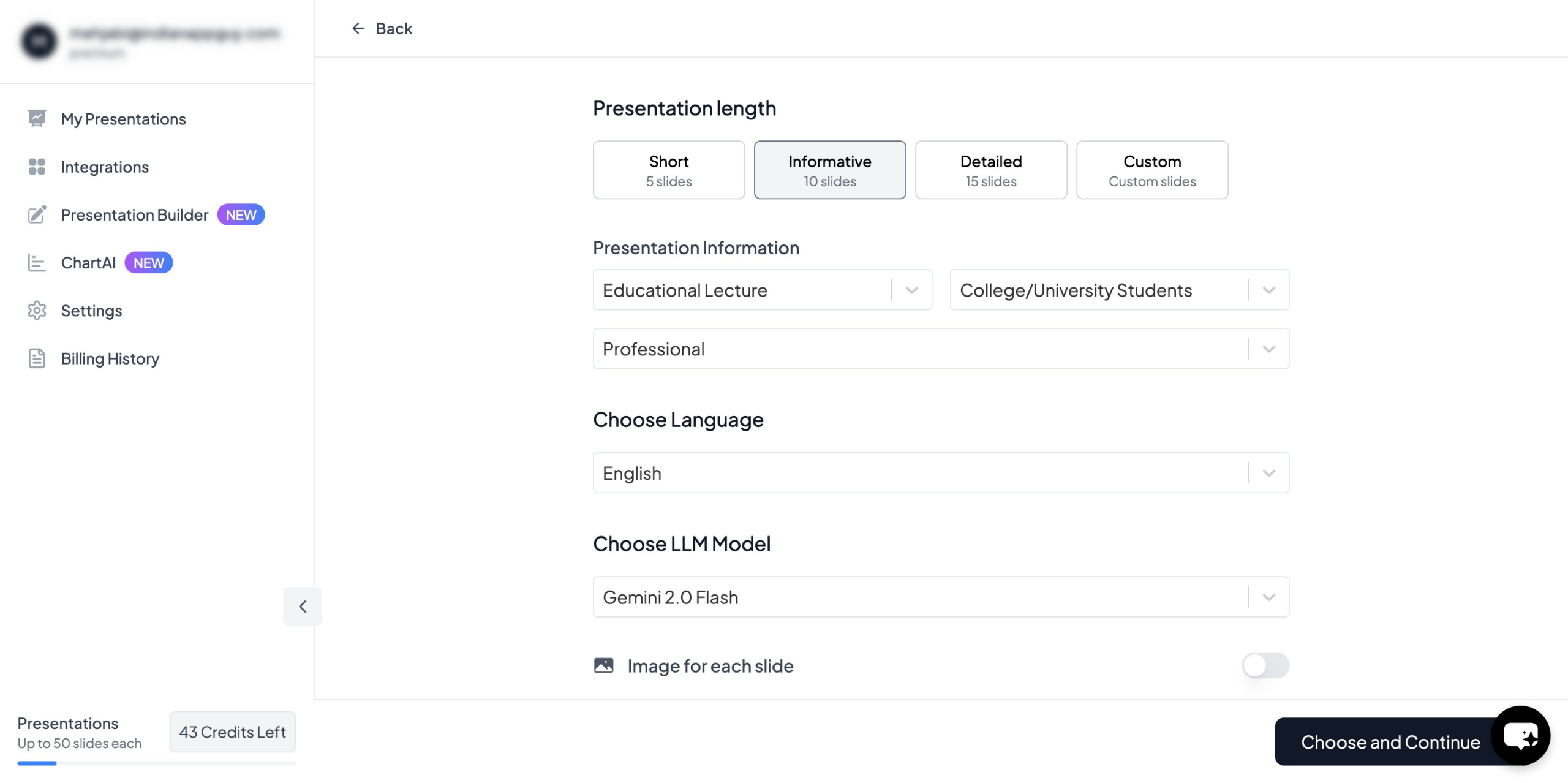
- Click ‘Generate Instant PPT’ – Your fully formatted presentation is ready!
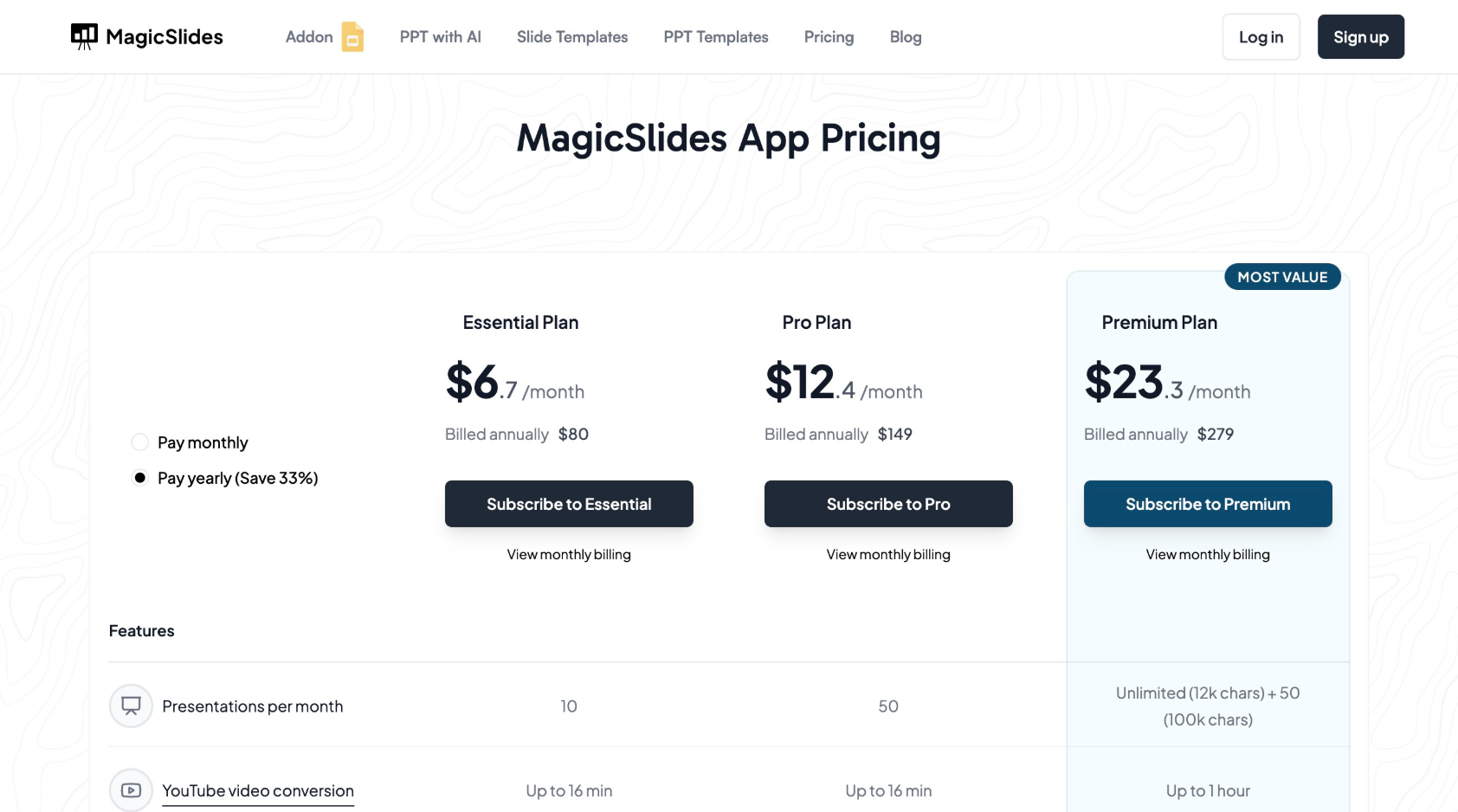
MagicSlides App Pricing and Features
MagicSlides offers flexible pricing options depending on your needs:
Essential Plan – $6.7/month (Billed Annually – $80)
- 10 presentations per month
- Up to 10 slides per presentation
- 5 PDF conversions per month
- Google and Wikipedia data integration
- Add-on for Google Slides and Figma
- Video-to-PPT (10 videos/month, up to 16 min each)
Pro Plan – $12.4/month (Billed Annually – $149)
- 50 presentations per month
- Up to 15 slides per presentation
- 5 PDF conversions per month
- YouTube video conversion (Up to 16 min)
- AI-generated images included
- 20 video-to-PPT conversions per month
- 100+ languages supported
Premium Plan – Custom Pricing
- Unlimited presentations (12k chars) + 50 (100k chars)
- Up to 50 slides per presentation
- 20 PDF conversions per month
- YouTube video conversion (Up to 1 hour)
- AI-generated images included
- 40 video-to-PPT conversions per month
- Use any PPT as a template
Not sure which plan to choose? Use the pricing calculator on the website to find the best option for your needs.
Conclusion
Writing a captivating presentation title is an essential skill that can make or break your presentation’s success. By keeping it clear, engaging, and benefit-driven, you increase your chances of attracting and retaining your audience’s attention. Incorporating power words, questions, numbers, and urgency can make your title even more compelling.
If you want to save time and effort in creating your presentation, MagicSlides.app is a powerful AI tool that can generate high-quality presentations instantly. Whether you’re preparing for a business pitch, a conference, or an academic presentation, MagicSlides can help streamline the process so you can focus on delivering great content.
Try MagicSlides today and take your presentations to the next level!


