How to write Subscript in PowerPoint


Easily add subscript in PowerPoint for scientific, mathematical, or chemical notations using simple formatting tools
How to Write Subscript in PowerPoint
Adding subscripts in PowerPoint is essential for scientific formulas, mathematical equations, and chemical notations.
This step-by-step guide will show you how to format text as a subscript easily.
Step-by-Step Guide to Writing Subscript in PowerPoint
Step 1: Open Your PowerPoint Presentation
Launch Microsoft PowerPoint and open an existing presentation or create a new one by selecting Blank Presentation.
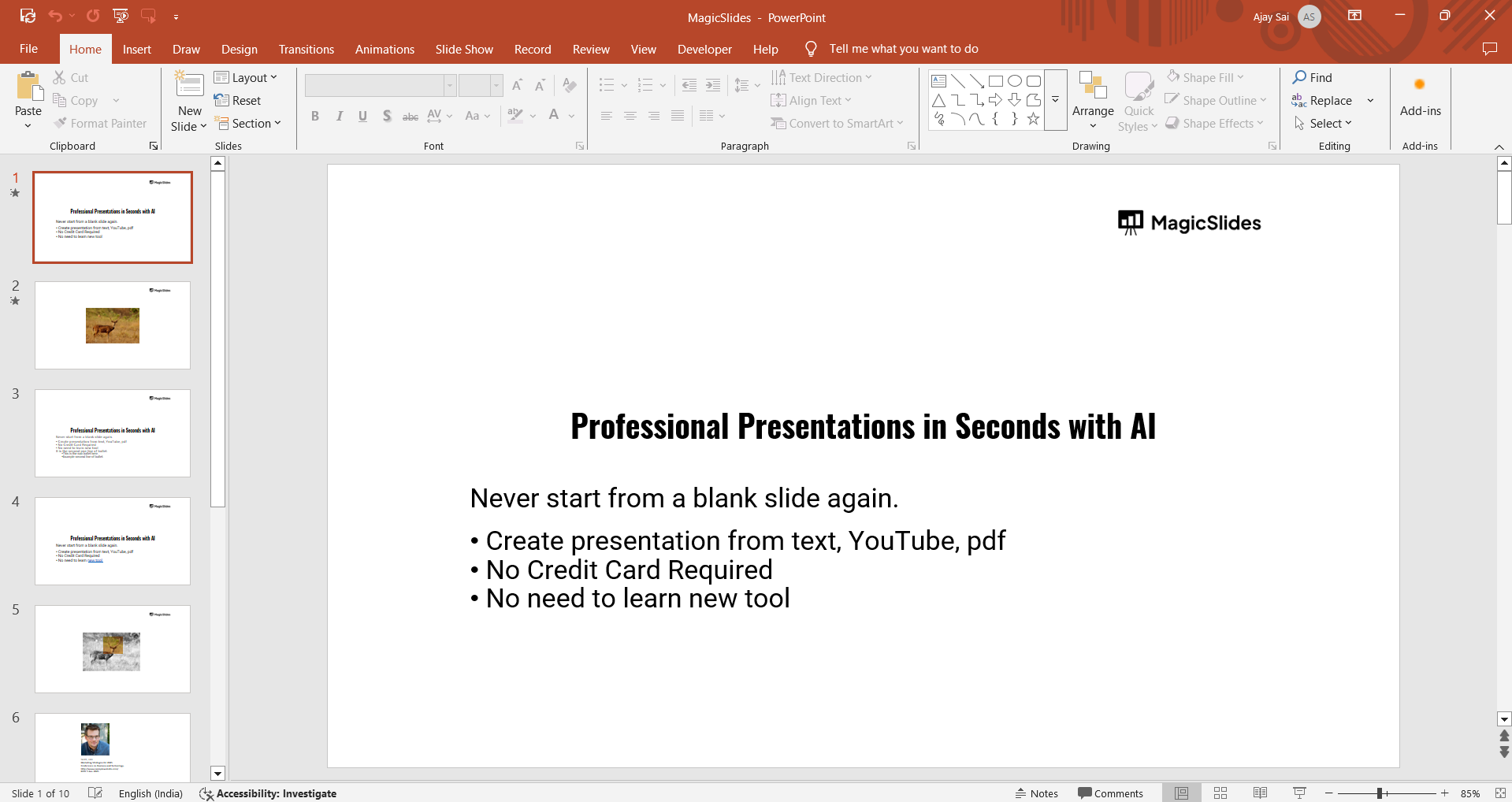
Step 2: Select the Text Box
Click on the Text Box tool in the toolbar, then type the text where you want to add a subscript.
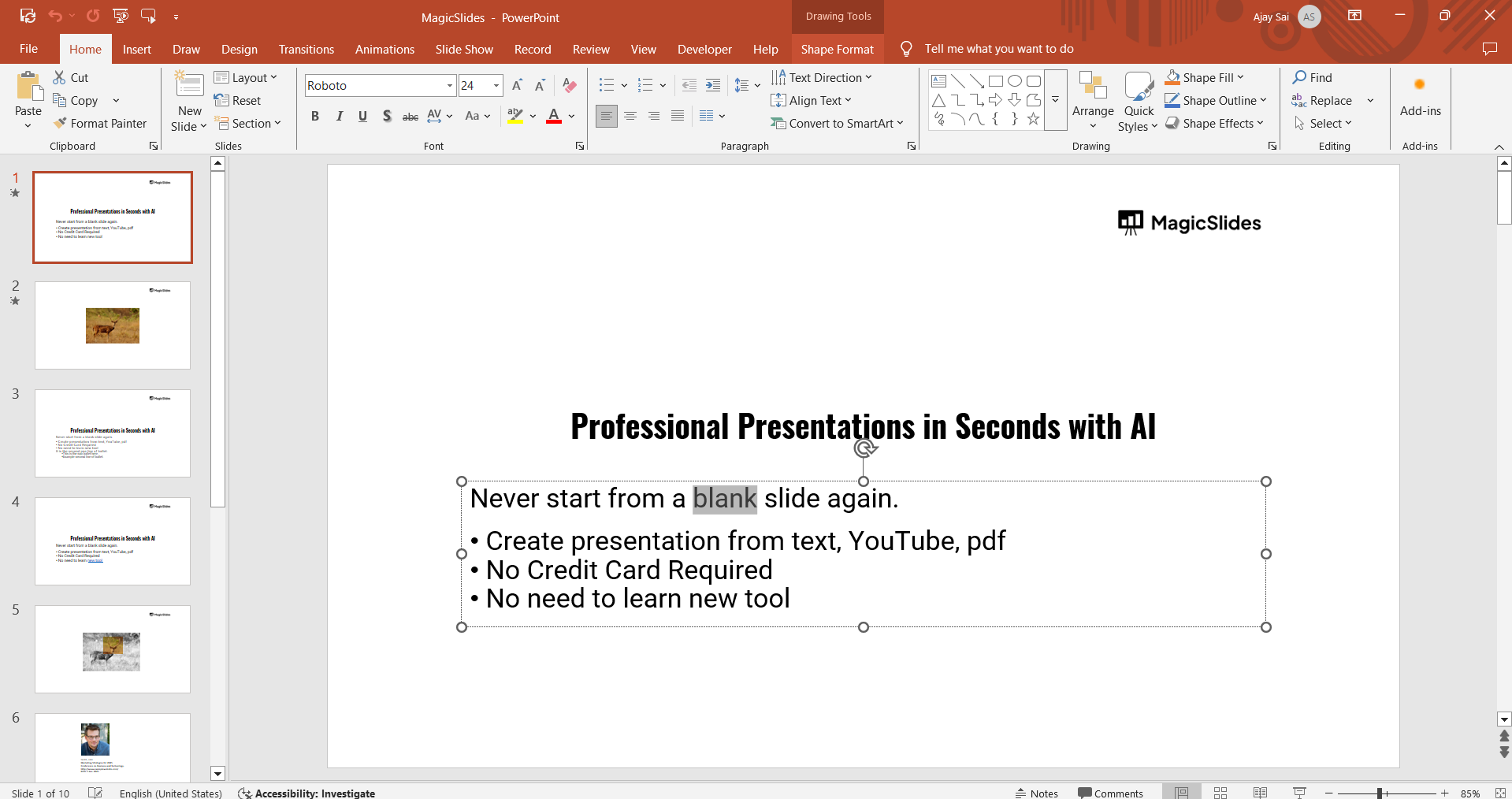
Step 3: Highlight the Text to Format
Using your cursor, select the specific character or number you want to convert into a subscript.
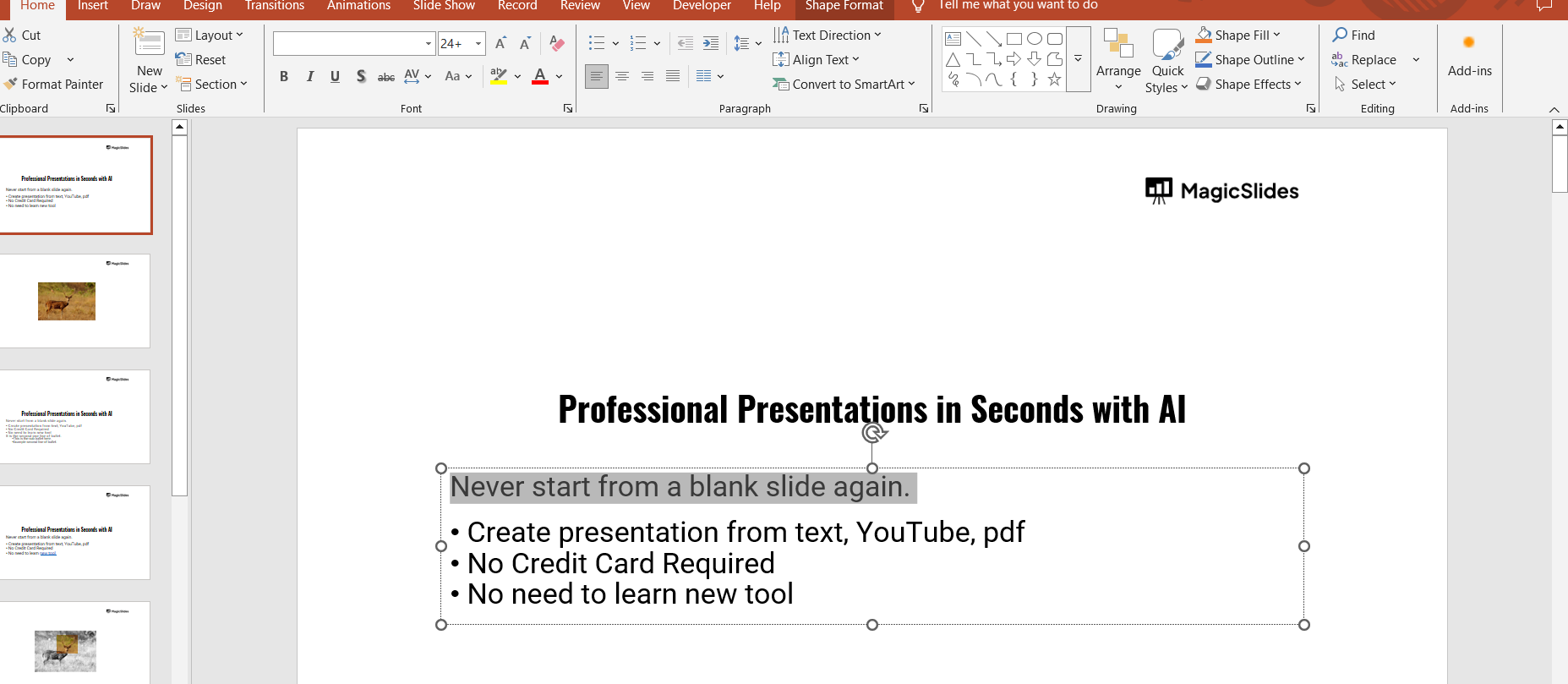
Step 4: Apply the Subscript Format
- Using the Font Dialog Box:
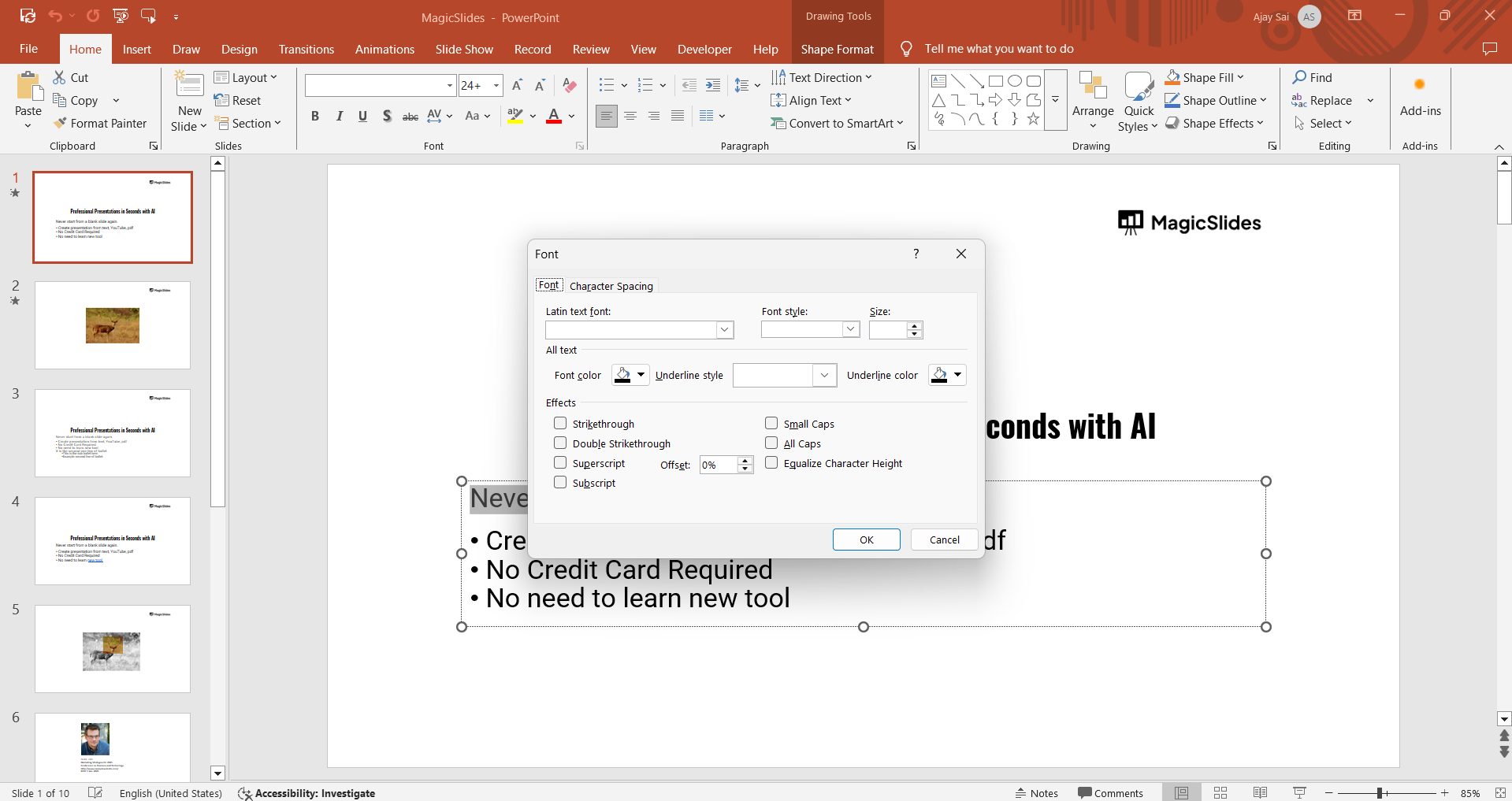
- Click on the Home tab in the ribbon.
- In the Font group, click on the small arrow in the bottom-right corner to open the Font settings.
- Check the Subscript box and click OK.
- Using Keyboard Shortcut:
- Press Ctrl + = (Windows) or Cmd + = (Mac) after selecting the text to apply the subscript format instantly.
Step 5: Adjust the Subscript Size (Optional)
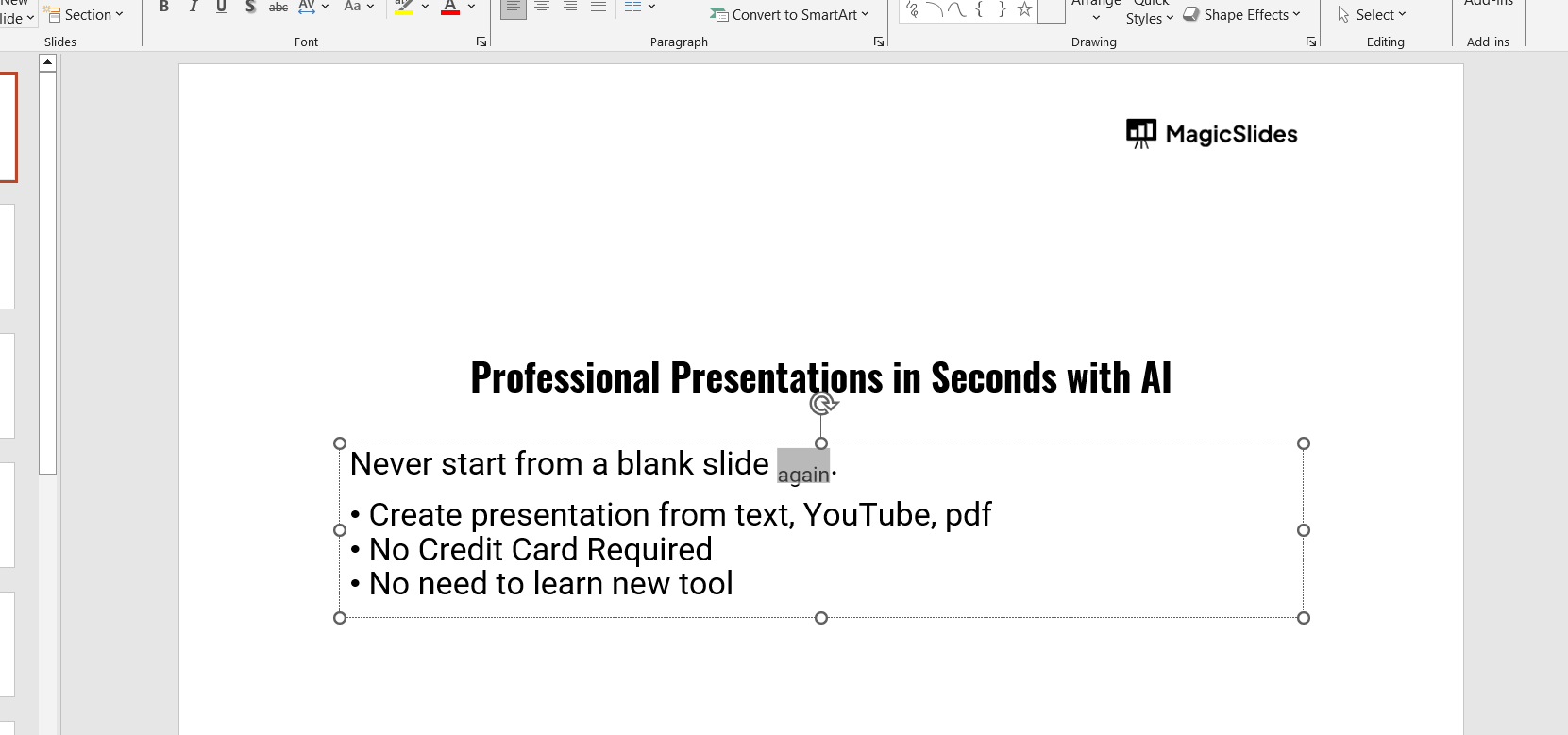
If the subscript appears too small, you can manually increase the font size by selecting it and adjusting the size from the Font Size dropdown.
Step 6: Save Your Presentation
Once you've applied the subscript formatting, click on File > Save to keep your changes.
Using subscript in PowerPoint is useful for scientific and mathematical notations. But if you want AI to handle your slide formatting effortlessly, try MagicSlides.app AI-powered presentations generated in seconds!
Conclusion
Writing subscript in PowerPoint is simple and useful for presentations that involve mathematical or scientific content.
Whether using the Font dialog box or a keyboard shortcut, you can quickly format your text for a professional look.
FAQs are here to help!
Can I use subscript for multiple characters at once?
Yes! Highlight all the characters you want to format and apply the subscript using the Font dialog box or the keyboard shortcut.
How do I remove a subscript in PowerPoint?
To remove subscript formatting, highlight the text, open the Font settings, uncheck Subscript, and click OK.
Does subscript formatting work in PowerPoint mobile apps?
No, PowerPoint’s mobile app does not currently support subscript formatting. Use the desktop version for this feature.


