How will you insert your own sound in a Presentation


Learn how to insert your own sound in Google Slides to enhance your presentation’s impact.
Adding sound to your Google Slides presentation can significantly enhance its impact, making it more engaging and dynamic for your audience. Whether you want to include background music, sound effects, or a voice recording, incorporating audio elements can bring your presentation to life.
In this blog post, we'll walk you through the steps to insert your own sound into a Google Slides presentation, ensuring a seamless integration of audio content.
Step-by-Step Guide to Inserting Your Own Sound in Google Slides
Step 1: Prepare Your Audio File
Before you start, ensure that your audio file is ready. Google Slides supports audio files in MP3 and WAV formats.
Make sure your audio file is saved in one of these formats and is stored in a location you can easily access, such as Google Drive.
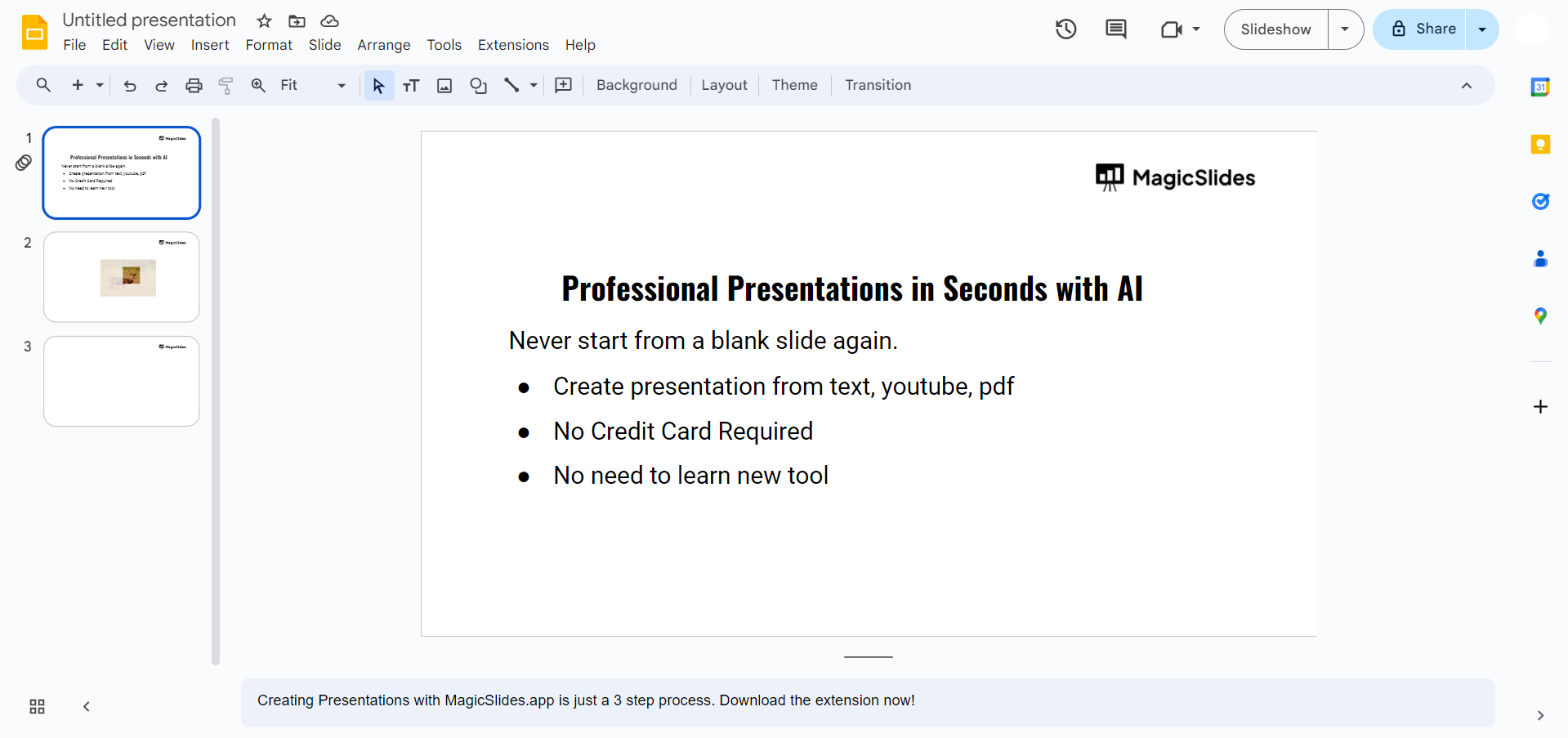
Step 2: Open Your Presentation in Google Slides
Go to Google Slides and open the presentation you want to add sound to. If you don’t have a presentation yet, you can create a new one by clicking on the "+" icon for a new blank presentation.
Step 3: Upload Your Audio File to Google Drive
Since Google Slides requires audio files to be stored in Google Drive, you need to upload your audio file there first.
Open Google Drive, click on the "New" button, select "File upload," and choose the audio file from your computer to upload. If you want to insert directly from your computer that is totally alright!
Step 4: Insert Audio into Your Slide
- Go back to your Google Slides presentation.
- Select the slide where you want to add the audio.
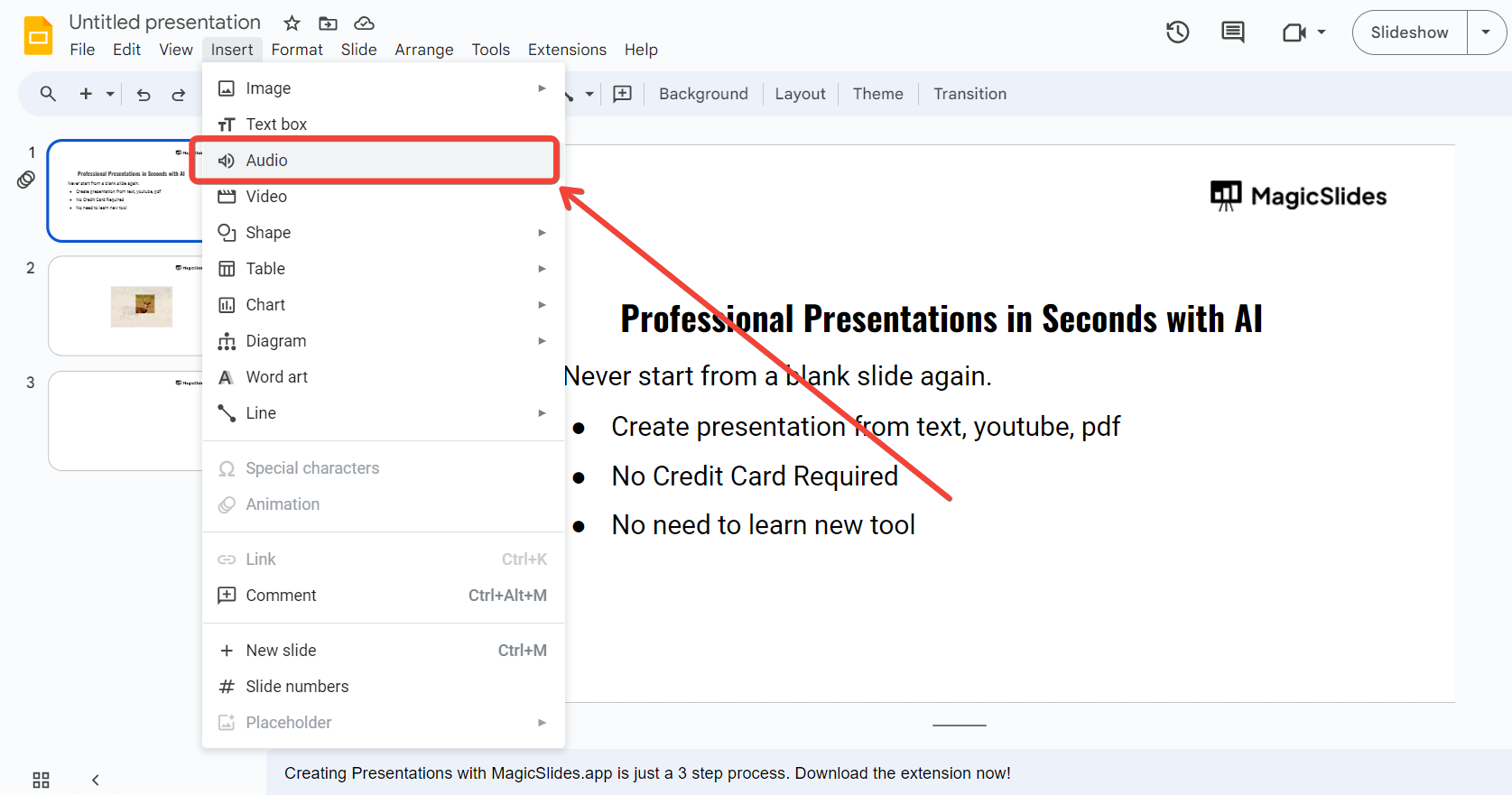
- Click on the "Insert" menu in the toolbar.
- Choose "Audio" from the dropdown menu.
Step 5: Select Your Audio File
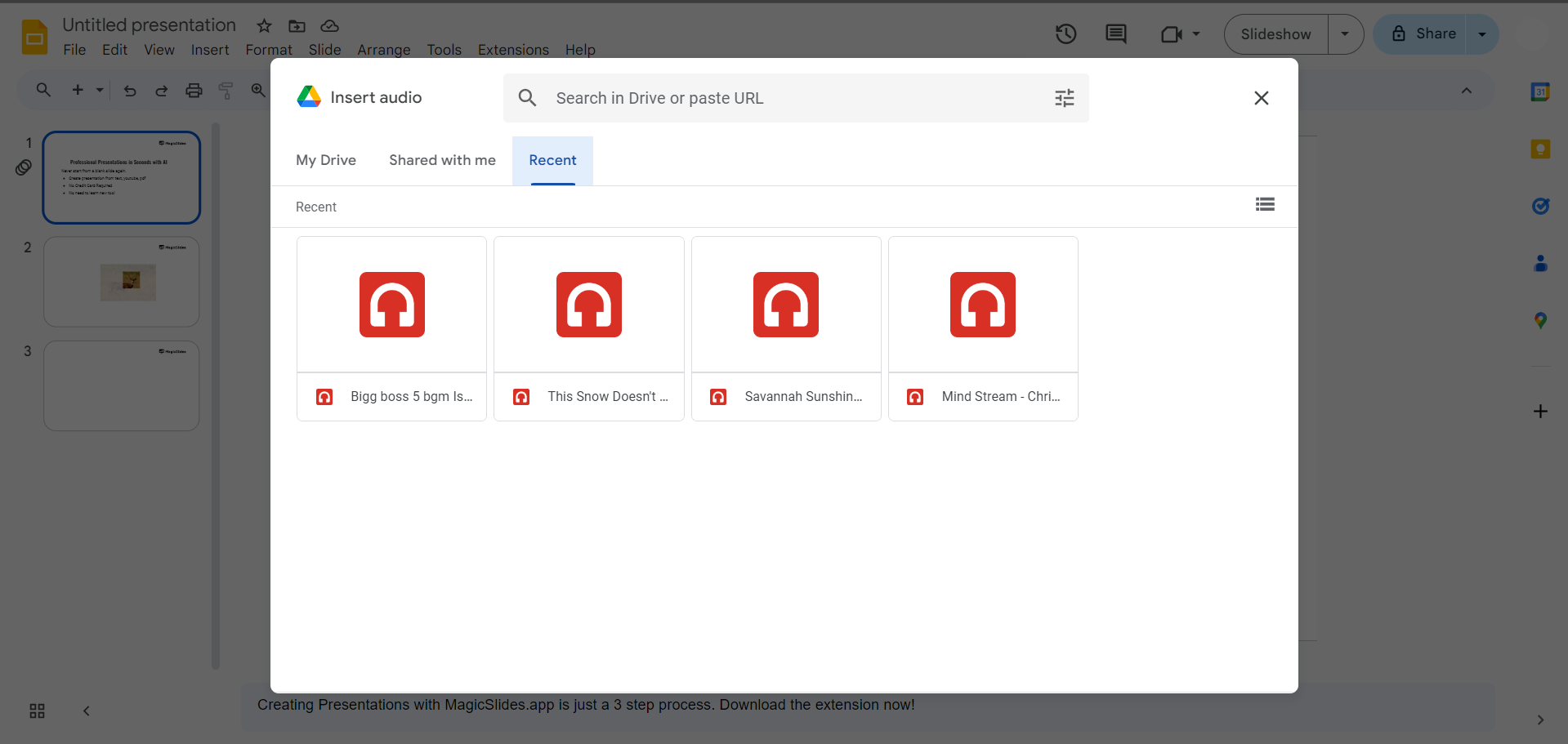
A window will appear showing your Google Drive files. Locate and select the audio file you uploaded.
Click the "Select" button to insert the audio into your slide. An audio icon will appear on your slide, indicating that the audio has been added.
Step 6: Customize Audio Playback Settings
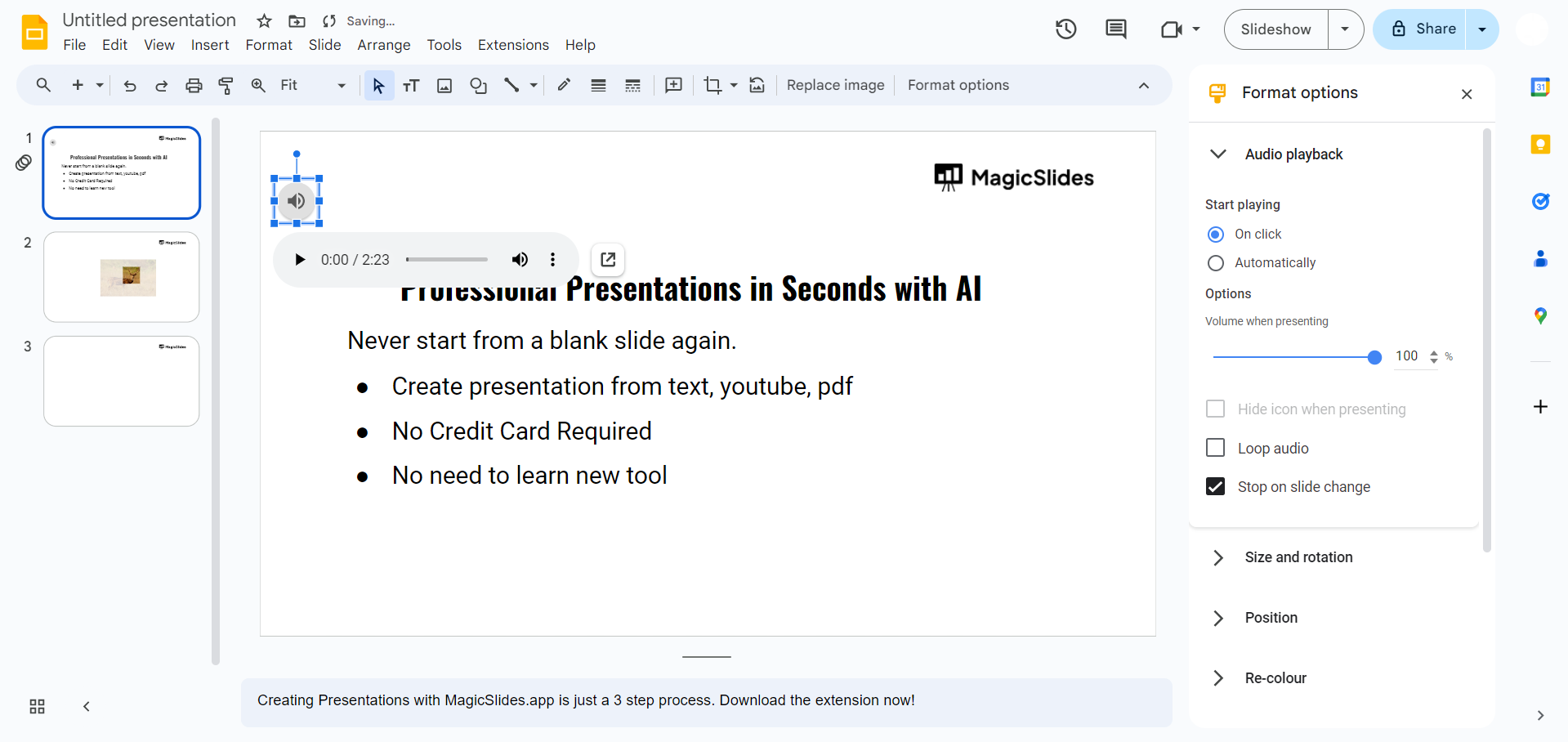
- Click on the audio icon on your slide.
- In the toolbar, click on "Format options" to open the audio settings.
- Customize the playback settings according to your preferences. You can choose to play the audio "On click," "Automatically," or "Play across slides."
- You can also adjust the volume, loop the audio, or hide the audio icon during the presentation.
Step 7: Test Your Audio
Before finalizing your presentation, test the audio to ensure it plays correctly. Click on the "Present" button in the top-right corner of Google Slides and navigate to the slide with the audio. Verify that the audio plays as expected based on the settings you selected.
Step 8: Finalize and Save Your Presentation
After confirming that the audio works correctly, finalize any additional adjustments to your presentation.
Save your changes by clicking on "File" and selecting "Save" or "Save as" if you want to create a new version.
Conclusion
Incorporating sound into your Google Slides presentation can greatly enhance its effectiveness and keep your audience engaged. By following these steps, you can easily insert your own audio files and customize playback settings to suit your needs.
Whether you're adding background music, sound effects, or a narration, the addition of audio can elevate your presentation and make it more memorable.
FAQs for your reference
What audio file formats are supported in Google Slides?
Google Slides supports audio files in MP3 and WAV formats. Ensure your audio file is saved in one of these formats before uploading it to Google Drive and inserting it into your presentation.
How can I ensure my audio plays automatically when the slide appears?
To set your audio to play automatically, click on the audio icon on your slide, go to "Format options," and under the "Audio playback" section, select the "Automatically" option.
This will make the audio play as soon as the slide appears during your presentation.
Can I use audio files stored on my computer directly in Google Slides?
No, you cannot directly insert audio files from your computer into Google Slides. You need to upload the audio file to Google Drive first.
Once the file is uploaded, you can insert it into your presentation from Google Drive.
How do I hide the audio icon during my presentation?
To hide the audio icon during your presentation, click on the audio icon on your slide, go to "Format options," and under the "Audio playback" section, check the box labeled "Hide icon when presenting."
This will make the icon invisible during the slideshow, ensuring a cleaner appearance.


