How to insert a Pdf into Powerpoint


Unlock the potential of your presentations by learning how to seamlessly insert PDF files into PowerPoint slides. Explore easy-to-follow methods and enhance your content delivery with diverse multimedia integration.
Incorporating external content, such as PDFs, into your PowerPoint presentations can offer a dynamic and comprehensive approach to sharing information. Whether you want to provide additional resources, display reports, or showcase detailed visuals, the ability to insert a PDF directly into your slides can significantly enrich your presentation. This guide outlines a clear step-by-step process to seamlessly integrate a PDF document into your PowerPoint slides. By following these instructions, you'll empower your presentations with an interactive edge, enabling your audience to engage more deeply with your content. Here are some simple steps to help you insert Pdf into Powerpoint.
Step:1 – Open PowerPoint: Launch Microsoft PowerPoint and open the presentation you want to insert the PDF into.
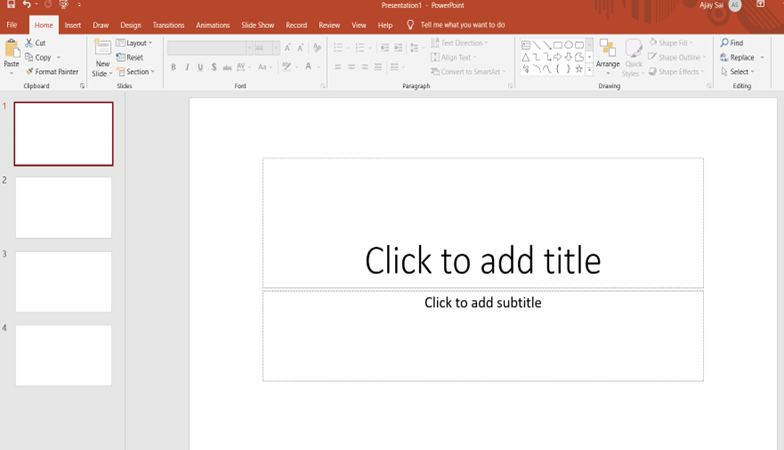
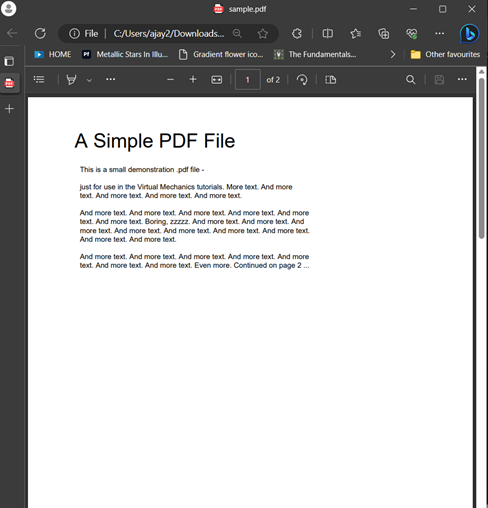
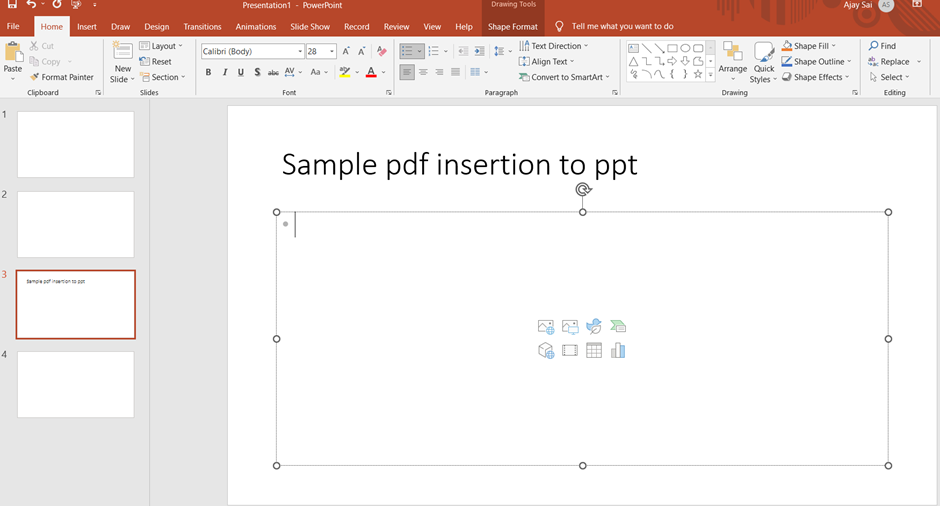
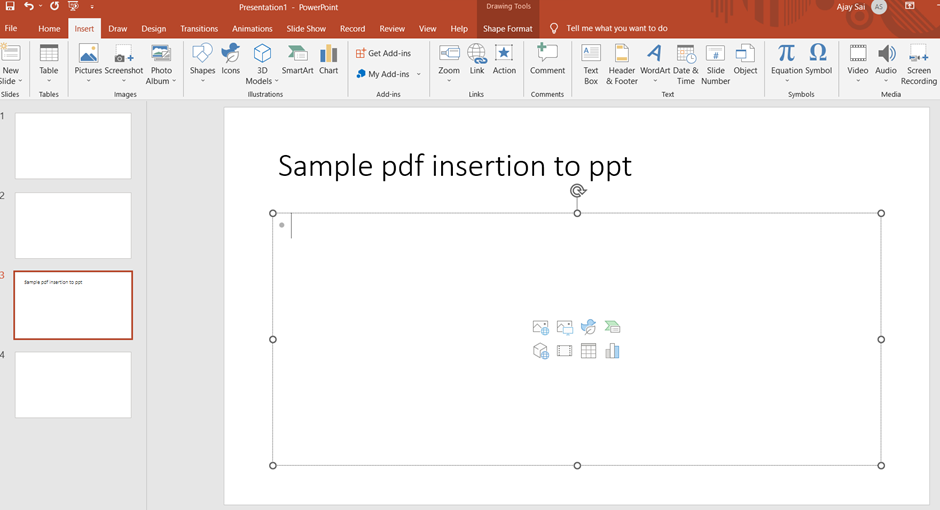
Step:2 – Slide Selection: Navigate to the slide where you want to place the PDF. Consider the context of your presentation and choose the appropriate slide. Here we have selected slide 3 for reference.
Step:3 – Insert Tab: Click on the "Insert" tab in the PowerPoint menu at the top. This tab contains options for adding various multimedia elements.
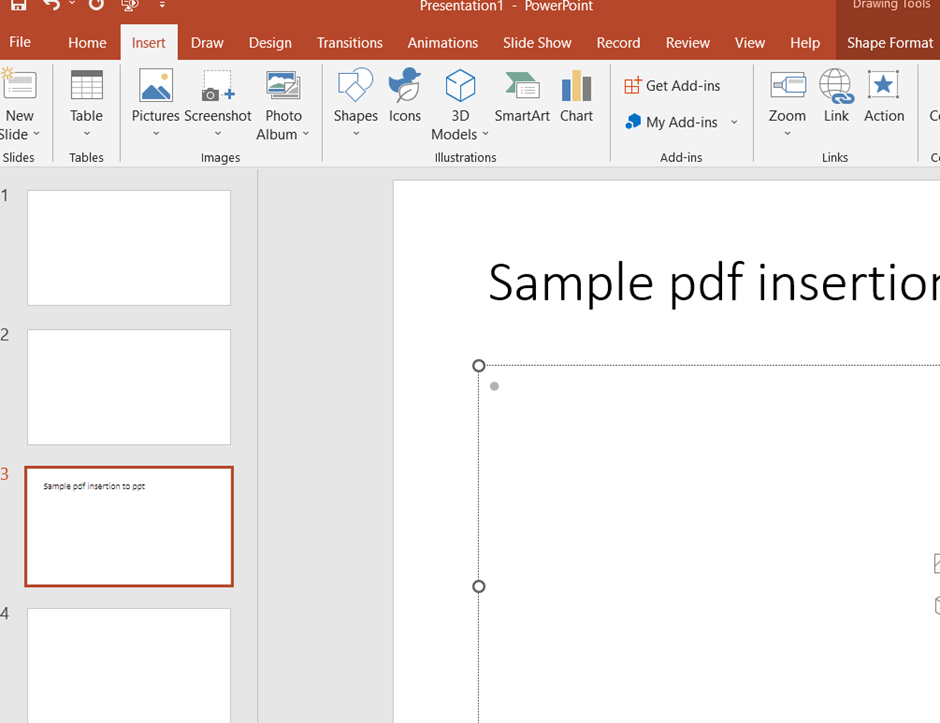
Step:4 – Object: Within the "Insert" tab, find and click on the "Object" button. It's usually located in the "Text" group of options.
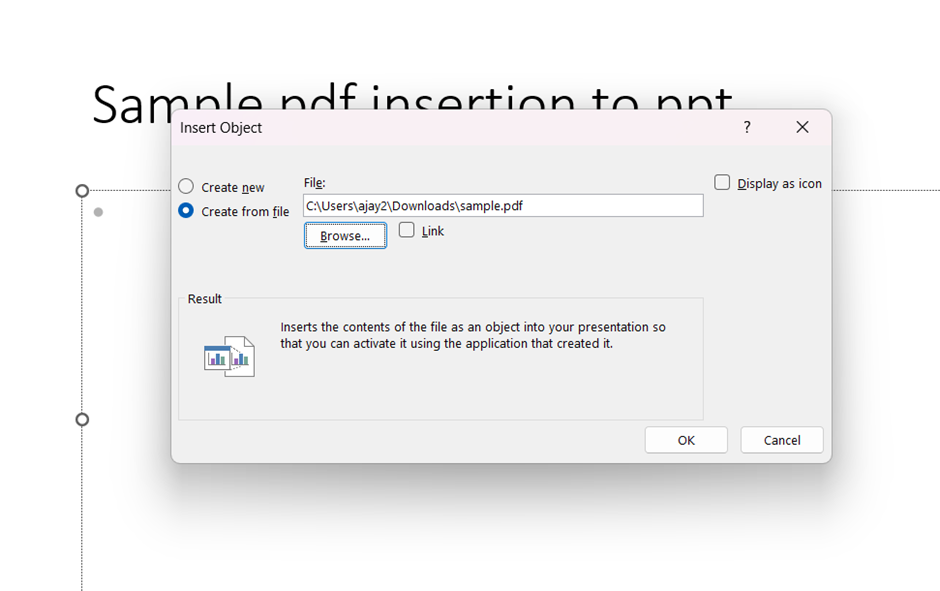
Step:5 – Object Dialog: A dialog box titled "Object" will appear. In this dialog, select the "Create from File”
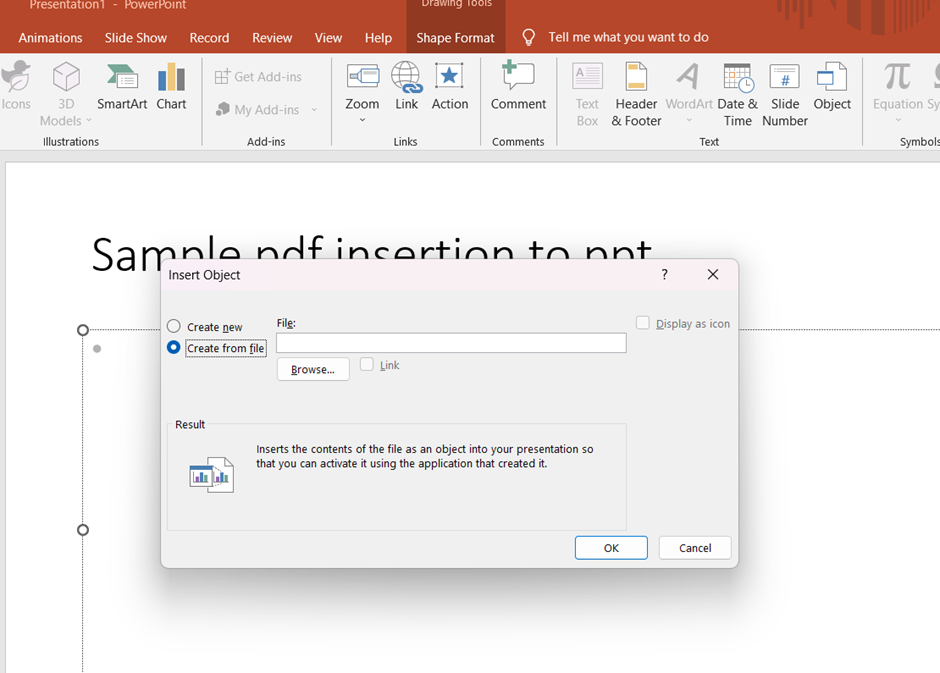
Step:6 – Browse: Click the "Browse" button within the "Create from File" tab. This action will allow you to browse your computer's files and select the PDF you want to insert.
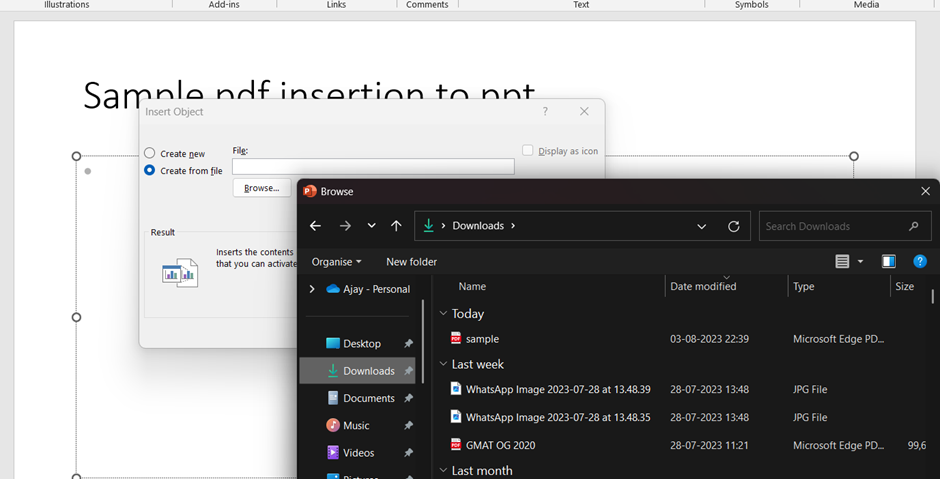
Step:7 – Choose PDF: Locate and select the PDF file you want to insert. After selecting the file, click the "Insert" button.
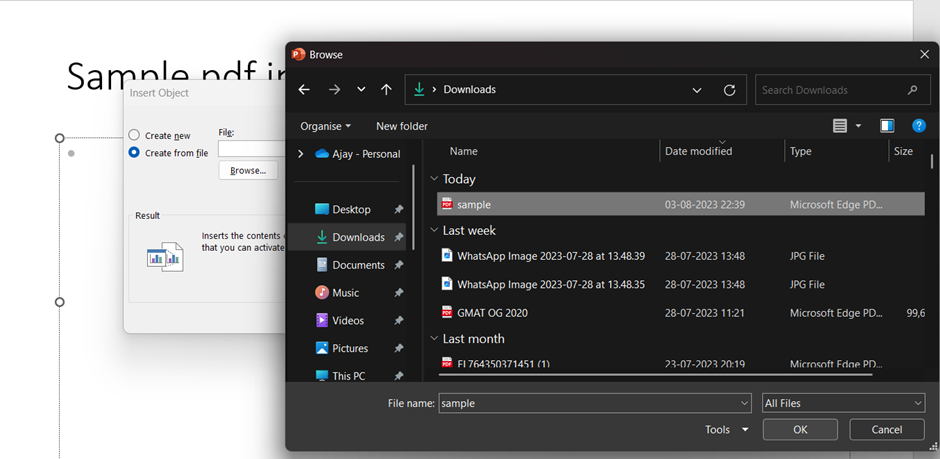
Step:8– OK: After making your choices, click the "OK" button in the "Object" dialog box. The PDF file will be inserted into the selected slide.
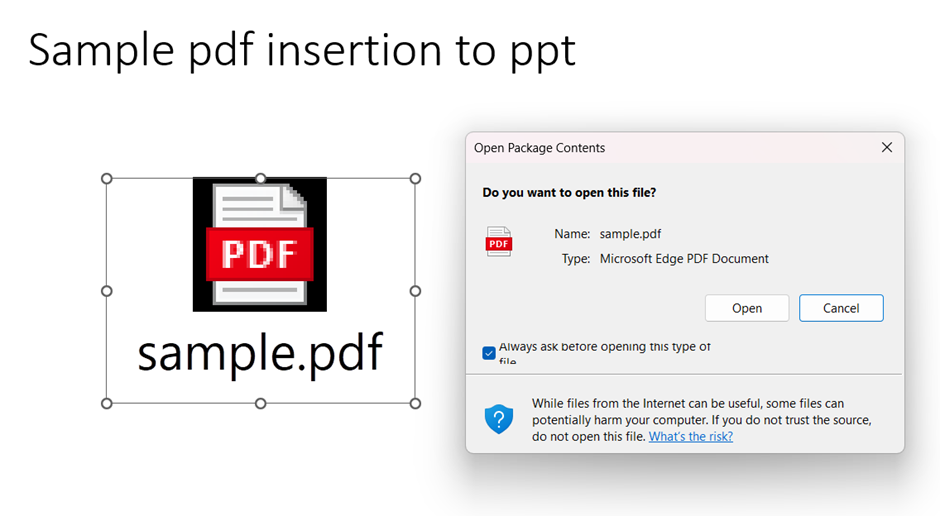
As you conclude your journey through the process of seamlessly integrating PDFs into your PowerPoint presentations, you've unlocked a new dimension of versatility and information sharing. By following these straightforward steps, you've empowered yourself to present intricate reports, intricate visuals, and in-depth resources in a cohesive and engaging manner. Remember that this skill can greatly enhance your ability to convey complex concepts, provide comprehensive references, and offer a dynamic experience to your audience.
The method outlined here ensures that your PDFs are seamlessly integrated, and your presentations become more interactive and informative. So, venture forth with the confidence to merge documents and slides seamlessly, creating a harmonious synergy of information. With this newfound skill, you can elevate your presentations to new levels of professionalism and engagement. Here's to transforming your presentations into powerful platforms of knowledge, and to a future of impactful and enriched presentations!
Make today an AI-spired journey of achievement


