How to insert an arrow in Microsoft PowerPoint in few simple steps


inserting shapes such as arrow, circles, squares helps us significantly to add in our ppt slides, here is a simple guide to achieve so…
Using the Shapes method
Step 1: Open PowerPoint:
- Open your PowerPoint presentation.
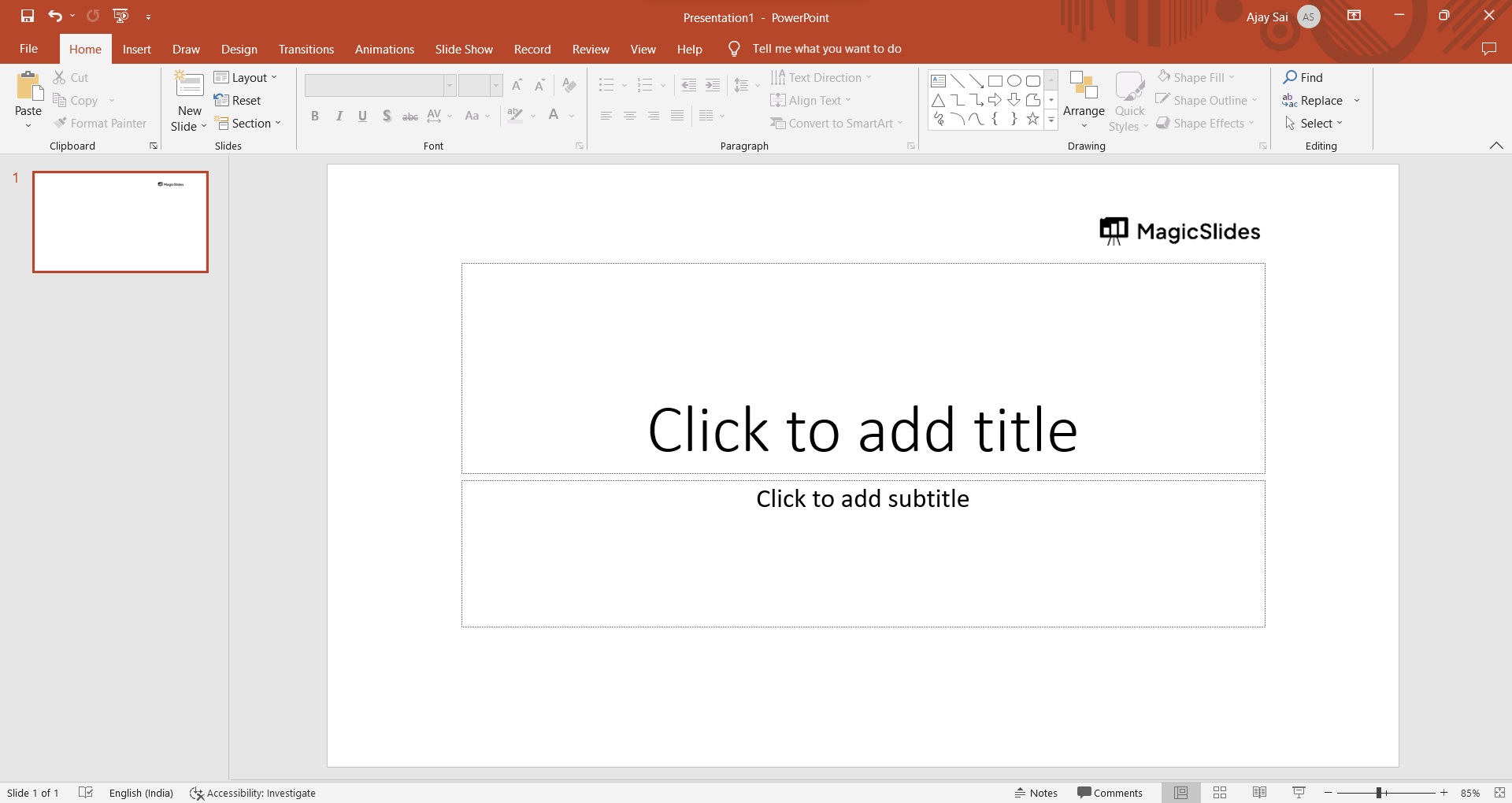
Step 2: Go to the Slide:
- Navigate to the slide where you want to insert the arrow.
Step 3: Insert Shape:
- Go to the "Insert" tab in the PowerPoint ribbon.

Step 4: Choose Arrow Shape:
- Click on the "Shapes" button.
- From the dropdown menu, choose the arrow shape you want to use. Common options include "Up Arrow," "Down Arrow," "Left Arrow," and "Right Arrow."
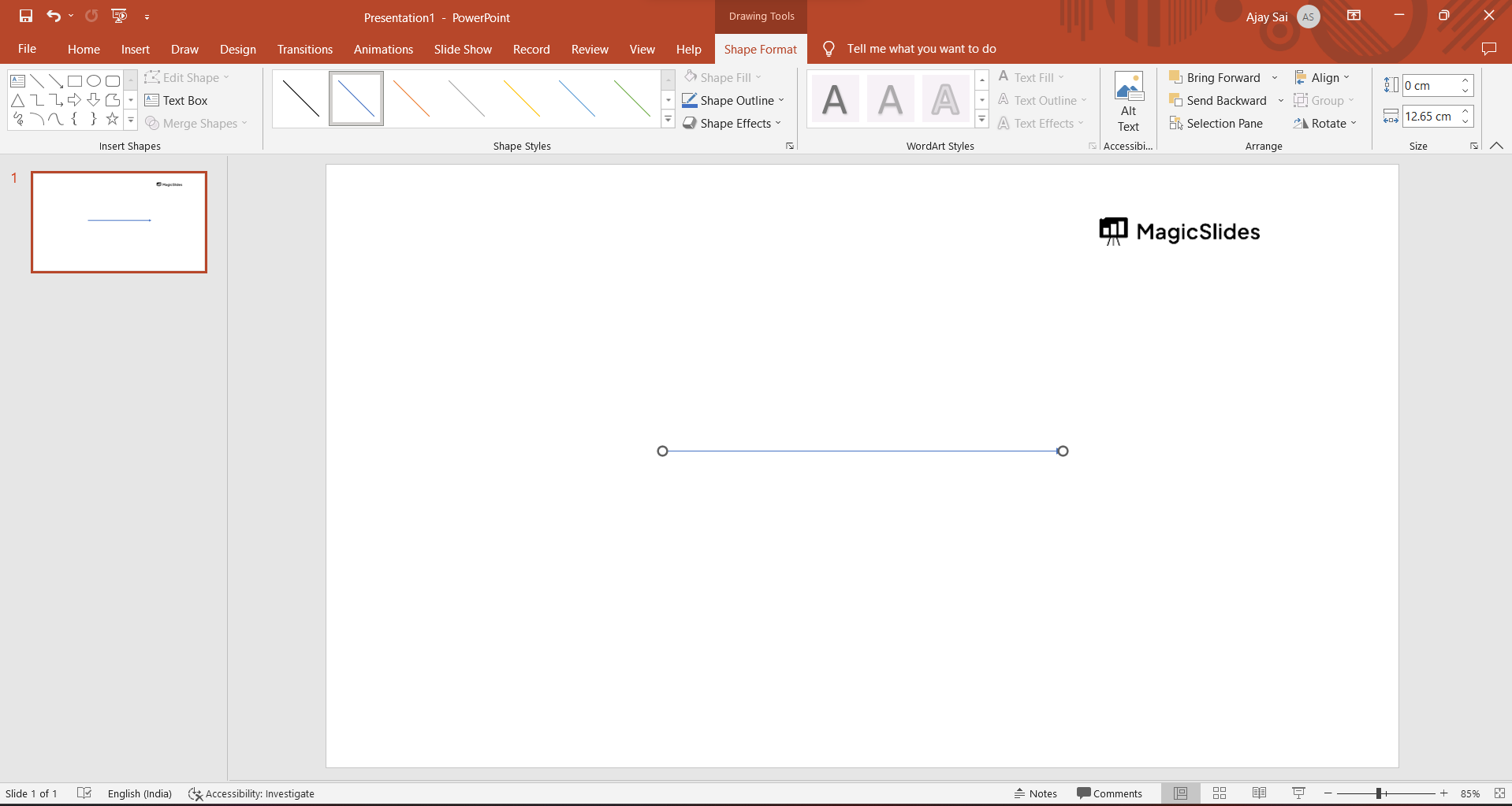
Step 5: Draw the Arrow:
- Click and drag on the slide to draw the arrow shape. The arrow will appear with its default size.

Step 6: Adjust Arrow Size and Rotation:
- Click on the arrow to select it.
- To rotate the arrow, click and drag the green rotation handle at the top.


