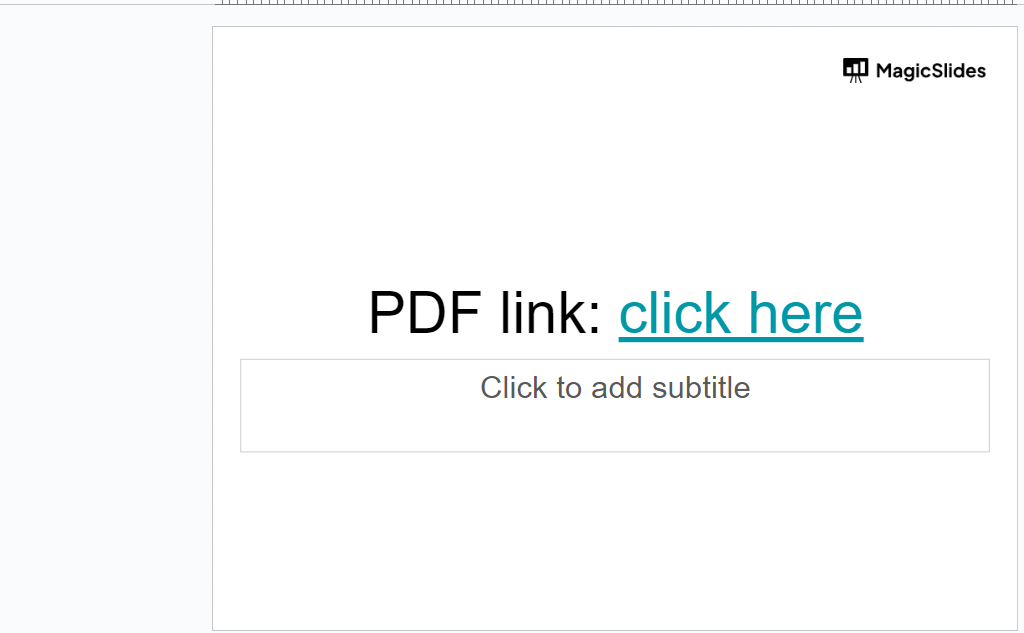
How to insert pdf in Google Slides in few simple steps


Insering a pdf link could be a very useful and productive feature for the teams who would like to use the again presentation, here is a guide
Step 1: Open your Google Drive, upload pdf to it: If your PDF isn't already in Google Drive, initiate the process by:
- Open (https://drive.google.com/drive/).
- Clicking the "+ New" button located on the left-hand side.
- Opting for "File upload" and selecting the PDF file from your local storage.
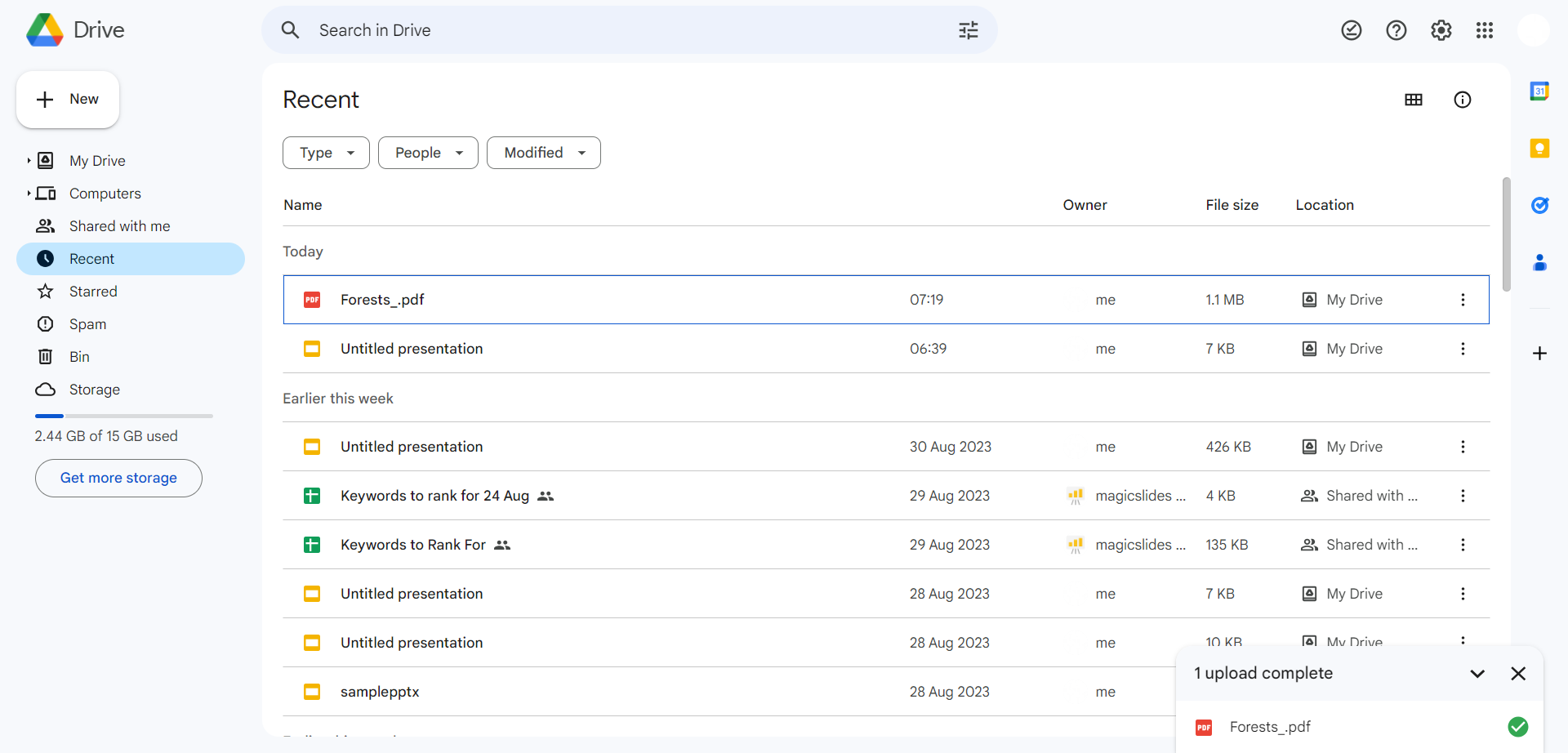
Step 2: Configure PDF Sharing:
- Right-click the uploaded PDF in Google Drive.
- Access the "Share" option from the context menu.
- In the sharing settings, ensure you choose "Anyone with the link can view" or the preferred access level: comment or edit, depending on your requirements.
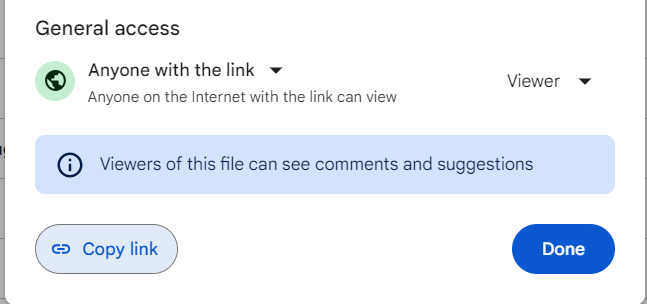
Step 3: Copy the PDF Link:
- Upon adjusting sharing settings, copy the link furnished within these settings.
Step 4: Integrate the Link within Google Slides:
- Launch your Google Slides presentation.
- Reach the slide where you intend to incorporate the link.
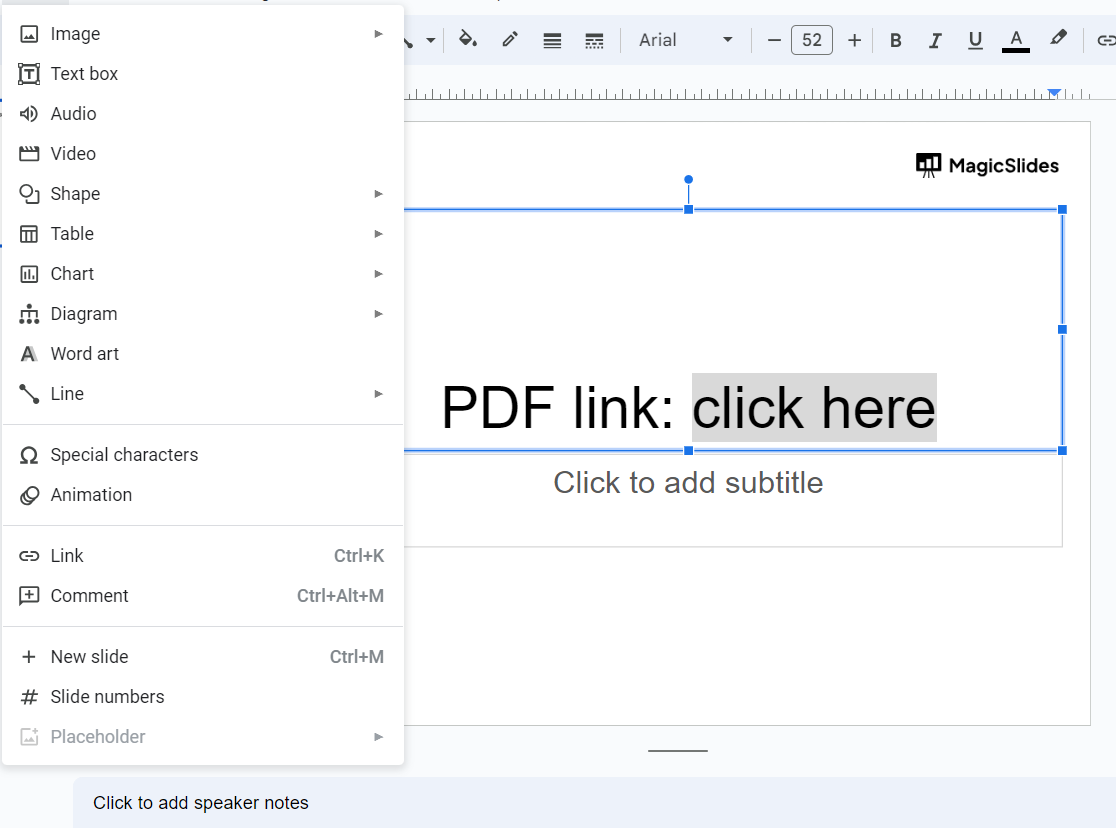
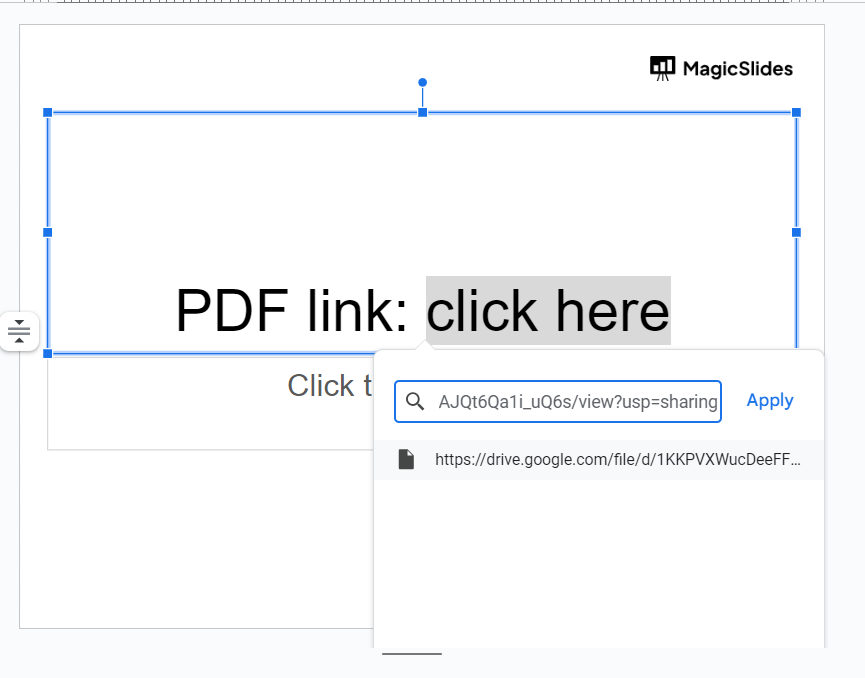
- Highlight the specific text or element (like an image or shape) you wish to transform into a link.
- Engage the "Insert" menu positioned at the top.
- Opt for "Link" from the menu.
- In the resulting "Link" dialog, paste the link copied from the PDF sharing settings.
- Optionally, you can provide a descriptive title in the "Text" field.
- Complete the process by selecting "Apply."
Step 5: Validate the Link: It's crucial to conduct a test to ensure the link functions as anticipated. Upon clicking the link during your presentation, it will initiate the opening of the PDF file in a new browser tab.