What is 7 by 7 rule in PowerPoint? How to create PPT on it?


Explore the 7×7 rule in PowerPoint for clearer, more engaging presentations. Learn to implement it with simple steps and visuals.
Presentations are a fundamental aspect of professional communication, conveying ideas, strategies, and results. However, creating effective presentations can be daunting. One popular guideline to simplify this task is the "7×7 rule" in PowerPoint. This blog post delves into what the 7×7 rule entails, its benefits, and step-by-step instructions to implement it in your presentations.
What is the 7×7 Rule?
Definition of the 7×7 Rule
The 7×7 rule is a PowerPoint design principle suggesting that each slide should contain no more than seven lines of text, and each line should have no more than seven words. This rule aims to keep slides clean, concise, and engaging, ensuring that the audience can easily digest the information presented.
The Rationale Behind the 7×7 Rule
This rule is grounded in cognitive psychology, specifically the limits of working memory. The average person can hold about seven chunks of information (plus or minus two) in their short-term memory. By limiting the amount of text per slide, the 7×7 rule helps maintain the audience's focus and facilitates better comprehension and retention of the information.
Benefits of Applying the 7×7 Rule
Enhanced Clarity and Readability
By reducing clutter, slides become more focused and easier to read, allowing the audience to grasp the main points quickly.
Improved Audience Engagement
Less text means more room for visuals, which can make the presentation more interactive and visually appealing, keeping the audience interested.
Supports the Speaker
The 7×7 rule encourages the use of slides as cues for speaking rather than as a script, promoting a more natural delivery and better interaction with the audience.
How to Create a PowerPoint Presentation Using the 7×7 Rule
Step 1: Plan Your Content
Before opening PowerPoint, outline your presentation’s main points. Each slide should represent one idea or concept.
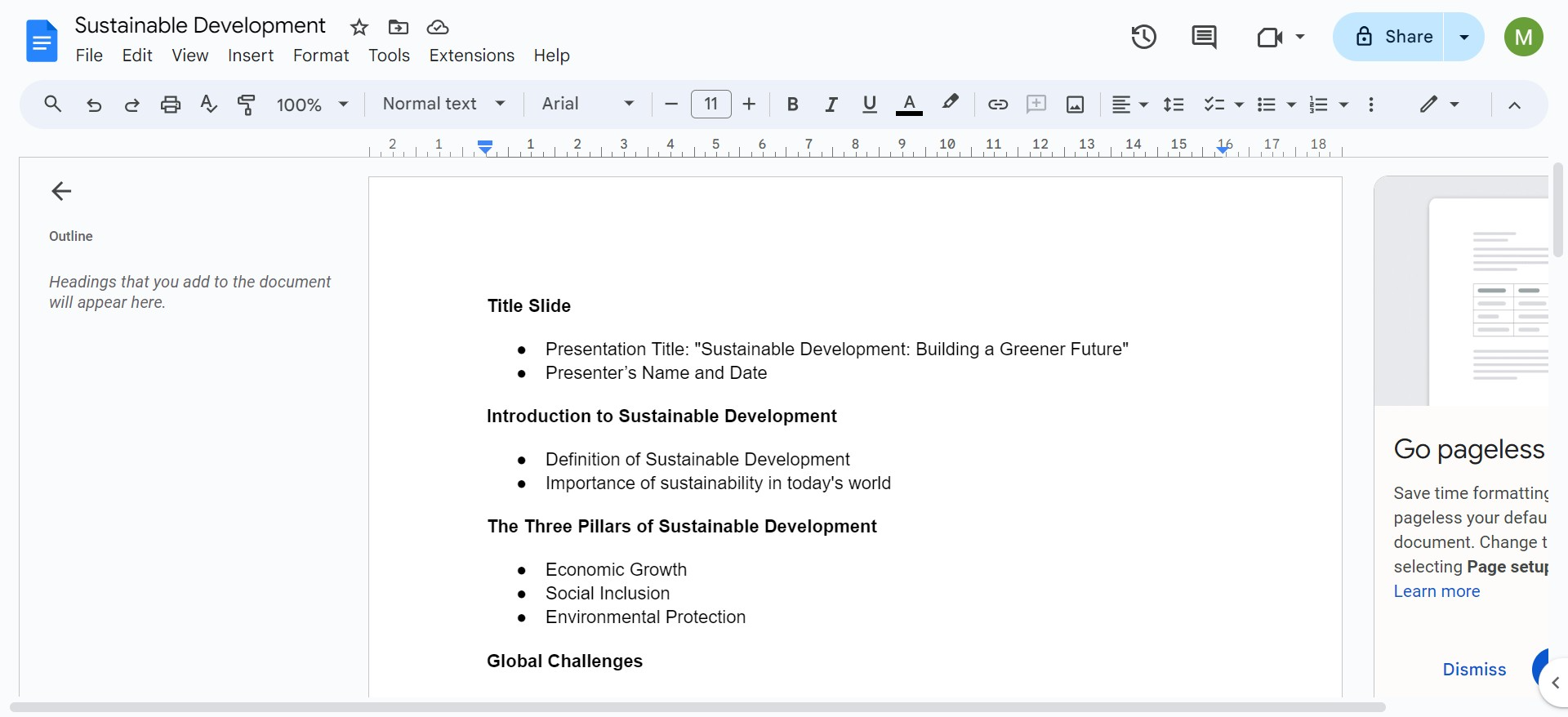
Step 2: Designing Your Slides
Open PowerPoint and start with a blank template. Keep design simple and professional.
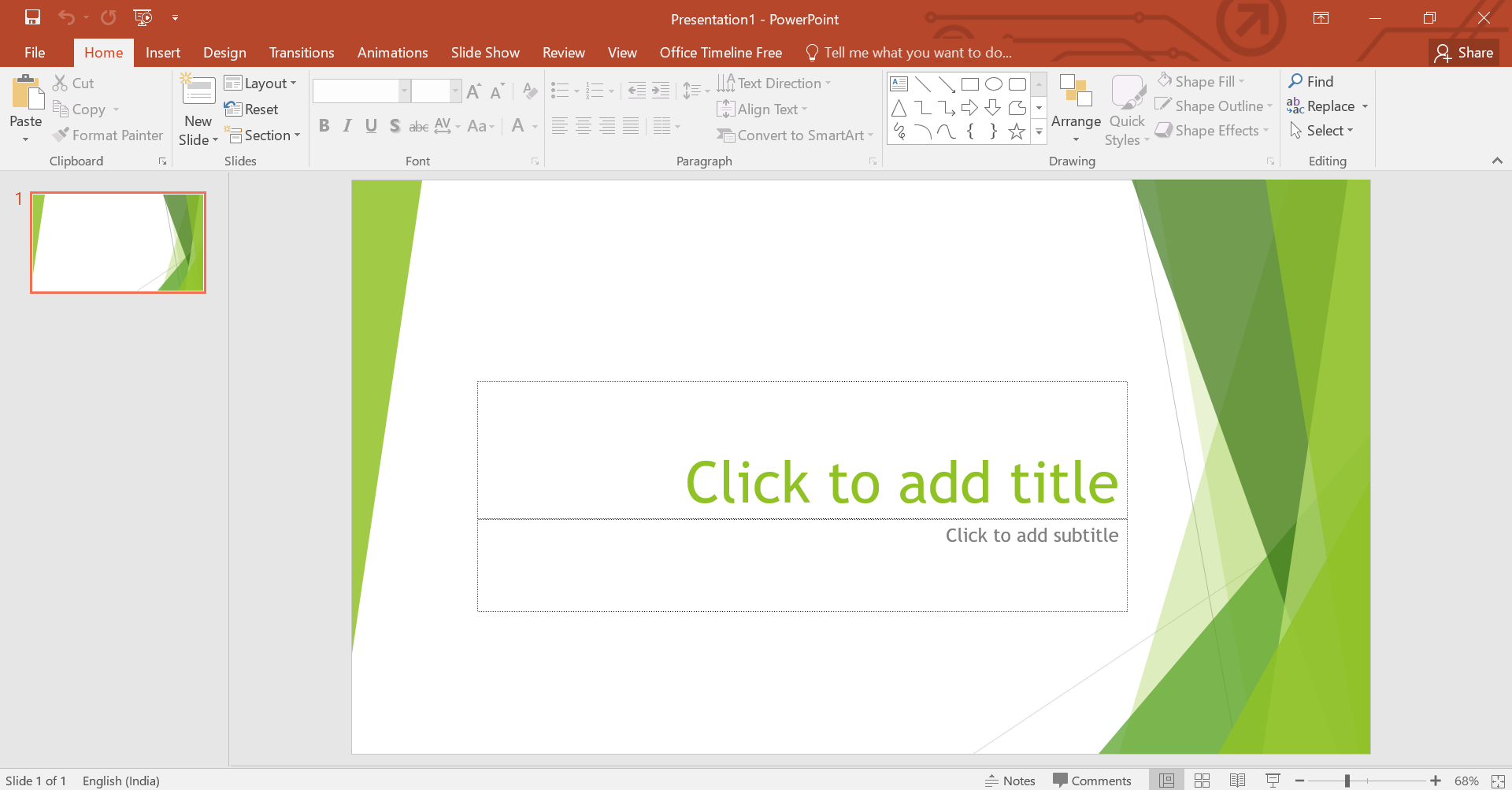
Choose a layout that accommodates short bulleted lists or key visuals. Use high-quality images and consistent fonts and colors.
Step 3: Applying the 7×7 Rule
Convert your outline into slides, adhering strictly to the 7×7 rule. Be concise and use keywords or phrases.
Step 4: Enhance With Visuals
Instead of text, use charts, graphs, and images to convey information where possible. Visuals can explain complex information much more effectively than text.
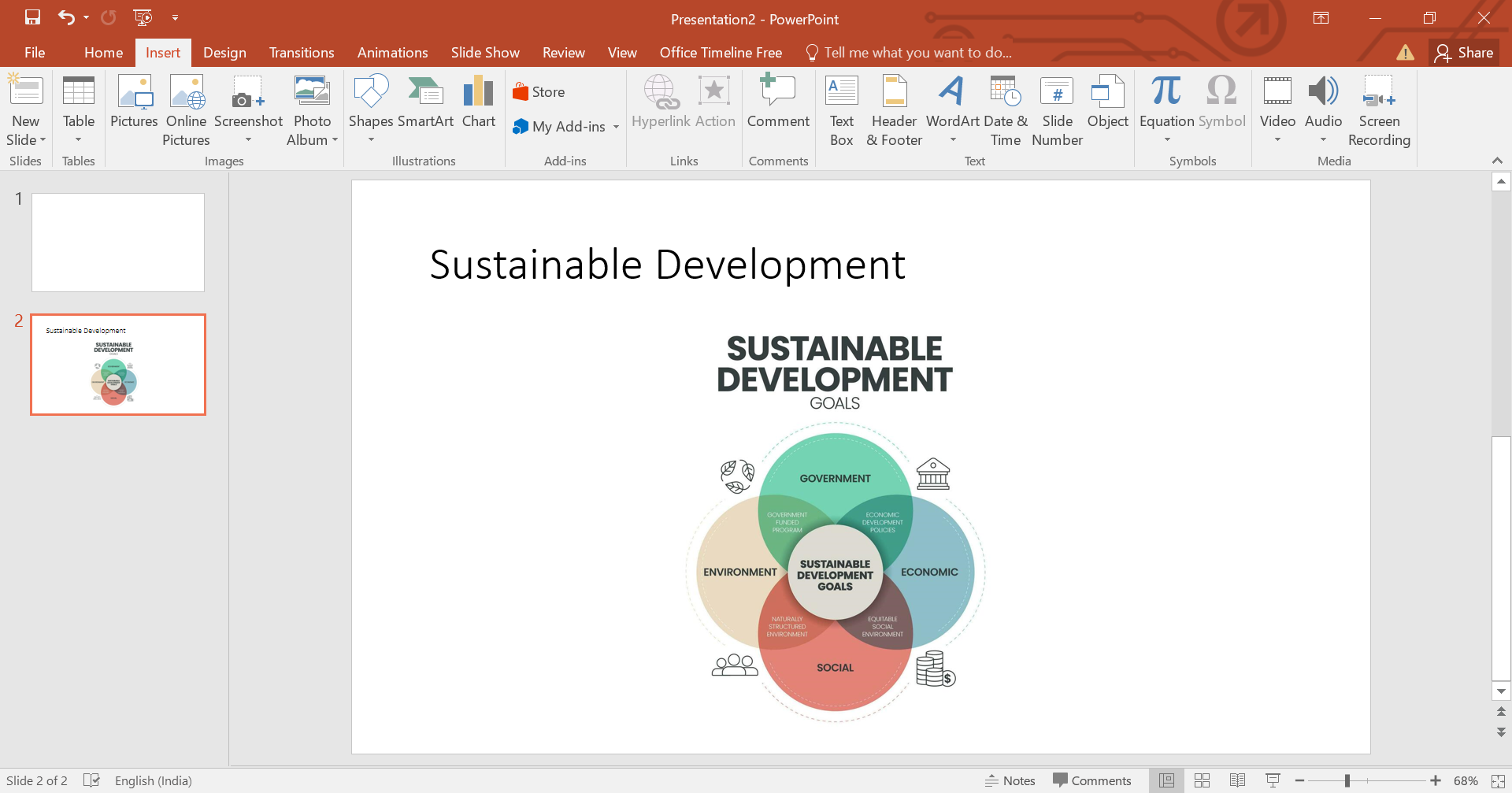
Step 5: Refine and Simplify
Review each slide for excess words or lines. Use icons or infographics to replace lists or multiple points.
Step 6: Rehearse Your Presentation
Practice delivering your presentation aloud. Ensure that each slide supports what you’re saying without distracting from your spoken words.
Tips for Implementing the 7×7 Rule Effectively
Be Flexible
While the 7×7 rule is a helpful guideline, it’s not a strict law. Adjust the amount of text and visuals based on the content and audience needs.
Use Keywords Effectively
Choose powerful and relevant keywords to make each slide more impactful.
Focus on Key Takeaways
Each slide should communicate a single message clearly and effectively. If a point isn’t essential, consider removing it.
Conclusion
The 7×7 rule in PowerPoint is a proven strategy to make your presentations more effective. By limiting the amount of text per slide and emphasizing visuals, you can enhance audience engagement and comprehension. Remember, the ultimate goal is to communicate your message as clearly and effectively as possible, using the slide as a tool to aid this process, not to serve as the message itself.
Embrace these principles in your next PowerPoint presentation to leave a lasting impact on your audience!


