How to Reduce the Size of an Image in PowerPoint: PPT Tips and Tricks


Learn how to effectively reduce your PowerPoint file size with these practical tips, including image optimization
Creating impactful PowerPoint presentations is an art, but managing their file size is a science. As presentations grow with content, images, and multimedia, their file sizes can balloon, making them cumbersome to share and slow to load. Whether you're preparing for a business presentation, a webinar, or a class project, optimizing the size of your PowerPoint (PPT) files is crucial.
This comprehensive guide will walk you through various strategies to reduce the size of your PowerPoint presentations efficiently. Plus, we’ll touch upon how tools like MagicSlides.app can assist in managing and enhancing your presentations without overly bulking up the file size.
Understanding the Causes of Large PowerPoint Image
Before diving into the solutions, it's essential to understand what typically contributes to the size of PowerPoint presentations:
- High-Resolution Images and Graphics: While visually appealing, they can significantly increase the file size.
- Embedded Videos and Audio Clips: Media files, especially when embedded directly into the presentation, are major contributors to file size.
- Fonts and Animations: Custom fonts and extensive animations can also add to the bulk.
- Slide Master Elements: Repeated use of heavy graphics in the Slide Master can increase size across the entire presentation.
Practical Tips to Reduce PowerPoint File Size
Optimize Images and Graphics
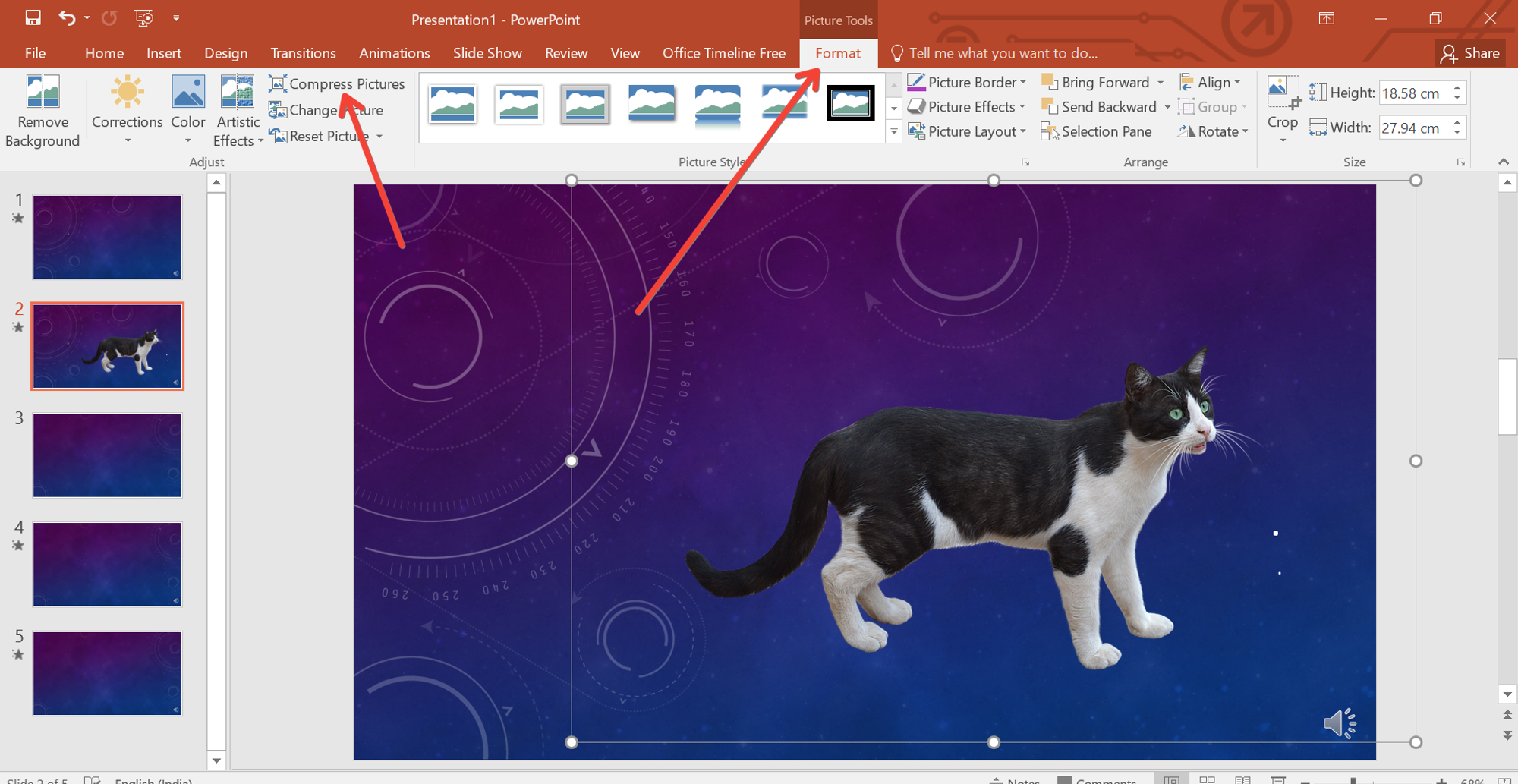
- Compress Images: PowerPoint allows you to compress images to reduce their resolution and file size without exiting the application. Simply select an image, go to the "Picture Format" tab, and click on "Compress Pictures". Choose the resolution that suits your need—printing, screen display, or email.
- Edit Images Externally: For more control, use an image editing tool to adjust the size and resolution before inserting them into your presentation.
Manage Embedded Media
- Link to Media Files: Instead of embedding videos directly, link to the files if the presentation is to be shared within a network or over cloud storage. This method references the media files without storing them within the presentation.
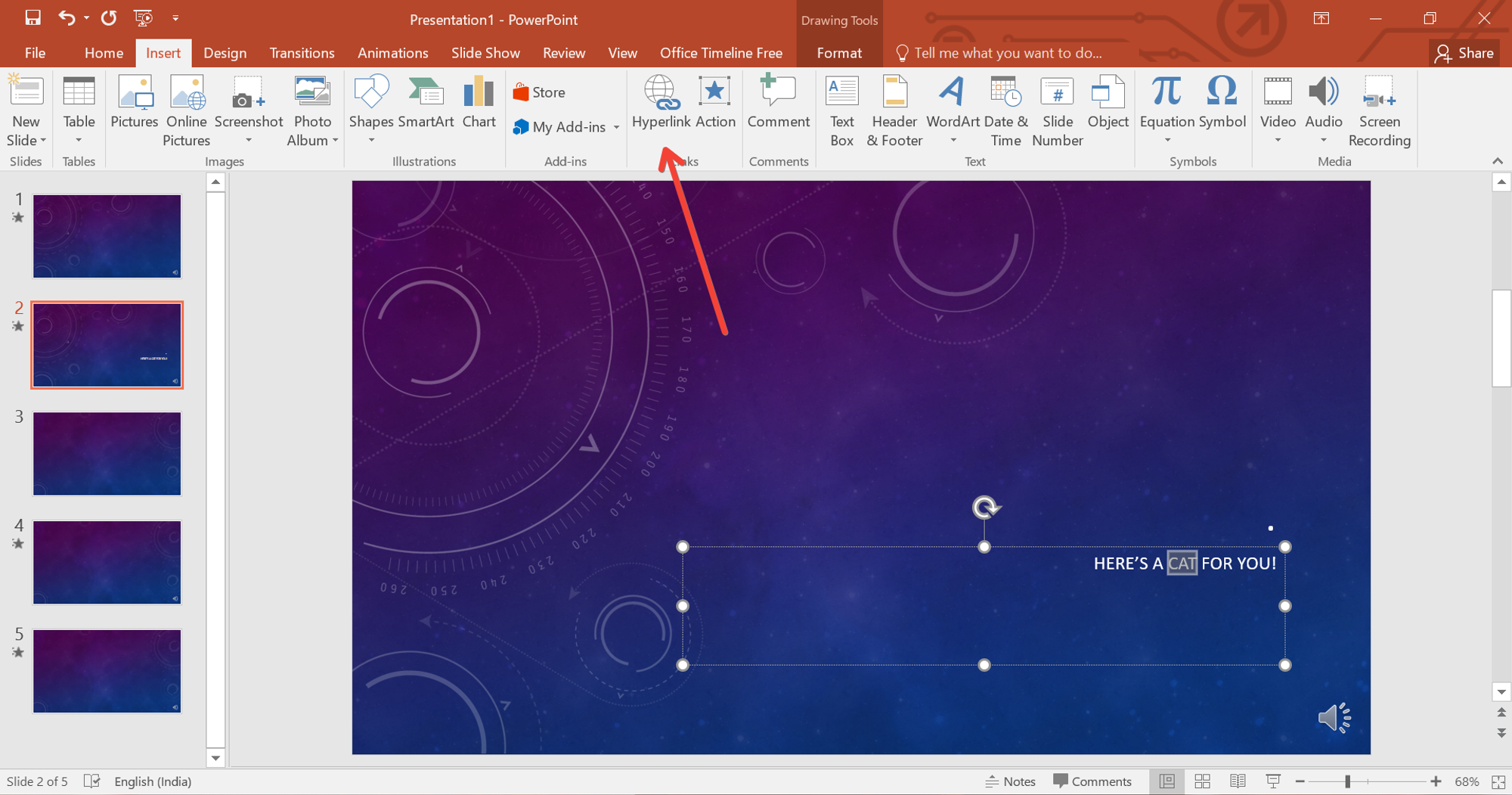
- Use Online Videos: For webinars or online presentations, consider using online video URLs. You can embed a YouTube link directly into your slides, which won’t add to your file size.
Streamline Fonts and Animations
- Limit Font Varieties: Stick to common system fonts if possible. Custom fonts, while unique, increase the presentation's size if you embed them.
- Simplify Animations: While animations make your presentation engaging, excessive use can bloat your file. Use them sparingly or opt for simpler transitions.
Clean Up and Compress the Presentation
- Remove Unused Master Slides: These can accumulate unseen bulk. Check your Slide Master and delete any unused layouts or themes.
- Discard Hidden Slides: Remove or exclude any slides that are not needed in the final presentation.
- Compress the Presentation: PowerPoint offers a built-in tool to compress the entire file. Under the "File" menu, find "Info", select "Compress Media", and choose the appropriate quality.
Utilizing PowerPoint Management Tools like MagicSlides.app
Incorporating a tool like MagicSlides.app can be beneficial for streamlining and managing your presentations. MagicSlides.app offers features that optimize content layout and media usage to ensure your presentations are efficient and effective without unnecessary bulk. It’s particularly handy for converting images and embedding media optimally, maintaining a balance between quality and file size.
Best Practices for Maintaining Optimal File Size
- Regularly Review Your File Size: Keep an eye on your file size as you build your presentation. It’s easier to manage size incrementally rather than making large adjustments at the end.
- Use Cloud Services for Sharing: Instead of attaching large files to emails, use cloud services. This approach not only avoids the need to reduce file size dramatically but also facilitates easier version control and collaboration.
- Archive Old Versions: Keep your workspace clean by archiving old versions and drafts that are no longer needed.
Conclusion
Reducing the size of your PowerPoint presentations not only makes them easier to handle and share but also ensures they run smoothly on any device. By optimizing images, managing embedded media wisely, and using efficient design practices, you can significantly cut down the bulk of your files. Tools like MagicSlides.app further streamline the process, allowing for a more professional and polished presentation without the added weight.
Remember, the goal is to maintain a balance between visual quality and file manageability, ensuring your presentations are as impactful in delivery as they are light in load.


