How to Reduce PowerPoint File Size: 7 Easy Methods That Work?


Learn how to reduce PowerPoint file size with simple techniques like compressing images, linking videos, removing unused slides, and optimizing presentations for easy sharing.
When it comes to crafting PowerPoint presentations, the challenge isn’t just in creating compelling content but also in managing the file size. Large presentations can be a hassle difficult to email, slow to load, and cumbersome for storage. Whether you’re a professional aiming to streamline your presentations for smoother performance or a student needing to adhere to submission size limits, reducing the size of your PowerPoint file is essential.
If you’re wondering how to reduce PowerPoint file size, whether you’re a professional aiming to streamline your presentations for smoother performance or a student needing to adhere to submission size limits, reducing the size of your PowerPoint file is essential.
This guide will walk you through several effective methods to compress your PowerPoint presentations efficiently. Plus, we’ll briefly touch on how tools that can enhance your presentation management without overloading it.
Understanding the Factors that Influence File Size
Before diving into the solutions, it’s crucial to understand what contributes to the size of your PowerPoint presentations. Major factors include:
- High-resolution images and videos: Media files are often the main culprits in inflating your presentation’s size.
- Embedded fonts: While they ensure consistency in your presentation’s appearance across different systems, they add to the file size.
- Extensive use of transitions and animations: These can increase the file size, especially if they’re complex.
Once you understand what increases presentation size, the next step is learning how to reduce PowerPoint file size using a few simple optimization techniques.
Strategies to Reduce PowerPoint File Size
1. Compress Images
One of the simplest yet most effective ways to reduce your PowerPoint file size is by compressing images. PowerPoint comes with a built-in tool that allows you to reduce image resolution, which significantly decreases file size without severely impacting visual quality.
- How to do it: Click on any image in your PowerPoint, select the “Format” tab, and then find the “Compress Pictures” option. You can choose to apply the compression to all images in the presentation or just the selected ones.
Read our blog here to find out how you can compress images quickly.
2. Link to Videos Instead of Embedding Them
Instead of embedding large video files directly into your PowerPoint, consider linking to them. This method involves hosting the video on an external platform (like YouTube or Vimeo) and inserting a link in your presentation.
- Benefits: This reduces your presentation’s file size and ensures smoother playback during the presentation.
3. Use Standard Fonts
Custom fonts can add a unique touch to your presentations, but they also increase the file size. By using standard system fonts, you eliminate the need to embed additional font files.
4. Remove Unused Master Slides and Layouts
PowerPoint presentations often contain multiple master slides and layouts that aren’t used in the actual presentation. Removing these can reduce the file size and is another effective method for how to reduce PowerPoint file size.
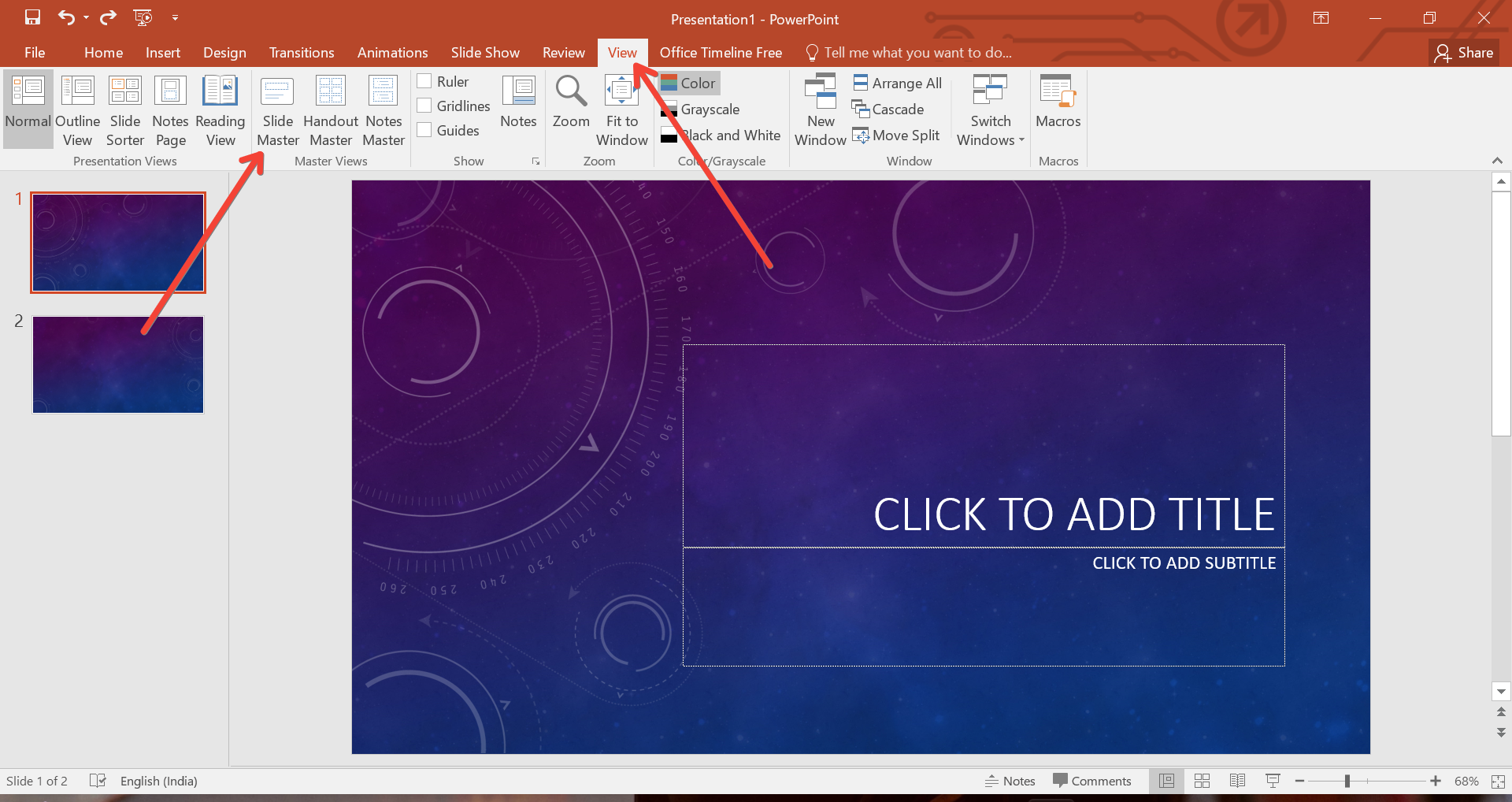
- How to do it: Go to the “View” tab, select “Slide Master,” and review the slides. Delete any master slide or layout that is not being used.
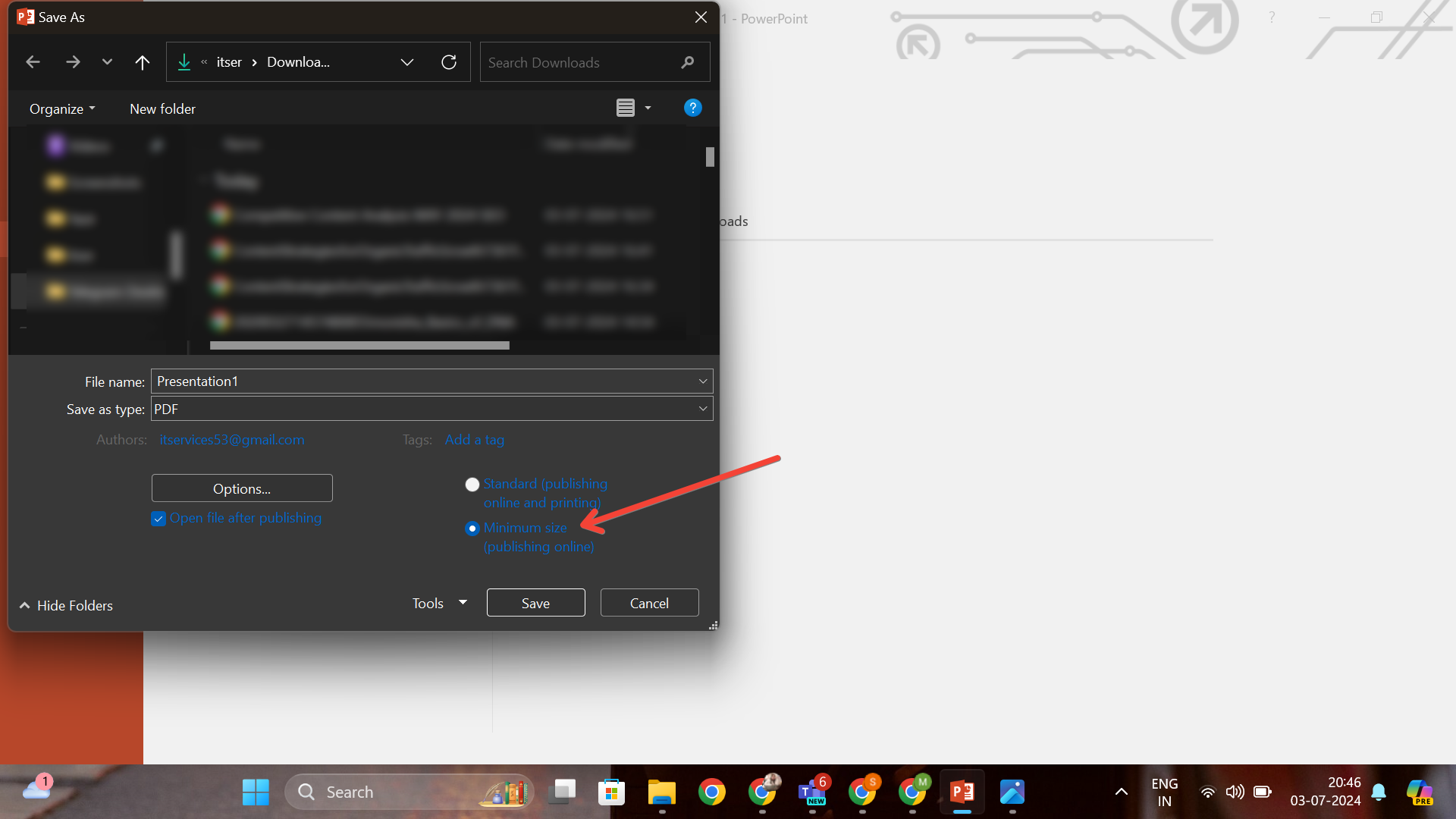
5. Save As Reduced Size PDF
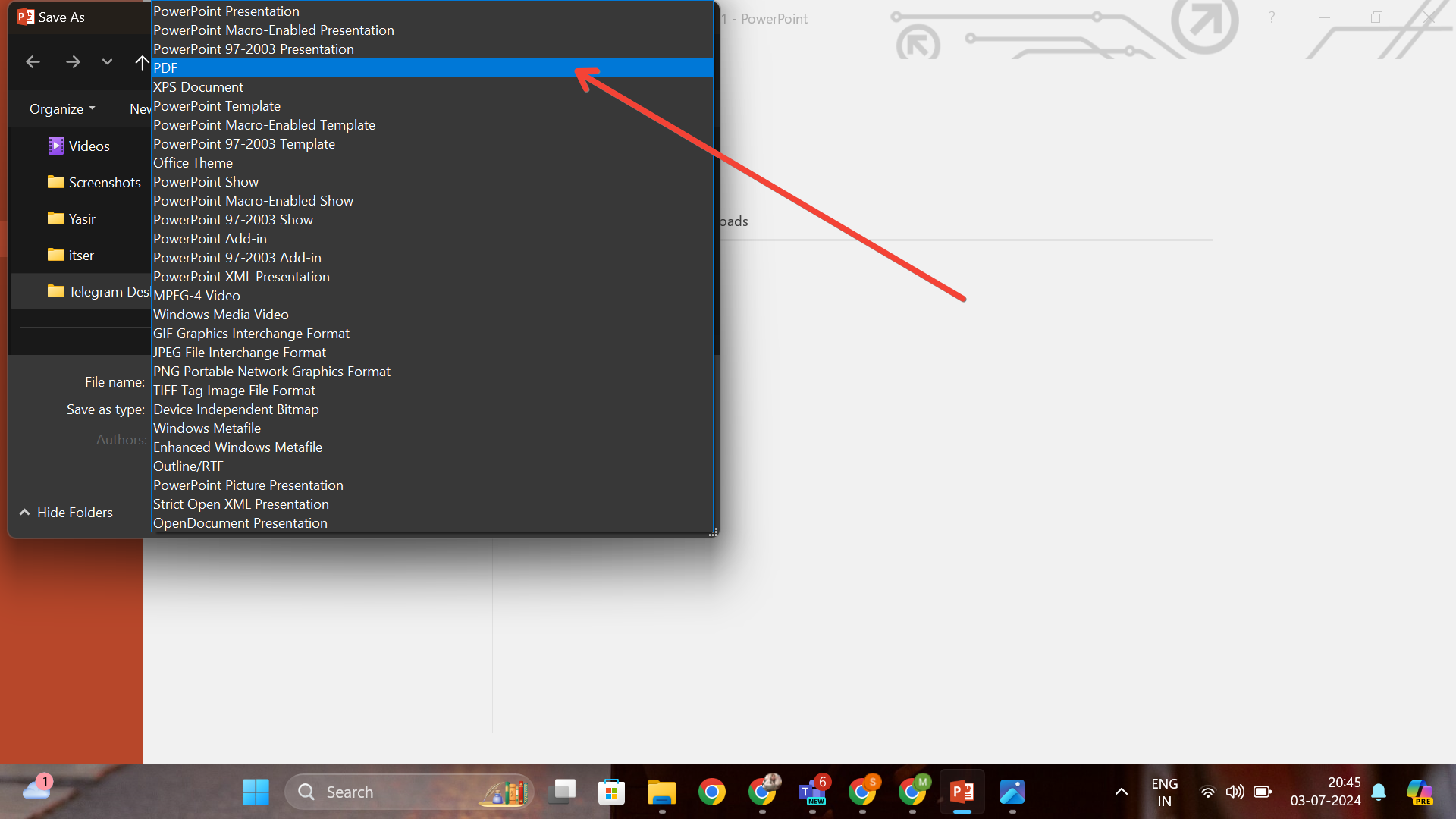
For presentations that do not require animation or transitions, consider saving them as a PDF. This not only reduces the size but also makes the presentation widely accessible.
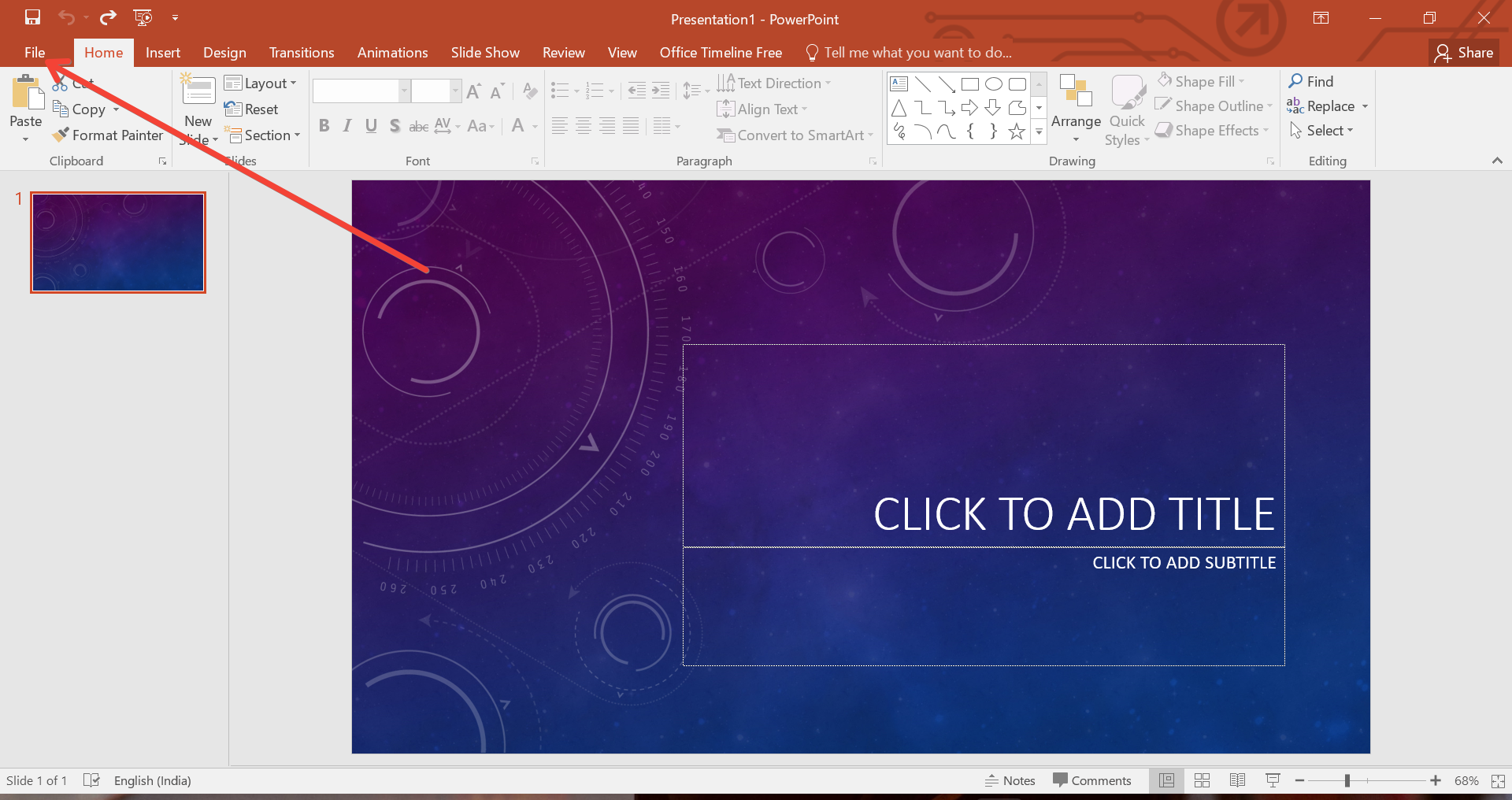
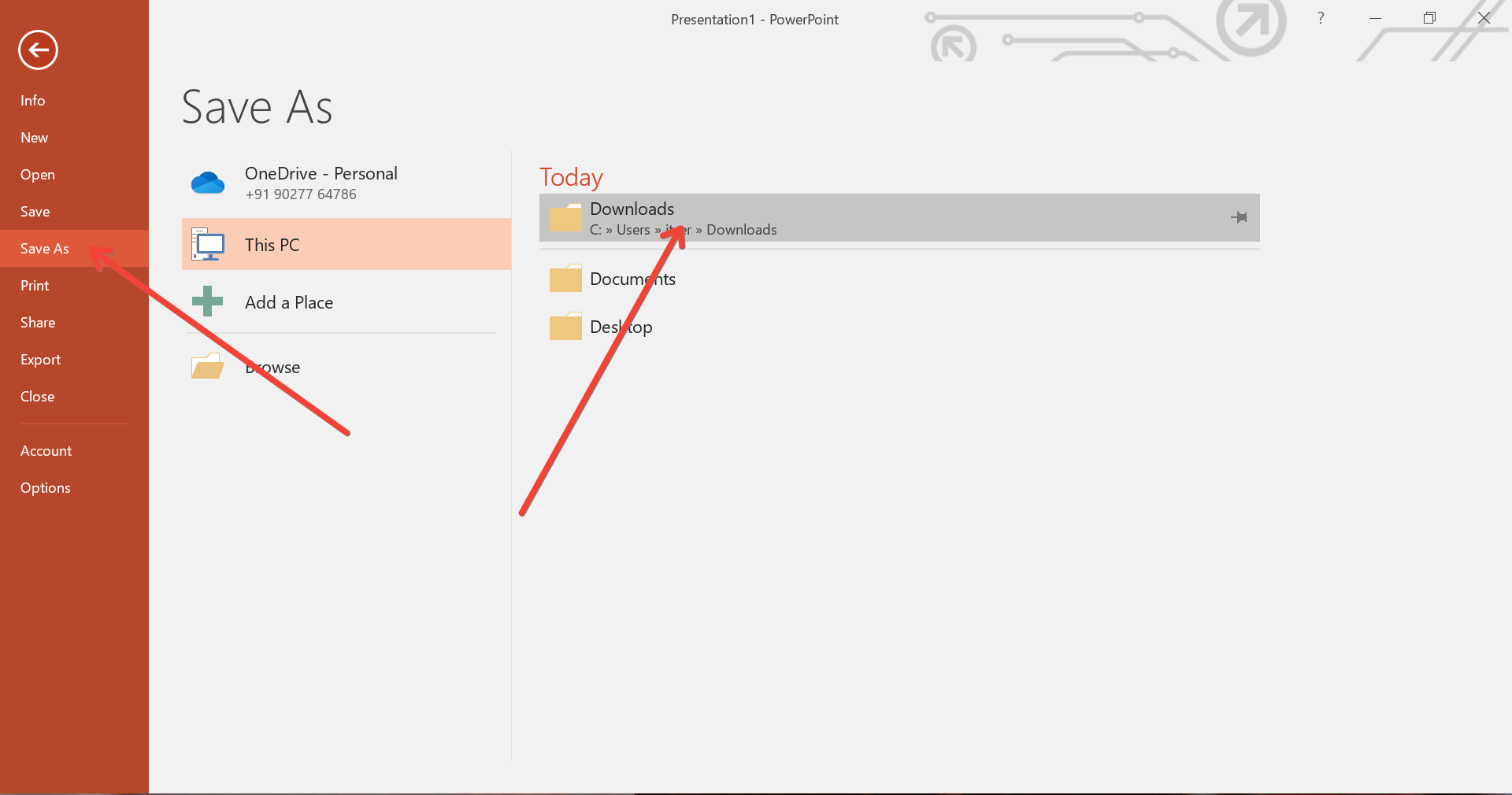
- How to proceed: After finalizing your PowerPoint, go to “File,” select “Save As,” and choose “PDF.” Then, select the “Minimum Size” option.
Conclusion
Reducing the size of your PowerPoint presentations is crucial for ease of use and efficiency. By following the above strategies, you can ensure that your presentations are not only professional but also manageable in size. Remember, the key is to balance quality with efficiency, and tools like MagicSlides.app AI presentation maker can help you achieve that balance by optimizing your presentations for both performance and aesthetics.

By implementing these tips, you can create lighter, faster, and more responsive PowerPoint files, ensuring that your presentations impress without the technical hiccups of oversized files.


