How to reuse slides in Microsoft PowerPoint in just few clicks with images


Reusing slides in PowerPoint is a useful feature that allows you to incorporate slides from one presentation into another.
Step 1: Open the recipient presentation.
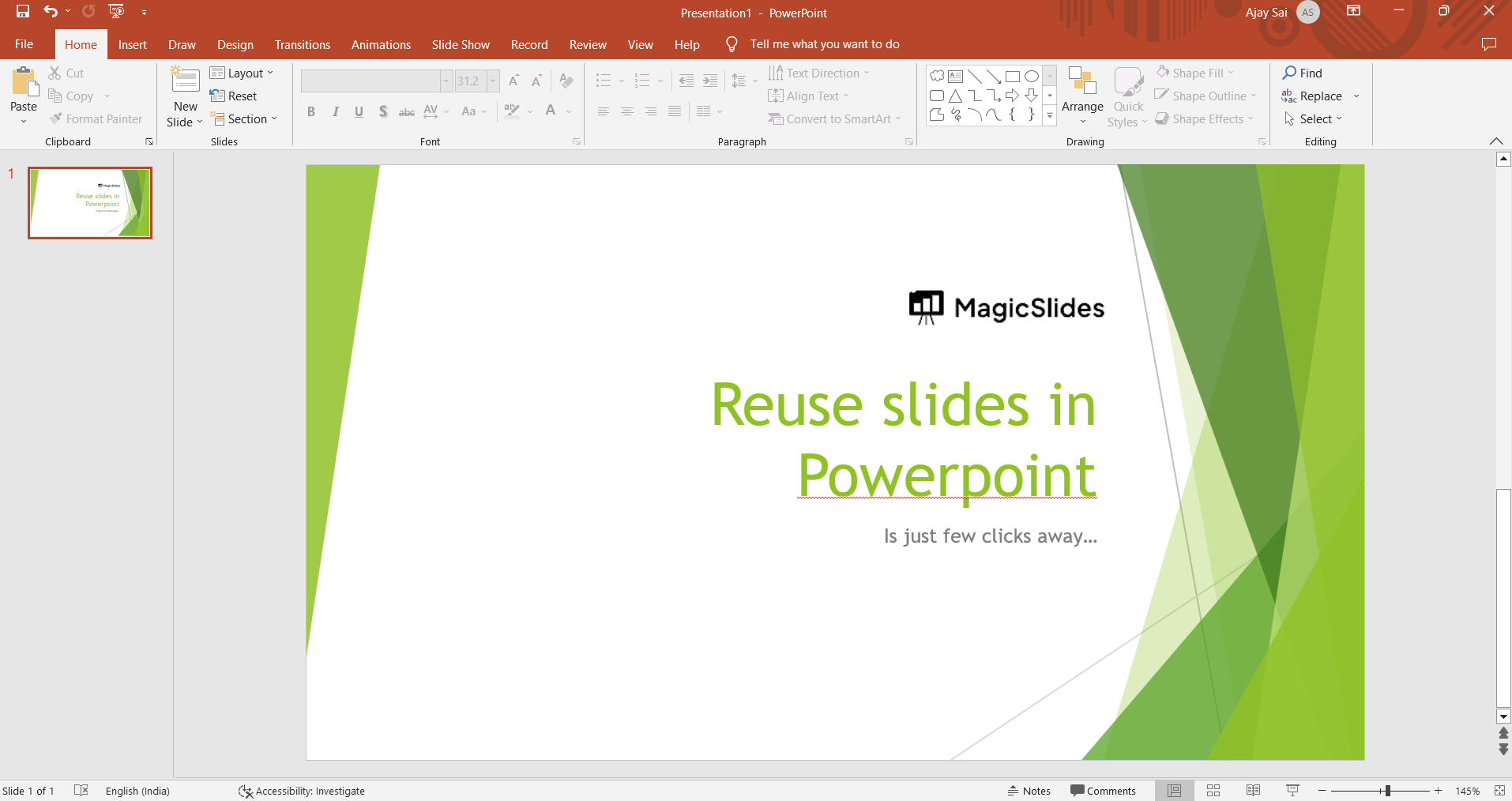
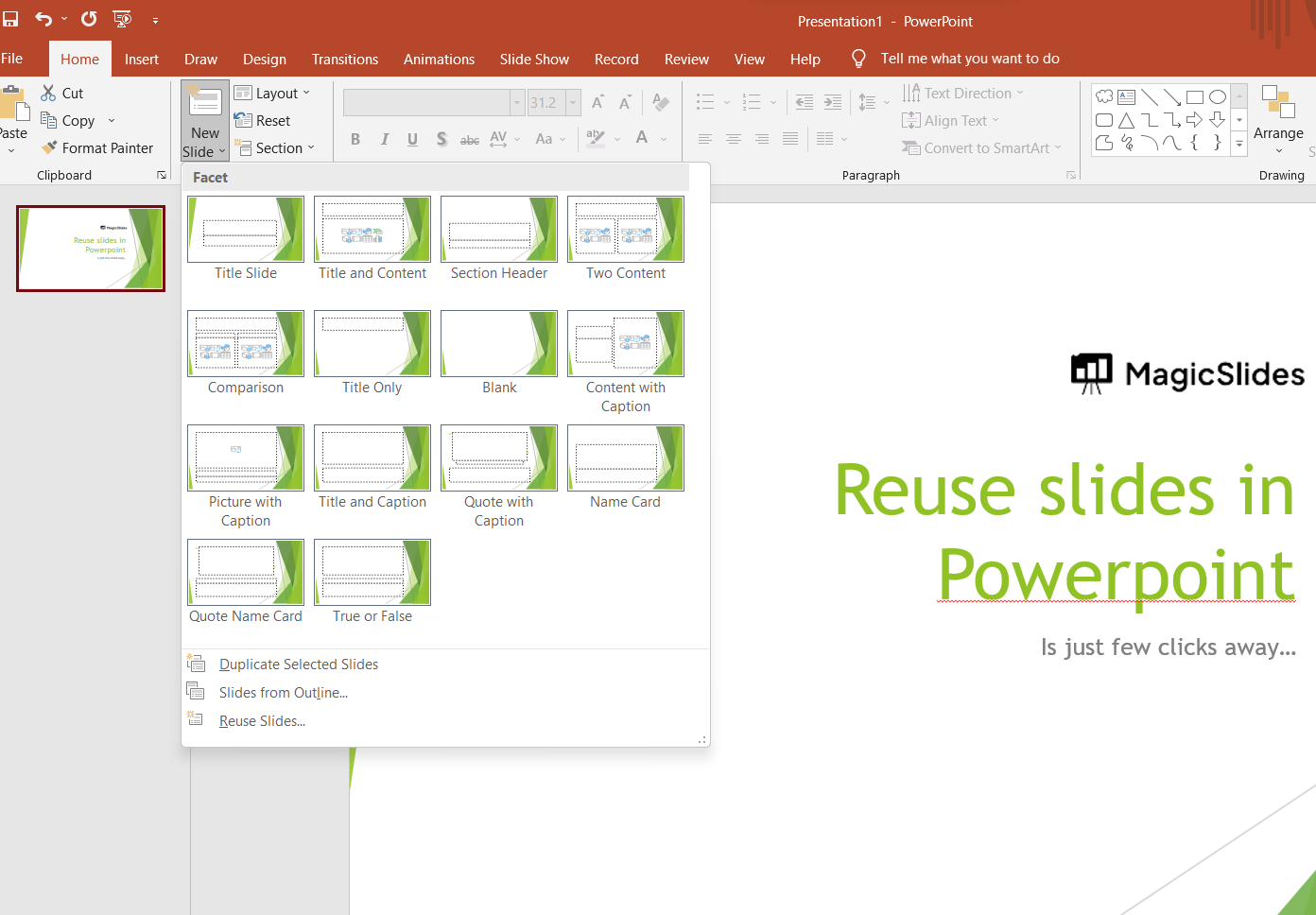
Step 2: Go to the "Slide" menu on the left side of the PowerPoint window.
Step 3: Click on the "Reuse Slides" option at the bottom of the menu. This will open the Reuse Slides pane on the right side of the screen.
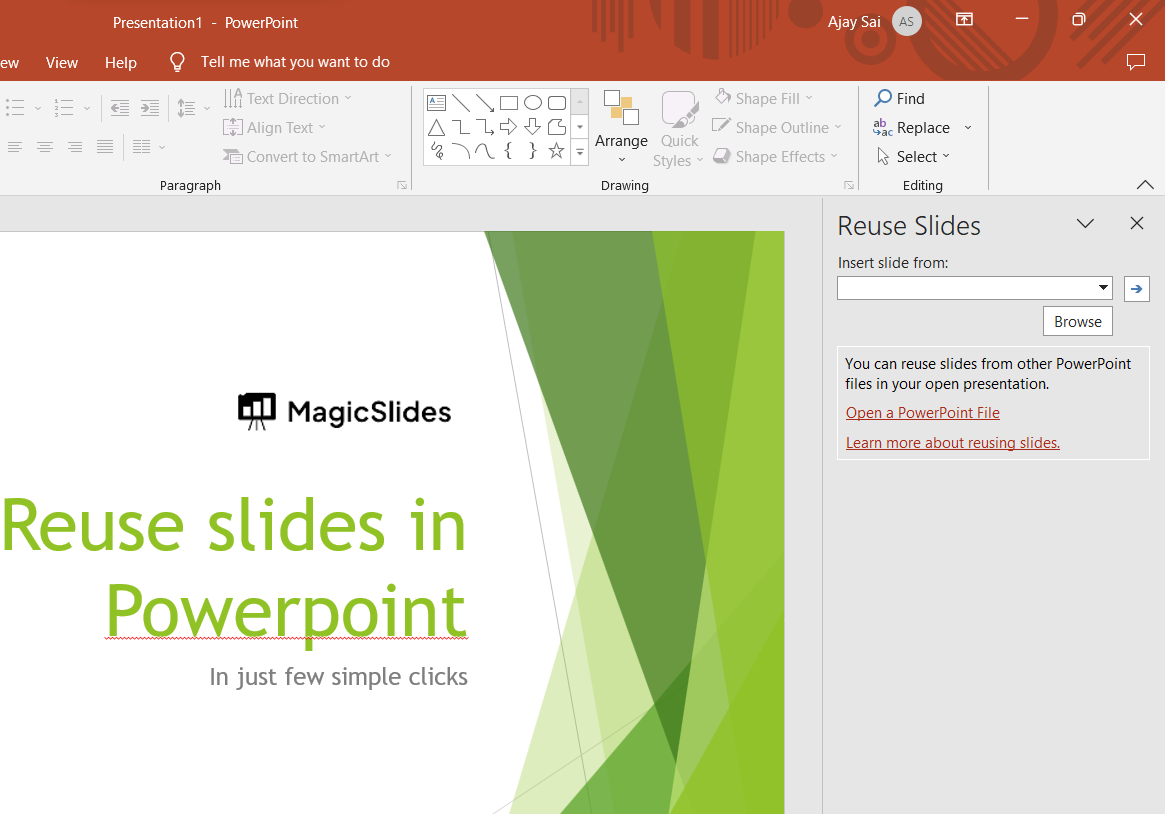
Step 4: In the Reuse Slides pane, you will see a section that says "Open a PowerPoint File." Click on the "Browse" button in that section.
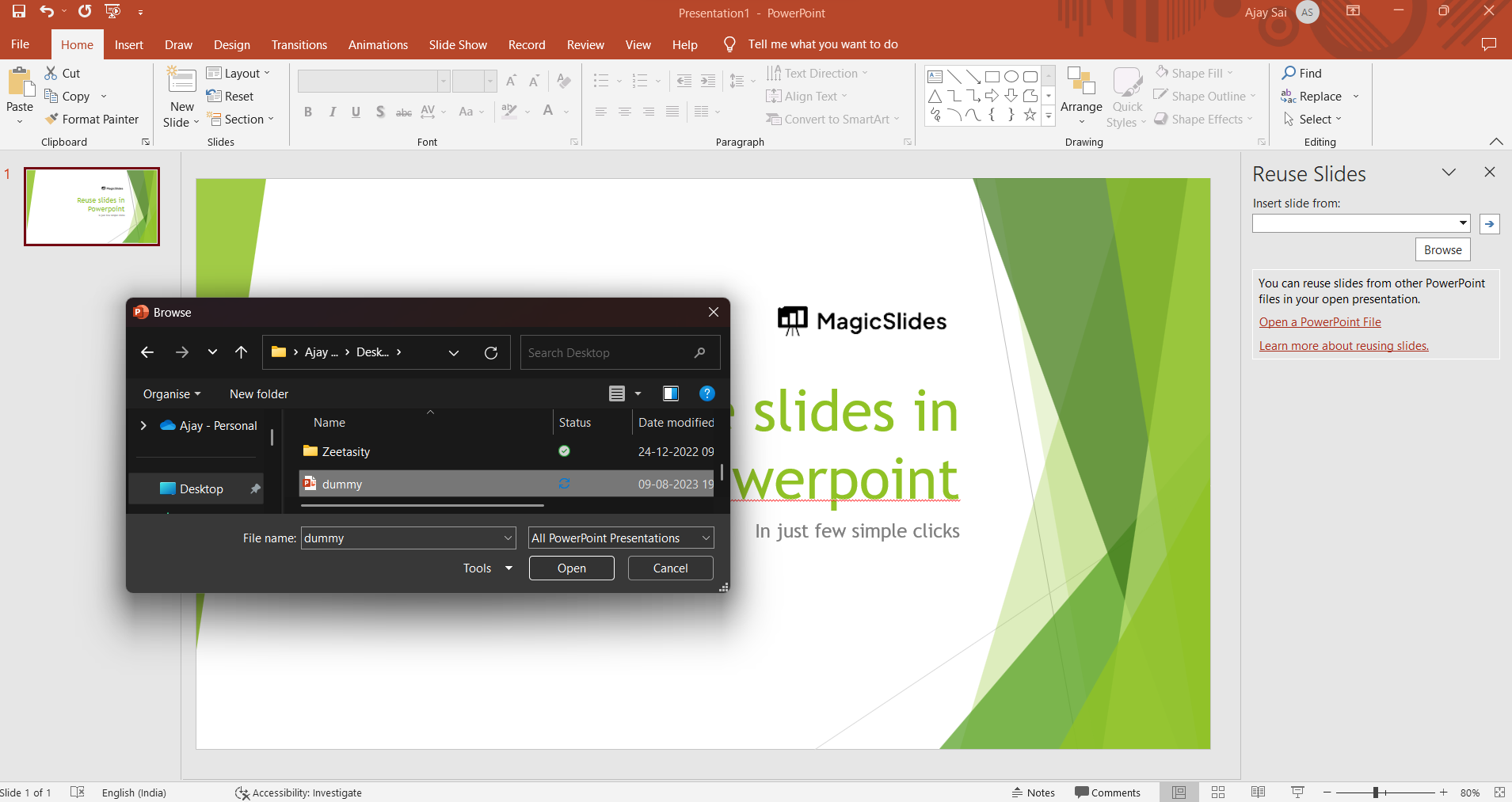
Step 5: Navigate to the PowerPoint file that contains the slides you want to reuse. Select that file and click the "Open" button.
Step 6: PowerPoint will display thumbnails of the slides from the other presentation in the Reuse Slides pane.
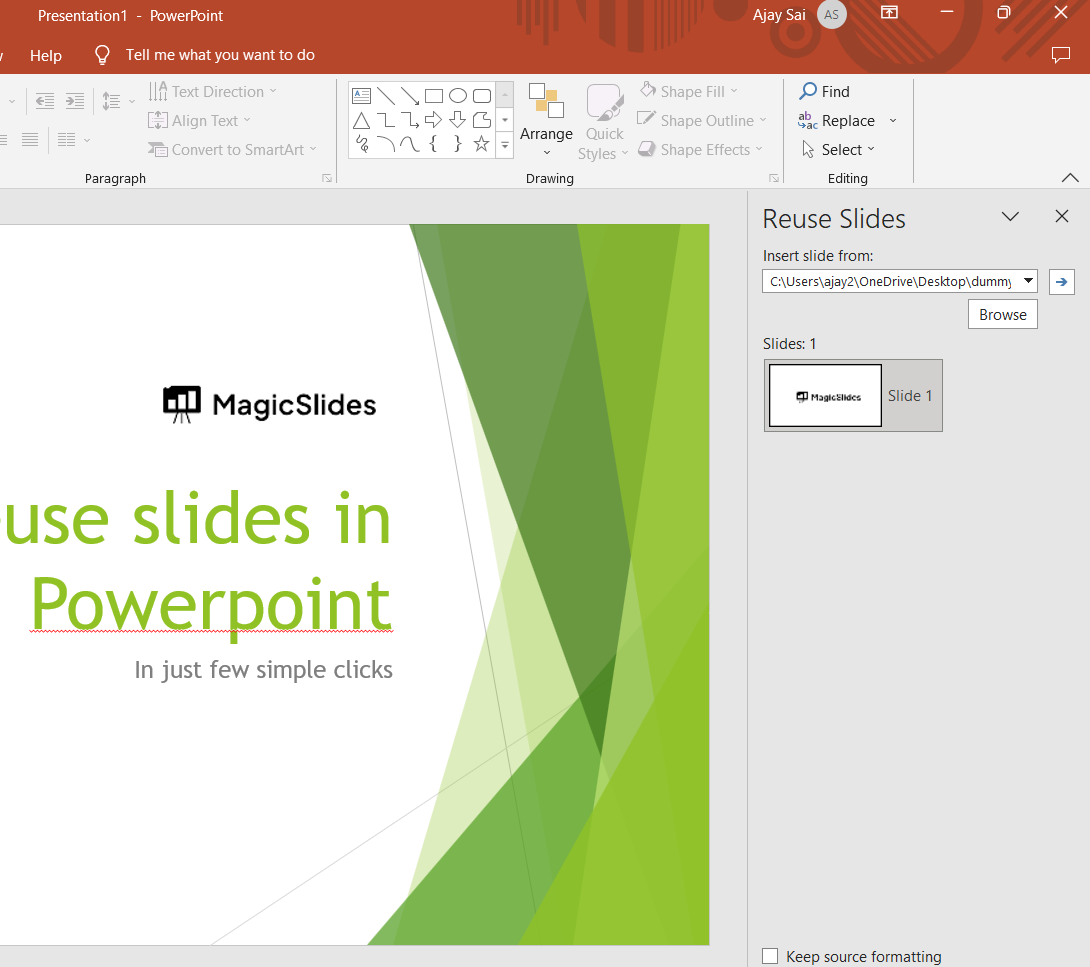
Step 7: To reuse a slide, simply click on the desired slide's thumbnail in the Reuse Slides pane. It will be added to your current presentation at the location you selected.
You can repeat this process for as many slides as you want to reuse. If you make changes to the original presentation from which you've reused slides, you can update the slides in your recipient presentation to reflect those changes.Remember that reusing slides can be a great time-saver, especially when you need to combine content from multiple sources or presentations.


