How to save a copy of a PowerPoint in your local system in simple steps


Once you have done working on the presentation you will definitely want to save it so that it can be used in future, here is a guide to do so..
To save a copy of a PowerPoint presentation, you can follow these steps:
Step 1: Open the Presentation: Launch Microsoft PowerPoint and open the presentation you want to save a copy of.
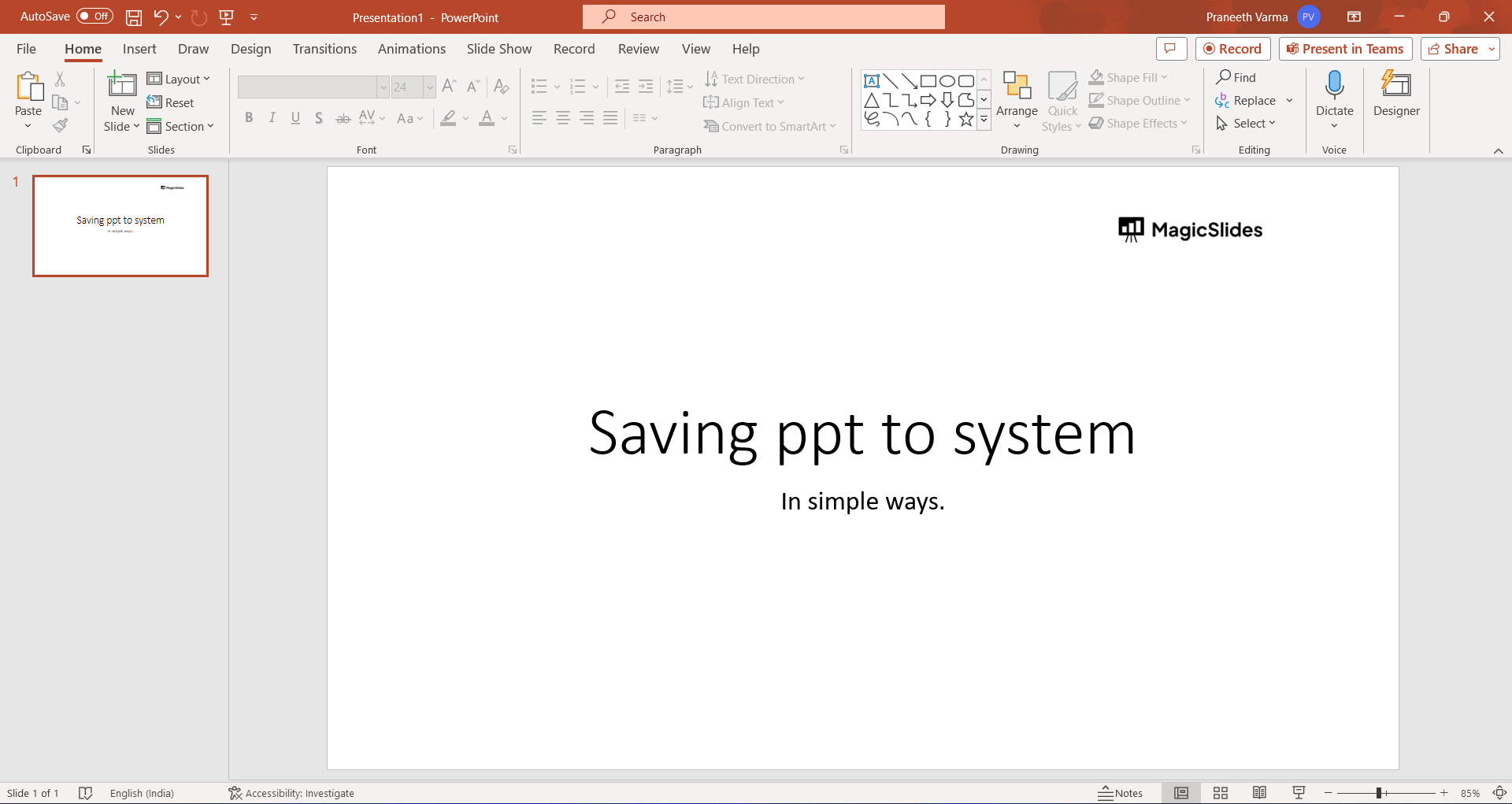
Step 2: Click on "File": In the top-left corner of the PowerPoint window, click on the "File" tab.
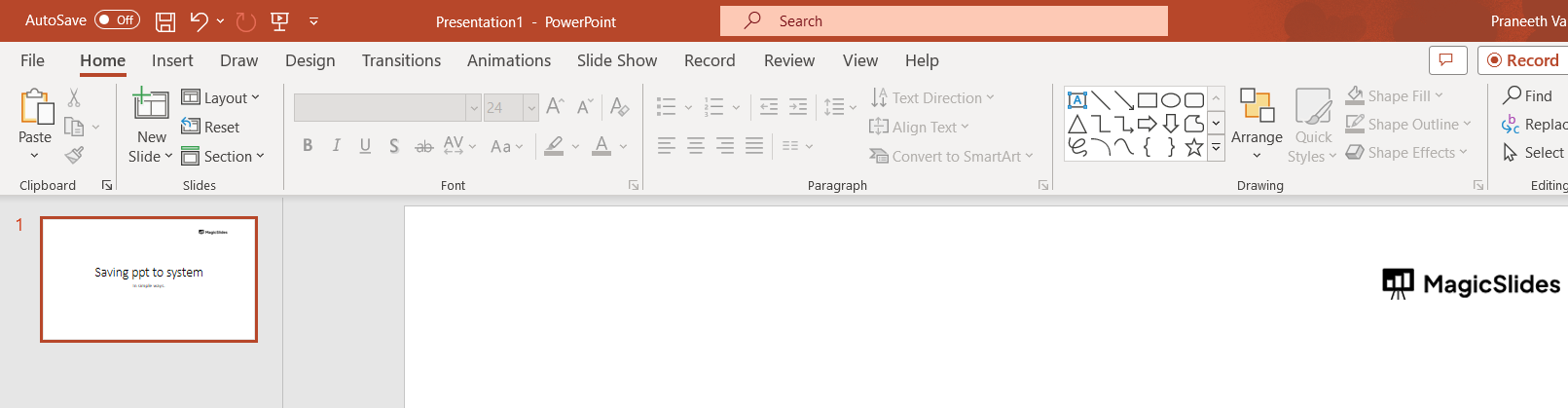
Step 3: Select "Save As": In the left sidebar of the backstage view, click on "Save As." This will open the Save As pane.
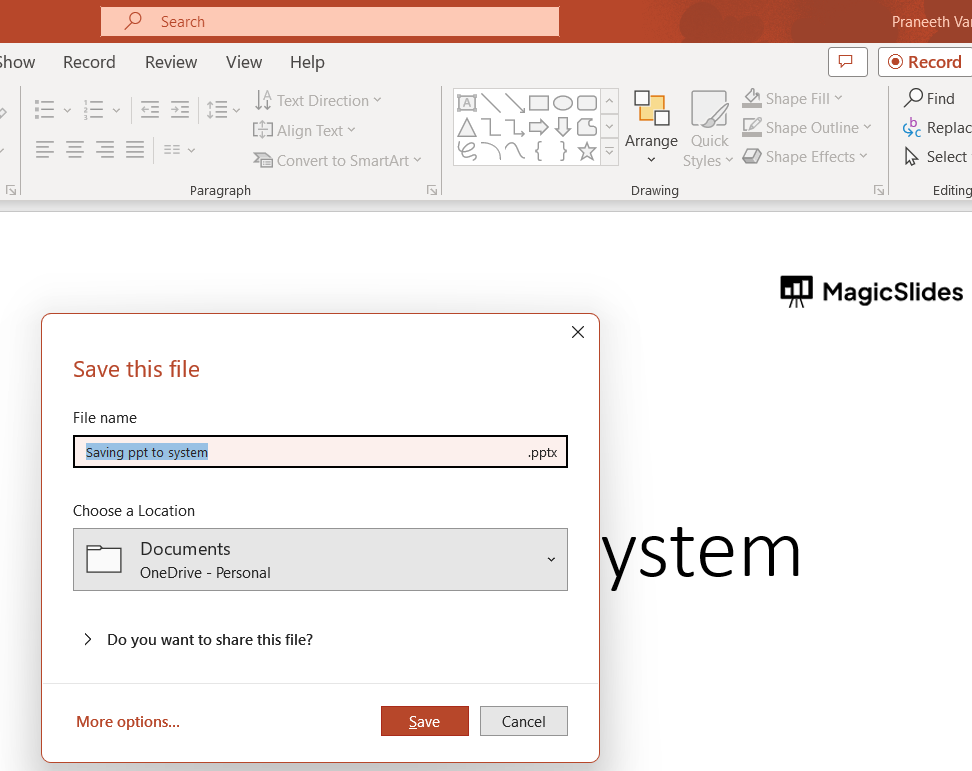
Step 4: Choose a Location: Navigate to the folder or location on your computer where you want to save the copy of the presentation.
Step 5: Enter a File Name: In the "File Name" field at the top of the Save As pane, enter a new name for the copy of the presentation. This will help you distinguish it from the original presentation.
Step 6: Click "Save": Once you've selected the file format (if needed) and entered the file name, click the "Save" button. This will save a copy of the presentation to the specified location with the chosen file name and format.
Step 7: Close the Original Presentation: If you're done working with the original presentation, you can close it.
It's important to note that the exact steps might vary slightly based on the version of Microsoft PowerPoint you are using.


