In order to select multiple slides in a presentation, which keyboard keys can be pressed?


Easily select non-contiguous slides in PowerPoint to efficiently manage and edit your presentations.
Selecting multiple slides in a PowerPoint presentation is a useful skill that can help you manage and edit your slides more efficiently.
Whether you need to move, delete, copy, or format several slides at once, knowing how to select them quickly can save you time and streamline your workflow.
This guide will walk you through the process step-by-step, ensuring you can handle your slides with ease.
How to Select multiple slides in PowerPoint using keyboard shortcuts
Open Your Presentation
Launch the PowerPoint application on your computer.
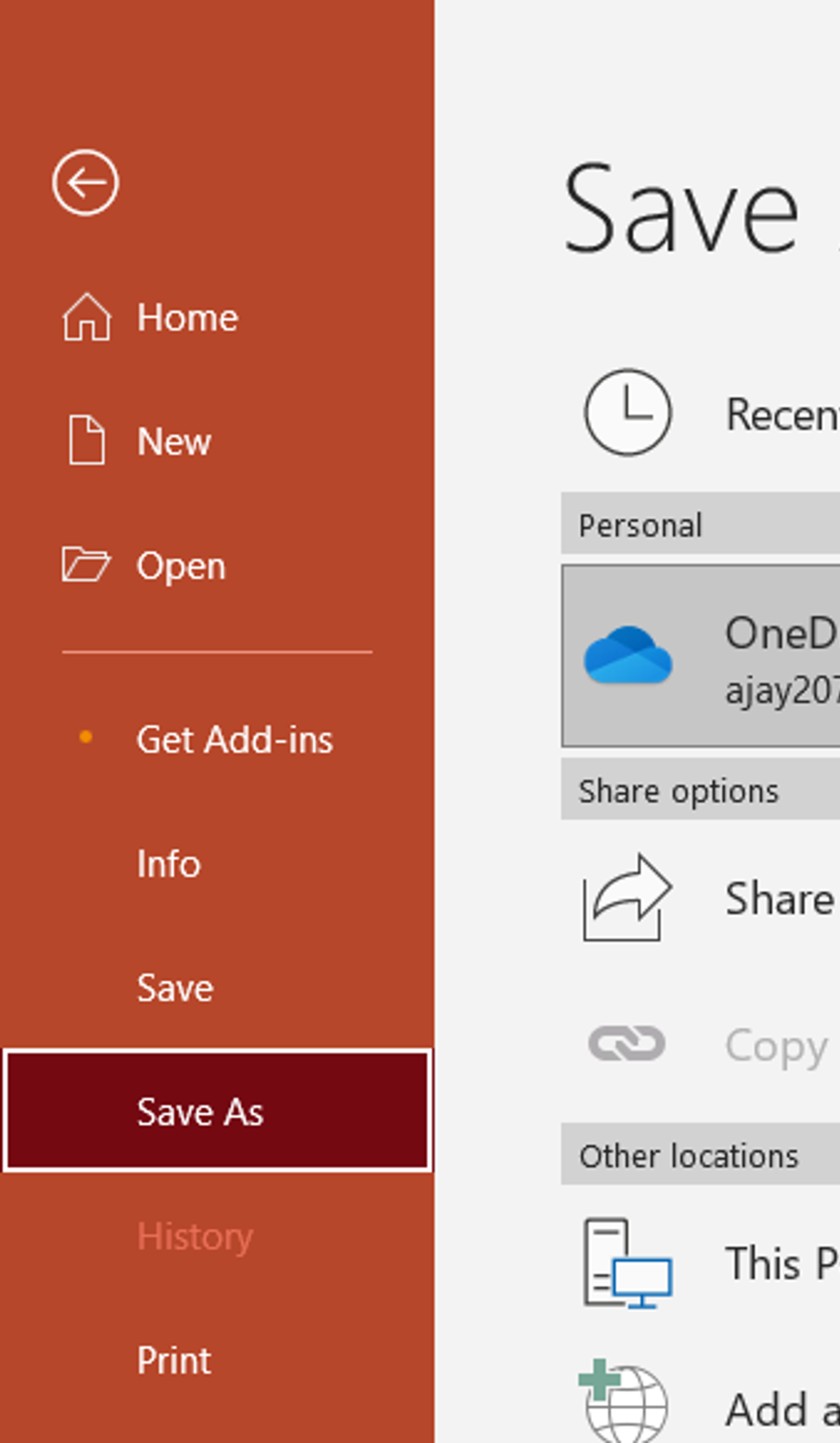
Go to "File" > "Open" and select the presentation you want to work on.
Click on the First Slide
In the left-hand pane, click on the thumbnail of the first slide you want to select.
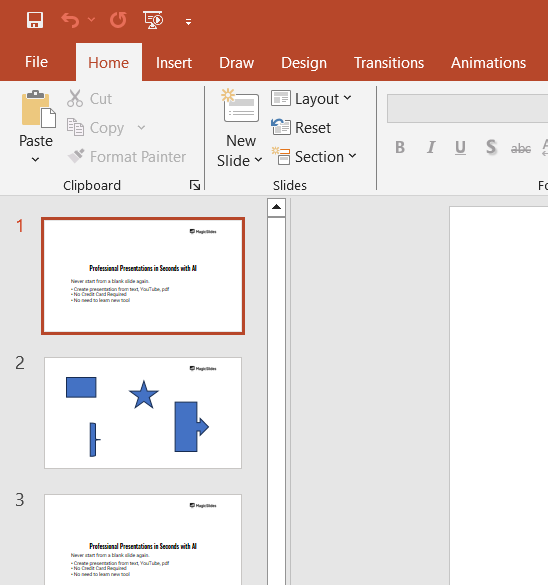
Hold Down the "Ctrl" Key
On your keyboard, press and hold the "Ctrl" key (or "Command" key on Mac).

Click on Additional Slides
While holding down the "Ctrl" key, click on the thumbnails of each additional slide you want to select. This allows you to choose slides that are not next to each other.
Release the "Ctrl" Key
Once you have selected all the desired slides, release the "Ctrl" key. The selected slides will be highlighted, indicating they are selected.
Conclusion
Selecting multiple slides in a PowerPoint presentation is a simple yet powerful technique that can greatly enhance your productivity.
By using the "Shift" key for contiguous slides and the "Ctrl" (or "Command" on Mac) key for non-contiguous slides, you can quickly select, move, delete, copy, and format multiple slides.
This shortcuts skills not only saves time but also ensures a more organized and efficient workflow. Happy presenting!
FAQs that might be helpful!
How do I select multiple slides that are next to each other?
Click on the first slide, hold down the "Shift" key, and click on the last slide in the range to select all slides between them.
How do I select multiple slides that are not next to each other?
Click on the first slide, hold down the "Ctrl" key (or "Command" key on Mac), and click on each additional slide you want to select.
Can I deselect a single slide after selecting multiple slides?
Yes, hold down the "Ctrl" key (or "Command" key on Mac) and click on the slide you want to deselect.
What actions can I perform on multiple selected slides?
You can move, delete, copy, paste, and apply formatting changes to multiple selected slides.


