How to Download SlidePlayer Slides in PPT or PDF (Easy Guide)


Learn How to download SlidePlayer slides and PPT files with easy methods, download tips, alternative solutions, and tools to save presentations offline.
Are you looking for a quick way to download SlidePlayer PPT files? While SlidePlayer lets you view thousands of presentations online, downloading them isn’t always straightforward. Some presentations include a download option, while others are only available for online viewing.
If you want the easiest way to save supported SlidePlayer presentations, Slide Downloader lets you download them by simply pasting the presentation URL no need to manually save individual slides.
Whether you’re saving lecture notes, business presentations, or study materials, this guide explains the quickest way to download supported SlidePlayer presentations for offline viewing and editing.
How to Download SlidePlayer PPT Files (Quick Answer)
The fastest way to download a SlidePlayer presentation is by using the Slide Downloader.
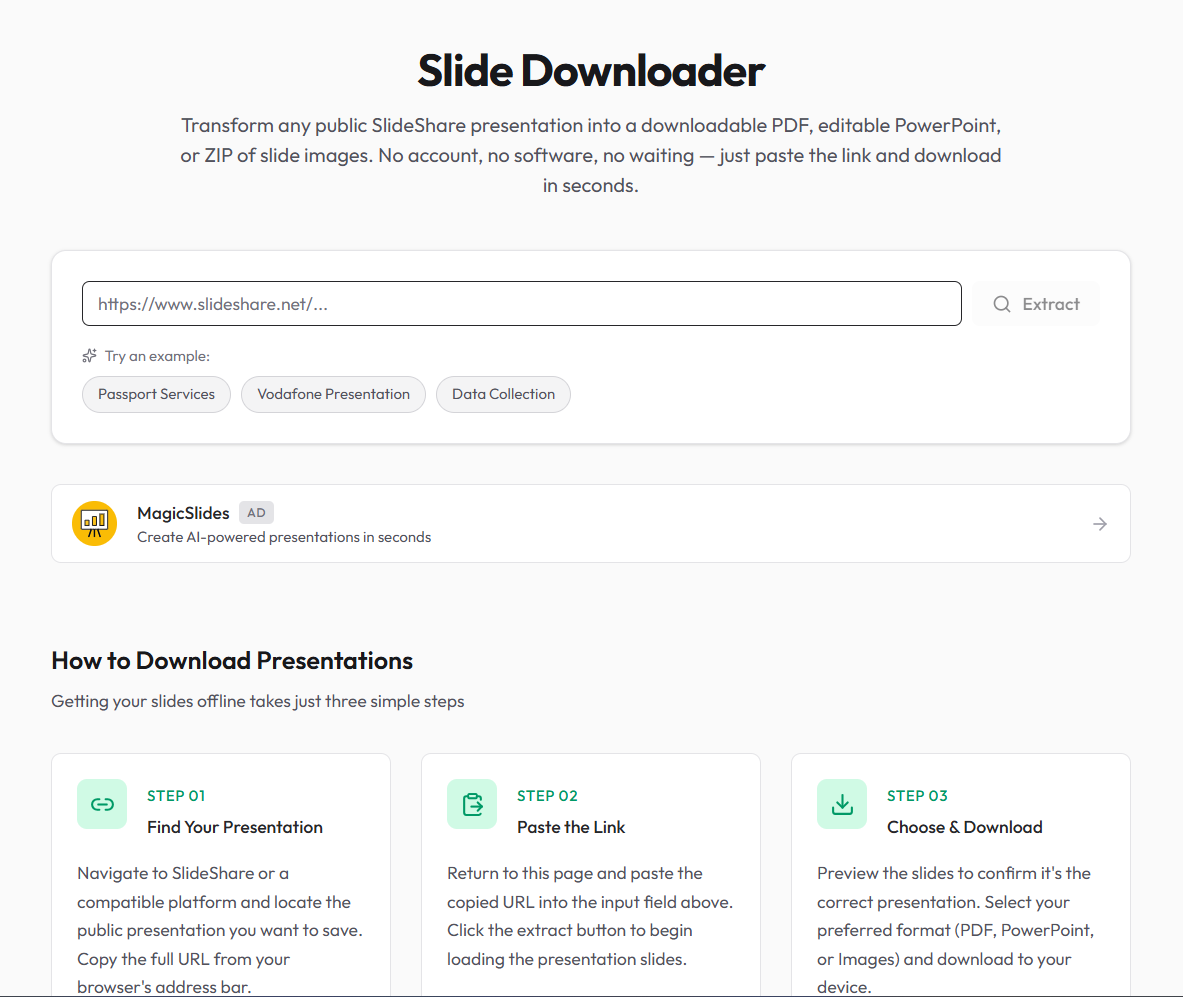
Simply:
Step 1. Open the SlidePlayer presentation.
Step 2. Copy the presentation URL.
Step 3. Paste it into Slide Downloader.
Step 4. Click Download.
Step 5. Save the presentation for offline viewing or editing.
If the presentation owner has enabled downloads on SlidePlayer, you may also be able to download the original PPT or PDF directly from the presentation page.
What is SlidePlayer?
SlidePlayer is an online presentation-sharing platform that allows users to upload, view, and share PowerPoint presentations directly in their web browser. It hosts educational presentations, lecture notes, business reports, training materials, and study guides, making it a popular resource for students, teachers, and professionals.
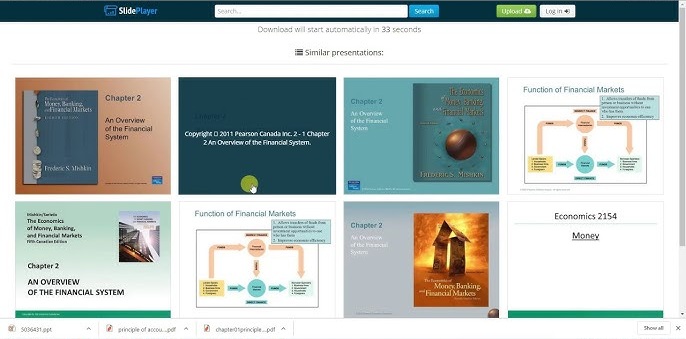
Unlike cloud storage services, SlidePlayer is designed primarily for viewing presentations online. Whether you can download a presentation depends on the permissions set by the original uploader.
Why People Want to Download SlidePlayer Presentations?
There are many reasons users search for how to download SlidePlayer PPT files. The most common reason is offline access. Downloading a presentation allows you to view it anytime without relying on an internet connection.
Students often save lecture slides and study materials for exam preparation, while professionals download training documents, reports, and business presentations for future reference. Having a local copy also makes it easier to organize important files and revisit them when needed.
Another benefit is the ability to edit or customize the presentation. If the file is available in PPT or PPTX format, users can open it in Microsoft PowerPoint or Google Slides and make changes as needed.
For anyone who regularly works with presentation content, being able to save a SlidePlayer presentation can be both convenient and time-saving
How to Download SlidePlayer PPT Online?
SlidePlayer is primarily a presentation viewing platform, and there isn’t a universal built-in way to download every presentation. Whether you can download a PPT file depends on the permissions set by the original uploader.
If the presentation owner has enabled downloads, you may see a Download Presentation button on the presentation page, allowing you to save the original file after completing any required steps. However, many SlidePlayer presentations are available only for online viewing and do not provide a download option.
If you don’t see a download button, Slide Downloader offers a simple alternative for supported presentations. Just copy the SlidePlayer presentation URL, paste it into the downloader, and let the tool process the presentation for you. This saves you from manually capturing individual slides and makes it easier to access your presentation offline. Let’s discuss it step by step in the coming section.
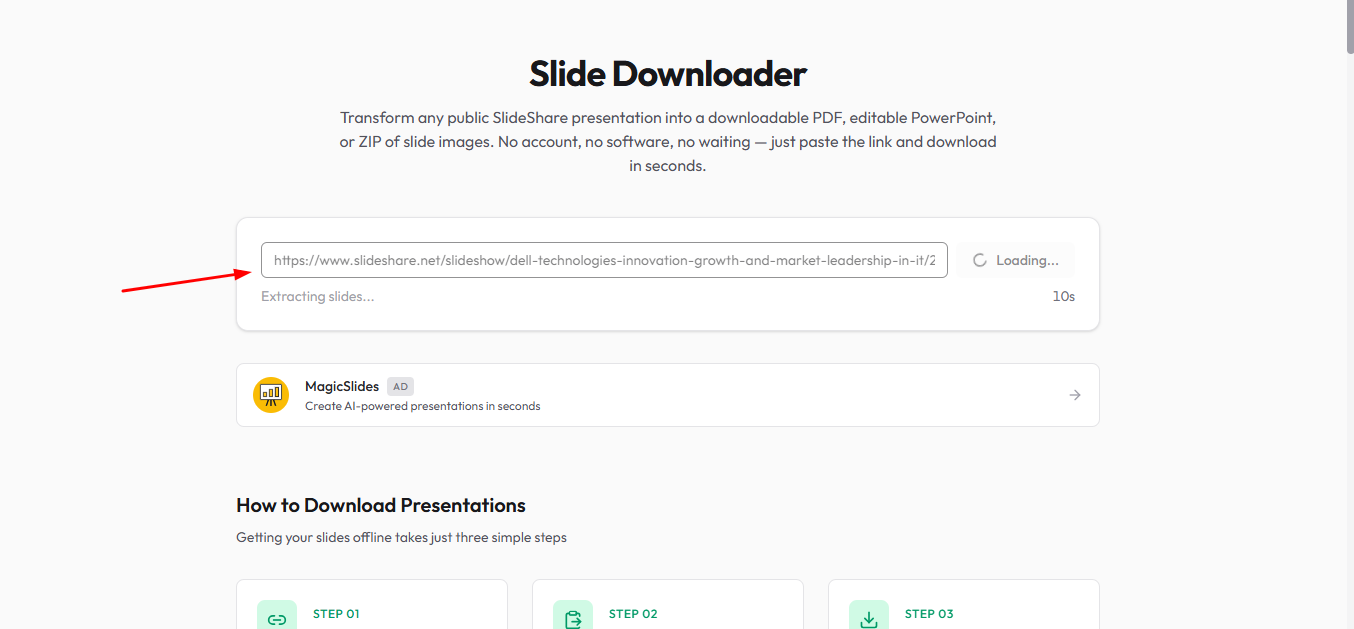
Step 1. Go to SlidePlayer and open the presentation you want to download. Copy the complete URL of the SlidePlayer presentation from your browser’s address bar.
Step 2. Visit Slide Downloader and paste the URL into the search bar below, and click on the Extract button to start the process.
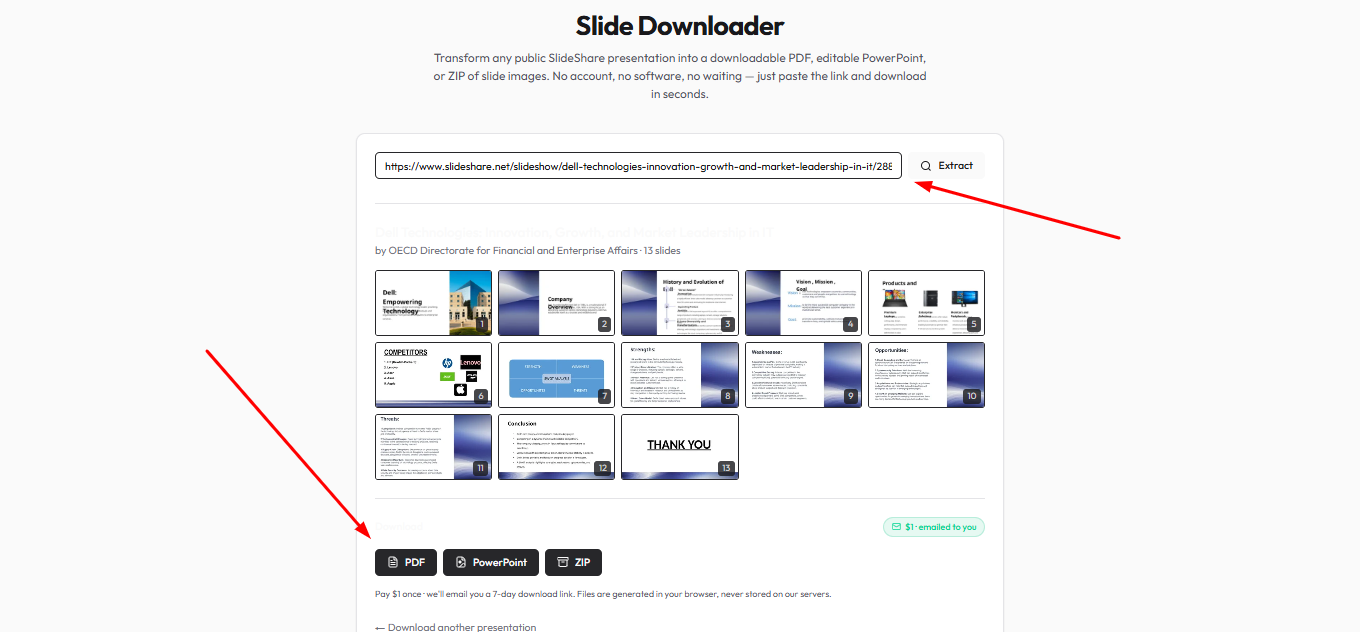
Step 3. Wait while the presentation is processed. Once it’s ready, download the file to your device and open it in Microsoft PowerPoint or Google Slides (if supported) for offline viewing or editing.
Conclusion
Downloading supported SlidePlayer presentations is quick and simple with Slide Downloader. Just copy the presentation URL, paste it into the downloader, and save the presentation for offline access in a few clicks.
Once downloaded, you can continue editing your slides in Microsoft PowerPoint or Google Slides or enhance them further using MagicSlides’ AI presentation tools.
Always ensure you have permission to download and use presentation content, and respect the original creator’s copyright.
FAQs
Q1. Can I download SlidePlayer presentations for free?
Yes, if the presentation owner has enabled downloads, you may be able to download it directly from SlidePlayer. If no download option is available, you can use Slide Downloader to download supported presentations by simply pasting the presentation URL.
Q2. Why can’t I download some SlidePlayer presentations?
Not every SlidePlayer presentation includes a download option. Whether a presentation can be downloaded depends on the permissions set by the original uploader. Many presentations are available only for online viewing.
Q3. How do I download a SlidePlayer PPT online?
The easiest way is to copy the SlidePlayer presentation URL, paste it into Slide Downloader, and click Extract. Once the presentation has been processed, you can download it for offline viewing or editing.
Q4. Can I open downloaded SlidePlayer presentations in PowerPoint?
Yes. If the downloaded presentation is in a PowerPoint-compatible format, you can open and edit it using Microsoft PowerPoint or import it into Google Slides.
Q5. Is it legal to download presentations from SlidePlayer?
It depends on the presentation and its copyright permissions. Always make sure you have permission to download and use the content. Avoid redistributing or using someone else’s presentation commercially without the creator’s consent.
Q6. Does Slide Downloader work with other presentation websites?
Yes. Slide Downloader supports downloading presentations from multiple supported presentation-sharing platforms, making it easy to save presentations from different sources using a single tool.


