How to Star a slide in Microsoft PowerPoint in few simple steps


While creating presentations, we need to highlight a particular slide, so we need to add a mark that stands out from the rest, here’s a simple guide..
We can't exactly star a slide like we would in some other applications to mark it as important or favorite. We can achieve a similar effect by using the Slide Sorter view and adding a visual indicator.
Step 1: Open Slide Sorter View:
- Open your PowerPoint presentation.
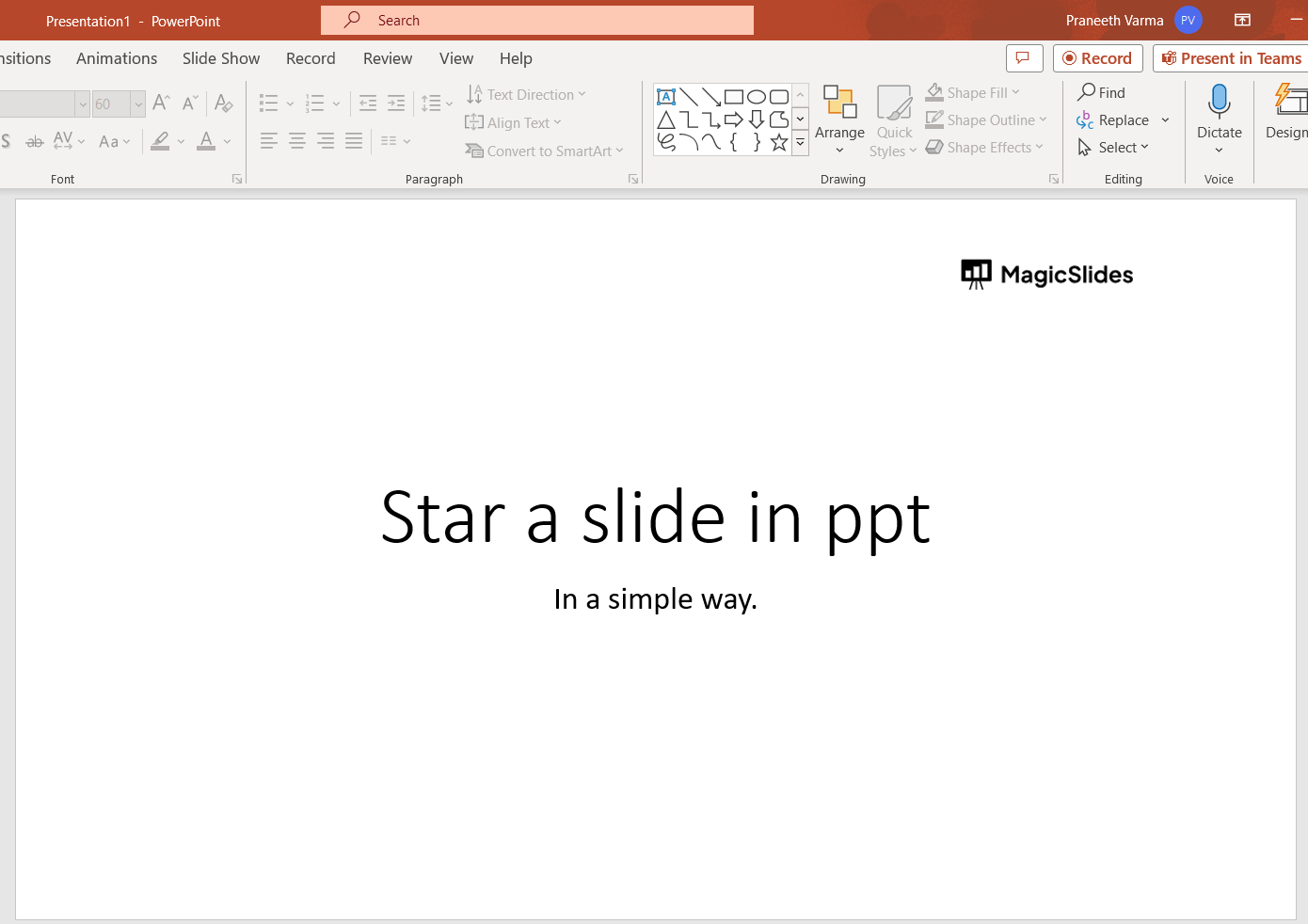
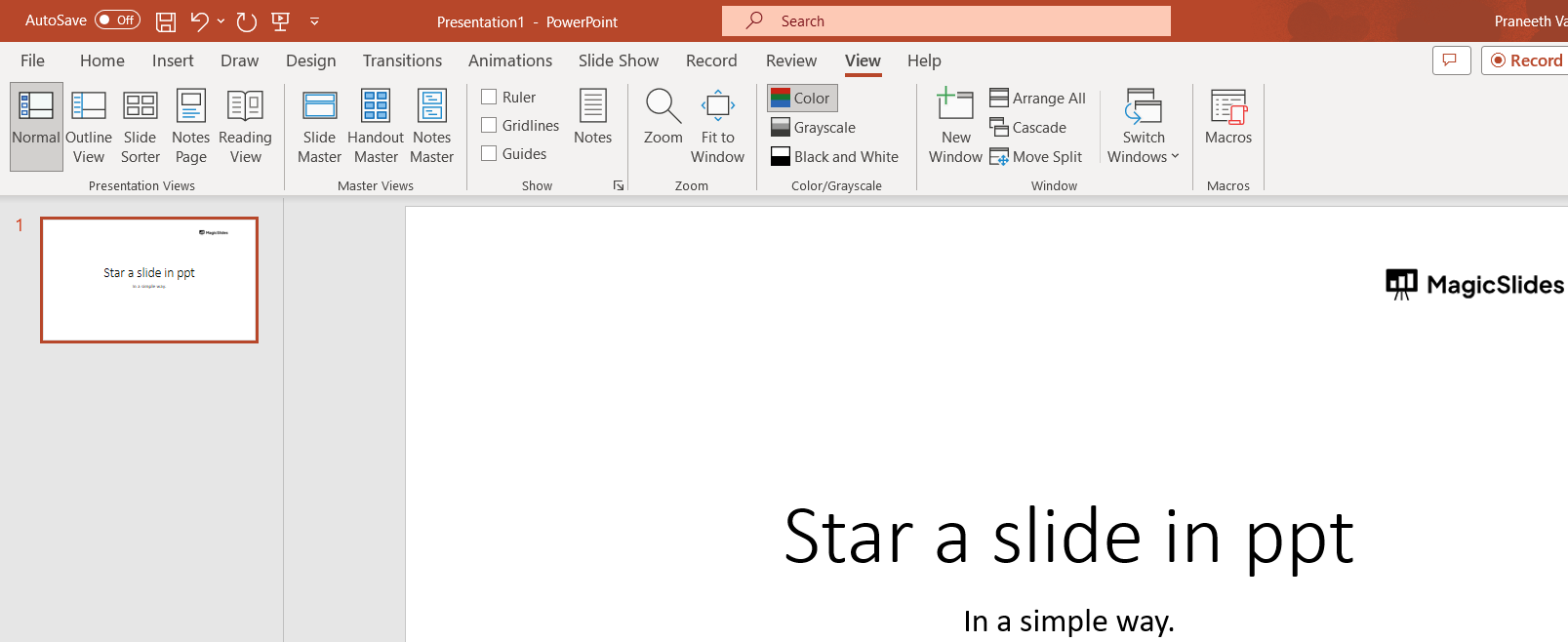
- Click on the "View" tab in the ribbon at the top.
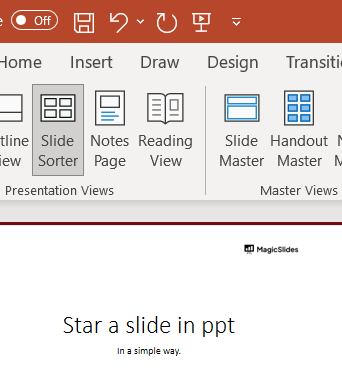
- Select "Slide Sorter" from the View options.
Step 2: Add a Star Shape or Icon:
- In the Slide Sorter view, locate the slide you want to highlight.
- Click on the slide to select it.
- Now you can use the "Insert" tab in the ribbon to insert a star shape, icon, or any other visual element that you want to use as a marker. You can also copy and paste an image or shape you have created elsewhere.
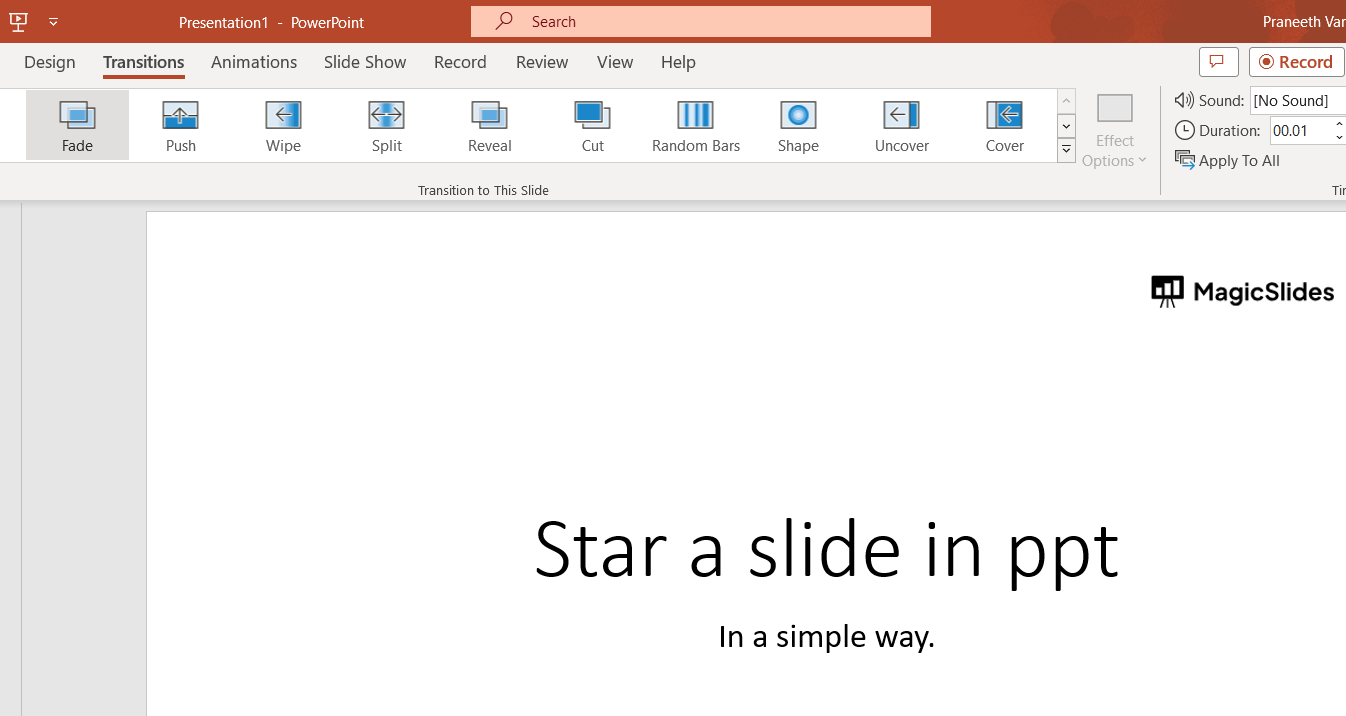
- Position the star shape or icon on the slide in a visible location. If it is not available to Star a slide in ppt then you can choose transitions and add any one to get it highlighted.
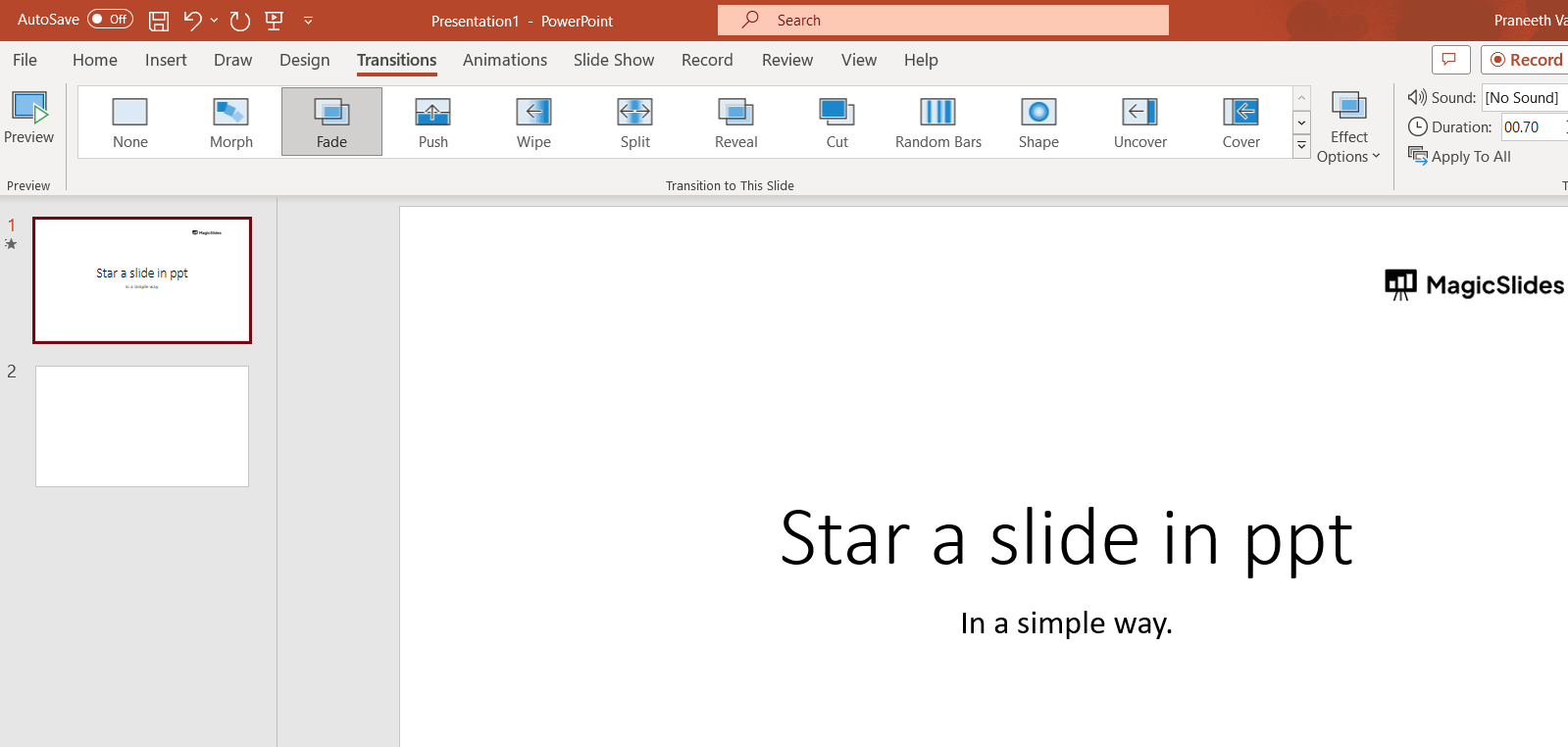
Step 3: Copy the Indicator to Other Slides (Optional):
- If you want to mark multiple slides, you can copy the star shape or icon you added and paste it onto other slides.
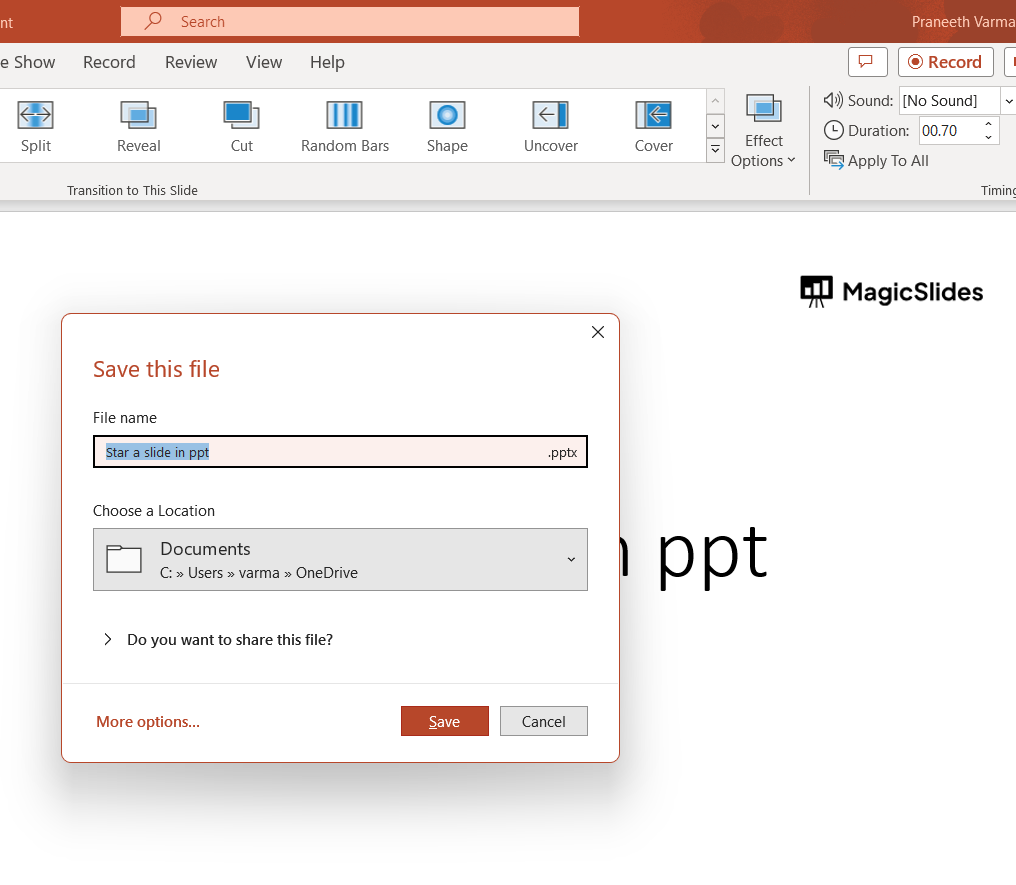
Step 4: Save Your Changes:
- Once you've added the star indicators to the slides you want to highlight, you can save your presentation.
Please note that the Slide Sorter view is a convenient way to see all your slides at once and make visual adjustments. However, this approach doesn't create an official "starred" status for slides. It's more of a manual visual aid for you as the creator.
If you're looking for a more formal way to manage the importance or sequence of slides, you might consider using features like slide numbering, section headers, or custom animations to draw attention to specific slides.


