Tips for Designing Presentations for Non-Designers


Create professional presentations effortlessly with these expert tips for non-designers. Learn how to use MagicSlides.app for instant AI-generated slides.
Creating an engaging and visually appealing presentation is a skill that many people struggle with, especially if they don't have a background in design. However, with the right approach and tools, even non-designers can craft professional and compelling presentations. This guide will provide you with essential tips for designing presentations effectively and introduce you to MagicSlides.app, an AI-powered tool that simplifies the process.
Why Good Presentation Design Matters
A well-designed presentation can make a huge difference in how your audience perceives your message. Whether you're delivering a business proposal, an academic presentation, or a sales pitch, clear and visually engaging slides can enhance understanding, retention, and impact. Poorly designed slides, on the other hand, can confuse your audience and reduce engagement.
Essential Tips for Designing Presentations for Non-Designers
If you're not a designer, don't worry! Follow these simple yet effective guidelines to create professional-looking presentations:
1. Keep It Simple
The golden rule of presentation design is simplicity. Avoid overcrowding your slides with too much text, unnecessary visuals, or excessive animations. A clean and minimalist approach ensures that your key points are easy to follow.
💡 Tip: Use one key idea per slide to maintain clarity.
2. Choose a Consistent Theme
Using different colors, fonts, and styles in every slide can make your presentation look messy and unprofessional. Stick to a single theme or template to maintain consistency.
💡 Tip: Most presentation tools, including Google Slides, PowerPoint, and MagicSlides.app, offer pre-designed templates that ensure visual consistency.
3. Use High-Quality Images and Graphics
Visuals enhance engagement and understanding. However, low-quality or irrelevant images can make your presentation look unprofessional.
✅ Use:
- High-resolution images
- Icons and illustrations for clarity
- Simple charts and graphs
❌ Avoid:
- Pixelated or stretched images
- Overloaded infographics
- Distracting stock photos
💡 Tip: Use free image resources like Unsplash or Pexels, or leverage MagicSlides.app, which includes image sourcing from Google.
4. Limit Text and Use Bullet Points
Slides should not be overloaded with text. Instead, use bullet points to break down information into digestible pieces.
Example:
❌ Bad Slide:
"The history of artificial intelligence dates back to the 1950s when researchers first began exploring machine learning. Over the years, various breakthroughs such as neural networks, deep learning, and natural language processing have revolutionized the field, leading to AI's integration in different industries today."
✅ Good Slide:
History of AI:
- Originated in the 1950s
- Key advancements: Machine learning, deep learning, NLP
- Widely adopted in multiple industries today
💡 Tip: If you need to provide detailed explanations, use speaker notes instead of overloading slides with text.
5. Select Readable Fonts and Sizes
Your audience should be able to read the text without straining their eyes.
✅ Best font choices:
- Sans-serif fonts (Arial, Helvetica, Roboto) for modern, clean look
- Font size: Headings (28-36 pt), body text (18-24 pt)
❌ Avoid:
- Decorative or script fonts
- Too many font styles in one presentation
6. Use Colors Wisely
Color can make your presentation visually appealing, but too many colors can be distracting. Stick to a primary color palette (2-3 colors max).
✅ Best practices:
- Use contrasting colors for text and background (e.g., dark text on a light background)
- Follow brand colors if presenting for a business
- Use bold colors sparingly for emphasis
7. Keep Animations and Transitions Minimal
Excessive transitions and animations can make your presentation look unprofessional and distracting. Use subtle effects like fade-in or appear when necessary.
💡 Tip: Avoid using animations on every slide—only apply them where they enhance understanding.
How to Instantly Generate a Presentation Using MagicSlides.app
If you find designing a presentation from scratch overwhelming, MagicSlides.app can save you time and effort. It is an AI-powered tool that helps users create professional presentations in just a few clicks.
Steps to Use MagicSlides.app:
- Visit MagicSlides.app
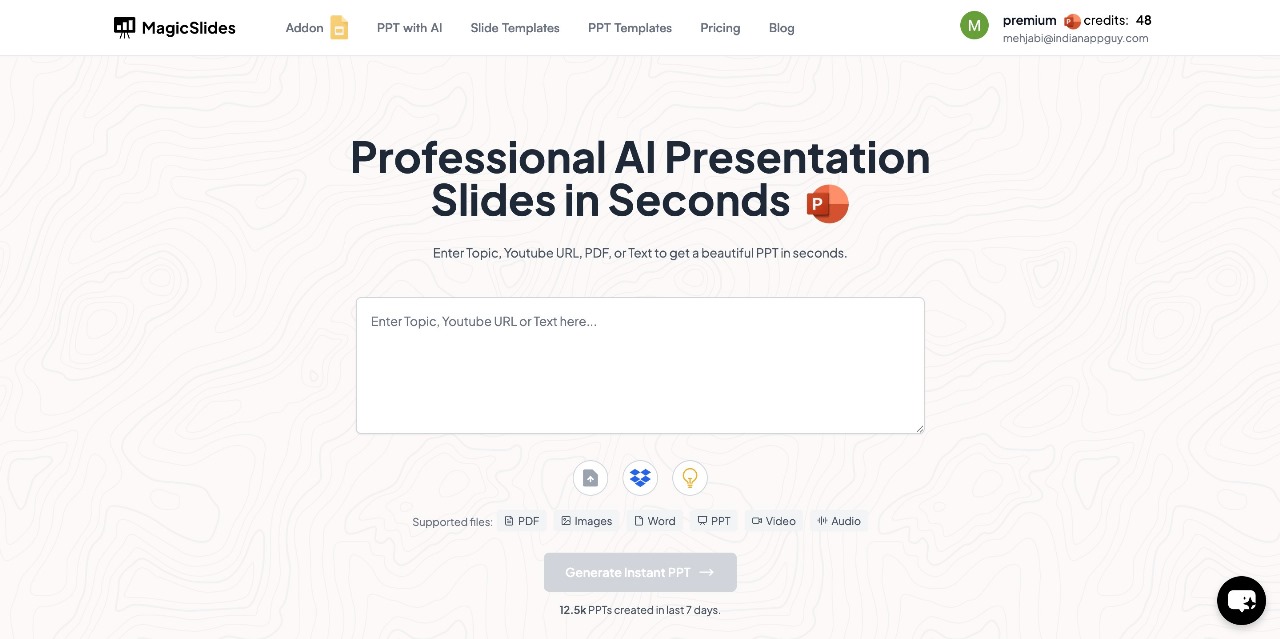
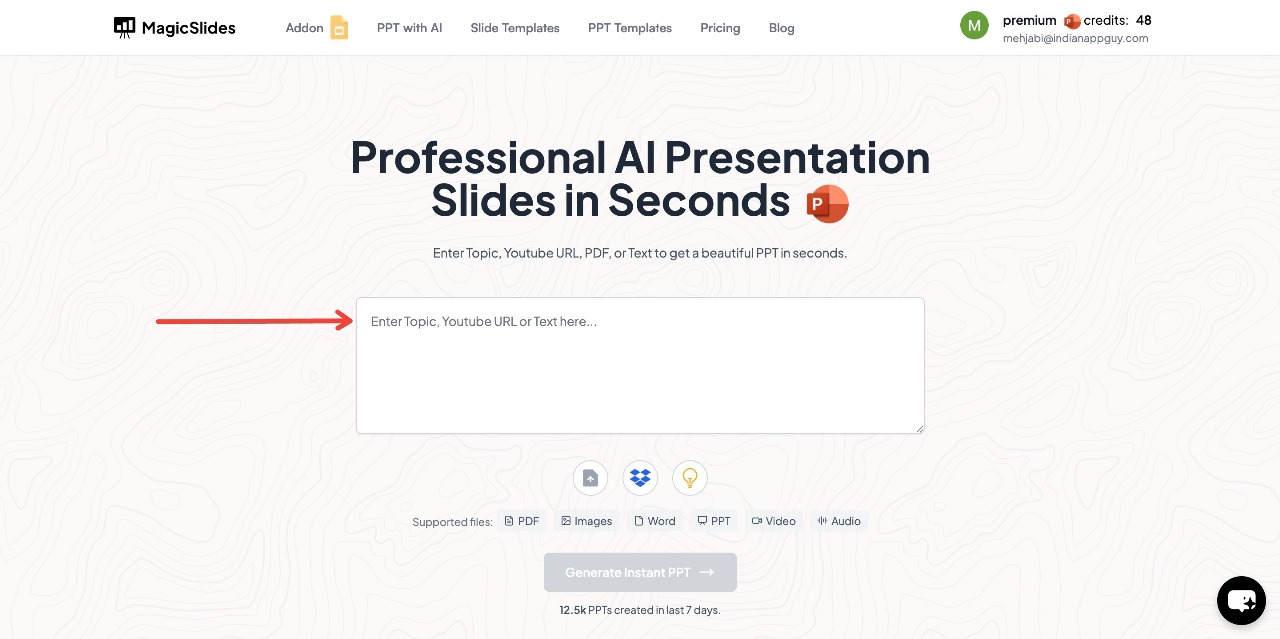
- Enter your topic in the given space
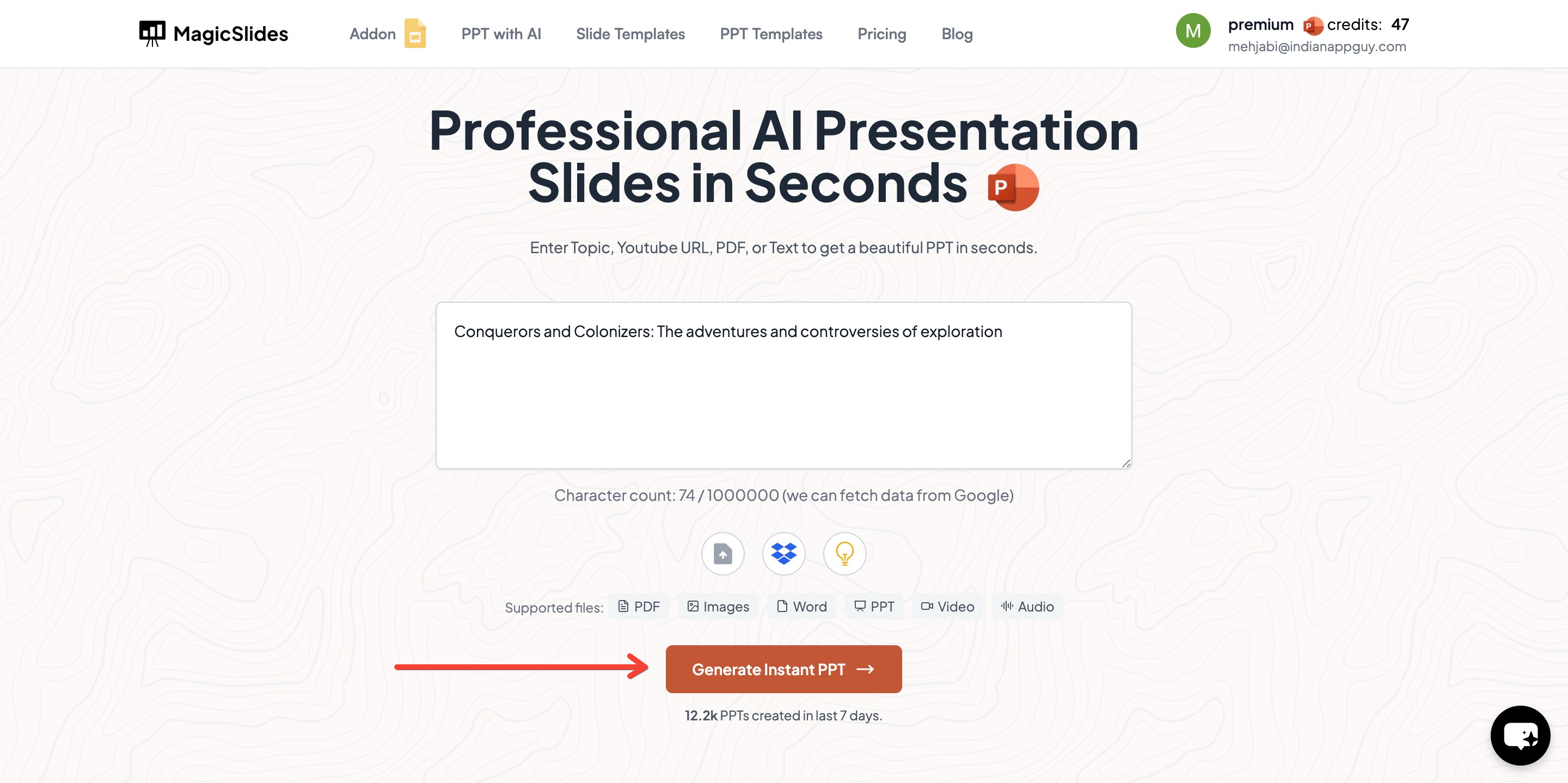
- Click "Generate Instant PPT"
- Choose your template and number of slides as prompted
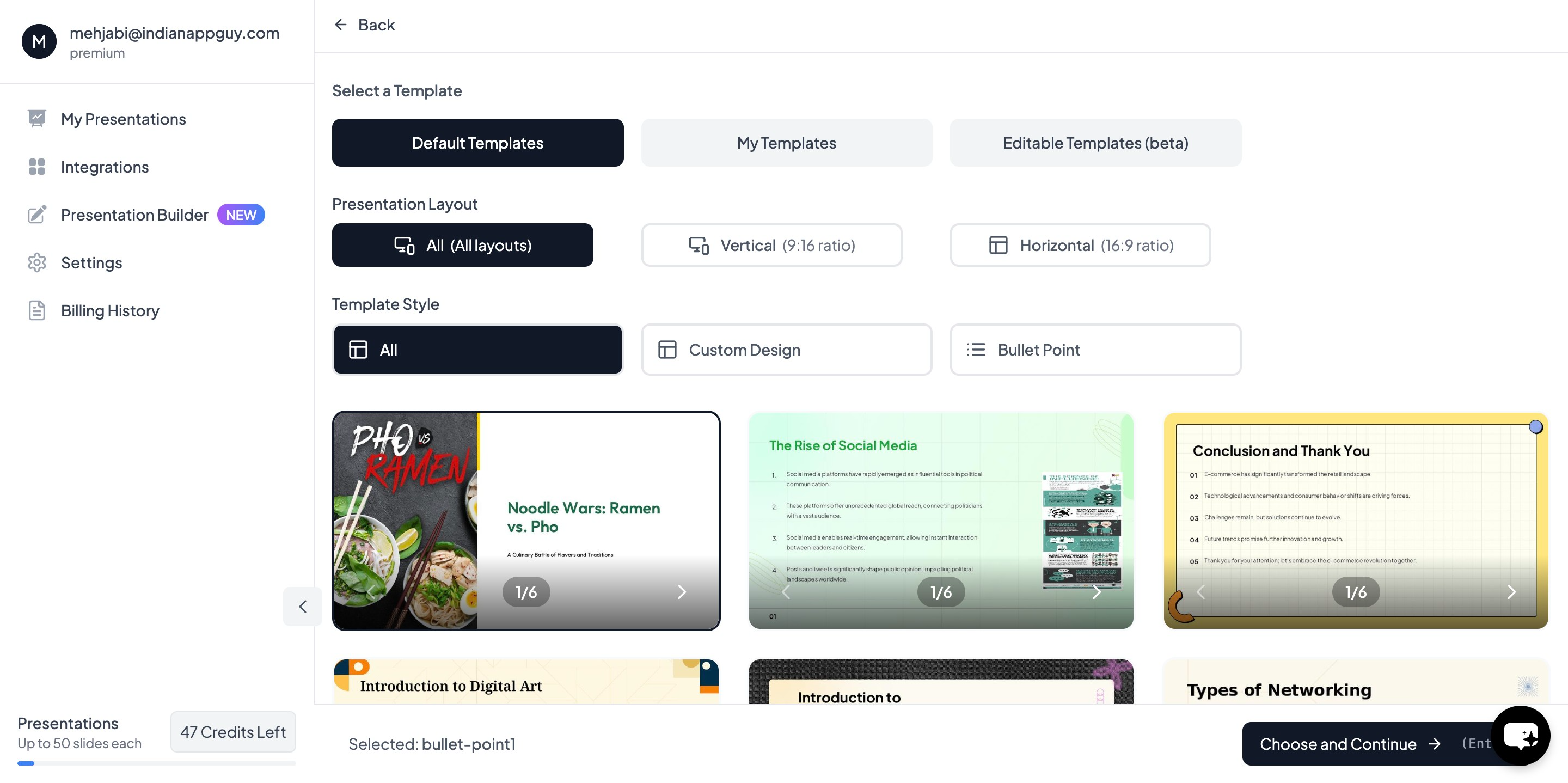
- Click "Start Generation" – The AI will process your input and begin creating slides.
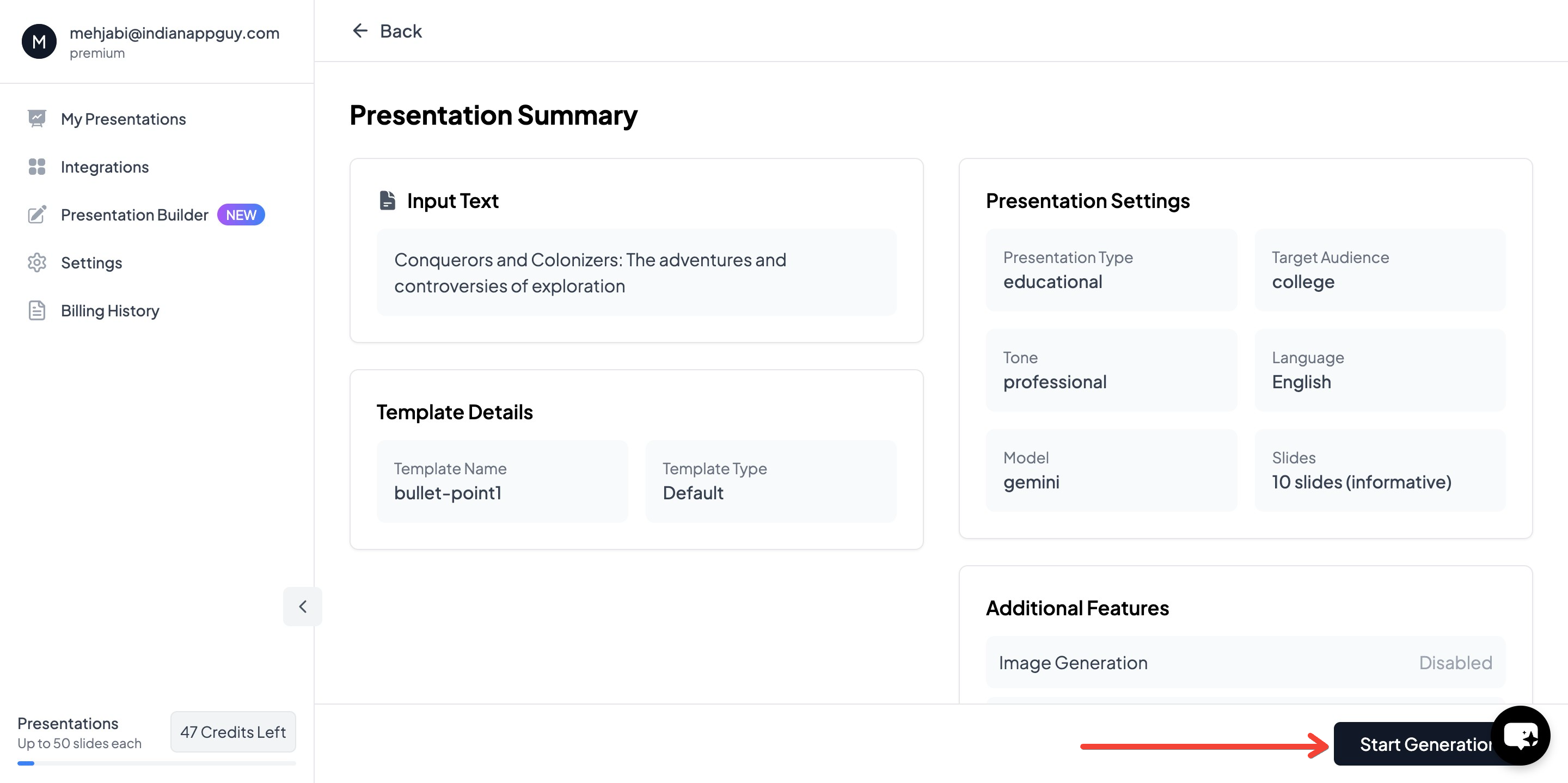
- Your Presentation is Ready – Within seconds, your AI-generated PowerPoint will be complete with structured content and relevant images.

💡 Bonus: MagicSlides integrates with Google Slides and supports multiple formats, including PDF and video conversion.
MagicSlides.app Pricing & Features
MagicSlides offers three pricing plans that cater to different user needs:
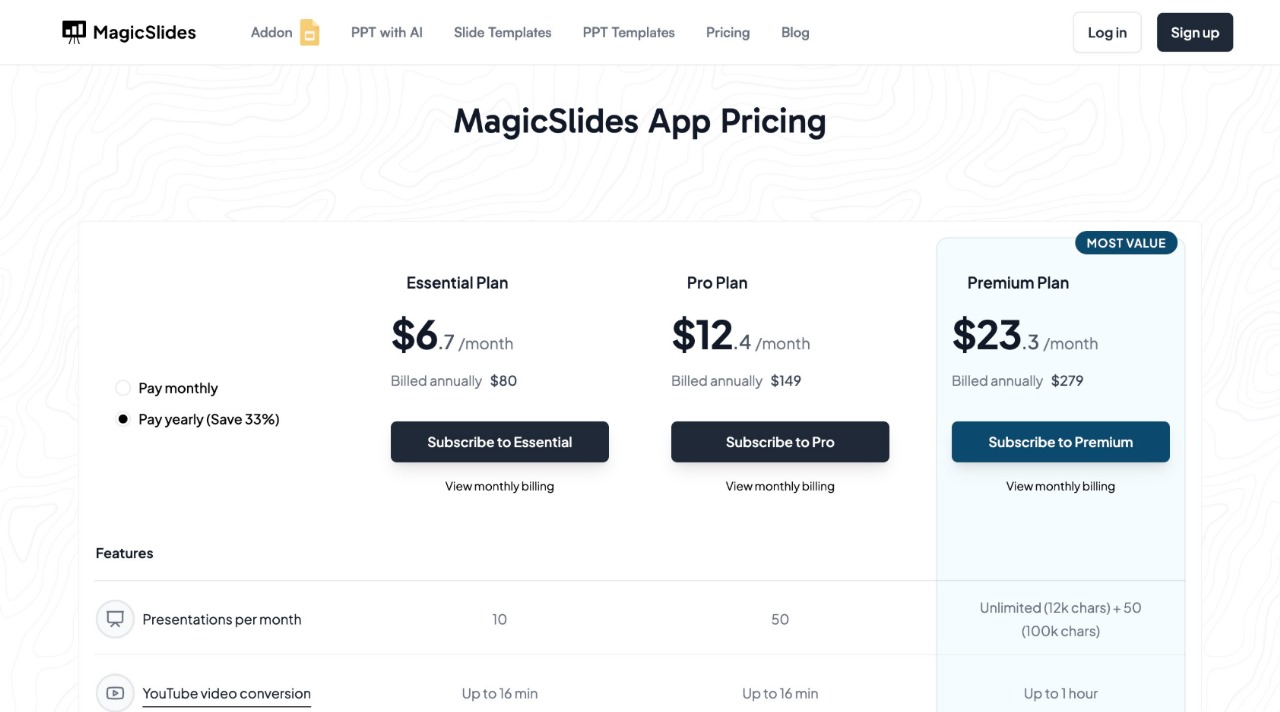
Not sure which plan suits you? Try the MagicSlides plan calculator to find the best fit.
Conclusion
Designing presentations doesn’t have to be a daunting task, even if you’re not a designer. By following simple design principles—keeping it clean, using high-quality visuals, choosing readable fonts, and avoiding clutter—you can create effective and professional presentations.
However, if you’re short on time or need an AI-powered solution, MagicSlides.app can help you create stunning presentations instantly. With flexible pricing plans and powerful features, it's a great tool for students, business professionals, and educators alike.
Try MagicSlides.app today and transform the way you create presentations!


