Which view in PowerPoint allows you to modify the Layout and Formatting of Individual Slides?


Learn how to modify slide layouts and formatting in PowerPoint using the powerful Slide Master view
In PowerPoint, the ability to customize the layout and formatting of individual slides is essential for creating a visually appealing and coherent presentation.
PowerPoint offers several different views, each designed for specific tasks, but one view stands out when it comes to modifying slide layouts and formatting: the Slide Master view.
This powerful tool allows you to make consistent design changes across your presentation while also giving you the flexibility to modify individual slides.
In this blog post, we’ll guide you through how to use the Slide Master view in PowerPoint to customize your slides effectively.
Which view in powerpoint allows you to modify the layout and formatting of individual slides
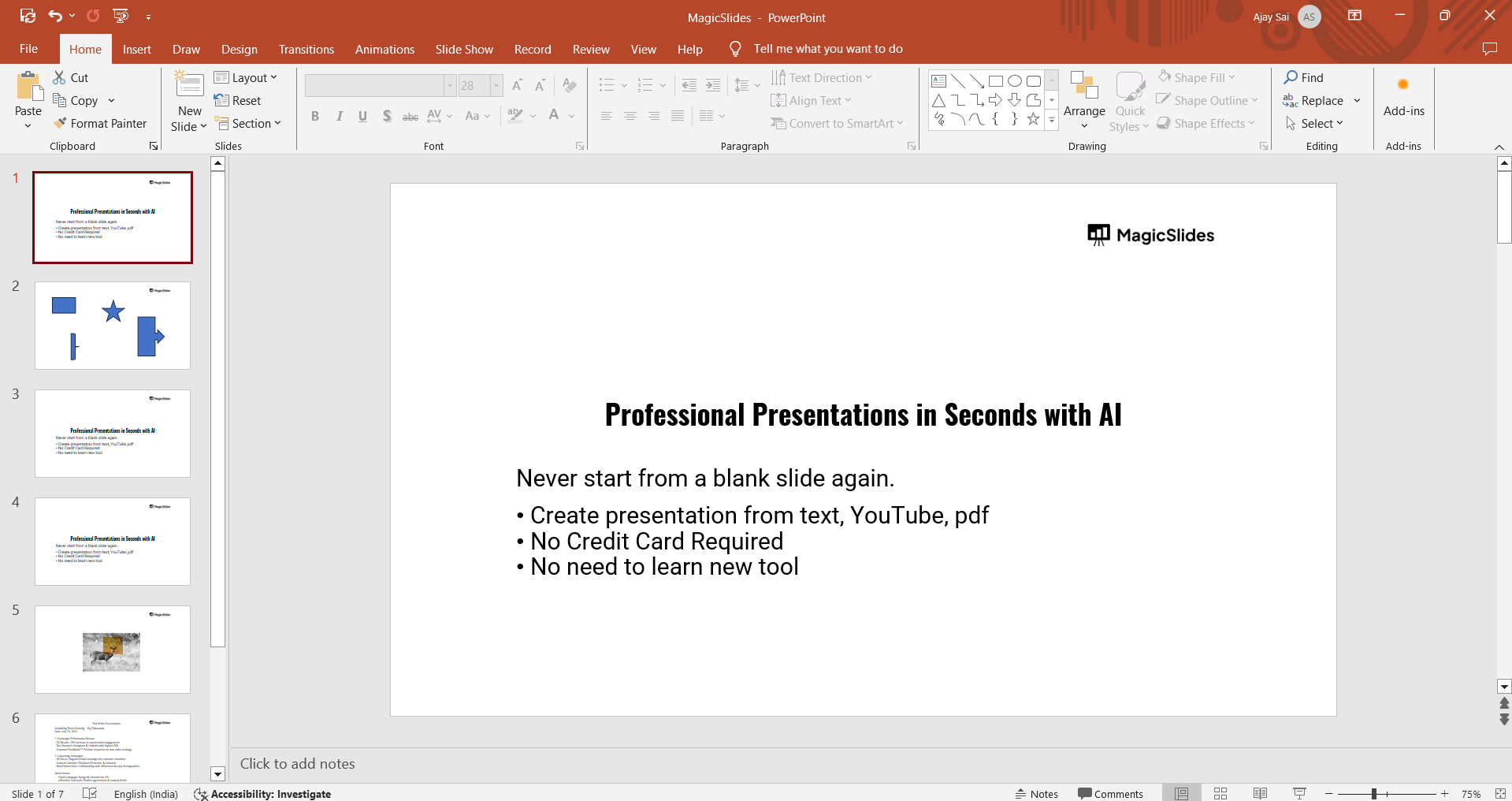
Step 1: Open PowerPoint and Your Presentation
Start by opening Microsoft PowerPoint and the presentation you wish to edit. You can open an existing presentation or create a new one by selecting "Blank Presentation."
Step 2: Access the Slide Master View
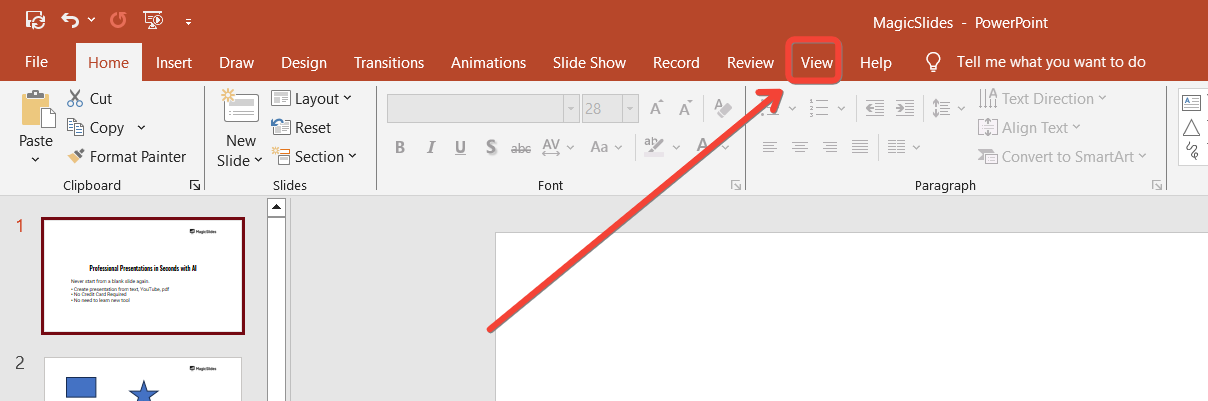
To modify the layout and formatting of your slides, you need to enter Slide Master view. Go to the "View" tab on the PowerPoint ribbon at the top of the screen.
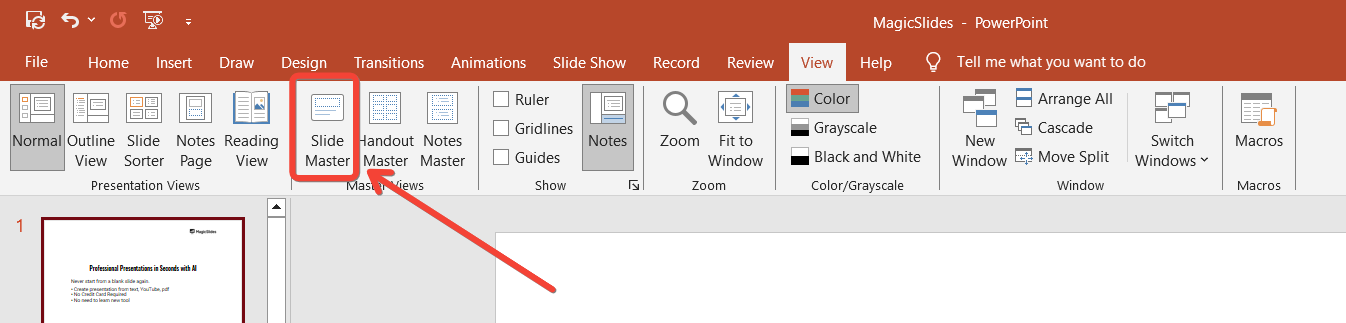
In the "Master Views" group, click on "Slide Master."
This will open the Slide Master view, where you can see all the slide layouts used in your presentation.
Step 3: Select a Slide Layout to Modify
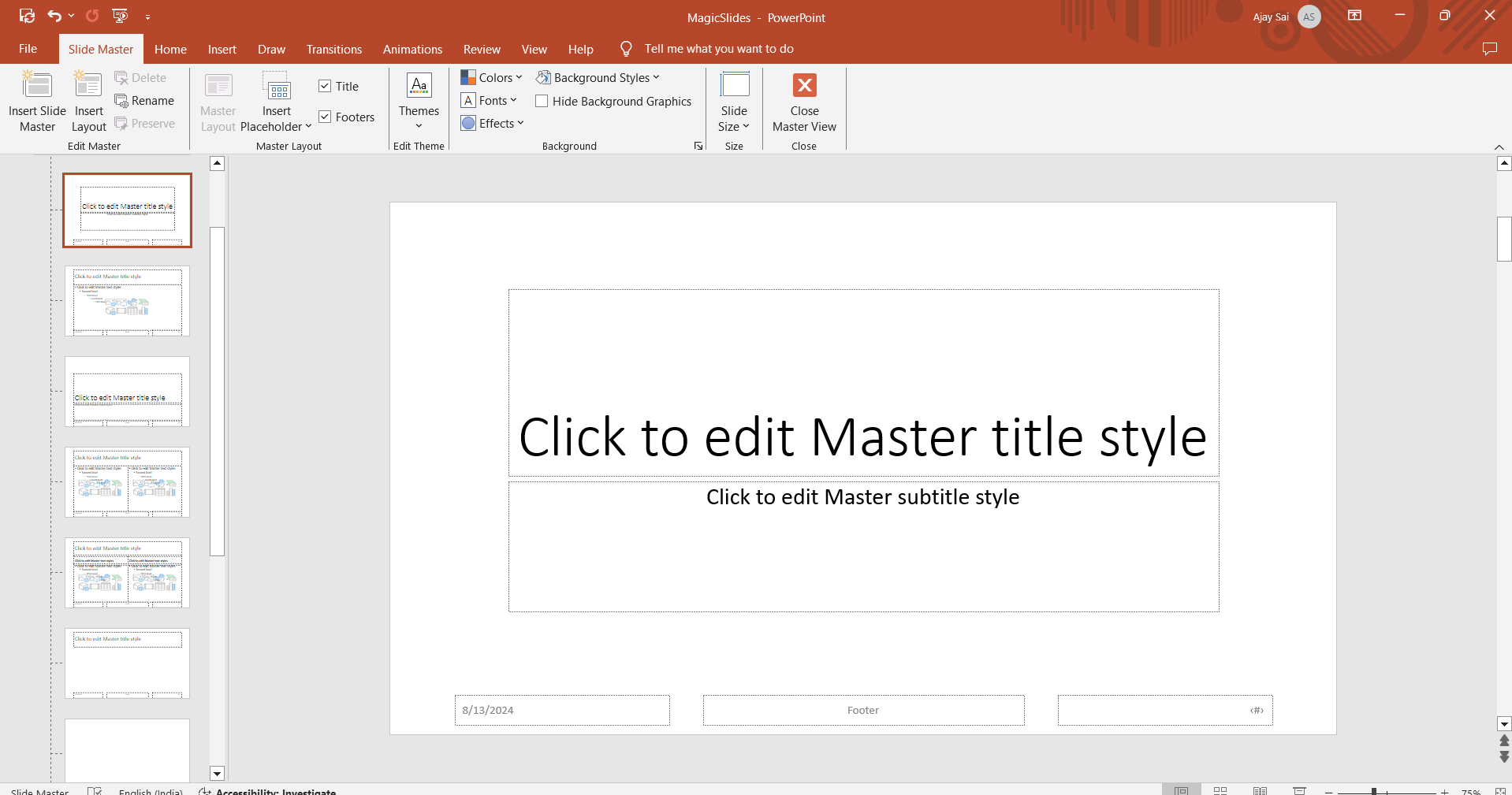
In Slide Master view, you’ll see a hierarchy of slide layouts on the left side of the screen.
The top slide represents the master slide, which controls the overall design, while the slides beneath it represent individual layouts.
Click on the layout you want to modify to start making changes.
Step 4: Customize the Slide Layout
Now that you’ve selected a layout, you can modify its design and formatting.
This includes changing the background, adjusting fonts, resizing placeholders, and adding or removing elements like images, logos, or text boxes.
These changes will apply to all slides using this particular layout.
For example:
- Changing Background Color: Click on the "Background Styles" button in the Slide Master tab and choose a new background color.
- Adjusting Fonts: Highlight the text in the placeholders and use the font options in the toolbar to change the font type, size, and color.
- Adding a Logo: Insert an image or logo by going to the "Insert" tab and selecting "Picture." Position it where you want it on the slide layout.
Step 5: Close the Slide Master View
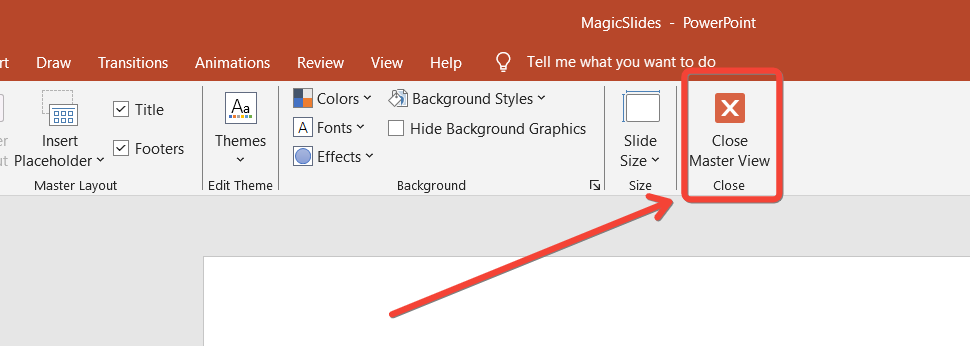
Once you’ve made your changes, exit the Slide Master view by clicking on the "Close Master View" button in the Slide Master tab.
This will return you to the normal slide view, where you can see how your changes have been applied to individual slides in your presentation.
Step 6: Review and Fine-Tune Individual Slides
After exiting Slide Master view, review your slides in the normal view to ensure the layout and formatting changes are applied correctly.
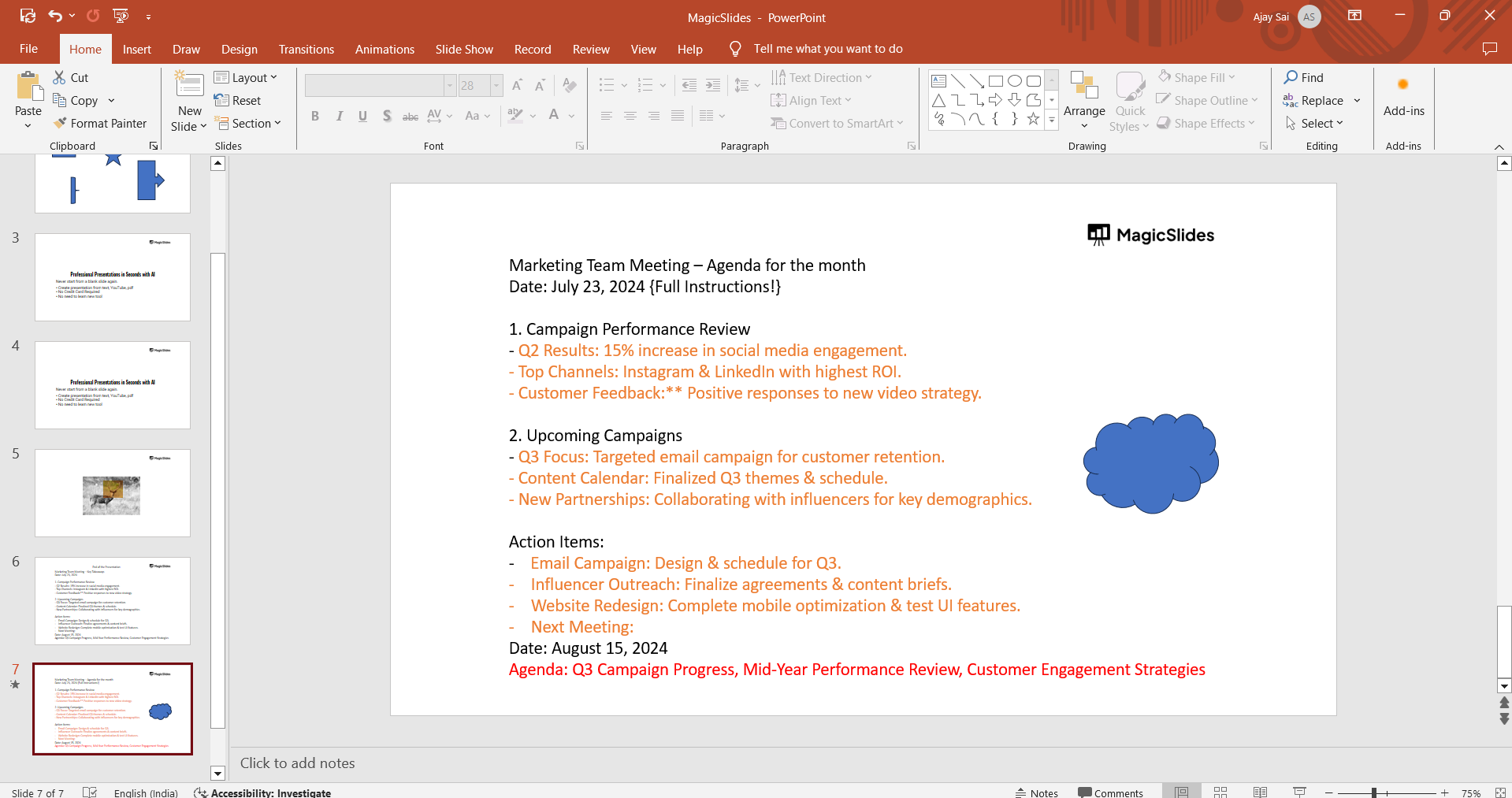
You can still make additional tweaks to individual slides if needed, without affecting the overall slide layout.
Conclusion
Using Slide Master view in PowerPoint is an effective way to modify the layout and formatting of individual slides while maintaining consistency throughout your presentation.
By following these steps, you can customize your slides to better align with your design preferences and presentation goals.
Whether you’re updating a single slide layout or the entire presentation, the Slide Master view provides the tools you need to create a polished and professional final product.
Tired of maing presentations? what if we tell you you can make presentation with just a prompt, convert YouTube videos to PPTs, convert website content to PPTs? Yes! checkout magicslides.app that does all and enjoy the free credits to make presentations in seconds.
FAQs can take you forward!
What is Slide Master view in PowerPoint?
Slide Master view allows you to modify the layout and formatting of multiple slides simultaneously.
Will changes in Slide Master affect all slides in my presentation?
Yes, changes in Slide Master apply to all slides that use the modified layout.
Can I customize individual slides after using Slide Master?
Yes, you can still make additional changes to individual slides after exiting Slide Master view.


