What controls all the main slide control tasks for your Presentation


PowerPoint’s Slide Master controls all main slide tasks, ensuring consistency and efficiency in your presentation.
When creating and managing a PowerPoint presentation, understanding what controls all the main slide tasks is crucial for maintaining consistency and efficiency.
The Slide Master is the key feature in PowerPoint that allows you to control the main slide design and layout tasks across your entire presentation.
By using the Slide Master, you can ensure that your presentation has a uniform look and feel, making it easier to manage and update slides as needed.
In this blog post, we'll guide you through the steps to access and use the Slide Master, so you can effectively control all the main slide tasks in your presentation.
What controls all the main slide control tasks for your Presentation
Step 1: Open PowerPoint and Your Presentation
Start by opening Microsoft PowerPoint on your computer and loading the presentation you want to work on.
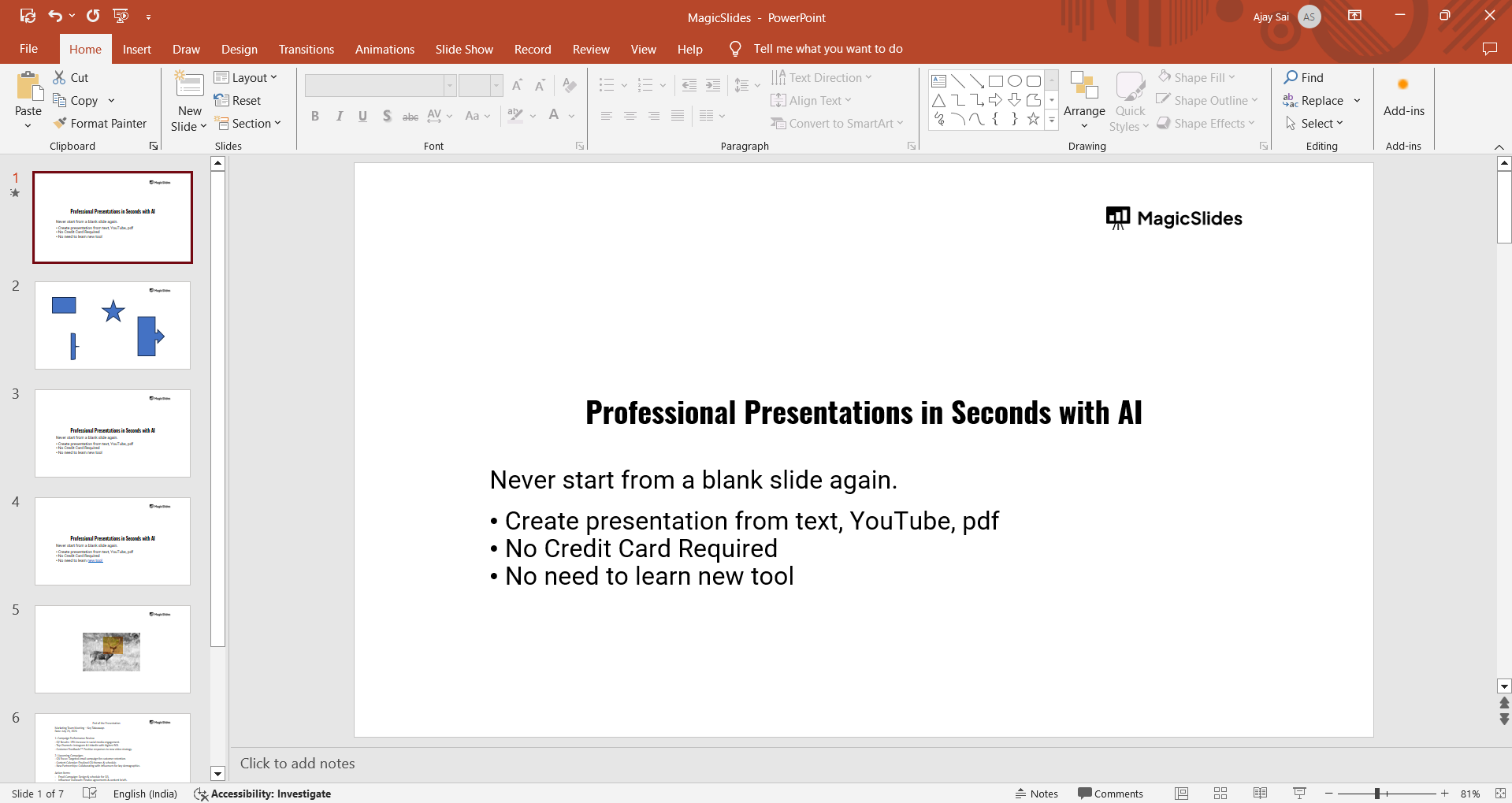
You can do this by searching for "PowerPoint" in your Start menu or clicking on the PowerPoint icon if it's pinned to your taskbar.
Once PowerPoint is open, select the presentation file from your recent files or use the "Open" option in the "File" menu.
Step 2: Access the Slide Master
To access the Slide Master, go to the "View" tab in the PowerPoint ribbon. In the "Master Views" group, click on "Slide Master."
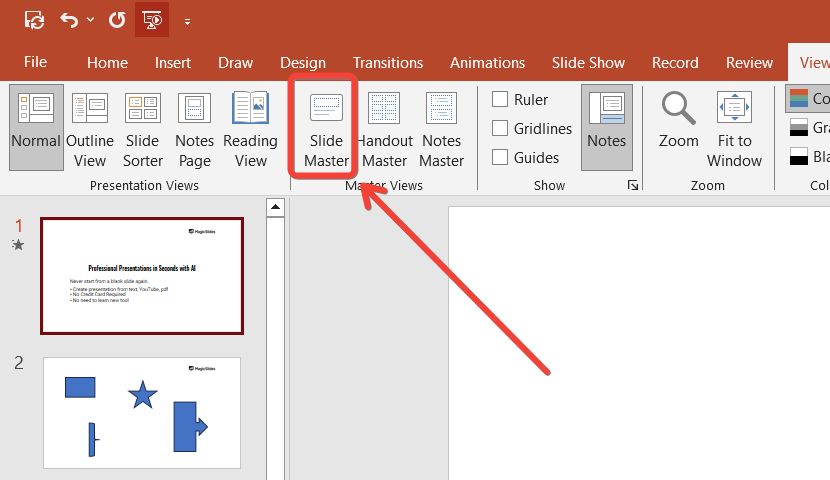
This will open the Slide Master view, displaying a list of slide layouts on the left side of the screen.
Step 3: Understand the Slide Master Layout
The Slide Master view consists of the main Slide Master at the top and several associated slide layouts below it.
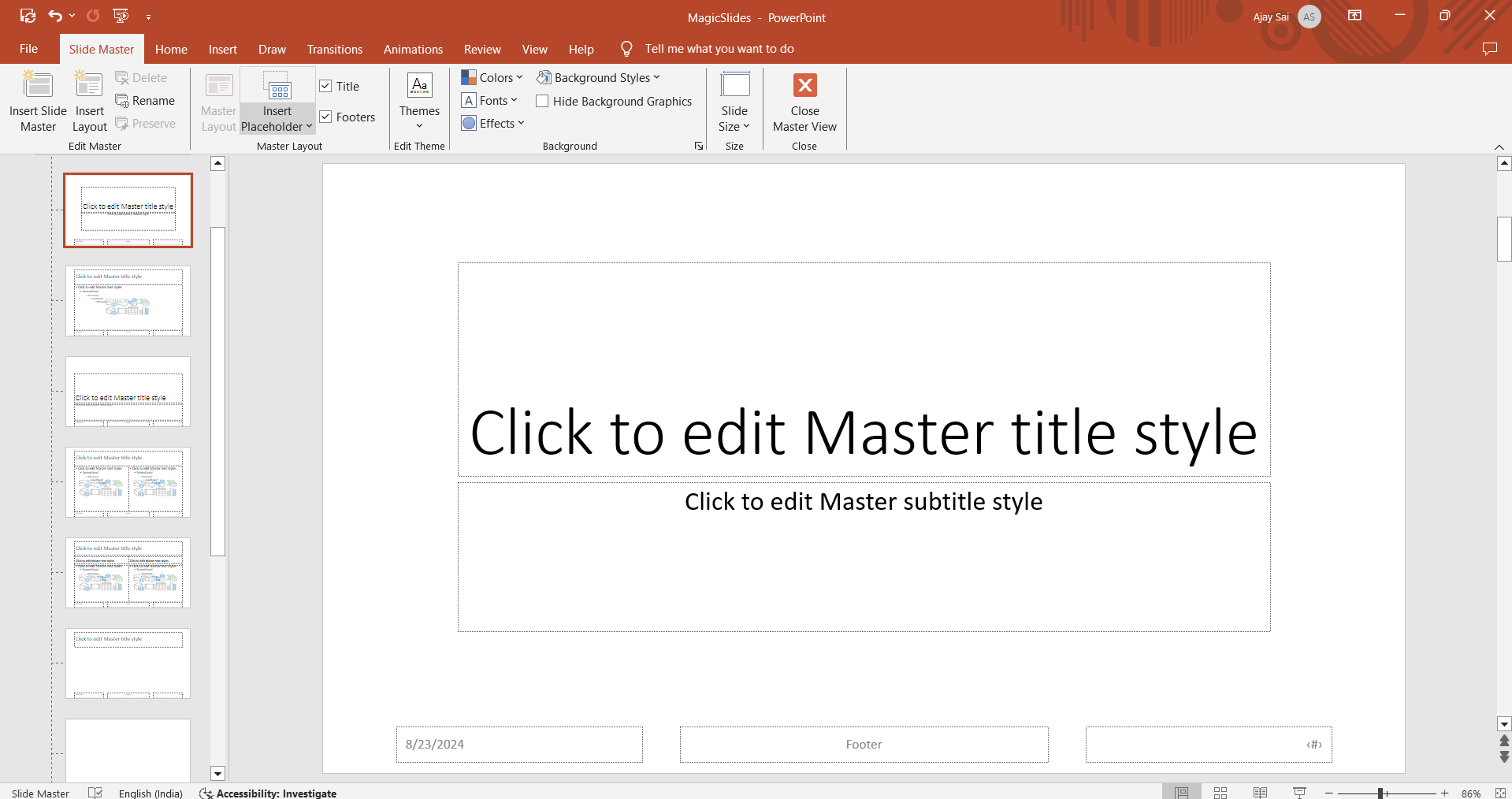
The main Slide Master controls the overall design, including background, fonts, colors, and placeholders.
The slide layouts inherit these settings but can be customized for specific slide types like title slides, content slides, and more.
Step 4: Customize the Slide Master
You can customize the Slide Master by making changes to the overall design, such as modifying the background, changing the font style, or adjusting the color scheme.
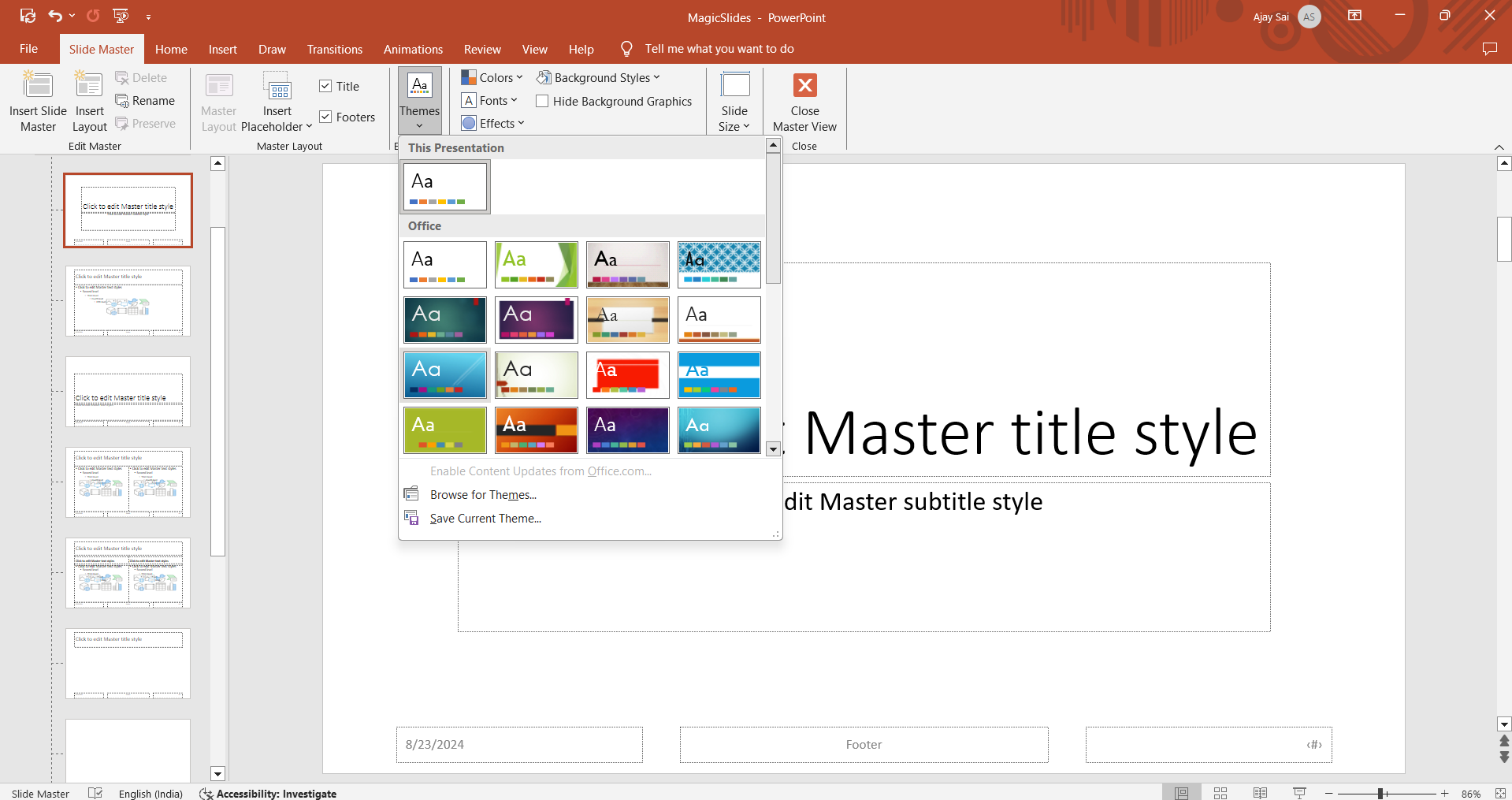
Any changes made to the Slide Master will automatically apply to all slides in your presentation that use the associated layouts.
This ensures consistency across your entire presentation.
Step 5: Modify Individual Slide Layouts
If you need specific slides to have a unique look, you can modify individual slide layouts under the main Slide Master.
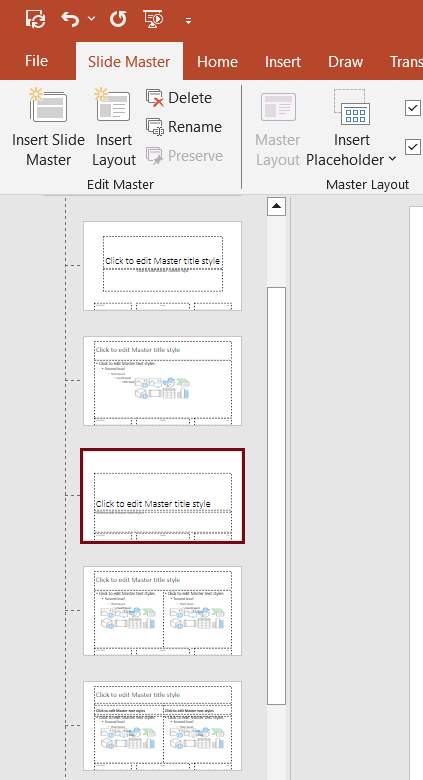
For example, you might want your title slide to have a different background or font than your content slides.
Simply click on the layout you want to customize and make the desired changes. These changes will apply only to slides that use this particular layout.
Step 6: Exit the Slide Master View
Once you've made all the necessary changes, exit the Slide Master view by clicking the "Close Master View" button in the Slide Master tab.
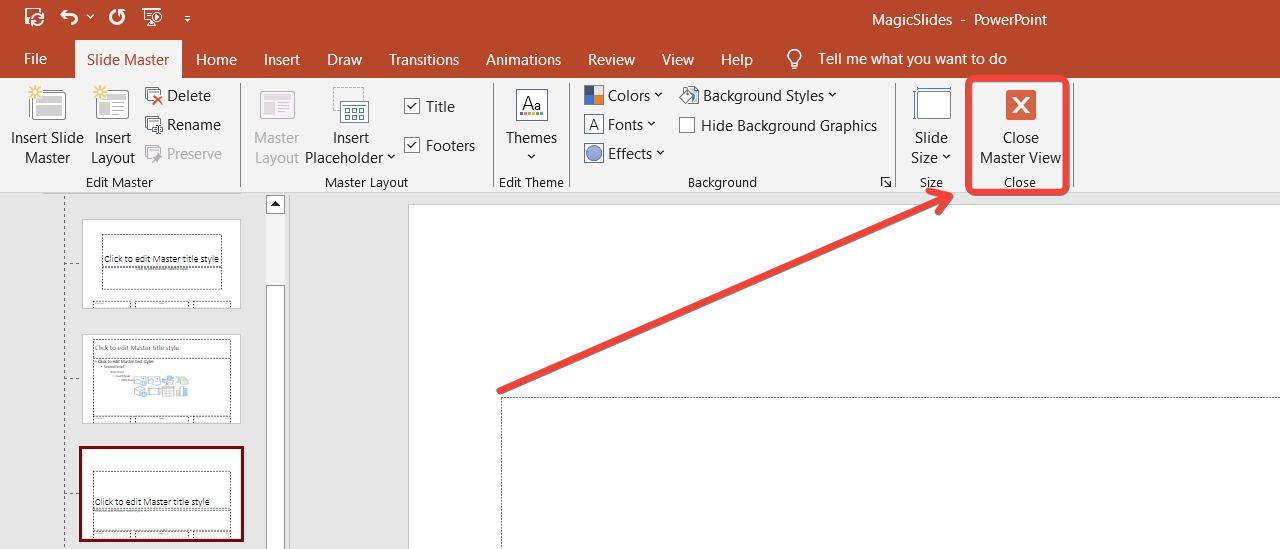
This will take you back to the standard slide editing view, where you can see the changes reflected across your slides.
Discover how an appendix enhances presentations by offering in-depth, organized support data without cluttering main content.
Step 7: Apply Slide Layouts to Your Presentation
Now that your Slide Master and layouts are set up, you can apply them to your presentation.
To do this, go to the "Home" tab, click on "Layout," and choose from the customized layouts you just created.
This allows you to quickly apply consistent designs to different slides throughout your presentation.
Conclusion
The Slide Master in PowerPoint is a powerful tool that controls all the main slide tasks, ensuring your presentation is consistent, professional, and easy to manage.
By using the Slide Master, you can efficiently apply and maintain design elements across your entire presentation, saving time and reducing the likelihood of errors.
Whether you're creating a new presentation or refining an existing one, mastering the Slide Master will elevate the quality and coherence of your slides.
Tired of making presentations? what if we tell you you can make a presentation with just a prompt, convert YouTube videos to PPTs, convert website content to PPTs? Yes! checkout magicslides.app that does all and enjoy the free credits to make presentations in seconds.
FAQs can guide you along!
What is the Slide Master in PowerPoint?
The Slide Master is a feature that controls the overall design and layout of your presentation.
How do I access the Slide Master?
Go to the "View" tab in PowerPoint and click on "Slide Master" in the "Master Views" group.
Will changes in the Slide Master affect all slides?
Yes, changes made in the Slide Master apply to all slides that use the associated layouts.


