What is the Purpose of the Slide Master in PowerPoint


The Slide Master in PowerPoint ensures consistent design across your presentation by centralizing formatting controls
The Slide Master in PowerPoint is a powerful tool that allows you to maintain consistency throughout your presentation by managing the overall design and layout of your slides.
It acts as a central hub where you can control the appearance of multiple slides at once, ensuring uniformity in fonts, colors, backgrounds, and other design elements.
In this blog post, we'll explore the purpose of the Slide Master and guide you through the steps to use it effectively.
By the end, you'll understand how to streamline your presentation design process and maintain a cohesive look across all your slides.
What is the purpose of the slide master in powerpoint
Step 1: Access the Slide Master View
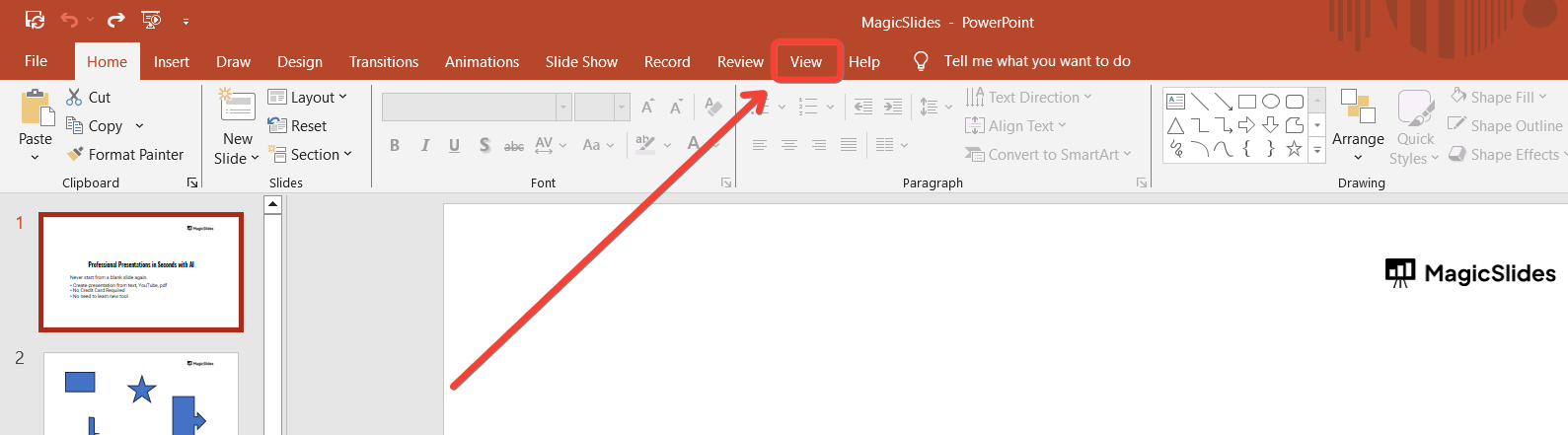
To start working with the Slide Master, open your PowerPoint presentation and go to the "View" tab on the PowerPoint ribbon at the top of the screen.
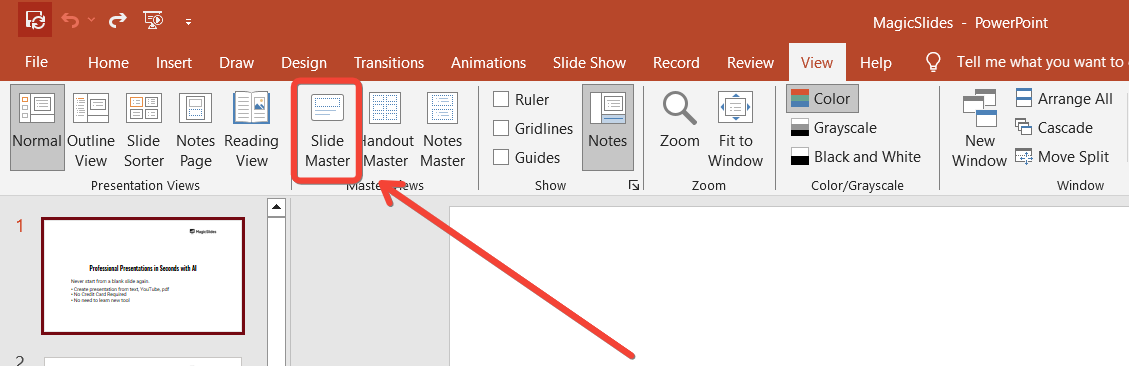
Click on "Slide Master" in the "Master Views" group. This will take you to the Slide Master view, where you can see a hierarchical list of all the slide layouts used in your presentation.
Step 2: Understand the Slide Master Hierarchy
In Slide Master view, you'll notice a top slide that represents the Slide Master itself, followed by various slide layouts underneath it.
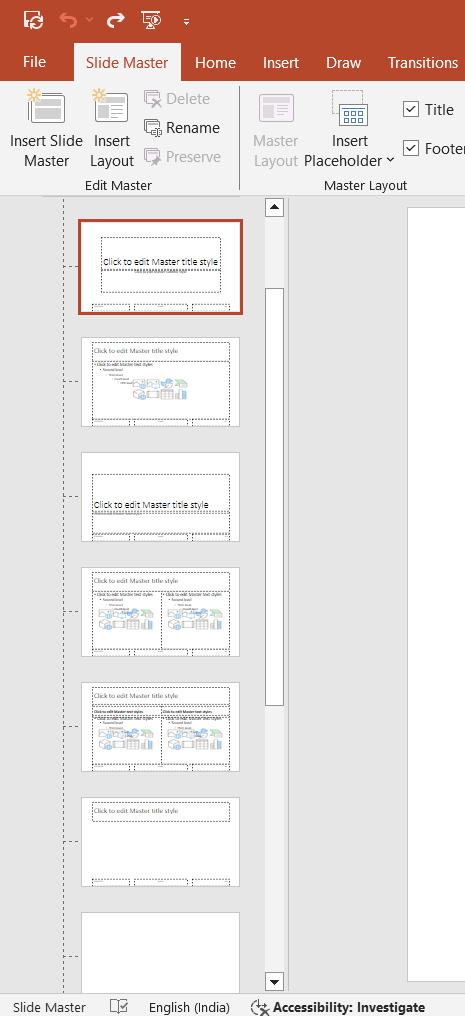
The Slide Master controls the overall design elements that apply to all slides, while the individual slide layouts control the design for specific types of slides (e.g., title slide, content slide).
Step 3: Edit the Slide Master
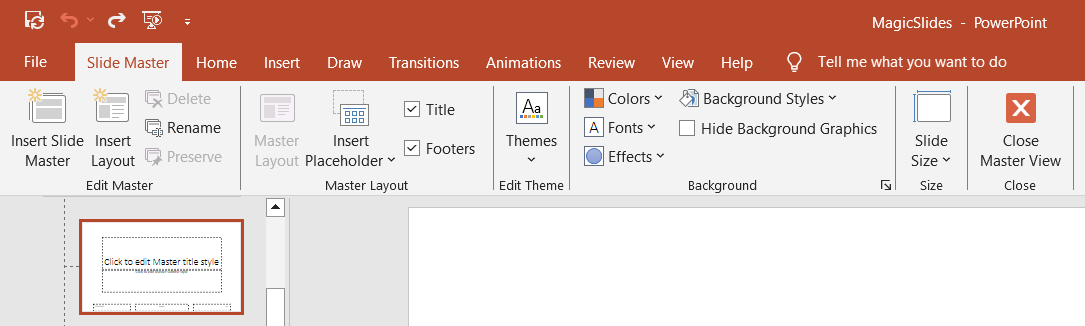
To make changes that apply to all slides in your presentation, select the top Slide Master slide. Here, you can modify the theme, font styles, colors, background, and other design elements.
For example, if you change the font style on the Slide Master, it will automatically update across all the slides in your presentation that use that font.
Step 4: Customize Slide Layouts
If you want to customize specific slide layouts, select one of the slide layouts beneath the Slide Master.
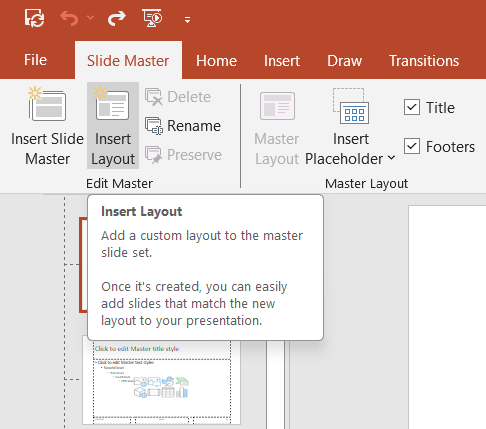
You can adjust the layout by adding or removing placeholders, changing the position of text boxes, or altering the background. Any changes you make to a slide layout will affect only the slides that use that particular layout.
Step 5: Apply a New Theme
While in Slide Master view, you can also apply a new theme to your entire presentation.
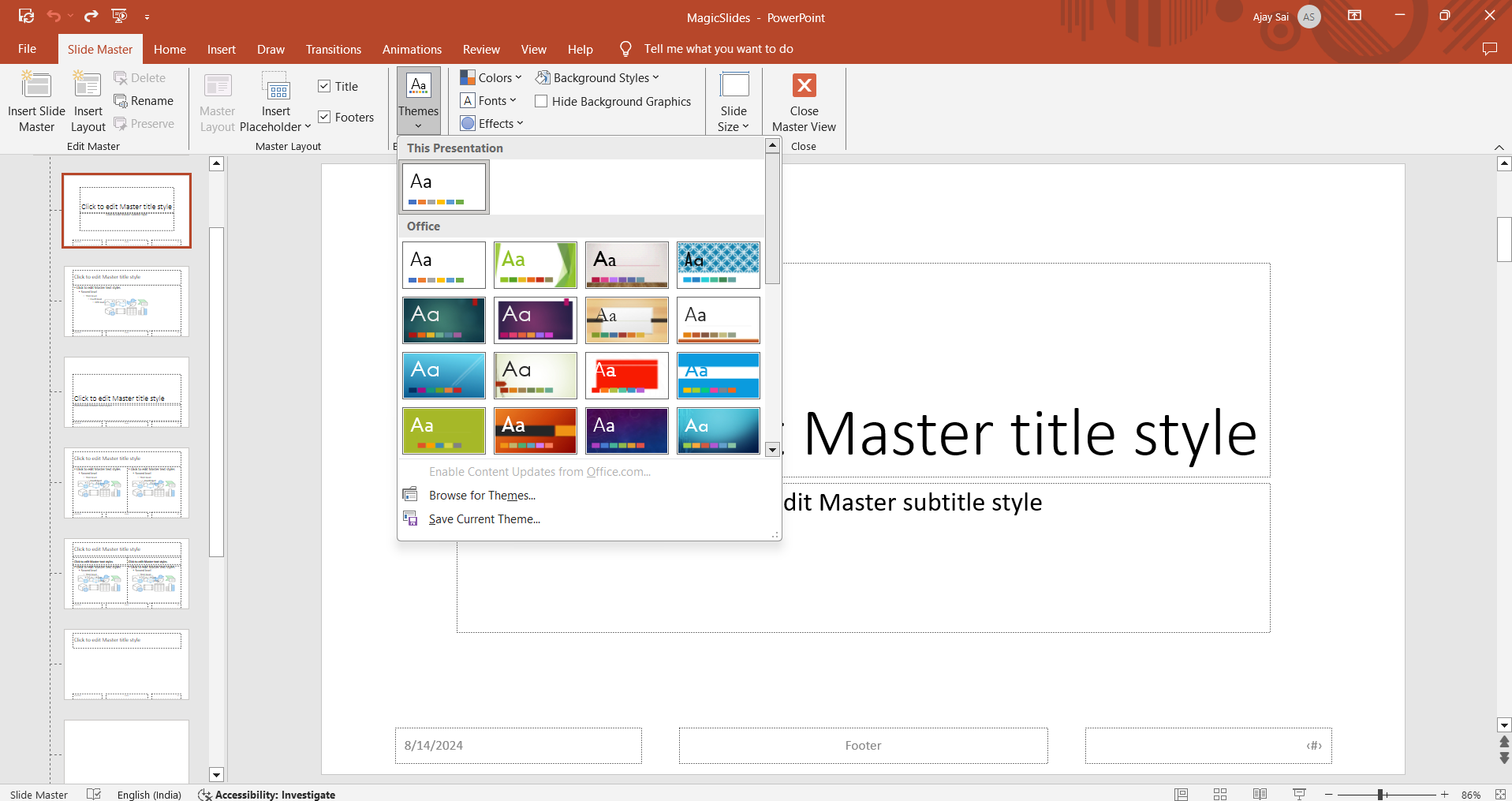
Click on the "Themes" button in the Slide Master tab, and choose a theme from the available options. The new theme will automatically apply to all slides, ensuring a consistent look throughout your presentation.
Step 6: Close the Slide Master View
Once you've made all the necessary changes, close the Slide Master view by clicking the "Close Master View" button in the Slide Master tab.
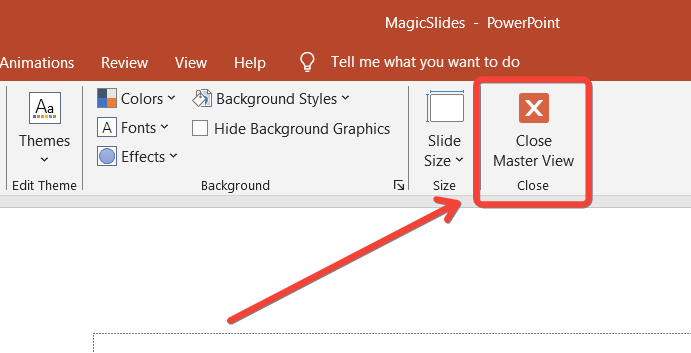
Your presentation will return to Normal view, and all the changes you made in Slide Master will be reflected across your slides.
Step 7: Review Your Presentation
After applying changes in the Slide Master, it's important to review your entire presentation to ensure that everything appears as intended.
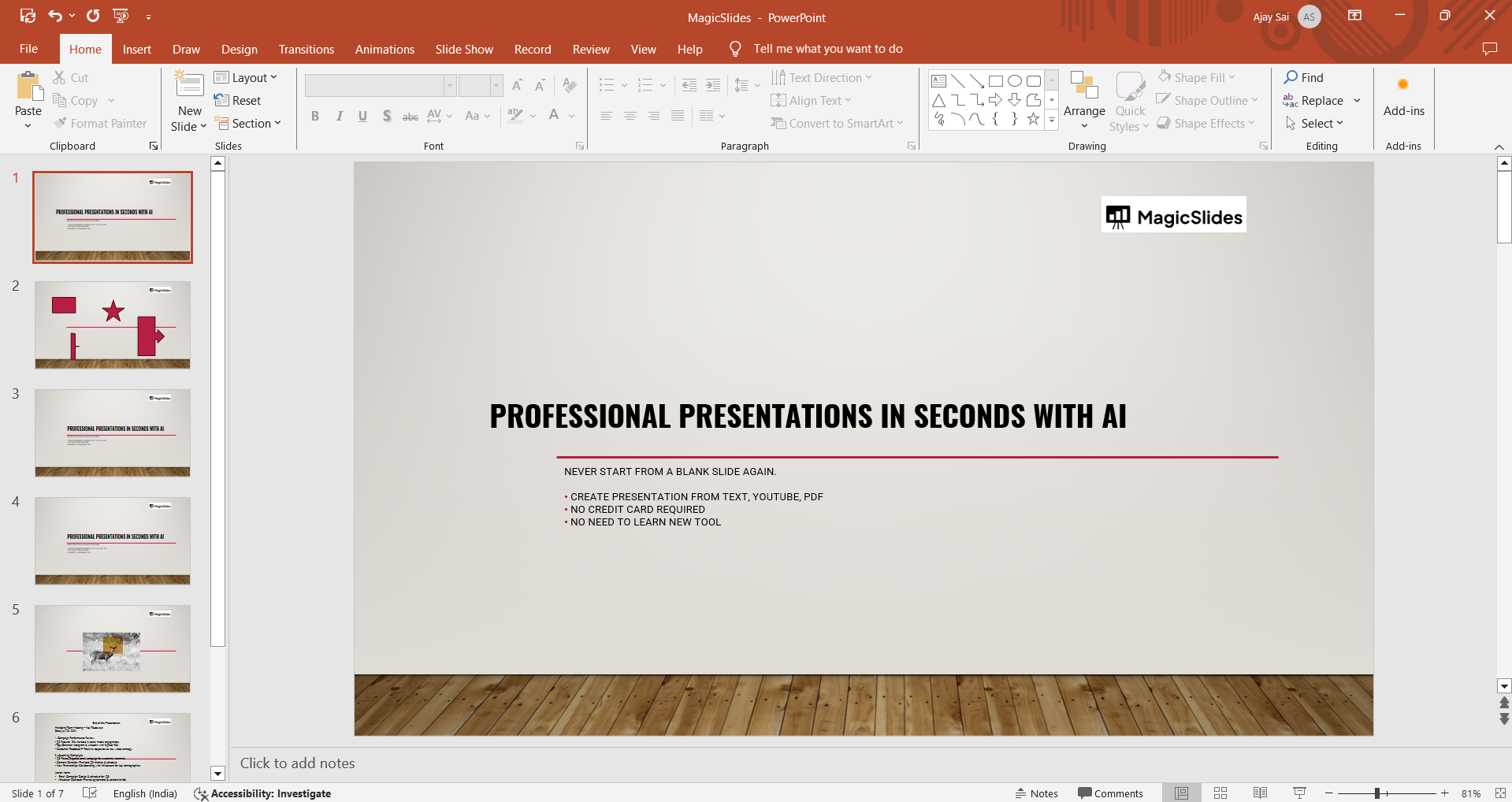
Check for consistency in fonts, colors, and layouts, and make any additional adjustments as needed.
Conclusion
The Slide Master in PowerPoint is an essential tool for maintaining a cohesive and professional look throughout your presentation.
By using the Slide Master, you can efficiently manage design elements and ensure consistency across all your slides.
Whether you're working on a large project with many slides or a smaller presentation, mastering the Slide Master will save you time and effort, allowing you to focus more on delivering your message effectively.
Tired of maing presentations? what if we tell you you can make presentation with just a prompt, convert YouTube videos to PPTs, convert website content to PPTs? Yes! checkout magicslides.app that does all and enjoy the free credits to make presentations in seconds.
FAQs come handy!
What is the primary function of the Slide Master in PowerPoint?
The Slide Master centralizes and controls the design elements for all slides, ensuring consistency.
Can changes made in the Slide Master be applied to individual slides?
Yes, changes in the Slide Master affect all slides, but individual slide layouts can also be customized.
How do I access the Slide Master in PowerPoint?
Go to the "View" tab and click on "Slide Master" to access and edit the master slides.


