When creating a presentation, what is the acceptable minimum font size?


Choosing the right font size is key to creating clear, professional, and engaging presentation slides
When Creating a Presentation, What Is the Acceptable Minimum Font Size?
When designing a presentation, readability is key. Your audience should be able to understand your message clearly whether they're sitting in the front or back of the room. One crucial design decision is selecting the right font size.
Choosing a font that’s too small can lose your audience, while too large can waste valuable slide space.
In this post, we’ll explain the acceptable minimum font size and walk through the important steps to consider while choosing a font for your presentation.
What Is the Minimum Acceptable Font Size in a Presentation?
Generally, the minimum acceptable font size is 18 to 24 points. However, 28 points or above is recommended for body text to maintain visibility even from a distance. For titles or headings, 36 points or more is ideal. The larger the room or screen, the larger the font should be.
Steps to Consider While Choosing a Font for a Presentation
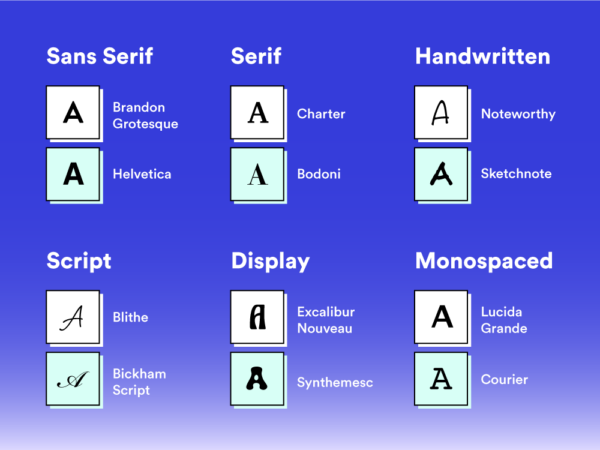
Step 1: Prioritize Readability
Choose fonts that are easy to read from a distance. Avoid overly decorative or cursive fonts. Stick with clean, sans-serif fonts like Arial, Calibri, or Helvetica, which are legible on all screen sizes.
Step 2: Use Consistent Font Styles
Pick one or two fonts and use them throughout your presentation. For example, use one font for headings and another for body text. This creates visual hierarchy and maintains a clean look.
Step 3: Consider Contrast
Your font color should contrast well with the background. For instance, use white or light-colored text on dark backgrounds, and black or dark text on light backgrounds. Low contrast can make your content hard to read.
Step 4: Adjust for Room Size and Viewing Distance
If you’re presenting in a large room, your font needs to be larger. Test your slides from the back of the room to make sure everything is readable.
Step 5: Avoid Using All Caps
Using all capital letters may seem like a way to emphasize points, but it reduces readability and slows reading speed. Use bold or color for emphasis instead.
Step 6: Check Cross-Platform Compatibility
Ensure your chosen fonts are available across different devices. Fonts like Calibri, Arial, and Times New Roman are safe options that won't change when opened on another system.
Conclusion
Choosing the right font and size plays a huge role in how effectively your presentation communicates your message.
Always prioritize readability, consistency, and visibility. A thoughtful approach to font selection not only enhances the design but also ensures your audience stays engaged and informed.
FAQs are here to help!
Can I use fancy or decorative fonts in my presentation?
You can, but they should be reserved for titles or short headings. Body text should always remain simple and easy to read.
What happens if I use fonts that aren’t installed on another computer?
Your text may not display properly. To avoid this, use common system fonts or embed the fonts when saving the PowerPoint.
Is it okay to use different font sizes on the same slide?
Yes, but use them to create a clear hierarchy—larger for titles, smaller for body text. Maintain consistency throughout.


