Where is Cast on Google Slides


Easily cast Google Slides to a bigger screen using Chromecast or compatible devices for seamless presentations
Where Is Cast on Google Slides?
Google Slides allows you to cast presentations to a larger screen using Google Cast.
This feature is useful for sharing slides on a TV, projector, or another display without needing cables.
If you're wondering where to find the Cast option in Google Slides, follow these steps.
Steps to Find and Use Cast in Google Slides
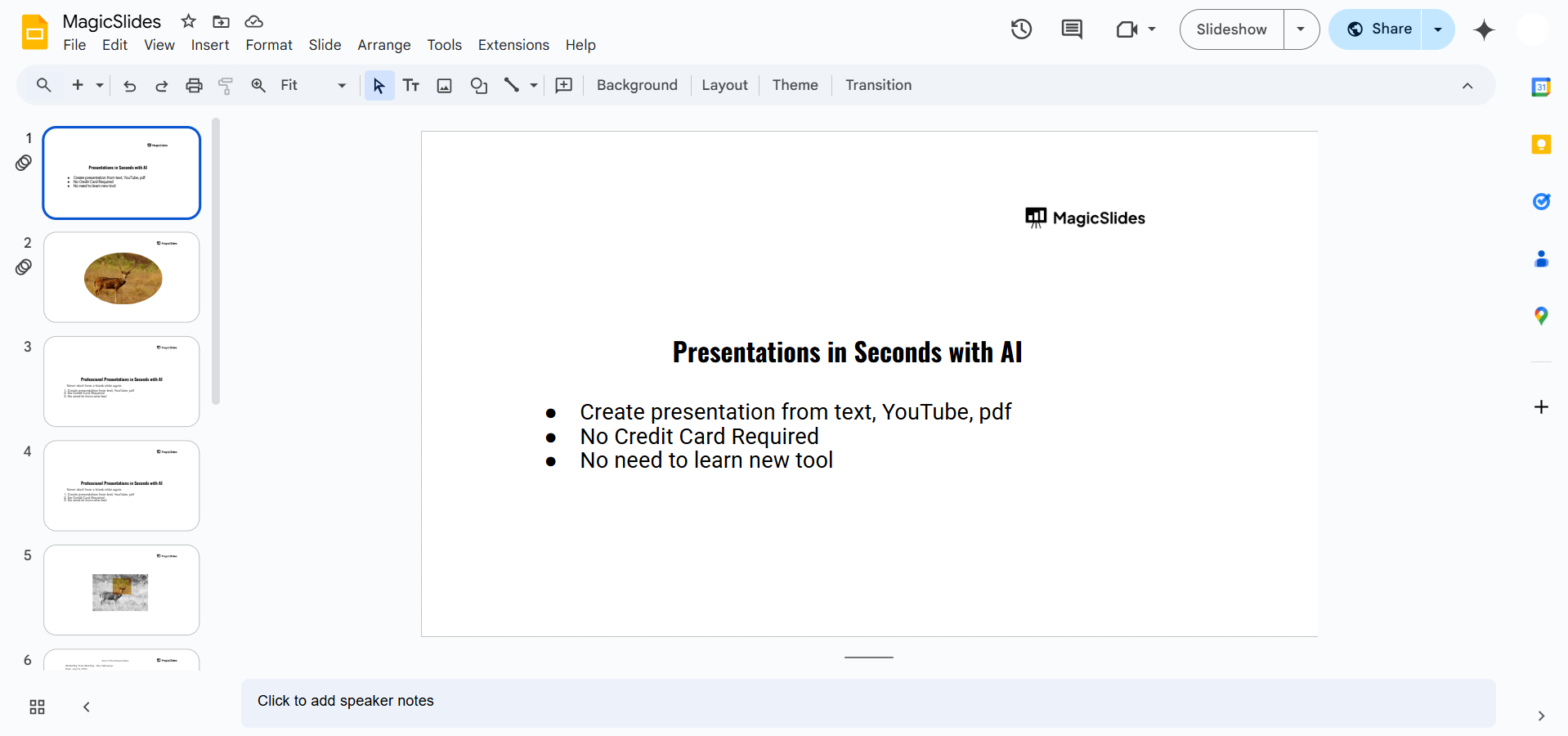
Step 1: Open Your Google Slides Presentation
Go to Google Slides and open the presentation you want to cast. Make sure you're using Google Chrome, as casting works best in this browser.
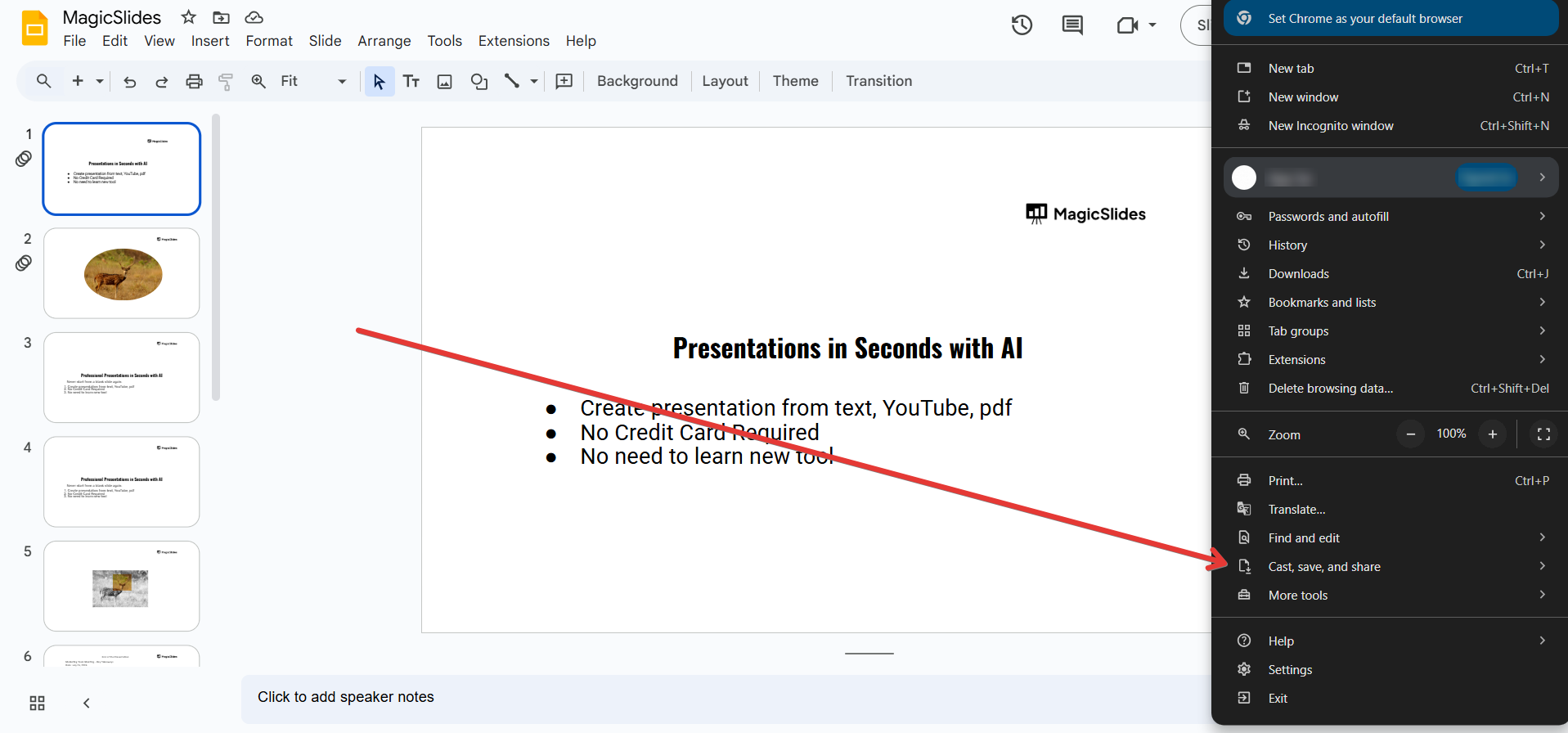
Step 2: Click on the Three-Dot Menu in Chrome
Look at the top-right corner of your Google Chrome browser. Click the three-dot menu (also known as the More options menu).
Step 3: Select the "Cast" Option
Scroll down and find the Cast option. Click it, and a new window will appear showing available devices.
Step 4: Choose a Device to Cast To
Ensure your TV or casting device (such as Chromecast) is on and connected to the same Wi-Fi network.
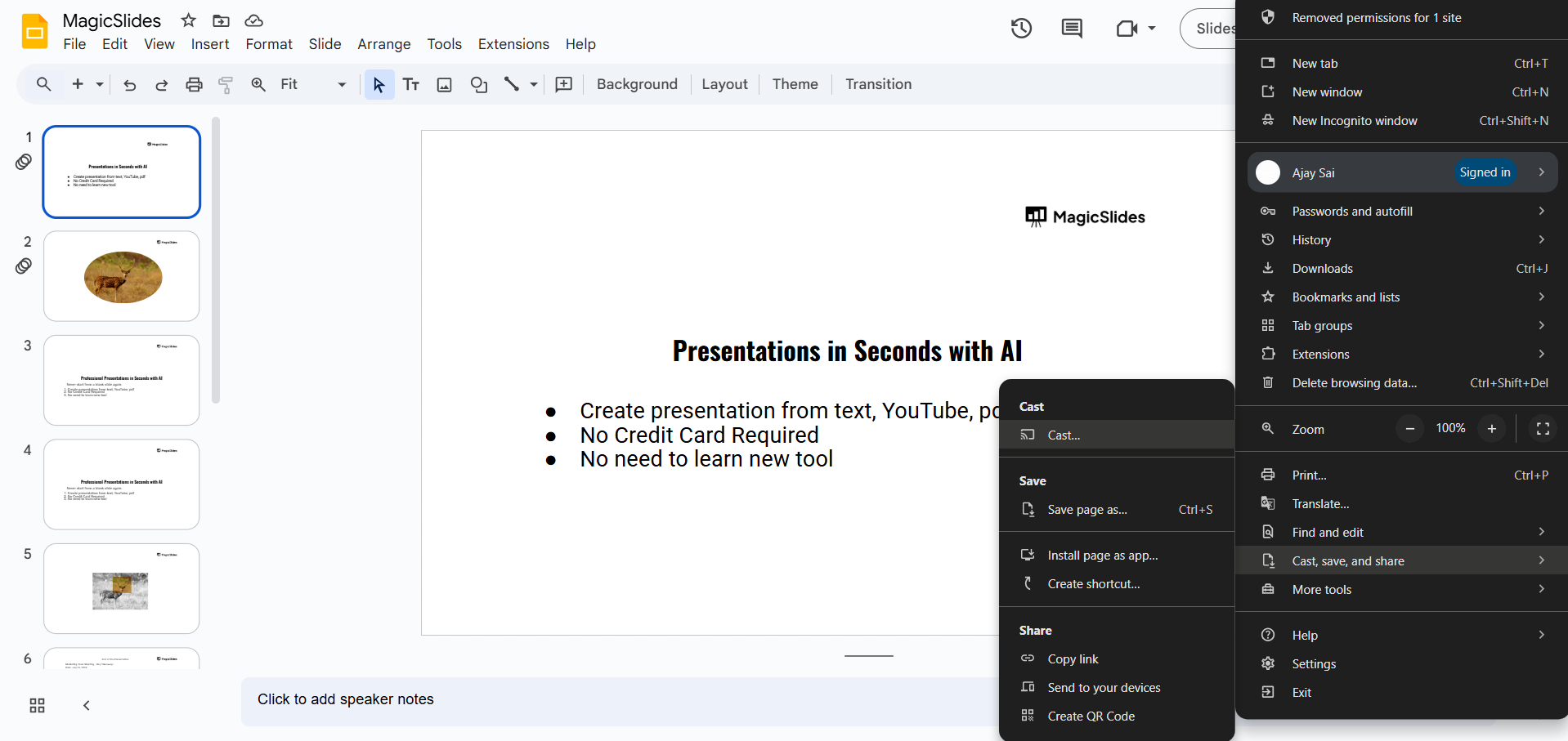
Select the device from the list to start casting.
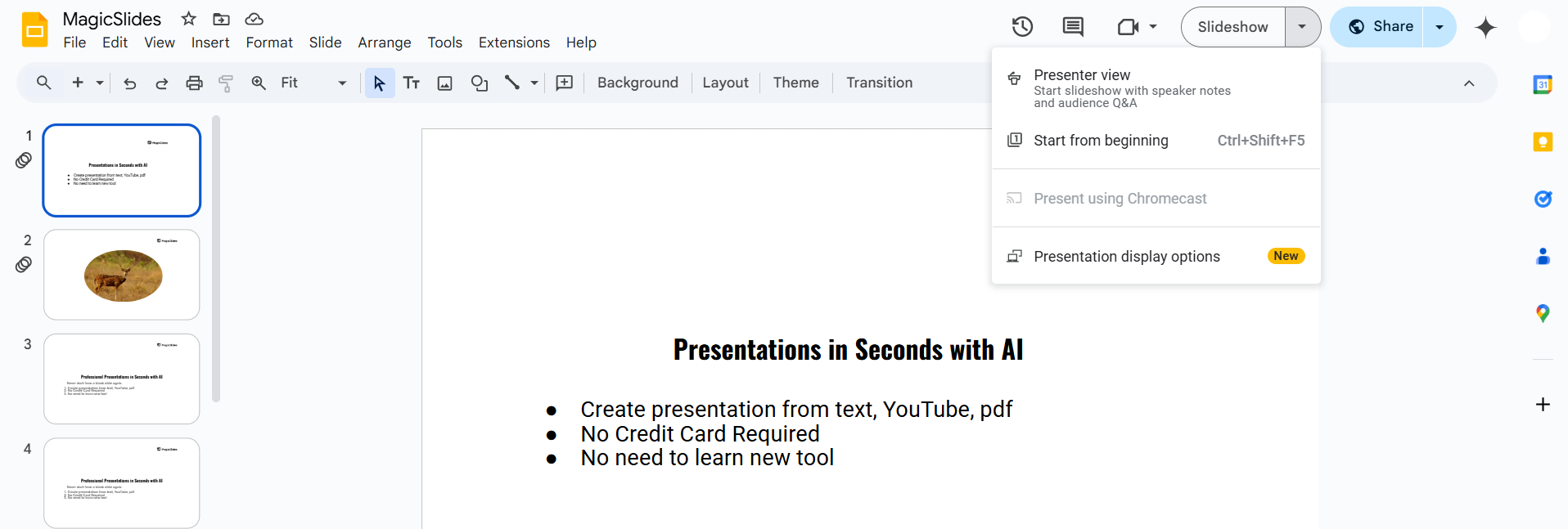
Step 5: Cast in Slideshow Mode for Better Display
Click Present in Google Slides to start the slideshow. Your slides will now appear on the casted screen while you control them from your device.
Step 6: Stop Casting
To stop casting, go back to the three-dot menu in Chrome. Click Cast, then select Stop casting.
Conclusion
The Cast feature in Google Slides allows you to wirelessly present your slides on a bigger screen using Chromecast or compatible devices.
By accessing the Cast option in Google Chrome, you can quickly connect and display your presentation with ease.
FAQs on Casting Google Slides
Why don’t I see the Cast option in Google Chrome?
Ensure your browser is updated and your device supports Google Cast. Also, check if you’re connected to the same Wi-Fi network as your casting device.
Can I cast Google Slides from my phone?
Yes, you can cast from a Chrome browser on your phone or use the Google Home app to mirror your screen.
Do I need a Chromecast to cast Google Slides?
Not necessarily. Some smart TVs and streaming devices support casting without a separate Chromecast device.
Now you can easily find and use the Cast feature in Google Slides for seamless presentations! 🚀✨


