Which command is used to quit PowerPoint


Learn how to quit PowerPoint properly, ensuring your work is saved and the application closes.
Quitting PowerPoint might seem like a simple task, but knowing the right command can save you time and ensure that your work is properly saved before closing the application.
Whether you’re finished with a presentation or need to close PowerPoint to work on something else, using the correct command is essential.
In this blog post, we'll guide you through the steps to properly quit PowerPoint, ensuring that all your data is safe and secure.
Which command is used to quit PowerPoint
Step 1: Save Your Work
Before quitting PowerPoint, it's crucial to save your work to avoid losing any changes.
You can save your presentation by clicking on the "File" tab in the upper-left corner of the screen and selecting "Save" or "Save As."
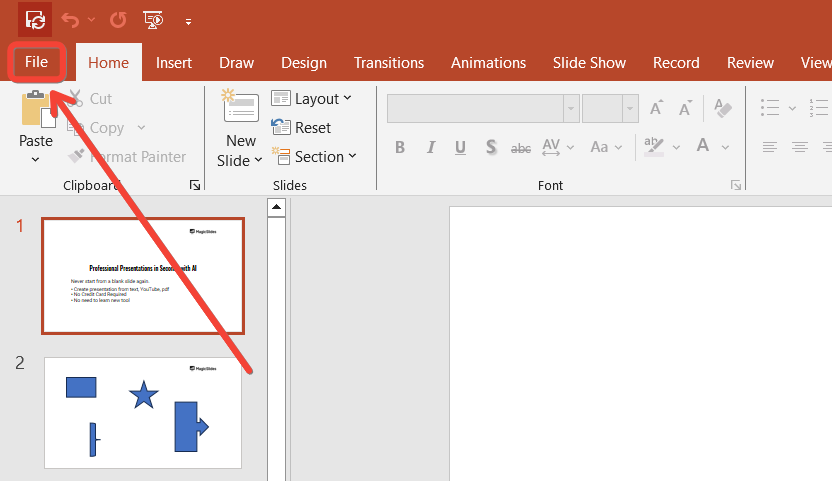
Alternatively, you can use the shortcut Ctrl + S (Windows) or Cmd + S (Mac) to save quickly.

Step 2: Close the PowerPoint Window
To close PowerPoint, you can click the "X" button at the top-right corner of the window on Windows or the red circle at the top-left corner on Mac.
This action will close the application, but if there are any unsaved changes, PowerPoint will prompt you to save before closing.

Step 3: Use the Exit Command
Another way to quit PowerPoint is by using the "Exit" command. On Windows, go to the "File" tab and select "Exit" from the menu.
On Mac, you can choose "Quit PowerPoint" from the "PowerPoint" menu in the top menu bar. This method ensures that all instances of PowerPoint are closed.
Step 4: Use a Keyboard Shortcut
For a quicker method, you can use a keyboard shortcut to quit PowerPoint.
On Windows, press Alt + F4 to close the active window, including PowerPoint. On Mac, you can use Cmd + Q to quit PowerPoint directly.
Step 5: Confirm Exit (If Needed)
If you have any unsaved work, PowerPoint will ask you to confirm whether you want to save your changes before quitting.

Make sure to select the appropriate option "Save" to keep your changes, "Don't Save" to quit without saving, or "Cancel" to return to the application without quitting.
Conclusion
Quitting PowerPoint properly is a simple yet important process to ensure that your work is saved and the application closes smoothly.
Whether you use the "Exit" command, a keyboard shortcut, or simply close the window, these steps will guide you in safely quitting the application.
Following this process will help you maintain a smooth workflow and avoid any accidental loss of data. The next time you finish working on a presentation, keep these steps in mind to quit PowerPoint efficiently and securely!
Tired of maing presentations? what if we tell you you can make presentation with just a prompt, convert YouTube videos to PPTs, convert website content to PPTs? Yes! checkout magicslides.app that does all and enjoy the free credits to make presentations in seconds.
FAQs come handy!
How do I save my work before quitting PowerPoint?
Click "File" and select "Save" or use the shortcut Ctrl + S (Windows) or Cmd + S (Mac).
What should I do if PowerPoint prompts me to save changes?
Choose "Save" to keep changes, "Don't Save" to discard them, or "Cancel" to return to PowerPoint.
What keyboard shortcuts can I use to quit PowerPoint?
On Windows, use Alt + F4; on Mac, use Cmd + Q to quit directly.


