Why do Images Disappear in Google Slides? Here’s How to Fix Them


Learn why Google Slides images disappear and how to fix loading problems, missing images, sync errors, and display issues quickly.
Images are one of the most important elements in a presentation. They help explain concepts, improve engagement, and make slides more visually appealing. So it can be frustrating when images suddenly disappear from Google Slides, leaving blank spaces or broken image placeholders.
If you’ve ever opened a presentation only to find missing images, don’t worry—this is a common issue. In most cases, disappearing images are caused by internet connectivity problems, browser issues, syncing errors, corrupted files, or broken image links.
In this guide, you’ll learn why images disappear in Google Slides, how to fix the problem, and what you can do to prevent it from happening again.
Why Do Images Disappear in Google Slides?
Google Slides stores and synchronizes presentation data through Google’s cloud infrastructure. Because of this, image-loading problems can occur when files fail to sync correctly, browser data becomes corrupted, or image sources become unavailable.
Some users notice images disappearing after reopening a presentation, while others encounter blank image placeholders during editing or presenting. Understanding the root cause is the first step toward solving the problem.
Common Reasons Images Disappear in Google Slides
1. Poor or Unstable Internet Connection
Google Slides relies heavily on cloud syncing. If your internet connection is slow or unstable, images may fail to load correctly.
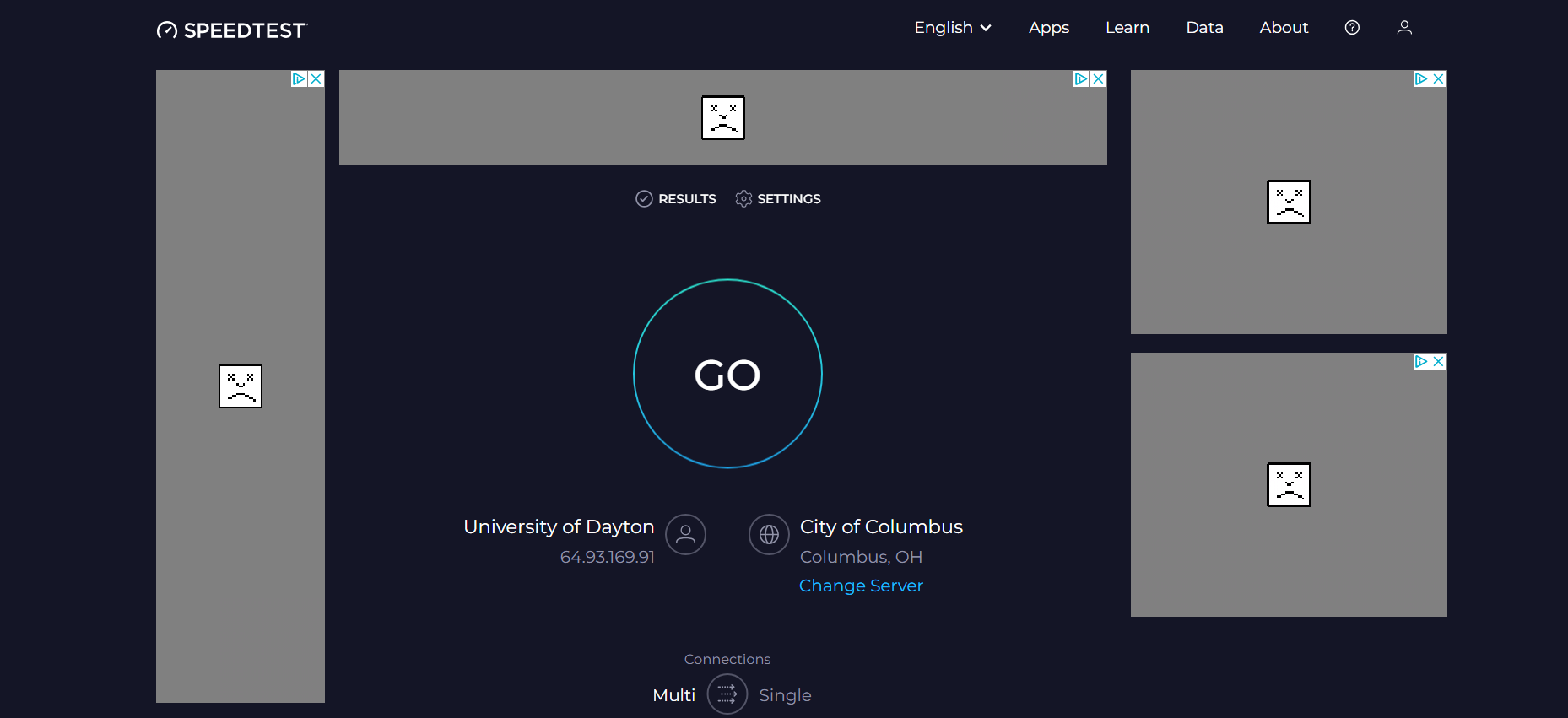
This is especially common when:
- Using public Wi-Fi networks
- Working with large presentations
- Uploading multiple high-resolution images
- Switching between networks while editing
How to Fix It
- Refresh the page using Ctrl + R (Windows) or Cmd + R (Mac)
- Verify that your internet connection is stable
- Restart your router if necessary
- Disable VPN services temporarily
- Wait for Google Slides to finish syncing
If the issue is network-related, images usually reappear once the connection stabilizes.
2. Broken Image Links
Some users insert images using external URLs instead of uploading them directly. If the original image is deleted, moved, or becomes inaccessible, Google Slides can no longer display it.
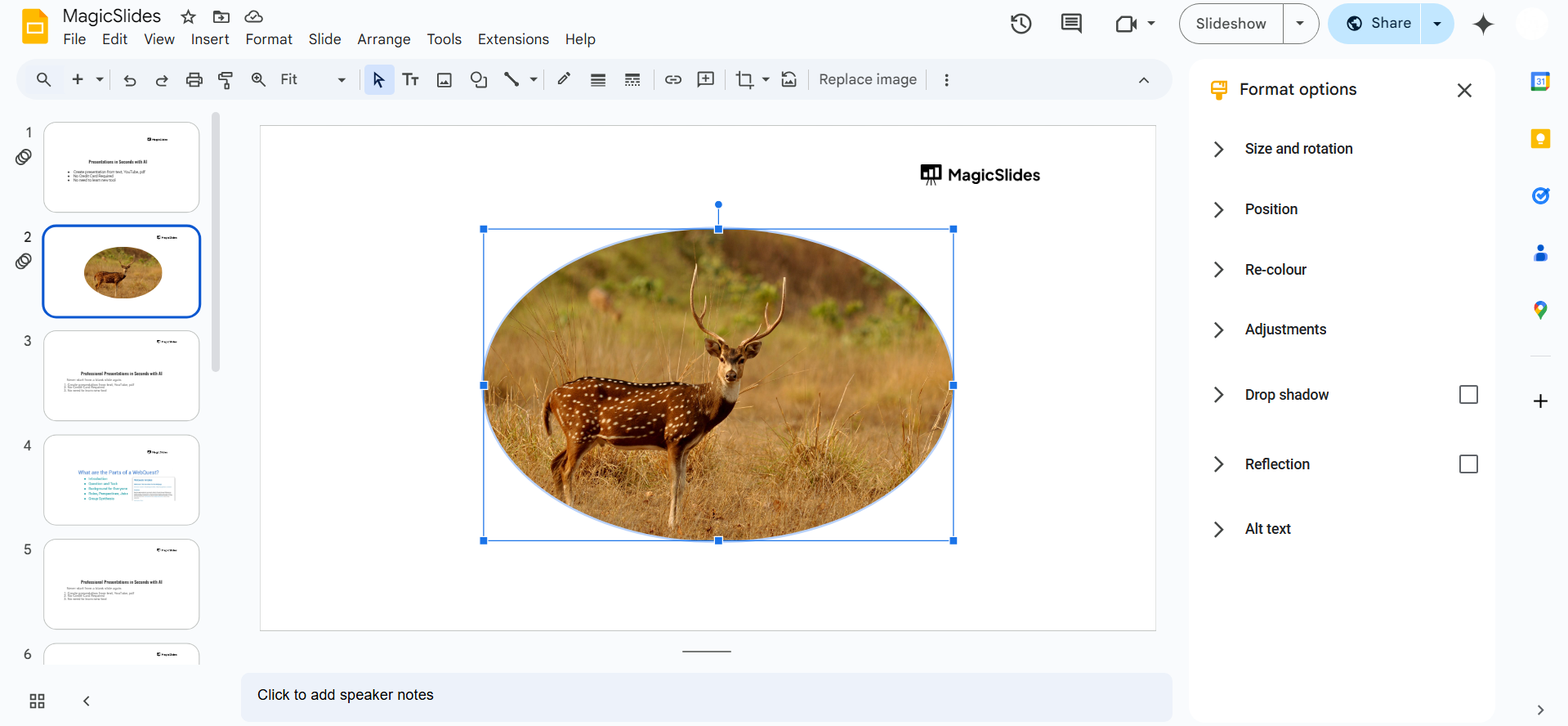
This often results in:
- Missing images
- Blank placeholders
- Loading errors
How to Fix It
- Re-upload the image directly from your computer
- Replace broken image links
- Store important images locally or in Google Drive
Uploading images directly is generally more reliable than linking to external sources.
3. Browser Cache Problems
Your browser stores temporary files to improve performance. Sometimes these cached files become outdated or corrupted, preventing Google Slides from loading images properly.
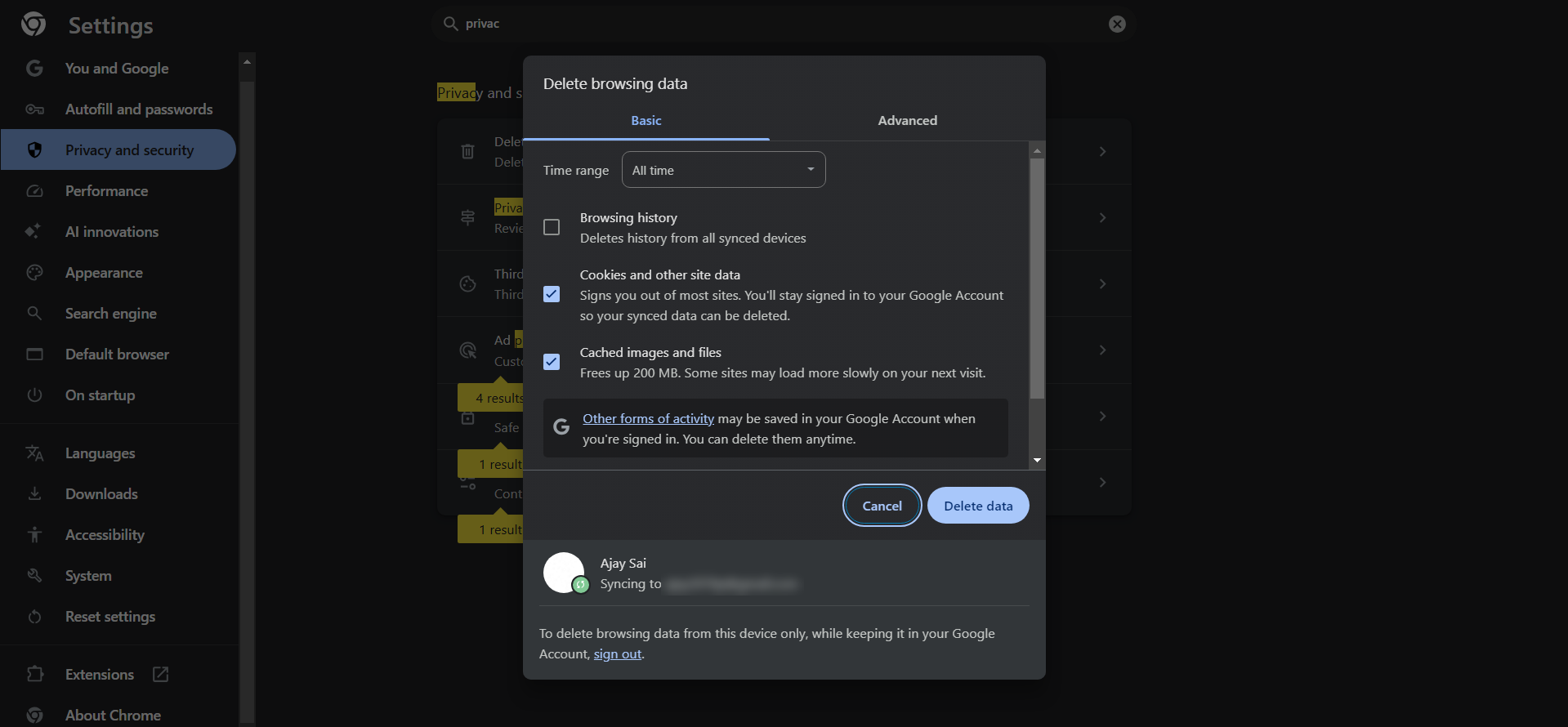
How to Fix It
In Google Chrome:
- Open Settings.
- Click Privacy and Security.
- Select Clear Browsing Data.
- Choose Cached Images and Files.
- Click Clear Data.
After clearing the cache:
- Restart the browser
- Reopen Google Slides
- Check whether the images have returned
Many image display issues are resolved with this simple fix.
4. Unsupported or Corrupted Image Files
Google Slides supports most common image formats, but some file types may not display properly.
Supported formats include:
- JPG / JPEG
- PNG
- GIF
- SVG
- WEBP
If an image file becomes corrupted during upload, it may disappear or fail to render.
How to Fix It
- Open the image outside Google Slides
- Convert the file to PNG or JPG
- Re-upload the image
- Replace damaged files
If the image won’t open anywhere, the file itself may be corrupted.
5. Browser Extensions Blocking Content
Some browser extensions interfere with how websites load images.
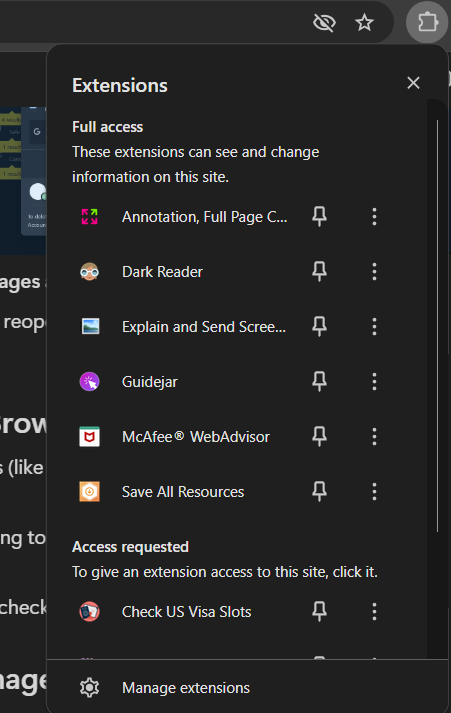
Common offenders include:
- Ad blockers
- Privacy tools
- Security extensions
- Script blockers
These extensions may mistakenly block image requests within Google Slides.
How to Fix It
- Open Google Slides in Incognito Mode.
- Check whether the images appear.
- Disable browser extensions one at a time.
- Refresh the presentation after each change.
If images load correctly in Incognito Mode, an extension is likely causing the problem.
6. Offline Mode Synchronization Issues
Google Slides offers offline editing capabilities, but synchronization problems can sometimes prevent images from uploading correctly.
This can occur when:
- You add images while offline
- The browser closes before syncing completes
- Connectivity is interrupted during upload
How to Fix It
- Reconnect to the internet
- Wait for synchronization to finish
- Refresh the presentation
- Re-upload any missing images
Always ensure Google Slides has fully synced before closing your browser.
7. Accidental Image Deletion
Sometimes images disappear because they were unintentionally deleted by you or another collaborator.
In shared presentations, edits from collaborators may remove images without your knowledge.
How to Fix It
Google Slides includes a powerful version history feature:
- Click File.
- Select Version History.
- Choose See Version History.
- Browse earlier versions.
- Restore a version containing the missing images.
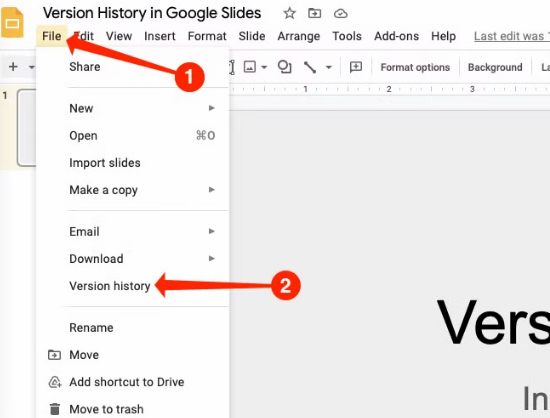
This feature can recover deleted content within seconds.
8. Google Workspace Permission Issues
In collaborative environments, images stored in restricted locations may not display for all users.
This commonly occurs when:
- Files are moved
- Access permissions change
- Shared folders become restricted
How to Fix It
- Verify sharing settings
- Ensure collaborators have viewing access
- Reinsert images from accessible locations
Proper permissions help avoid image visibility problems across teams.
9. Browser Compatibility Problems
Although Google Slides works with most modern browsers, outdated versions can sometimes cause rendering issues.
How to Fix It
Try opening your presentation in:
- Google Chrome
- Mozilla Firefox
- Microsoft Edge
- Safari
Also, ensure your browser is updated to the latest version.
10. Temporary Google Slides Glitches
Occasionally, the issue may be caused by temporary service interruptions or bugs within Google Slides itself.
How to Fix It
- Sign out and sign back into your Google account
- Refresh the presentation
- Open the file on another device
- Wait a few minutes and try again
Temporary glitches often resolve themselves automatically.
Create Professional Presentations Faster with MagicSlides
While troubleshooting image issues in Google Slides is important, creating and managing presentations efficiently can save even more time. If you’re building presentations regularly, tools like MagicSlides AI PPT Generator can help streamline the entire process.

MagicSlides is an AI-powered presentation generator that creates complete slide decks from a topic, text, PDF, YouTube video, URL, or document in minutes. Instead of spending hours researching content, organizing slides, and designing layouts, you can generate a polished presentation with just a few clicks.
Some key benefits of MagicSlides include:
- Generate presentations instantly using AI
- Convert PDFs, documents, and URLs into slides
- Create presentations directly within Google Slides
- Access professionally designed templates
- Save hours of manual slide creation
- Export and edit presentations easily
Whether you’re a student preparing a class project, a professional building a business presentation, or a marketer creating client reports, MagicSlides can significantly reduce the time required to create engaging presentations.
By combining Google Slides with AI-powered tools like MagicSlides, you can focus more on delivering your message and less on formatting slides and managing presentation assets.
Conclusion
Images disappearing in Google Slides can be frustrating, especially when you’re preparing for an important presentation. Fortunately, the issue is usually caused by common factors such as internet connectivity problems, browser cache issues, broken image links, synchronization errors, or accidental deletions.
By following the troubleshooting steps outlined in this guide—such as refreshing the presentation, clearing your browser cache, checking image sources, and restoring previous versions—you can quickly recover missing images and prevent future issues. Additionally, using reliable presentation tools and keeping backups of important files can help ensure your slides remain intact and presentation-ready.
If you’re looking to create professional presentations faster and with fewer technical headaches, AI-powered tools like MagicSlides can help simplify the process from start to finish.
Frequently Asked Questions
Q1. Why do images disappear in Google Slides?
Images can disappear due to unstable internet connections, browser cache problems, broken image links, synchronization issues, unsupported file formats, or accidental deletion.
Q2. How do I get missing images back in Google Slides?
Start by refreshing the presentation, checking your internet connection, clearing browser cache, and reopening the file. If the images were deleted, use Version History to restore an earlier version of the presentation.
Q3. Why are images showing as blank placeholders in Google Slides?
Blank placeholders usually indicate that Google Slides cannot load the image. This may happen because of browser issues, corrupted image files, or network-related problems.
Q4. Can I recover deleted images in Google Slides?
Yes. Google Slides automatically saves version history. Navigate to File → Version History → See Version History and restore a previous version that contains the missing images.


