How To Create Word Art With Google Slides


Word art enhances visual appeal, emphasizing text with creative fonts, colors, and styles, making information engaging and memorable in Google Slides.
Word Art in Google Slides allows users to transform ordinary text into visually striking elements.
With diverse fonts, colors, and styles, it boosts presentations' aesthetic appeal, emphasizing key points, and enhancing audience engagement.
It's a valuable tool for creating attention-grabbing titles, headings, and impactful messages, making slides more dynamic and memorable. Here are few ways to create wordart.
How to create wordart with Google Slides
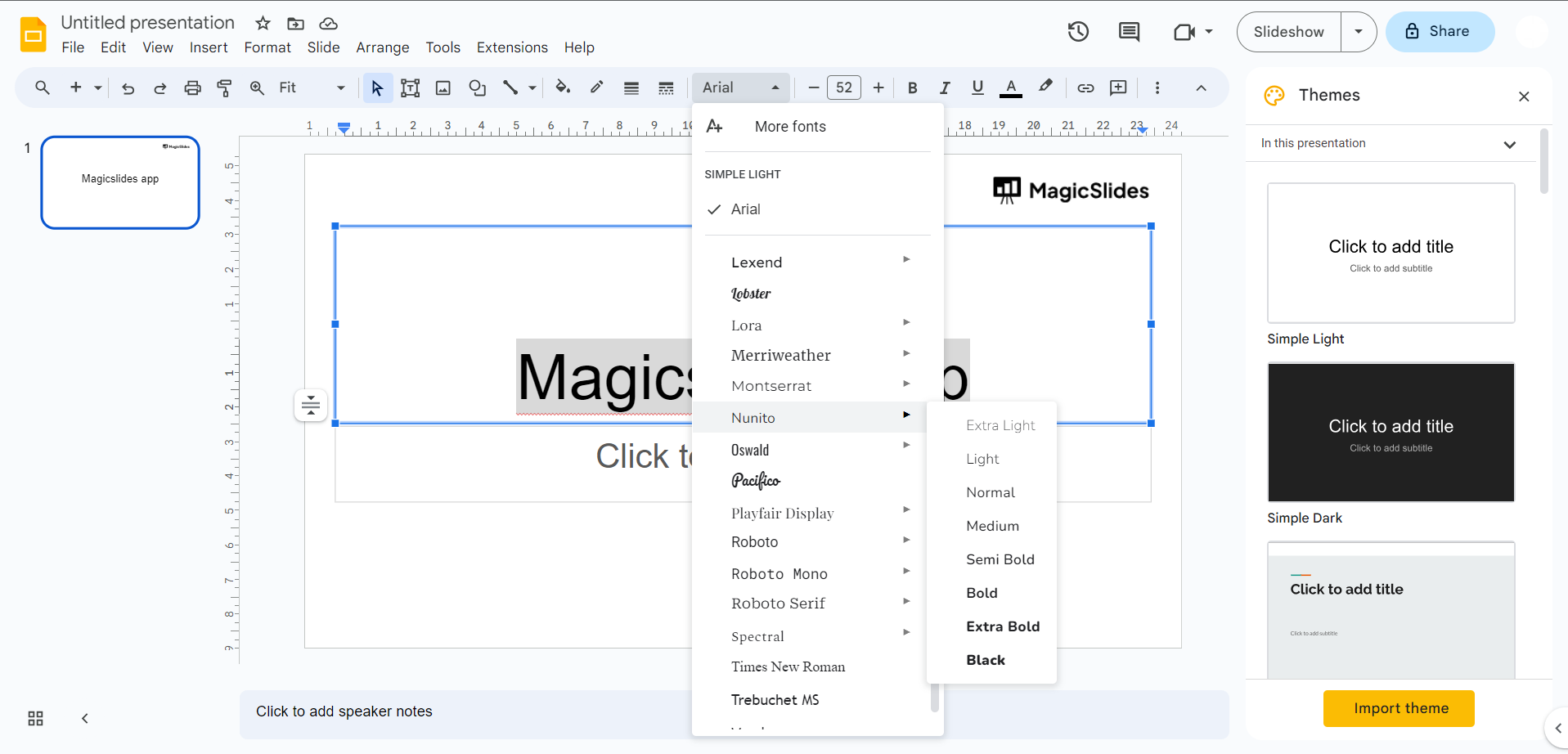
Step 1: Font Selection:
Start by picking the text you want to style. Click on the text box or highlight the specific text within a text box.
Then, opt for a distinctive and decorative font from the assortment available in Google Slides.
Step 2: Text Color:
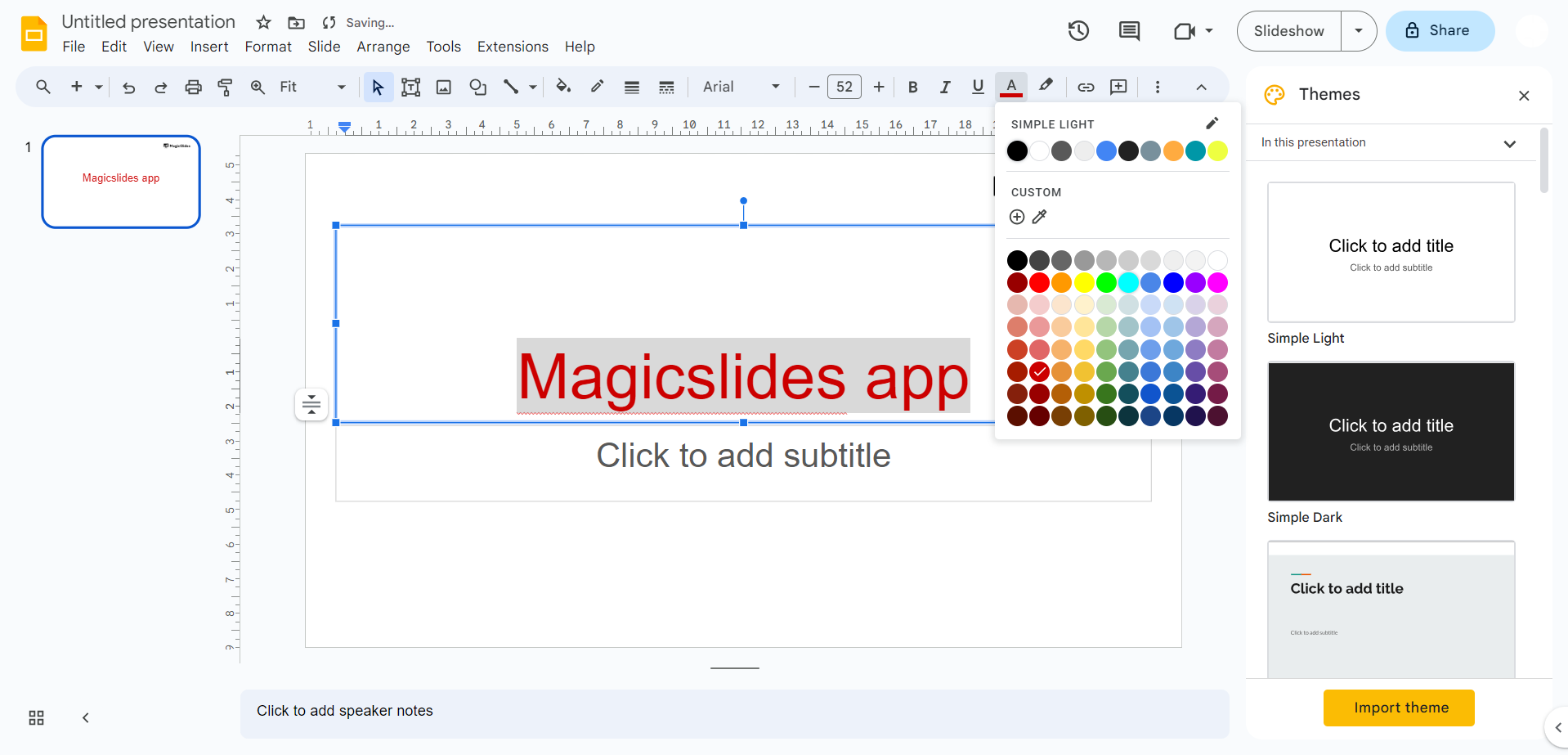
Enhance the visual appeal of your text by altering its color.
Click on the text or select the text box, then make use of the text color options in the toolbar to change the text's hue.
Step 3: Text Size:
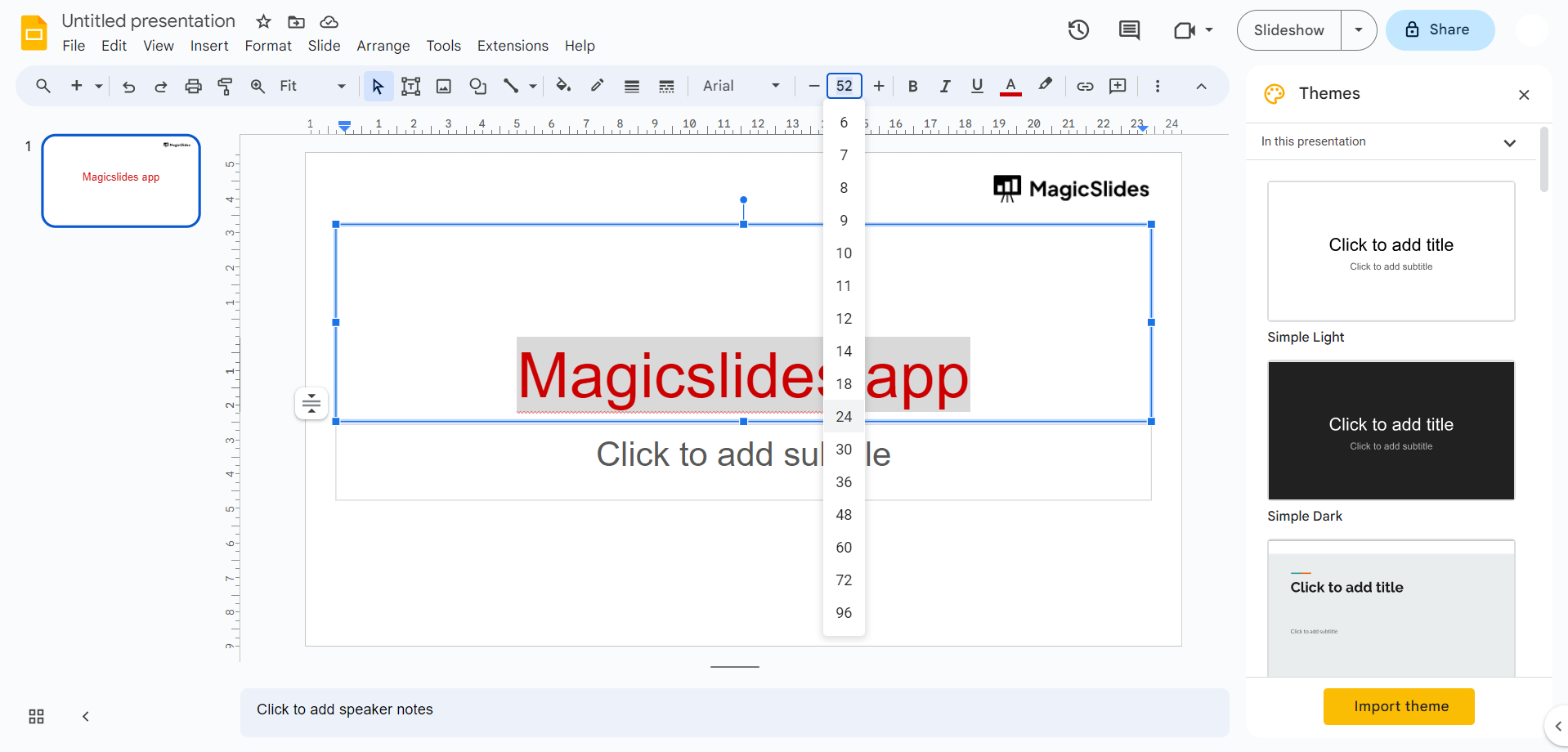
Adjust the text size to make it more prominent.
You can enlarge or reduce the font size by using the font size options found in the toolbar.
Step 4: Text Outline:
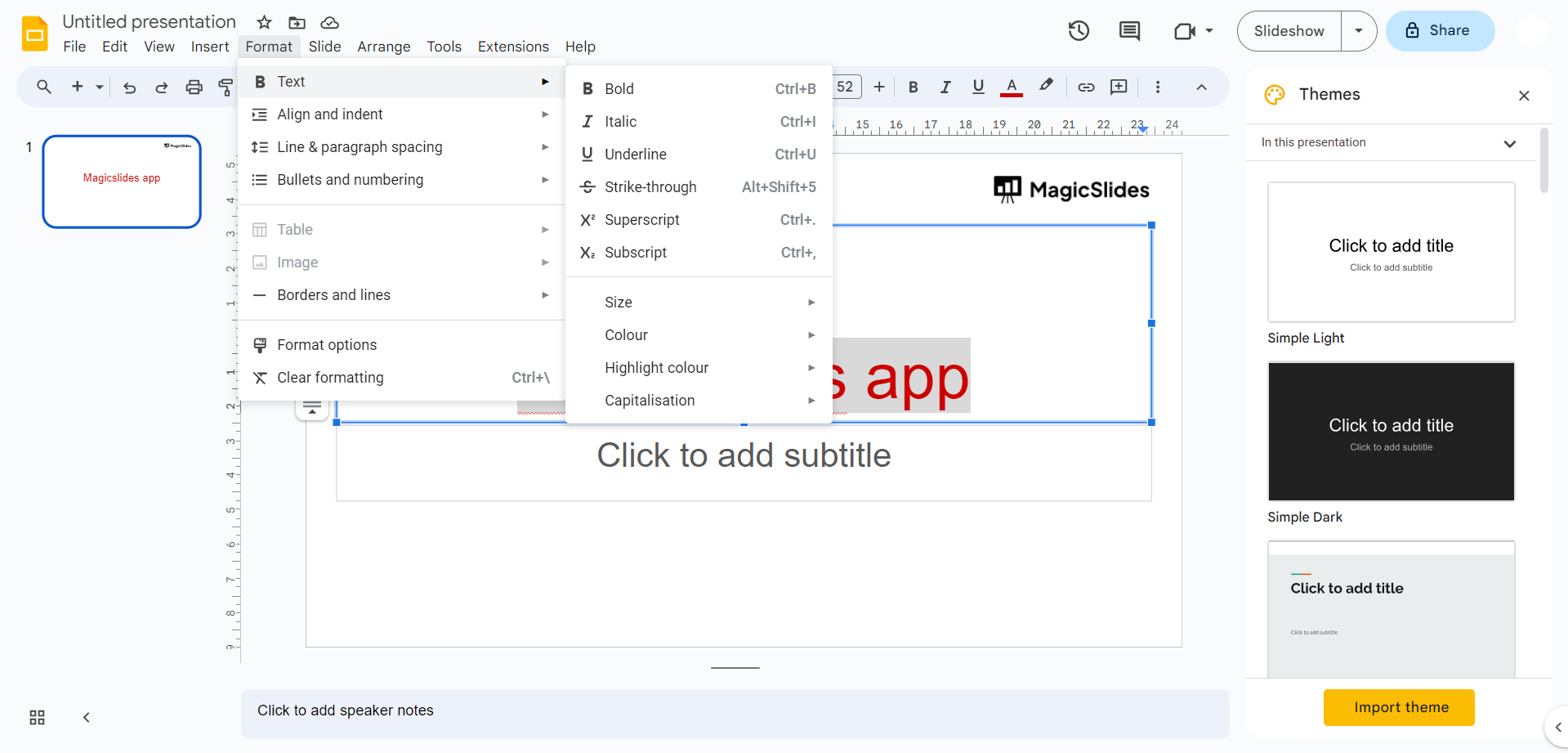
To create an outline effect around your text, consider adding a border or outline. Select the text, go to the "Format" menu, and choose "Text outline."
From there, you can specify the outline color and tweak its thickness.
Step 5: Text Shadow:
For a shadow effect, select the text, navigate to the "Format" menu, and choose "Text effects." Here, you can add a shadow and fine-tune its settings.
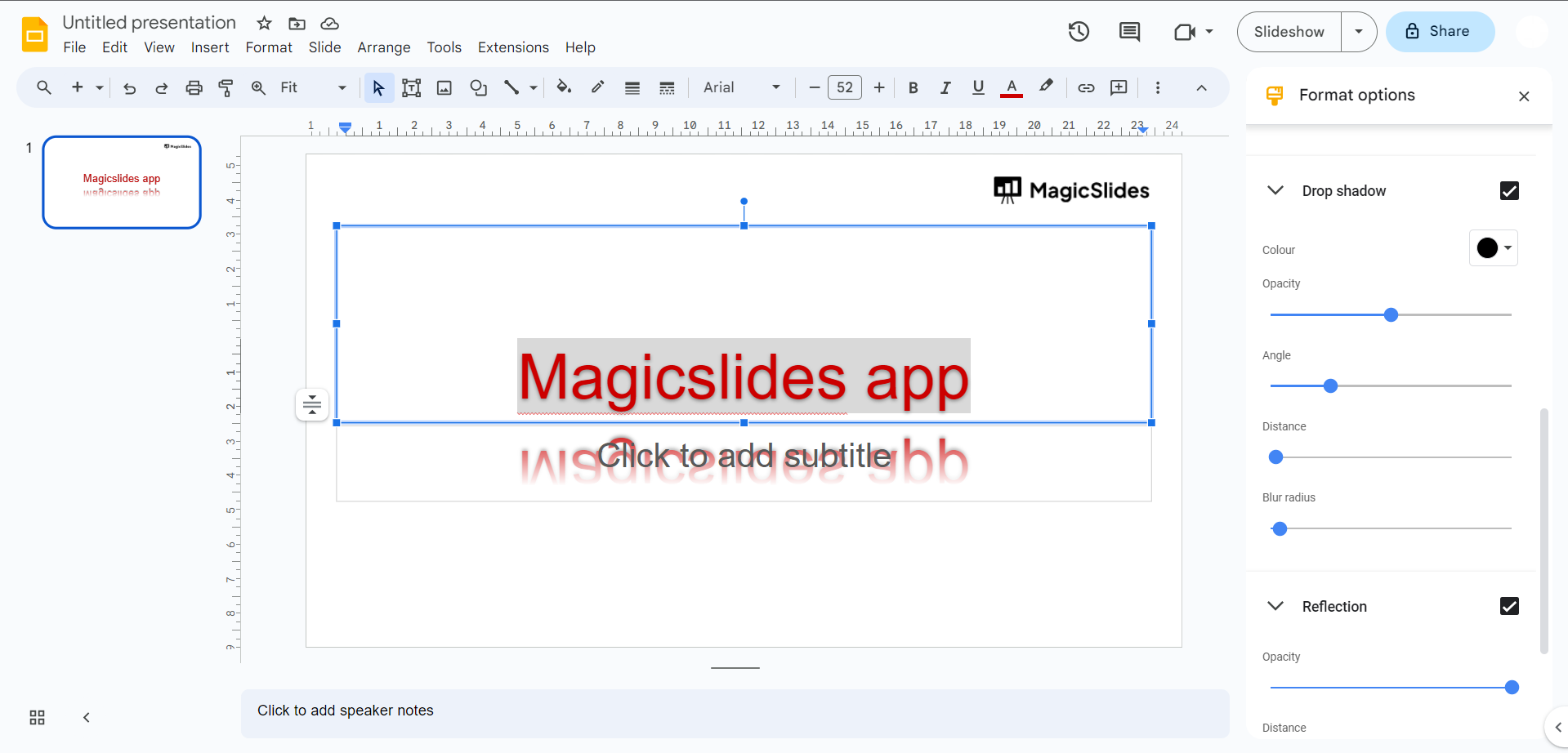
Additional: Text Rotation:
Alter the orientation of your text for a unique look. Click on the text, and you'll see a rotation handle. Simply drag it to rotate the text to your liking.
Conclusion:
Creating WordArt in Google Slides is a simple yet effective way to add creative text elements to your presentations.
With just a few steps, you can customize text with vibrant colors, unique fonts, and special effects to make your slides more engaging.
Whether you're enhancing a title slide or emphasizing key points, WordArt offers a versatile tool to make your presentation stand out.
Tired of maing presentations? what if we tell you you can make presentation with just a prompt, convert YouTube videos to PPTs, convert website content to PPTs? Yes! checkout magicslides.app that does all and enjoy the free credits to make presentations in seconds.
FAQs can take you forward!:
Where can I find the WordArt option in Google Slides?
You can find the WordArt option by clicking on "Insert" in the menu, then selecting "WordArt" from the dropdown.
Can I customize the color and font of my WordArt in Google Slides?
Yes, after inserting WordArt, you can customize the font, color, size, and other effects using the toolbar.
Can I edit my WordArt after inserting it in Google Slides?
Yes, you can click on the WordArt text box to make changes to the text or its formatting at any time.


