Image to PPT Converter: AI-Powered or Direct Upload
Upload multiple images and create presentations instantly. Choose direct upload for quick conversion, or use AI mode for intelligent content generation from your images.
13.6k PPTs created in the last 30 days
How to Convert Images to PowerPoint
Choose your preferred method: quick direct upload or AI-powered content generation
AI Image Analysis
Our AI analyzes your images to extract text, data, and context for creating comprehensive presentations
- Supports JPG, PNG, GIF, WebP
- Extracts text and data from images
- Upload multiple images at once
Multiple Upload Modes
Your images and extracted content are placed into beautiful, professional slide templates.
- Multiple design themes
- Consistent branding across slides
- Editable in PowerPoint or Google Slides
Batch Processing
From screenshots to photos to diagrams — convert any image into presentation slides.
- Screenshots and infographics
- Photos and product images
- Diagrams and whiteboard captures
Images Become Slides, One-to-One
Upload multiple images and instantly create presentations. Perfect for photo galleries and quick conversions.
- Up to 30 images in one go
- Each image fills its slide, perfectly fitted
- Instant download — no credits used
photo-1.jpg
image
photo-2.png
image
photo-3.jpeg
image
Loved by Teams Worldwide
Rated 4.1/5 on Trustpilot · 4.5/5 on G2
The slides actually look like something a skilled designer would have made — minimalist, balanced, and visually engaging. It doesn’t replace creativity, it amplifies it.

Chirag P.
Trustpilot
Very helpful in creating presentations, inserting images and data with proper alignment. Very easy to implement on your data. The customer support is really good.

Gagan M.
MIS Analyst · G2
They turned my ideas into a polished, professional presentation that exceeded my expectations. The design was sleek, engaging, and perfectly aligned with my brand.

Abdulrhman A.
Trustpilot
The presentations created are very nice, creative, and feel quite special — not like a standard or generic presentation. The customer support took time to explain everything.

Laki A.
Trustpilot
Easy to implement, not much confusion. Just paste the text and presentation will get ready within minutes. Contains different fonts, themes, and layouts which make presentations look really good.

Akash H.
System Engineer · G2
A game changer for me. I can just choose a prompt or give any URL or YouTube video and it makes a PPT on it with my favorite template or LLM model of my choice.
Priyansh S.
Trustpilot
How to Convert JPG to PPT (Images or Editable Slides)
Convert JPG to PPT or PNG to PPT in MagicSlides: up to 30 images on slides, or a slide image rebuilt as editable text and shapes.
How to convert JPG to PPT in MagicSlides: open the image to PPT converter, choose Without AI, and drop in your files. Each image becomes its own slide, and you download a PPTX right away. If the JPG is a picture of a slide and the text needs editing, use Clone to rebuild it as text and shapes.
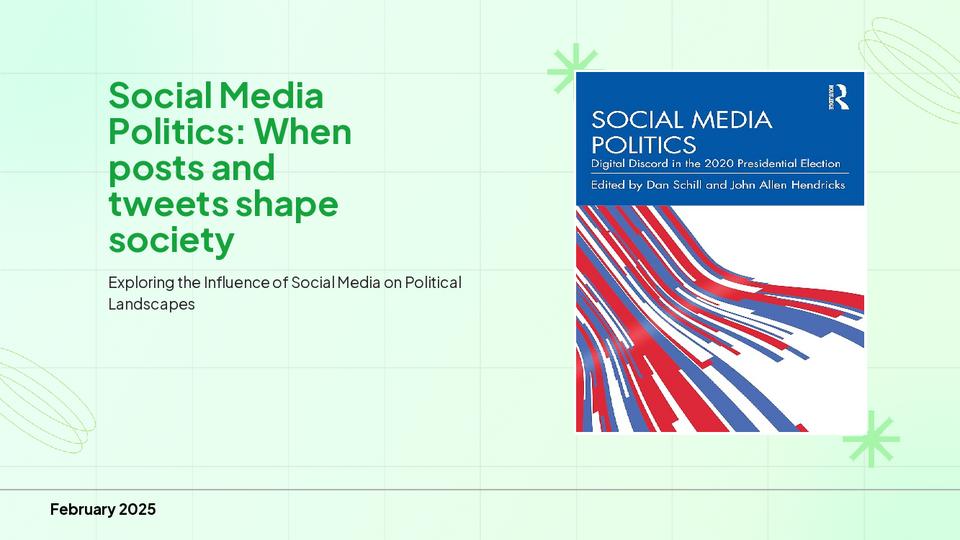
We used two JPGs of slides for this, 251.6 KB in total.
What you need
- Your images: JPG, PNG, GIF or WebP, up to 30 images at a time.
- For editable slides with Clone, a MagicSlides account. Free accounts get 1 free clone. On a paid plan, each clone uses 1 presentation credit.
Method 1: Put JPG images on slides
Step 1: Open the tool and select Without AI
Go to the image to PPT converter and click Without AI. This converts an image to PPT and leaves the file as a picture. The page shows Direct image conversion — zero AI.
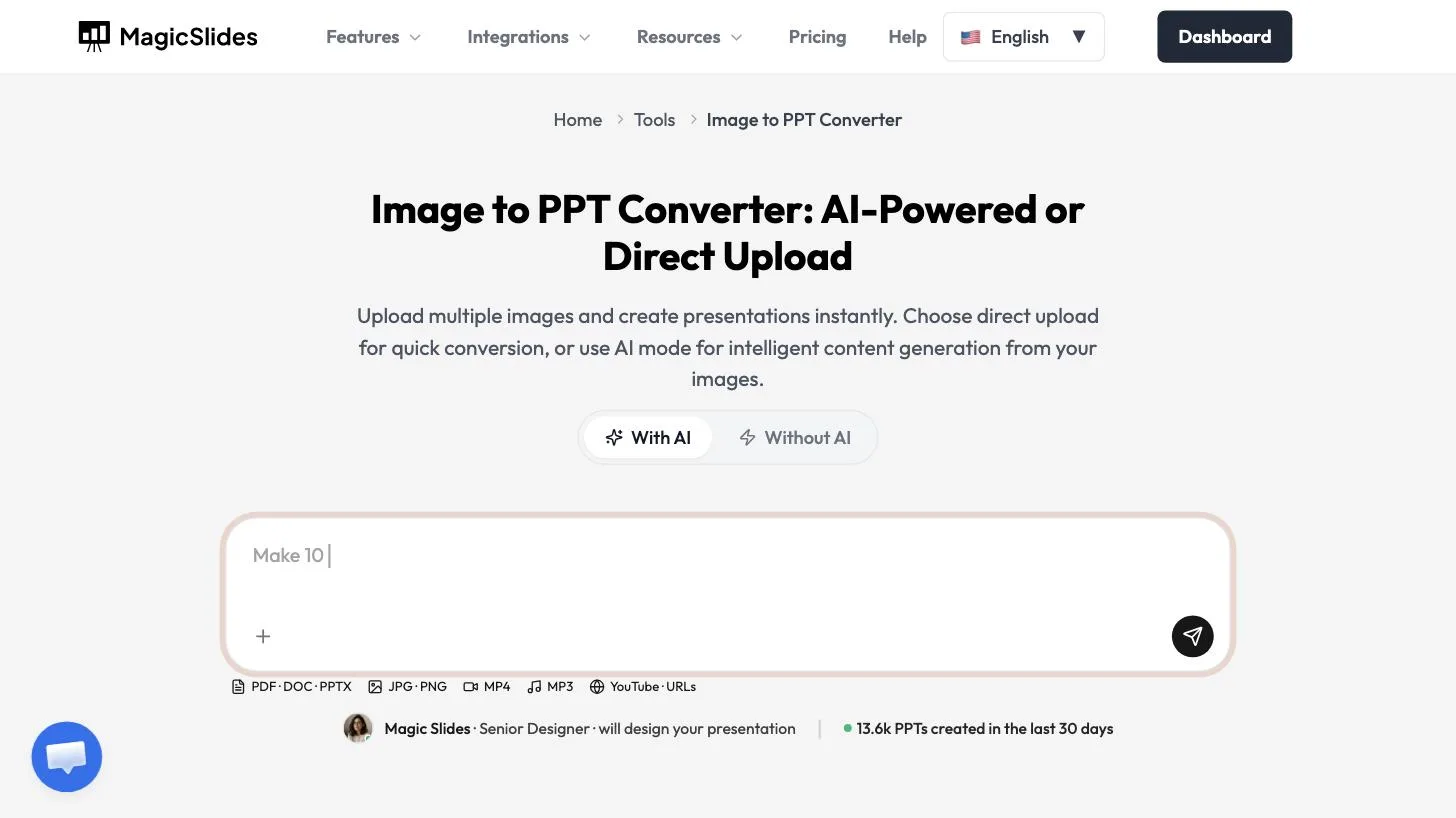
The converter has two modes. For images on slides, use Without AI.
Step 2: Add your images
Click the drop zone or drag your images onto it. It takes JPG, PNG, GIF, and WebP, up to 30 images. You can select several at once. A PNG to PPT conversion uses this same step.
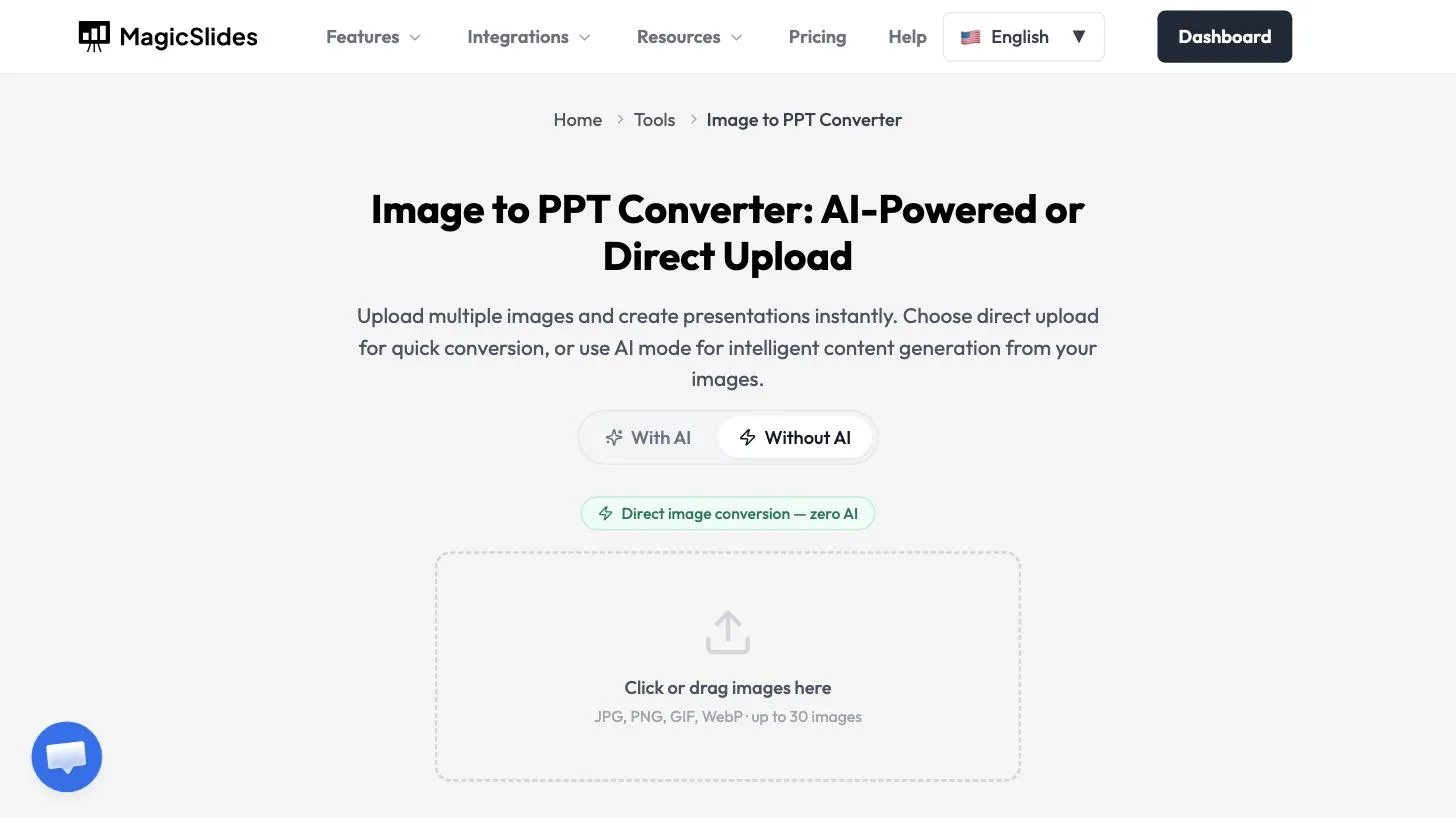
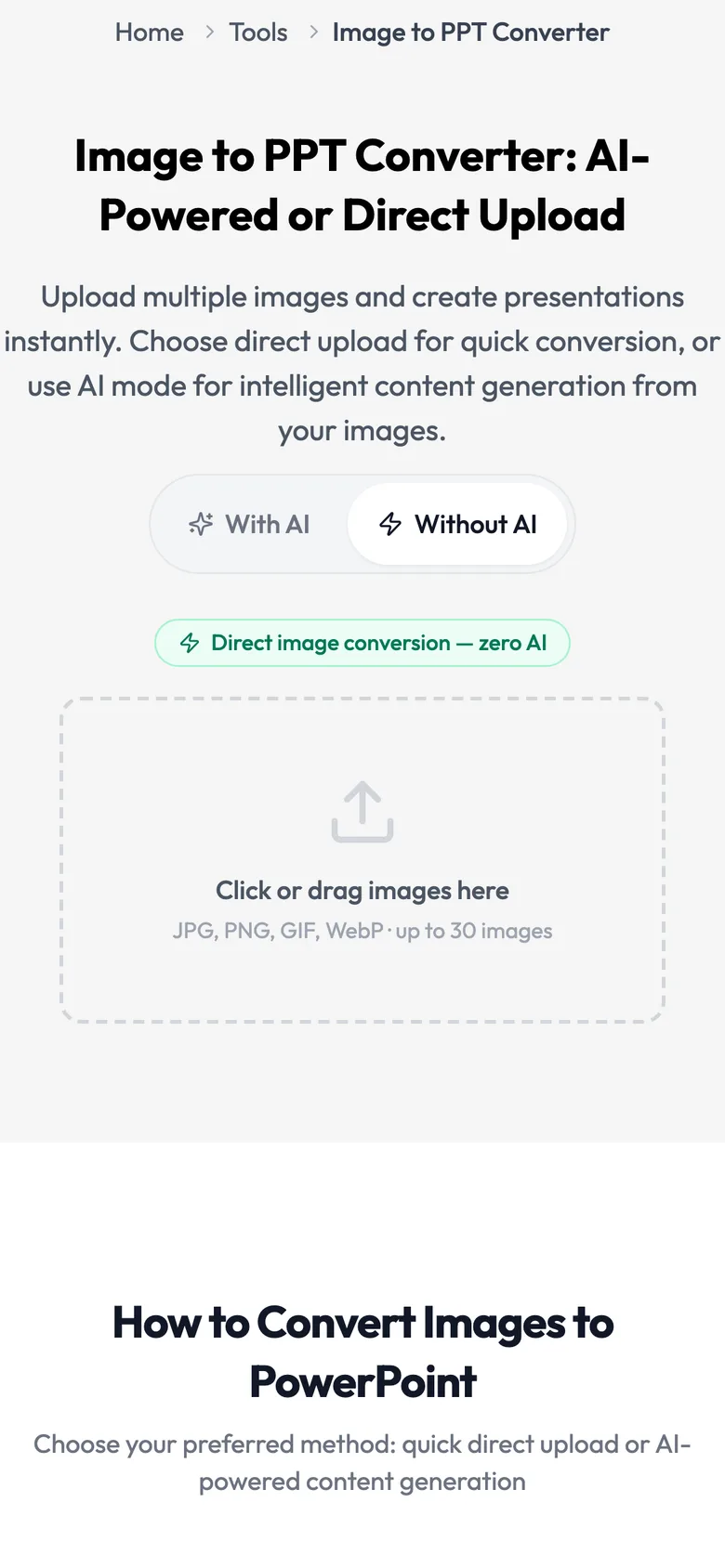
Up to 30 images in one go.
Step 3: Download the PPTX
The file is ready immediately. Ours showed 2 images selected · 251.6 KB and 2 slides ready, one image per slide. Click Download PPTX, or Convert more images to start again.
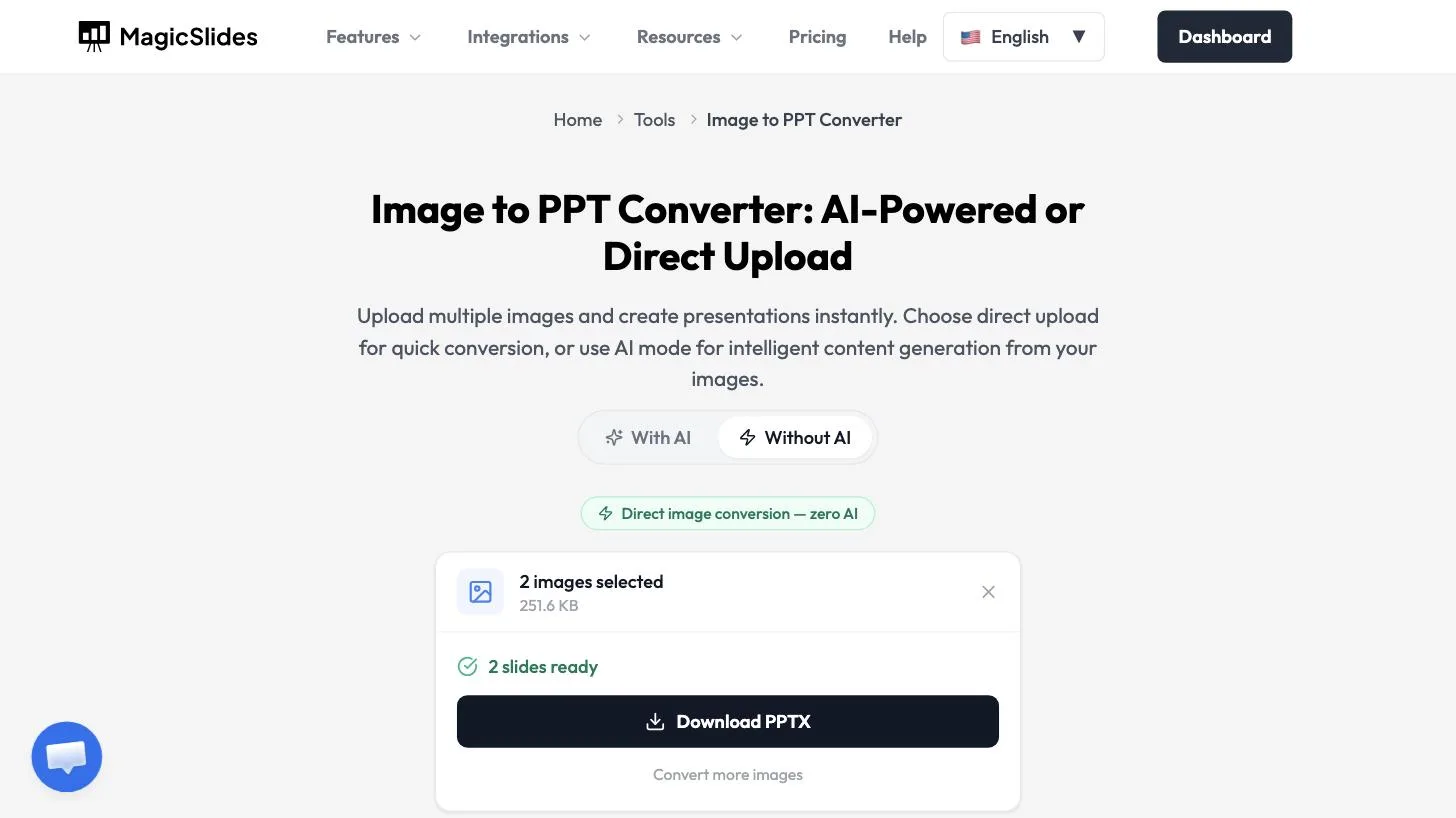
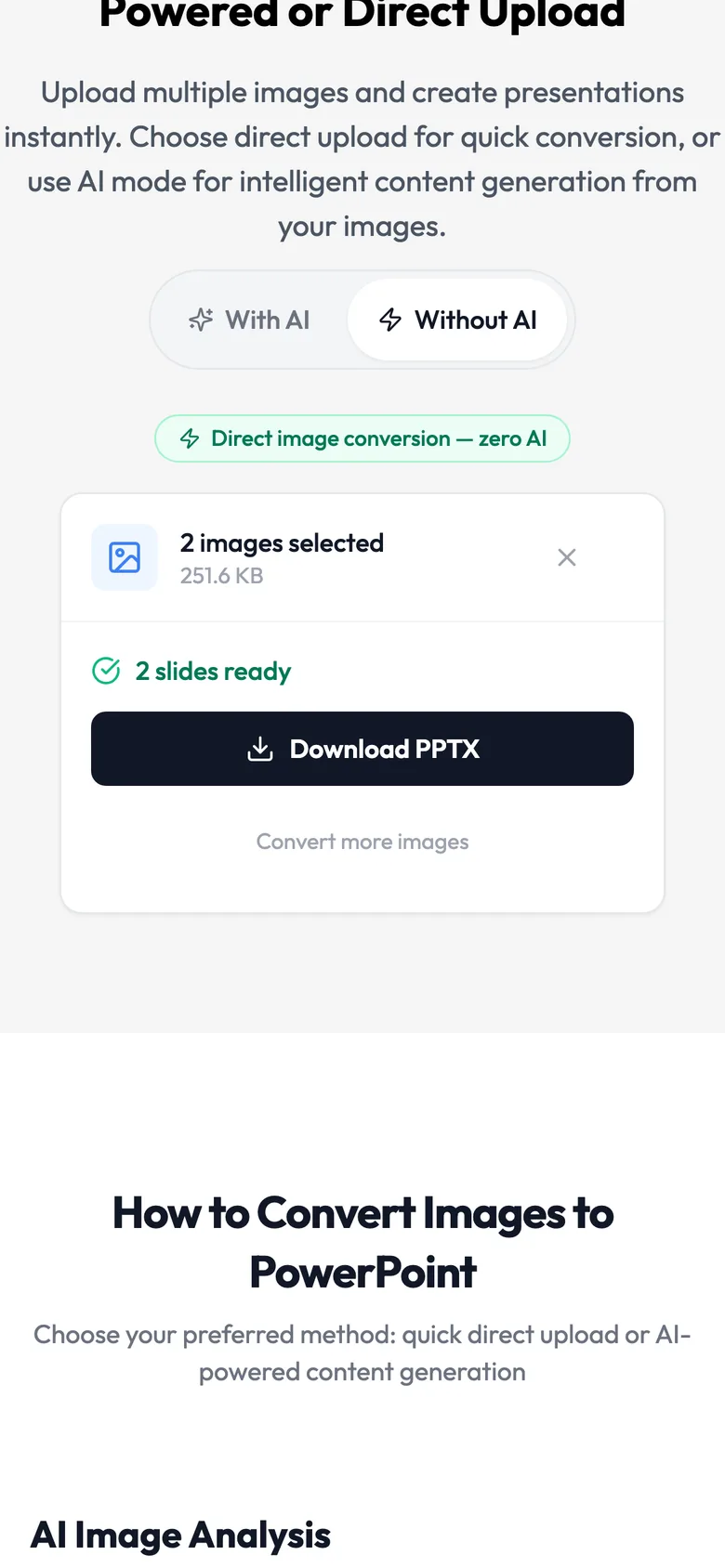
One slide per image, ready to download.
Each picture stays as it is. Text inside the image is still part of the picture, so you can't edit those words on the slide.
Method 2: Turn a JPG of a slide into an editable slide
When the JPG is a screenshot or photo of a slide and you want to change the words, colours, or layout, use MagicSlides Clone. It reads the image and rebuilds it as text boxes and shapes. Upload a PNG, JPG, or JPEG (up to 50 MB), click Clone This Slide, then Add Slide.
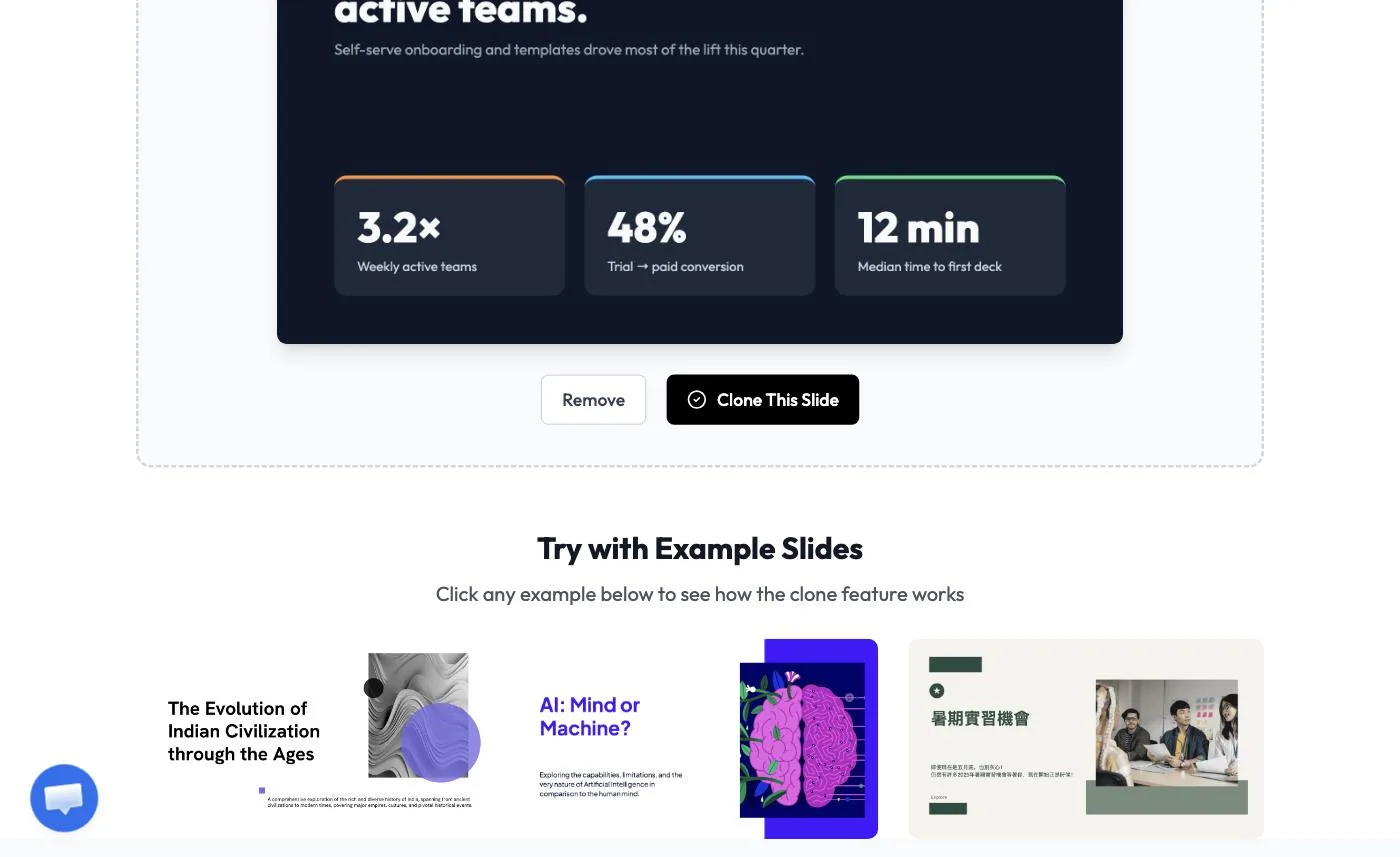 Clone reads a slide image and rebuilds it.
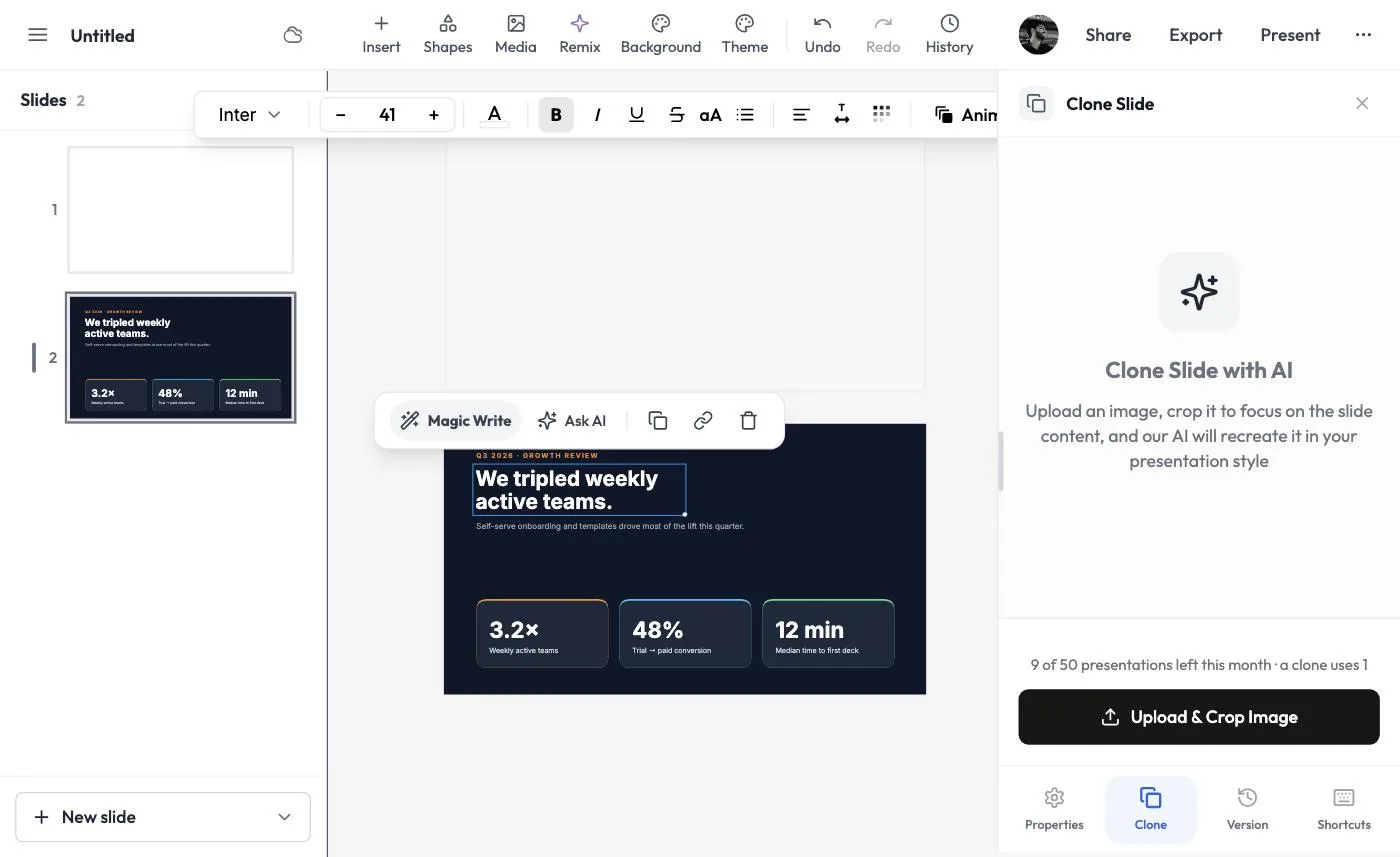 The result: the slide rebuilt as editable text and shapes.
The full walkthrough, with both ways to start a clone, is in how to clone slides.
Choose a method
| Your images are… | Use |
|---|---|
| Photos, a photo album, product shots | Method 1: images on slides |
| Scanned pages you only need to show | Method 1: images on slides |
| A slide screenshot you need to edit | Method 2: Clone |
| Many images (up to 30) at once | Method 1: images on slides |
The converter also has a With AI mode, which the page describes as intelligent content generation from your images. We didn't use it for this guide.
Tips
- Check the order after you download. Open the PPTX and drag slides into place if needed.
- Convert a batch. Up to 30 images can go in at once, which beats inserting them into PowerPoint one by one.
- Crop before you upload. Remove borders and browser bars so each slide shows only what matters.
- Edit only the slides that need new text. Use Clone on those, and keep the rest as images.
Frequently asked questions
How do I convert images to PowerPoint?
Upload your images using our tool, choose between direct upload or AI-powered mode, and download your presentation. It's that simple!
What image formats are supported?
We support PNG, JPG, JPEG, GIF, BMP, and other common image formats for conversion to PowerPoint.
How many images can I upload at once?
You can upload up to 30 images at once for batch conversion to a PowerPoint presentation.
What's the difference between direct upload and AI mode?
Direct upload places one image per slide for quick conversion. AI mode analyzes your images to extract text and data, creating comprehensive slides with generated content.
Can I reorder the slides?
Yes, you can drag and drop images to reorder them before generating the presentation.
Is the converted presentation editable?
Yes, the output is a fully editable .pptx file that works in PowerPoint and Google Slides.
Does AI mode work with handwritten content?
Yes, our AI can recognize and extract text from handwritten notes, whiteboards, and other handwritten content in images.
Is there a file size limit for images?
Each image should be under 10MB. For best results, use high-resolution images.
Is the service free?
Yes, basic conversion is free. Check our pricing page for premium features and higher limits.
Other Free PPT Tools
Clone Slides with AI
Clone any image from the internet into a fully editable .pptx file in under 2 minutes. Transform visual inspiration into customizable presentations instantly.
Topic to PPT using AI
Generate engaging presentations quickly from just a keyword. Ideal for students and educators needing fast, content-rich slides.
YouTube to PPT using AI
Turn YouTube videos into informative slide presentations. Excellent for marketers and creators looking to expand their video content's reach.
AI PitchDeck Generator
Turn Pitch Deck into informative slide presentations. Excellent for business and startup looking to present his business.
Text to PPT using AI
Generate engaging presentations quickly from just a keyword. Ideal for students and educators needing fast, content-rich slides.
URL to PPT using AI
Effortlessly convert any web page into a comprehensive presentation. Perfect for professionals and researchers presenting web-based data.

Turn images into editable slides
Upload your images and let AI build them into a clean, well-structured presentation.
1,511 reviews · Trustpilot & Workspace


