9 Meeting Minutes Templates for Every Meeting — and How to Turn Them Into Assigned Tasks


Download 9 free meeting minutes templates for board, project, staff, and client meetings. Learn how AI writes meeting notes and creates action items.
A good meeting minutes template keeps your notes organized. But notes on their own don’t move work forward. Here are nine templates you can copy today — plus a way to auto-write them and push every action item straight onto a team board with owners and due dates.
Ever finish a meeting, look back at your notes, and have no idea how to turn that wall of text into something useful? You’re not alone. Most of us are either in the conversation or busy scribbling it down — rarely both. And when the notes are messy, the follow-ups slip.
A meeting minutes template fixes the first half of that problem. It gives every meeting a predictable shape, so you capture the decisions, owners, and next steps instead of a rambling transcript. Below are nine templates for the meetings you actually run — copy any of them straight into your notes.
Then we’ll cover the part templates can’t do on their own: getting the notes written for you, and turning those action items into real, assigned tasks your team can track. That’s where Magic Talks and MagicTeams come in.
First, a few tips for taking better minutes
There’s no single “correct” format for meeting minutes. But the notes that actually get used tend to share a few habits:
- Capture the essentials up top — date, time, attendees, agenda, decisions, action items, and who owns what.
- Write plainly. Skip the jargon. Minutes are for the person who missed the meeting, not for the people who were there.
- Stick to facts, not opinions. Record what was decided, not how you felt about it.
- Summarize, don’t transcribe. Nobody re-reads a word-for-word dump. Pull out the points that change what happens next.
- Always end with owners and due dates. An action item without a name attached is a wish, not a task.
The 9 best meeting minutes templates
Each template below lists when to use it and the fields to capture. Copy the field list into your doc, or let Magic Talks fill it in automatically after the call.
1. Basic / one-on-one template
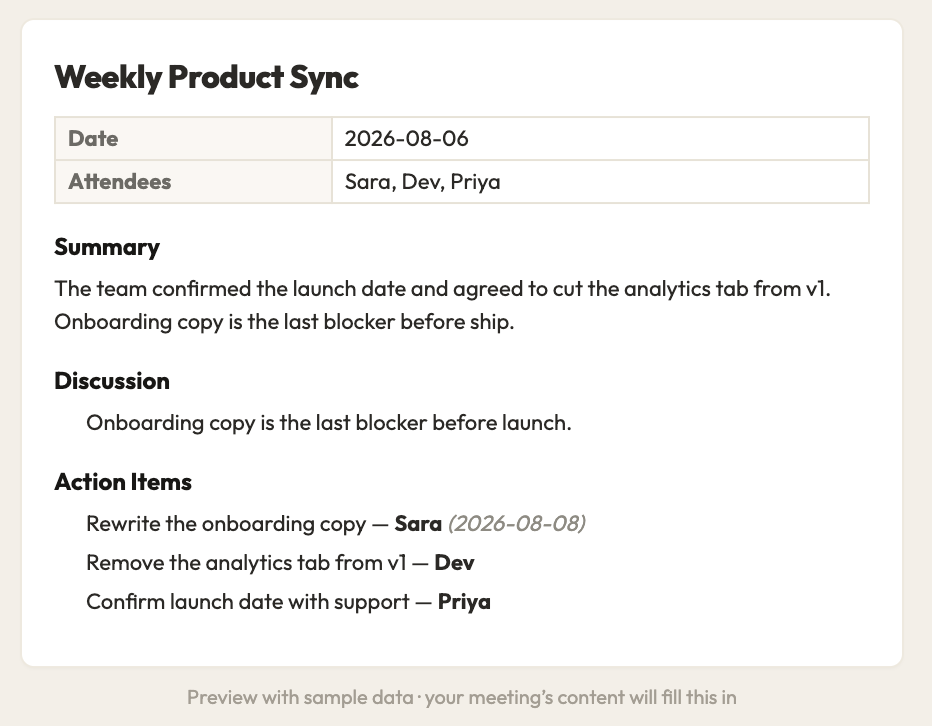
For quick check-ins, small huddles, and 1:1s that need minimal detail.
2. Project meeting template
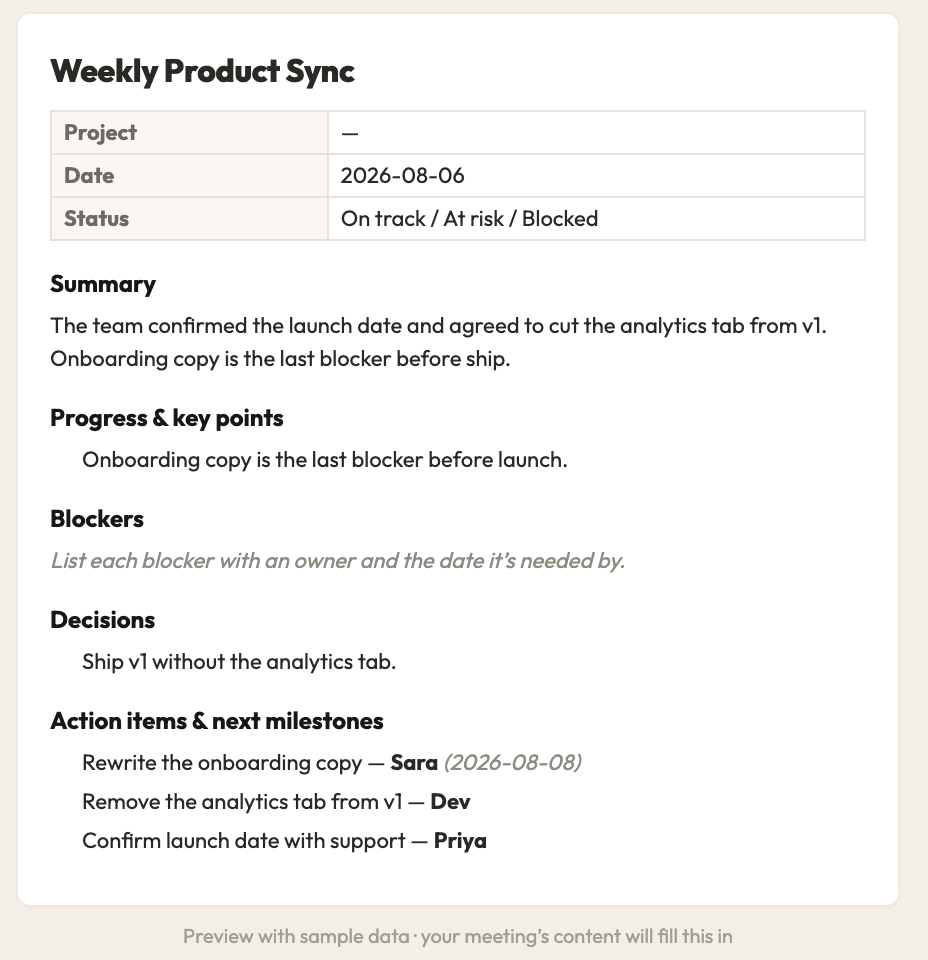
For project managers tracking updates, blockers, and milestones.
3. Board meeting template
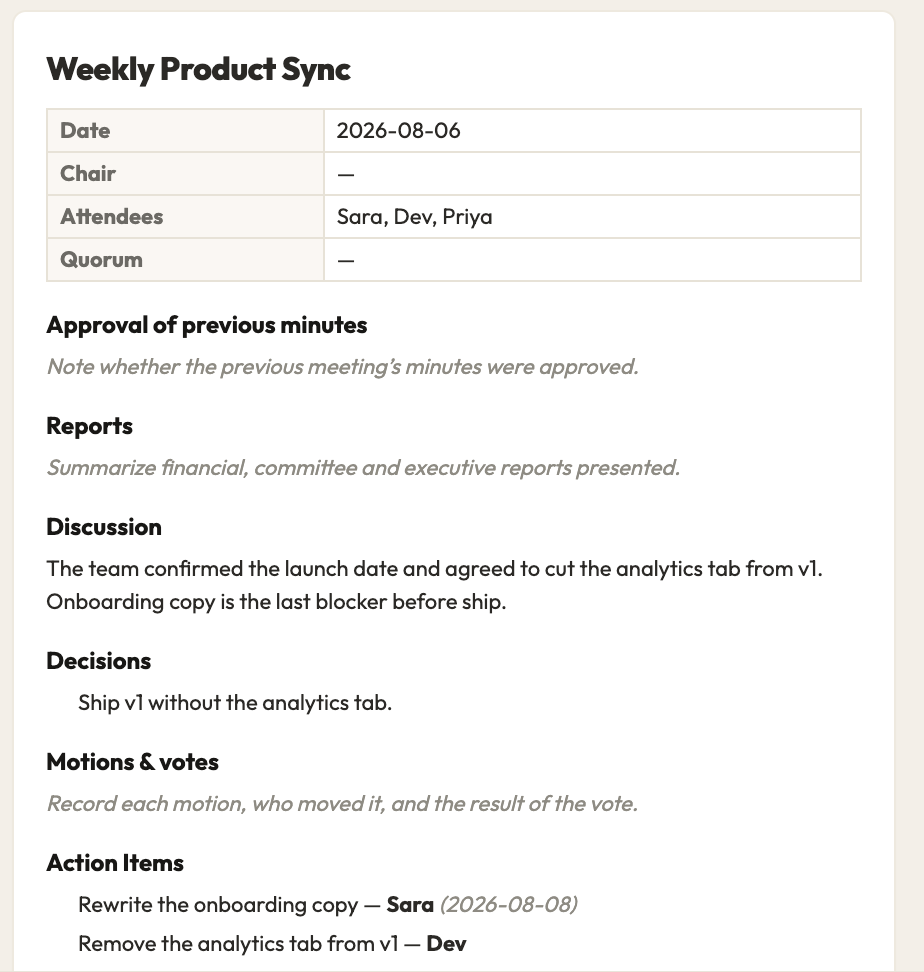
For nonprofits, corporations, and agencies where minutes are a formal record.
4. Staff meeting template
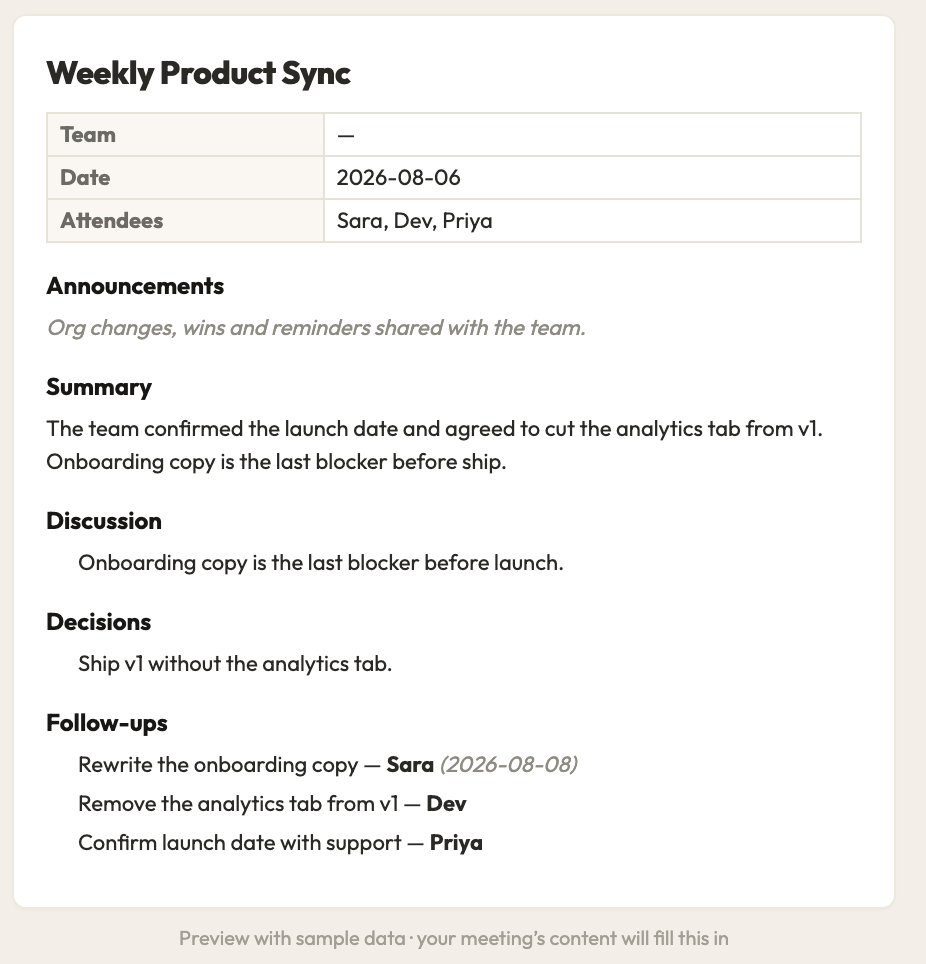
For recurring team meetings, updates, and performance check-ins.
5. Finance / admin template
For budget reviews, financial reporting, and admin planning.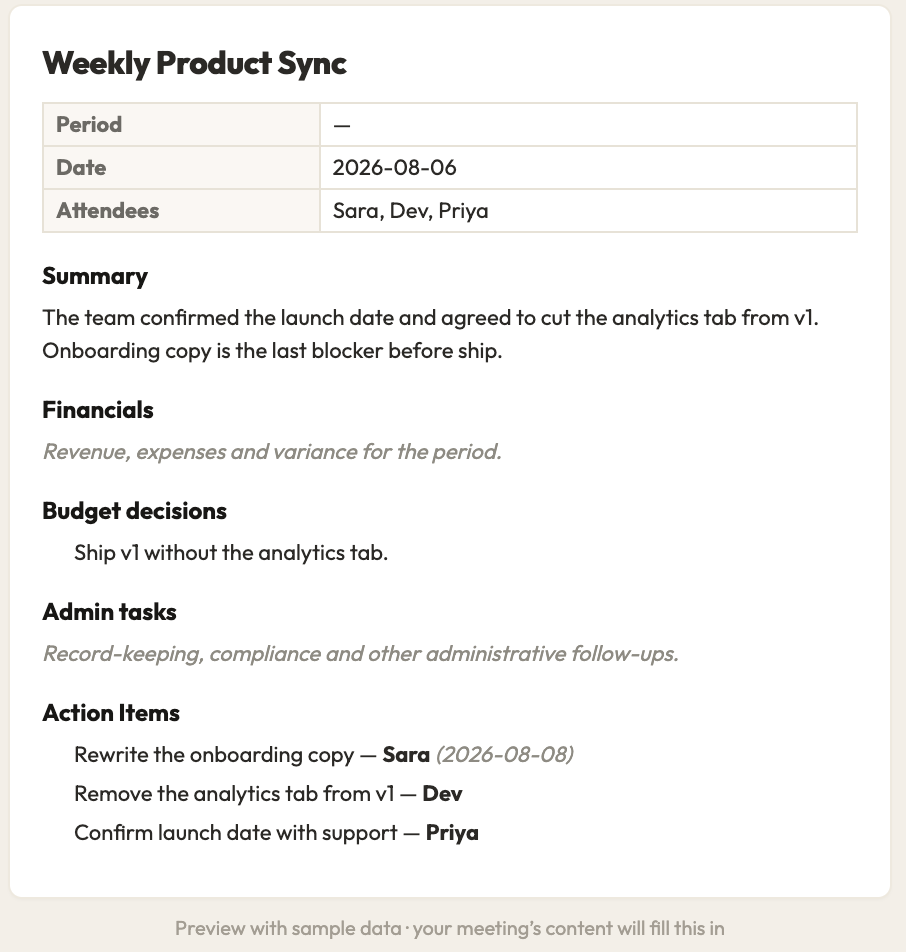
6. Roundtable template
For brainstorms and open discussions that move fast and generate lots of ideas.
Magic Talks writes the summary and extracts action items with owners and due dates — no template to fill in by hand.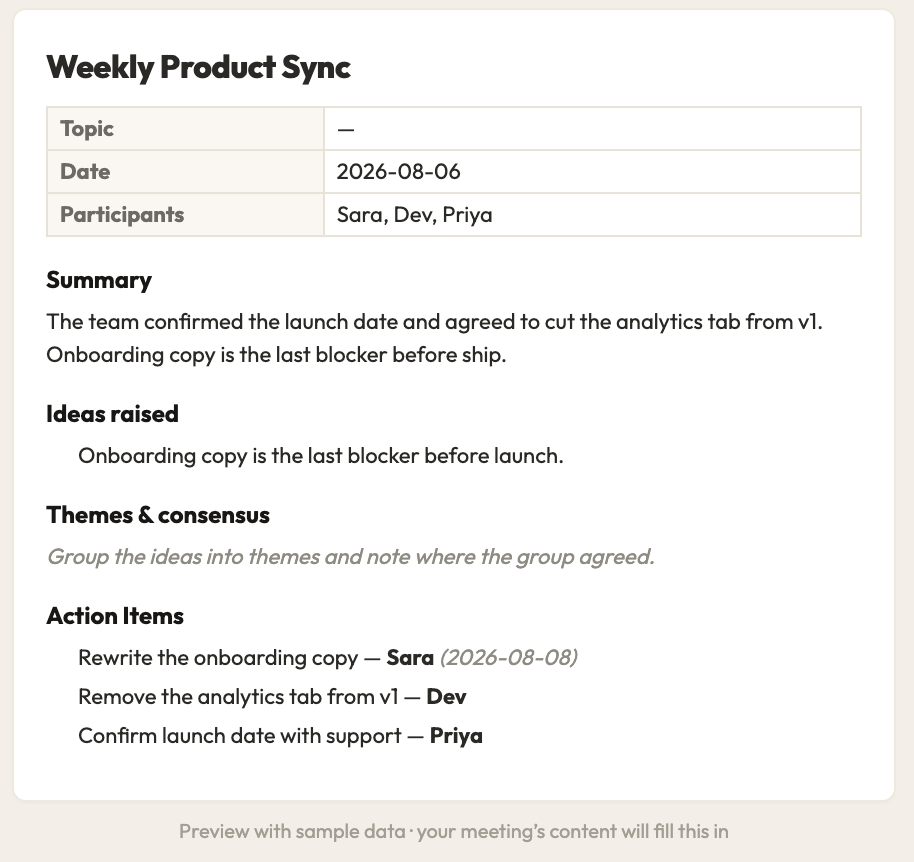
7. Annual meeting template
For yearly meetings of shareholders, members, or stakeholders.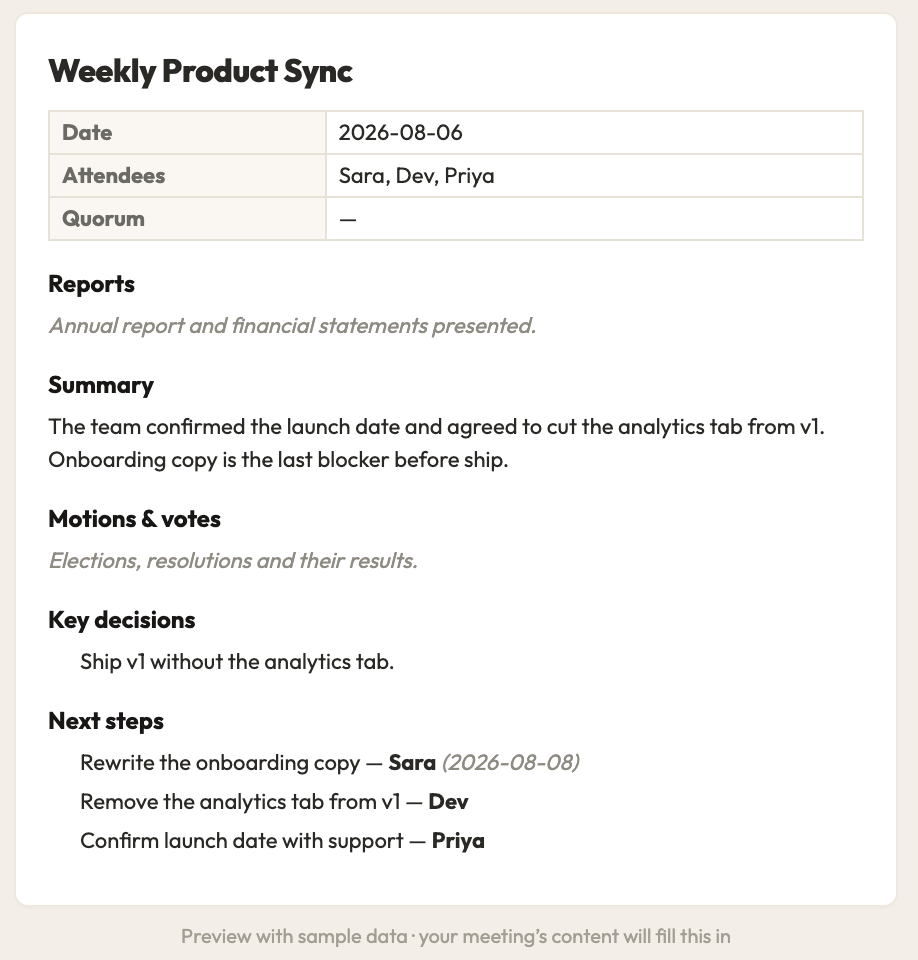
8. Kickoff / first-meeting template
For new projects or first calls with a new client.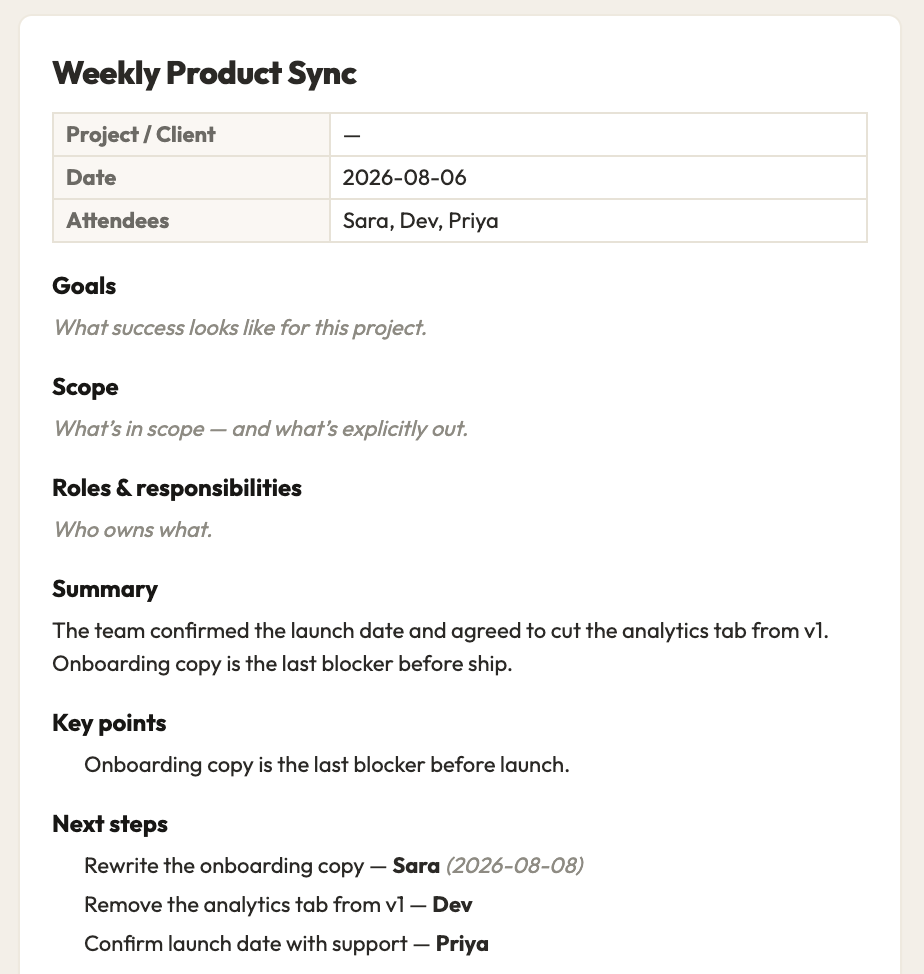
9. Partnership template
For meetings between two organizations working together.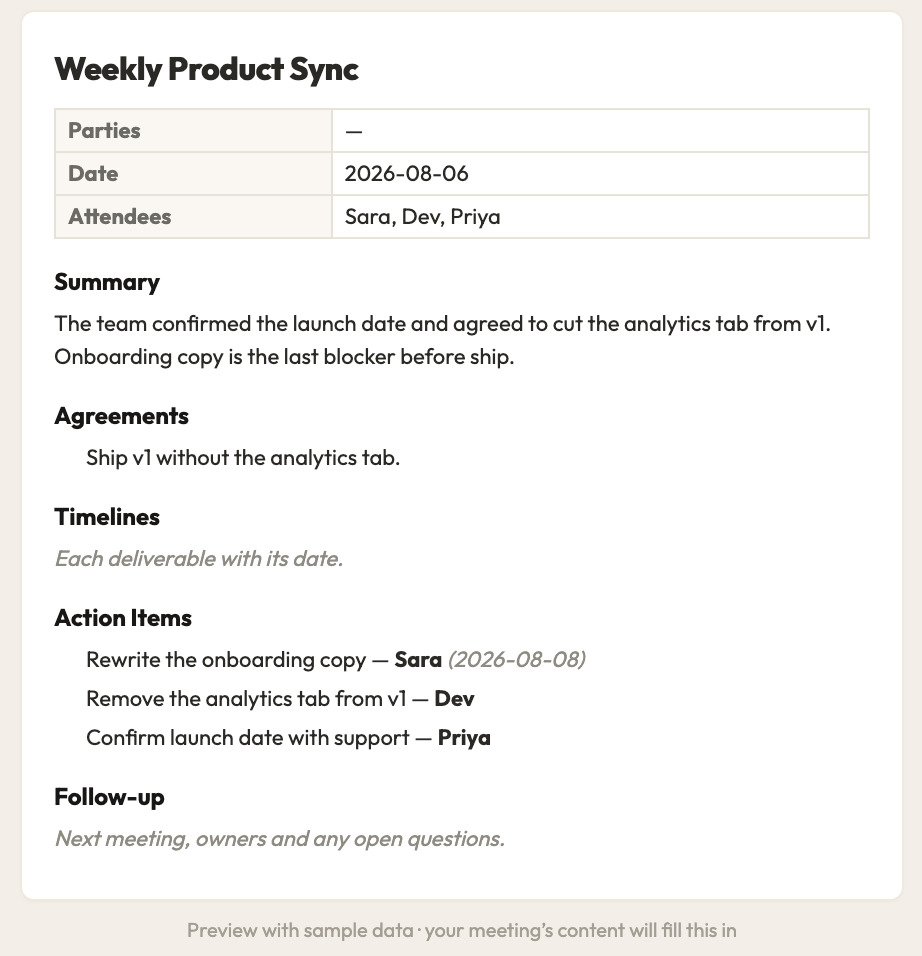
The real problem: templates organize notes, but you still have to take them
Here’s the honest limitation of any template. It gives your notes a nice shape — but someone still has to sit in the meeting, listen, and type. And research keeps finding that almost nobody genuinely multitasks well. So you end up choosing: pay attention, or write it down. Miss one, and the minutes suffer.
That’s the gap Magic Talks closes. It’s an AI notetaker that does the capturing so you can stay in the conversation:
- Auto-join or upload. Connect your calendar and a notetaker joins every scheduled call — or paste a Zoom / Meet / Teams link, or upload a recording after the fact.
- Accurate transcripts. It handles accents and crosstalk, labels speakers, and keeps the numbers right.
- Summaries you can trust. You get a clean TL;DR, the decisions, the key points, and action items — not a raw transcript you have to re-read.
- Private by default. Your audio is never used to train AI.
- One click to a deck or doc. Turn any meeting into a shareable presentation or an editable document instantly.
Where MagicSlides goes further: notes become assigned tasks
This is the part most notetakers stop short of. They hand you a tidy list of action items… and then those items die in a doc nobody reopens. Minutes become an archive, not a plan.
MagicSlides connects the meeting to the work. From any finished meeting in Magic Talks, hit “Add to MagicTeams” and every action item becomes a task card on a MagicTeams board — with almost nothing retyped:
- The action item text becomes the card title.
- The owner mentioned in the meeting becomes the assignee.
- The due date carries over — and if none was said, it’s dated for the meeting day so nothing floats without a deadline.
- Run it twice on the same meeting and it won’t create duplicates — it de-dupes automatically.
See the work as a board
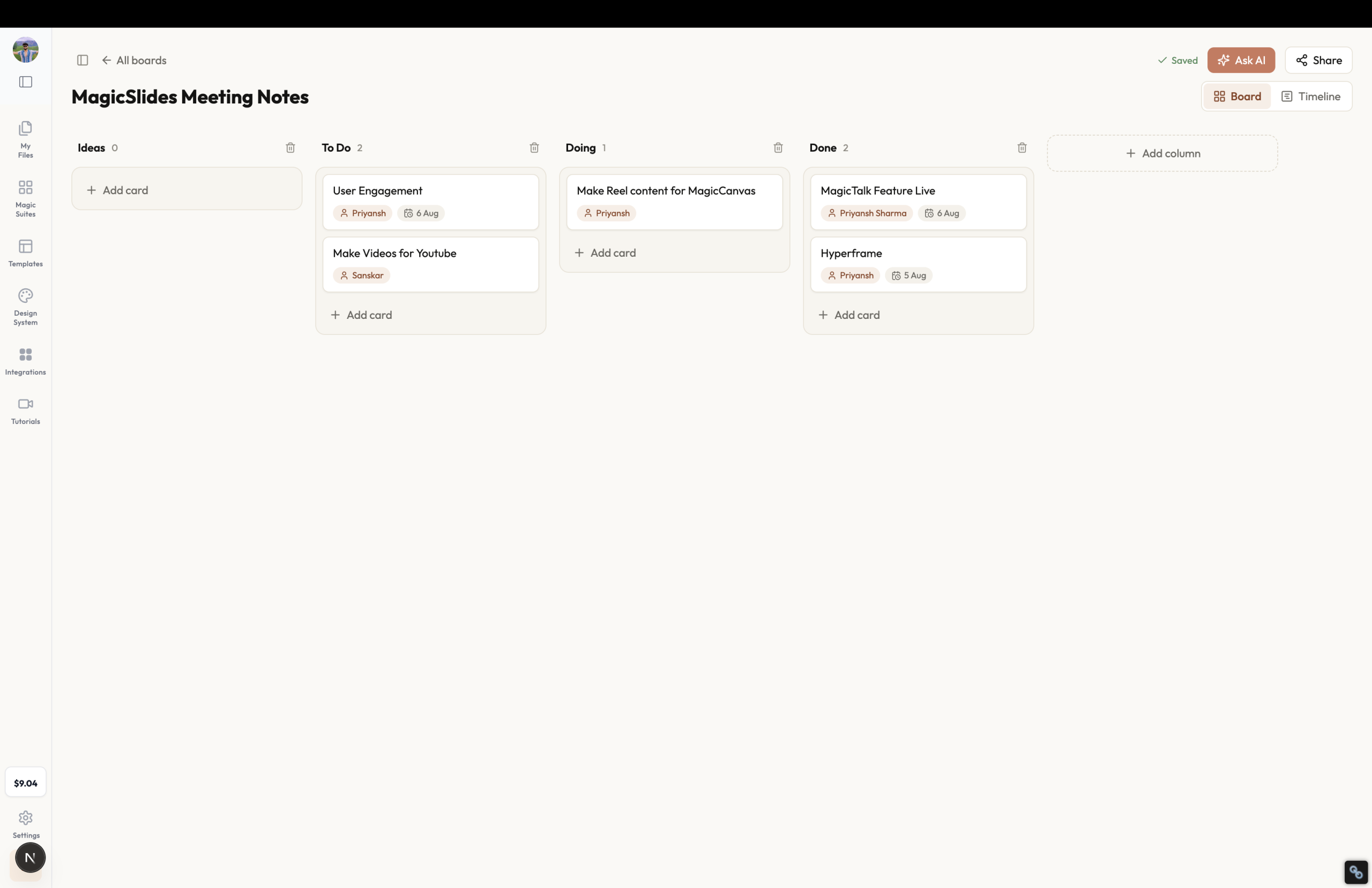
MagicTeams gives you a familiar Kanban board — Ideas, To Do, Doing, Done. Drag cards across columns as work moves. Each card holds an assignee, a due date, checklists, and comments, so the whole context of a task lives in one place.
Or see it as a timeline
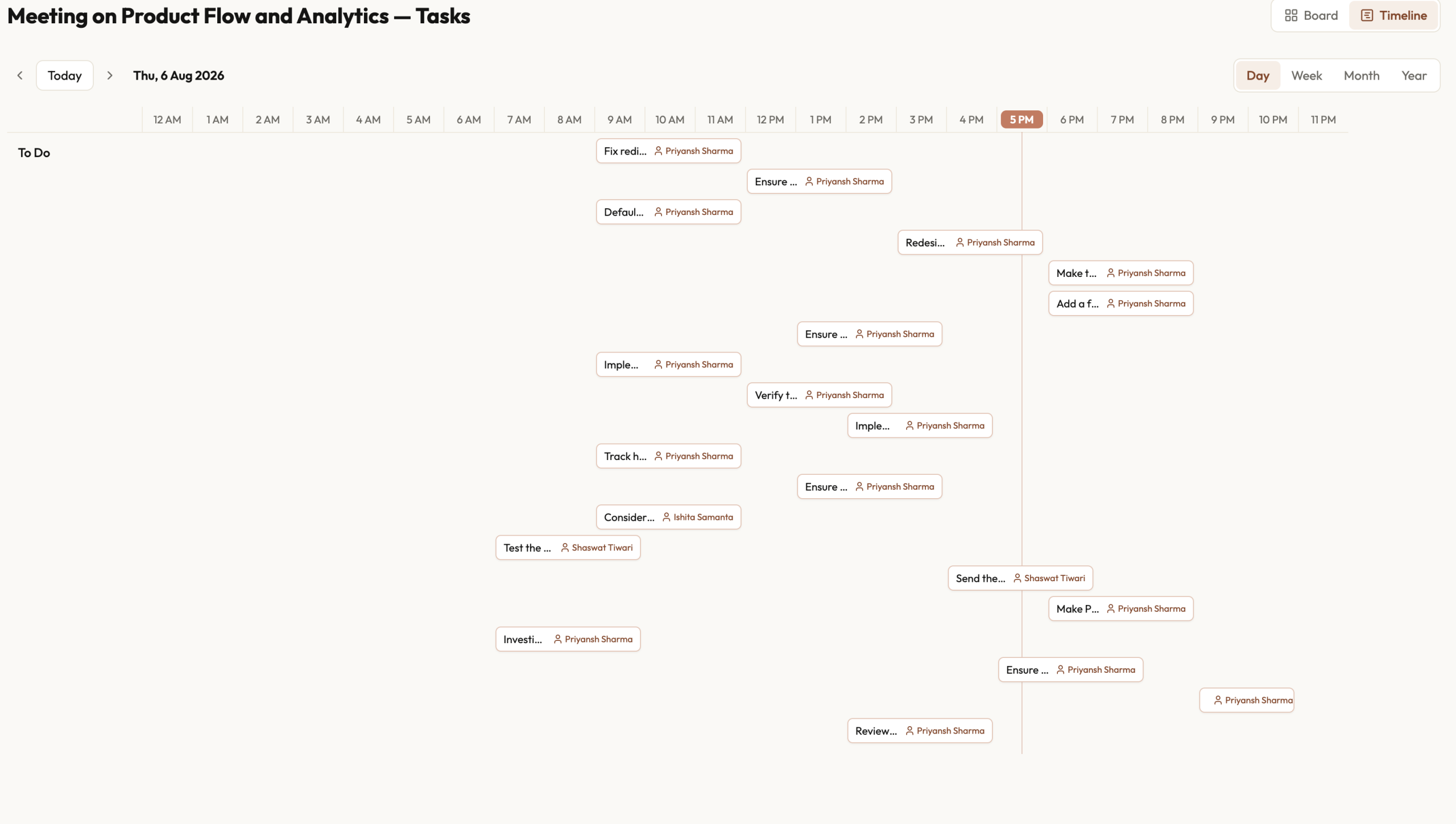
Switch to the timeline (Gantt) view to see the same tasks laid out across days, weeks, or months. Because every card carries a date, the whole plan renders as bars you can drag to reschedule — move a task or stretch its dates and it updates everywhere.
Add your team, assign the work
Share a board by email with view or edit access, so the whole team sees the same plan. Assign any card to an owner, and use the built-in “Ask AI” assistant to run the board in plain language — “add a task for Sara to send the deck, due Friday,” or “move ‘Book venue’ to Done.” The boards are free to use; only the AI assistant needs a paid plan.
Magic Talks & MagicTeams vs. a plain notetaker
Capability Plain AI notetaker MagicSlides Transcribe & summarize the call Yes Yes Extract action items Yes Yes Action items → assigned task board — One click Board and timeline views — Both Assign owners & due dates automatically — Yes Share the plan with the team Limited View / edit Turn the meeting into a deck or doc — One click Audio never used to train AI Varies Guaranteed
Frequently asked questions
What should a meeting minutes template always include?
At minimum: the date and time, attendees, the agenda, the decisions made, and the action items — each with an owner and a due date. Everything else is optional detail you add based on the meeting type (motions and votes for board meetings, financials for finance meetings, and so on).
Can I get my meeting minutes written automatically?
Yes. Magic Talks joins your Zoom, Google Meet, or Teams call (or transcribes an uploaded recording) and writes the summary, decisions, and action items for you. You can also paste a rough transcript and have it structured into clean minutes.
How do action items become tasks?
From a finished meeting, click “Add to MagicTeams.” Each action item becomes a card on a board — the text becomes the title, the mentioned owner becomes the assignee, and the due date carries over (or defaults to the meeting day). You can create a new board or append to an existing one, and it de-dupes so re-running it never doubles up tasks.
What’s the difference between the board and timeline views?
The board is a Kanban view — columns like To Do, Doing, and Done that you drag cards across. The timeline is a Gantt-style schedule that plots the same tasks by their dates across days, weeks, or months, so you can see workload and drag bars to reschedule.
Can I share a board with my team and assign tasks?
Yes. Invite people by email with view or edit access, and assign any card to an owner. There’s also an “Ask AI” assistant that edits the board from plain-language requests. Boards are free to use; the AI assistant is a paid feature.
Is my meeting audio kept private?
Yes. Magic Talks does not use your audio to train AI, and meetings are private by default — which matters for teams with data or IT policies.


